
1. Giriş
The Huawei OptiXstar K251a-21 is a sub-FTTR (Fiber to the Room) unit designed to extend the high-speed network provided by the Huawei FTTR OptiXstar F50 Plus main unit. This device supports ultra-Gigabit high-speed access via upstream fiber optic lines and delivers Ultra Gigabit dual-band Wi-Fi and ultra-Gigabit network ports to users. It integrates next-generation Wi-Fi 7 technology for higher speeds and lower latency, ensuring a superior home network experience.
2. Güvenlik Bilgileri
Please read and understand all safety instructions before using this device. Failure to follow these instructions may result in injury, damage to the device, or property damage.
- Yalnızca cihazla birlikte verilen güç adaptörünü kullanın.
- Cihazı suya, neme veya aşırı sıcaklıklara maruz bırakmayın.
- Cihazı ısı kaynaklarının yakınına veya doğrudan güneş ışığına maruz bırakmaktan kaçının.
- Aşırı ısınmayı önlemek için yeterli havalandırmayı sağlayın.
- Do not attempt to open or repair the device yourself. Contact qualified service personnel for assistance.
- Cihazı çocuklardan ve evcil hayvanlardan uzak tutunuz.
3. Paket İçeriği
Paketinizde tüm öğelerin mevcut olduğundan emin olun:
- Huawei OptiXstar K251a-21 Sub FTTR Device
- Güç kablosu
- Hızlı Başlangıç Kılavuzu (eğer dahilse)
4. Ürün Bittiview
Cihazın bileşenlerini ve göstergelerini iyice öğrenin.
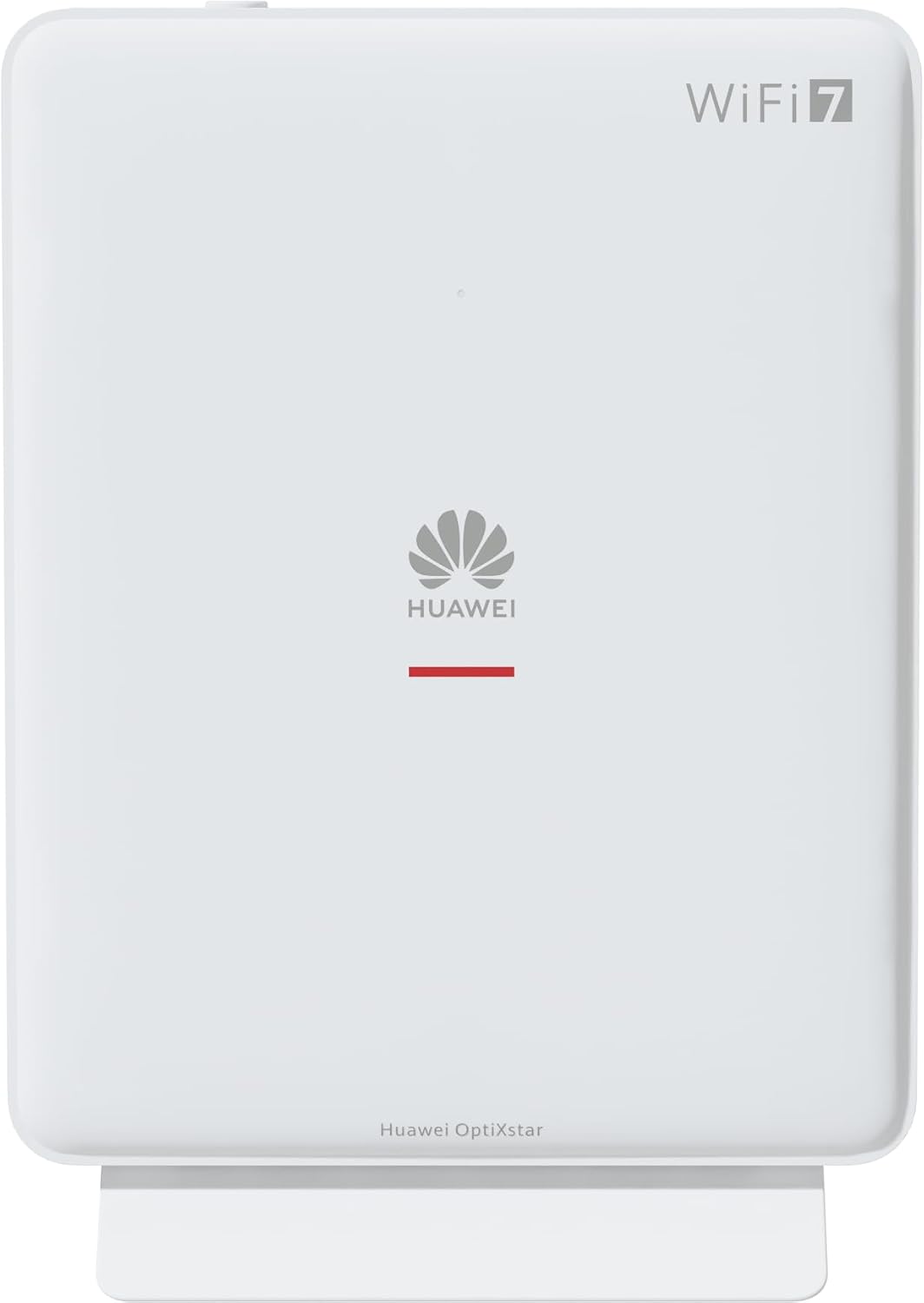
Şekil 1: Ön view of the Huawei OptiXstar K251a-21 Sub FTTR device, showing the Huawei logo and "WiFi 7" branding.

Şekil 2: Açısal ön taraf view of the Huawei OptiXstar K251a-21 Sub FTTR, highlighting its sleek design and ventilation.

Şekil 3: Arka view of the Huawei OptiXstar K251a-21 Sub FTTR, displaying the ports (Reset, 2-GE, 1-2.5GE, Power, FTTR) and mounting options.

Şekil 4: Yan profile of the Huawei OptiXstar K251a-21 Sub FTTR, showing its slim form factor and ventilation grilles.

Şekil 5: Açısal arka view of the Huawei OptiXstar K251a-21 Sub FTTR, providing a clear look at the port labels and layout.

Şekil 6: Üst view of the Huawei OptiXstar K251a-21 Sub FTTR, featuring the WPS/LED button.
Bağlantı Noktaları ve Düğmeler:
- FTTR Port: Connects to the main FTTR unit via a fiber optic cable.
- 1-2.5GE Port: Gigabit Ethernet port for high-speed wired connections.
- 2-GE Port: Gigabit Ethernet port for wired connections.
- Güç girişi: Güç adaptörüne bağlanır.
- Sıfırlama Düğmesi: Used to restore factory settings (press and hold for 5-10 seconds).
- WPS/LED Button: Initiates Wi-Fi Protected Setup (WPS) for easy device connection and controls LED indicators.
5. Kurulum
Follow these steps to set up your Huawei OptiXstar K251a-21 Sub FTTR device:
- Atama: Choose a central location in your home for optimal Wi-Fi coverage. The device is suitable for various installation scenarios, including vertical placement on a desk, wall-mounting, plugging into a power strip, or mounting in an 86mm junction box with a bracket.
- Fiber optik kabloyu bağlayın: Connect one end of the fiber optic cable to the FTTR port on the Sub FTTR unit and the other end to the corresponding FTTR port on your Huawei FTTR OptiXstar F50 Plus main unit or wall outlet. Ensure the connection is secure.
- Gücü bağlayın: Plug the power adapter into the Power port on the Sub FTTR unit, then plug the other end into a power outlet.
- Güç Açık: The device will automatically power on. Wait for the indicator lights to stabilize, typically indicating a successful connection to the main FTTR unit and active Wi-Fi.
- Wired Connections (Optional): For wired devices, connect an Ethernet cable from the 1-2.5GE or 2-GE ports on the Sub FTTR to your computer, gaming console, or other network devices.
6. Çalıştırma
Once set up, your OptiXstar K251a-21 provides seamless Wi-Fi 7 connectivity.
- Wi-Fi Bağlantısı: Arama the Wi-Fi network name (SSID) broadcast by your FTTR system on your devices (smartphones, laptops, etc.). Enter the Wi-Fi password. The system's unique SRCN (Seamless Roaming Coordinate Network) technology ensures seamless roaming throughout your home.
- C-WAN Architecture: The C-WAN architecture centrally controls and coordinates network-wide Wi-Fi resources via the Main FTTR, providing an ultra-Gigabit high-speed experience.
- IoT Casing: The device features an IoT casing designed to protect home network security and privacy.
- WPS Fonksiyonu: Press the WPS/LED button briefly to use Wi-Fi Protected Setup (WPS) for quick connection of compatible devices without entering the password.
- LED Göstergeleri: The LED indicators provide status information. Refer to the main FTTR unit's manual or the device's specific documentation for detailed LED status meanings.
7. Bakım
Regular maintenance helps ensure optimal performance and longevity of your device.
- Temizlik: Cihazı yumuşak, kuru bir bezle nazikçe silin. Sıvı temizleyiciler veya aşındırıcı malzemeler kullanmayın.
- Donanım Yazılımı Güncellemeleri: Huawei periodically releases firmware updates to improve performance and security. These updates are typically managed through the main FTTR unit or a dedicated mobile application. Ensure your system is always running the latest firmware.
- Havalandırma: Aşırı ısınmayı önlemek için havalandırma açıklıklarının engellenmediğinden emin olun.
- Kablo yönetimi: Keep fiber optic and power cables neatly organized and free from kinks or excessive bending.
8. Sorun Giderme
Sorunlarla karşılaşırsanız aşağıdaki sorun giderme adımlarını deneyin:
- Güç Yok: Check if the power cable is securely connected to both the device and the power outlet. Try a different outlet.
- İnternet bağlantısı yok:
- Verify that the fiber optic cable is correctly connected to the FTTR port.
- Check the status indicators on both the Sub FTTR and the main FTTR unit.
- Restart both the Sub FTTR and the main FTTR unit by unplugging them from power for 30 seconds and then plugging them back in.
- Ensure your main FTTR unit has an active internet connection.
- Yavaş Wi-Fi Hızı:
- Ensure the device is placed optimally, away from obstructions and interference sources.
- Check if too many devices are connected to the network.
- Update the firmware of your FTTR system.
- Consider using a wired connection for bandwidth-intensive tasks.
- Wi-Fi'ye Bağlanılamıyor:
- Lütfen doğru Wi-Fi şifresini girdiğinizden emin olun.
- Try using the WPS button to connect.
- Restart your device and the Sub FTTR unit.
- Fabrika ayarları: If issues persist, you may need to perform a factory reset. With the device powered on, use a pointed object (like a paperclip) to press and hold the Reset button for 5-10 seconds until the indicators change. Note that this will erase all custom settings.
9. Özellikler
| Özellik | Şartname |
|---|---|
| Marka | HUAWEI |
| Model Numarası | K8M251a-21G02 |
| Ebatlar (Paket) | 24.5x23.7x7.4 cm |
| Ağırlık (Paket) | 300 gram |
| Özel Özellik | İnternet Güvenliği |
| Frekans Bant Sınıfı | Çift Bant |
| Kablosuz İletişim Standardı | 802.11ax (Wi-Fi 7 Generation) |
| Uyumlu Cihazlar | Kişisel Bilgisayar |
| Önerilen Kullanımlar | Ev |
| Dahil Bileşenler | Güç kablosu |
| Bağlantı Teknolojisi | Ethernet, FTTR, Wi-Fi, Fiberglass |
| Renk | Beyaz |
| Port Sayısı | 4 (FTTR, 1-2.5GE, 2-GE, Power) |
| Veri Aktarım Hızı | Saniyede 1 gigabit |
| Akıllı Ev Uyumluluğu | Compatible with smart home systems |
| İnternet Bağlantısı | Evet |
| Bağlantı Protokolü | Wifi |
10. Garanti ve Destek
Garanti bilgileri ve teknik destek için lütfen resmi Huawei web sitesine başvurun. website or contact your local Huawei customer service. Keep your purchase receipt for warranty claims.
Çevrimiçi Kaynaklar: Visit the official Huawei support webSıkça sorulan sorular, güncellenmiş kılavuzlar ve yazılım indirmeleri için site.
Müşteri Hizmetleri: Contact details for customer support can typically be found on the Huawei website or in the documentation provided with your main FTTR unit.