
1. Giriş
Thank you for choosing the CUORY 24-inch Full HD 100Hz LED Monitor. This manual provides essential information for setting up, operating, maintaining, and troubleshooting your new monitor. Designed for both work and entertainment, this monitor offers a Full HD (1920x1080p) resolution and a 100Hz refresh rate for smooth visuals. Its ultra-slim design and versatile connectivity options (HDMI, VGA) make it a suitable choice for various setups.
2. Güvenlik Bilgileri
- Monitörü kullanmadan önce tüm talimatları dikkatlice okuyun.
- Yangın veya elektrik çarpmasını önlemek için monitörü yağmur veya neme maruz bırakmayın.
- Monitörü açmayınasing. İçerisinde kullanıcı tarafından bakımı yapılabilecek parça bulunmamaktadır. Tüm bakımlar için yetkili personele başvurun.
- Düşmesini önlemek için monitörü sabit ve düz bir yüzeye yerleştirin.
- Monitörün etrafında yeterli havalandırma olduğundan emin olun. Havalandırma açıklıklarını kapatmayın.
- Yalnızca monitörle birlikte verilen güç adaptörünü kullanın.
- Şimşekli fırtınalar sırasında veya uzun süre kullanılmadığında monitörü elektrik prizinden çıkarın.
3. Paket İçeriği
Lütfen aşağıdaki öğelerin kutucuğunu işaretleyin:
- CUORY 24-inch Full HD 100Hz LED Monitor
- Monitör Standı (Taban ve Boyun)
- Güç Adaptörü
- HDMI Kablosu
- Kullanım Kılavuzu (bu belge)
4. Montaj ve Kurulum
4.1 Standın Takılması
- Monitörü ambalajından dikkatlice çıkarın ve çizilmeyi önlemek için yumuşak, temiz bir yüzeye yüzü aşağı bakacak şekilde yerleştirin.
- Standın boyun kısmını monitörün arkasına takın. Yerine güvenli bir şekilde oturduğundan veya varsa vidalarla sabitlendiğinden emin olun.
- Stand tabanını, birlikte verilen kelebek vida veya vidalarla sabitleyerek boyun kısmına takın.

Resim: Arka view of the monitor, illustrating the stand attachment area.
4.2 Bağlantı Kabloları
Gerekli kabloları monitörünüzün ve bilgisayarınızın arkasındaki ilgili portlara bağlayın.
- Güç kablosu: Güç adaptörünü monitörün güç girişine bağlayın, ardından adaptörü bir elektrik prizine takın.
- HDMI kablosu: Connect one end of the HDMI cable to the monitor's HDMI port and the other end to the HDMI port on your computer.
- VGA Kablosu: Alternatively, connect one end of the VGA cable to the monitor's VGA port and the other end to the VGA port on your computer.

Resim: Ayrıntılı view of the monitor's connectivity ports (HDMI, VGA, Power).
4.3 İlk Güç Açma
After connecting all cables, press the power button on the monitor to turn it on. The monitor should automatically detect the input signal. If not, you may need to manually select the input source using the OSD menu.
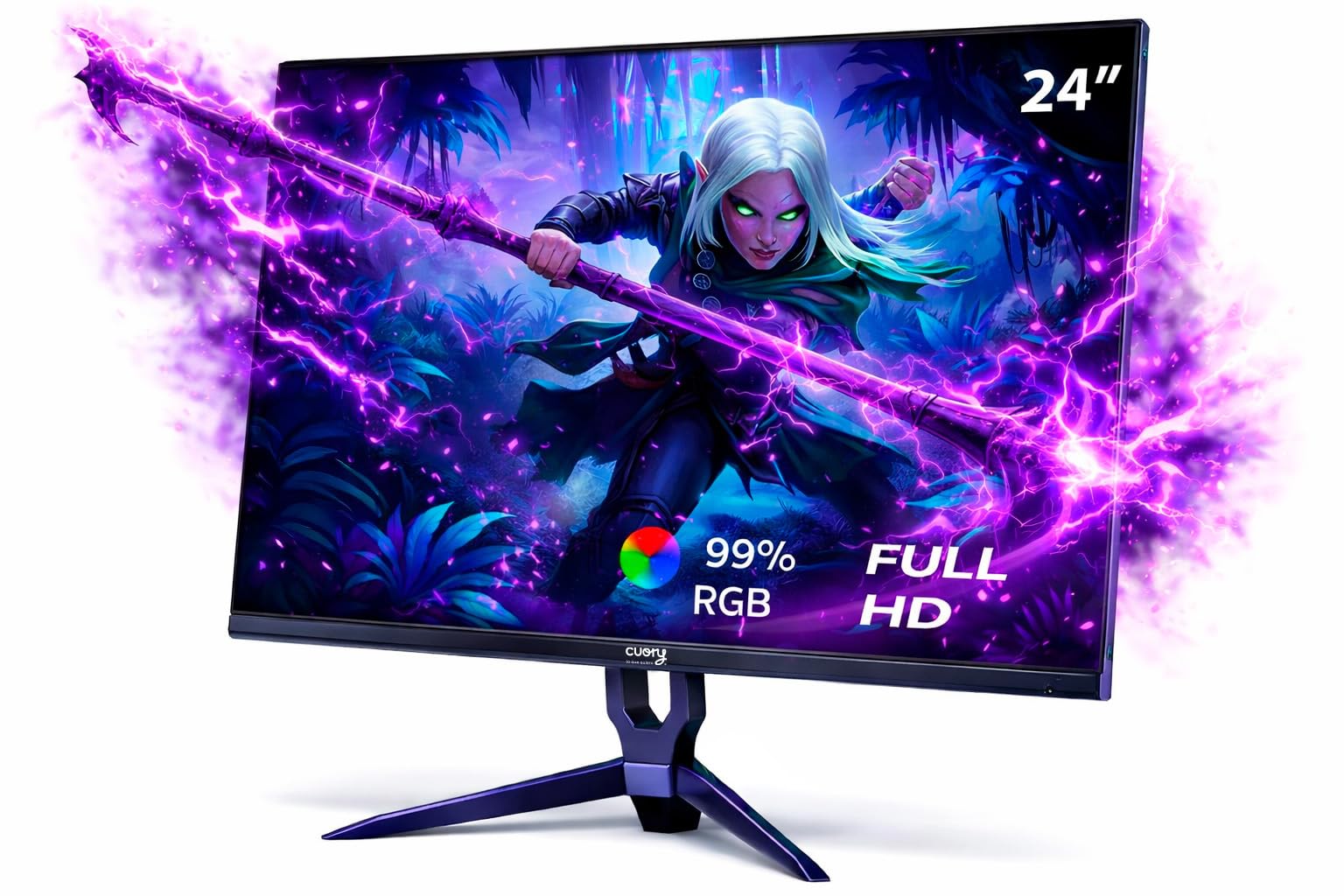
Image: The CUORY 24-inch monitor fully assembled and powered on.
5. Monitörü Çalıştırma
5.1 Güç Açma/Kapatma
The power button is typically located on the back or bottom edge of the monitor. Press it to turn the monitor on or off.
5.2 OSD (On-Screen Display) Menu Navigation
The monitor features control buttons, usually on the back, to access and navigate the OSD menu. These buttons allow you to adjust various display settings.
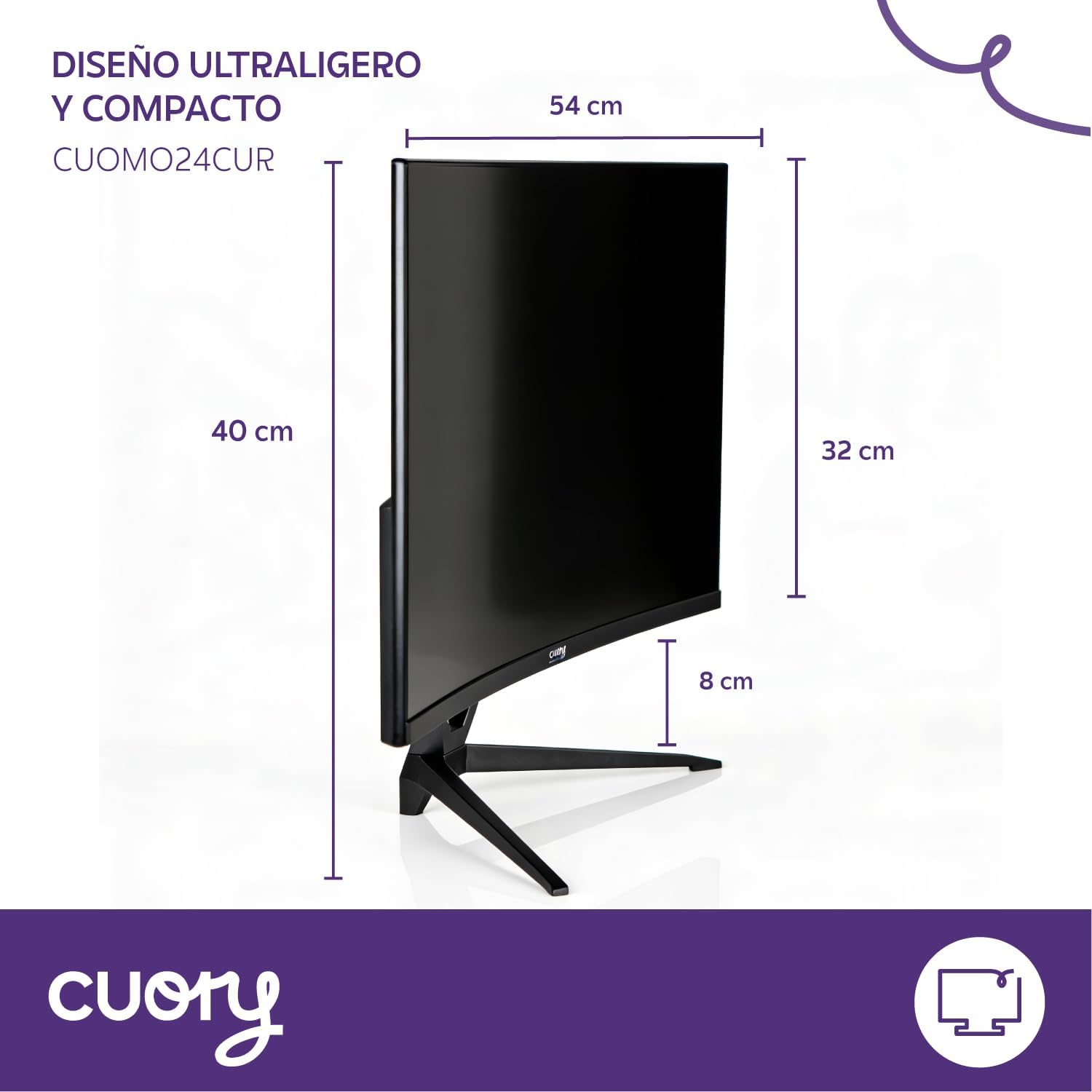
Image: Location of the OSD control buttons on the back of the monitor.
5.3 Giriş Kaynağı Seçimi
Use the OSD menu to select the desired input source (HDMI or VGA) if the monitor does not automatically detect it.
5.4 Ekran Ayarlarını Düzenleme
OSD menüsü içerisinde şu gibi ayarları yapabilirsiniz:
- Parlaklık/Kontrast: Genel parlaklığı ve açık ile koyu alanlar arasındaki farkı ayarlayın.
- Renk ayarları: Renk sıcaklığını, tonunu ve doygunluğunu değiştirin.
- Resim Modu: Select preset modes for different content types (e.g., Standard, Game, Movie).
- En Boy Oranı: Choose between 16:9 or other available aspect ratios.
6. Bakım
6.1 Ekranı Temizleme
Ekranı temizlemek için yumuşak, tiftiksiz bir bezle hafifçe silin. İnatçı lekeler için hafifçe silin.ampBezi su veya özel bir ekran temizleyici ile temizleyin. Sıvıyı asla doğrudan ekrana püskürtmeyin.
6.2 Vücudun Temizlenmesi
Monitörün c ekranını silin.asing with a soft, dry cloth. Avoid using abrasive cleaners or solvents that could damage the finish.
6.3 Genel Bakım
- Monitörün veya kablolarının üzerine ağır cisimler koymaktan kaçının.
- Monitörü doğrudan güneş ışığından, ısı kaynaklarından ve aşırı tozdan uzak tutun.
- Aşırı ısınmayı önlemek için monitörün etrafında yeterli hava akışı olduğundan emin olun.
7. Sorun Giderme
Monitörünüzde sorun yaşıyorsanız lütfen aşağıdaki yaygın sorunlara ve çözümlere bakın:
| Sorun | Olası Çözüm |
|---|---|
| No image on screen / Power LED off |
|
| No signal / 'No Input' message |
|
| Görüntü bulanık veya bozuk |
|
| Refresh rate is not 100Hz (e.g., 75Hz) |
|
| Monitor stand feels unstable |
|
8. Özellikler
| Özellik | Şartname |
|---|---|
| Marka | CUORY |
| Model Adı | CUOMOLED |
| Ekran Boyutu | 24 inç |
| Çözünürlük | Tam HD (1920 x 1080p) |
| Yenileme Hızı | 100 Hz |
| Panel Tipi | NEDEN OLMUŞ |
| En Boy Oranı | 16:9 |
| Tepki Süresi | 5 Milisaniye |
| Bağlantı | 1xHDMI, 1xVGA |
| Renk | Siyah |
| Boyutlar (D x G x Y) | 1 x 60.5 x 37 centimeters (approximate, without stand) |
Note: While the product is listed as 24 inches, some specifications in the source data indicate 27 inches. This manual refers to the 24-inch model (B0GFP31C93).
9. Garanti ve Destek
9.1 Ürün Garantisi
This CUORY monitor comes with a 30-day product warranty from the date of purchase. This warranty covers manufacturing defects. Please retain your proof of purchase for warranty claims.
9.2 İade Politikası
You may be eligible for a return or replacement within 30 days of purchase, subject to the retailer's return policy.
9.3 Müşteri Desteği
For further assistance, technical support, or warranty inquiries, please contact CUORY customer service through the retailer's platform or the official CUORY website. Specific contact details may vary by region.