
1. Giriş
Thank you for choosing the RUPA Android TV Box 14.0, Model 2025. This device transforms your television into a smart entertainment hub, offering access to a wide range of streaming services, applications, and media content. Featuring Android 14.0, 4K/8K resolution support, Wi-Fi 6, and a powerful RK3518pro chipset, this TV box delivers a high-performance and user-friendly experience. This manual provides detailed instructions for setup, operation, maintenance, and troubleshooting to ensure you get the most out of your device.
2. Kutuda Neler Var?
Lütfen paketinizin içeriğini kontrol edin. Eksik veya hasarlı bir ürün varsa, lütfen müşteri hizmetleriyle iletişime geçin.
- RUPA Android TV Box 14.0 (Model 2025)
- Sesli Uzaktan Kumanda
- Güç Adaptörü
- HDMI Kablosu
- Kullanım Kılavuzu (bu belge)
3. Ürün Bittiview
Familiarize yourself with the ports and components of your RUPA Android TV Box.
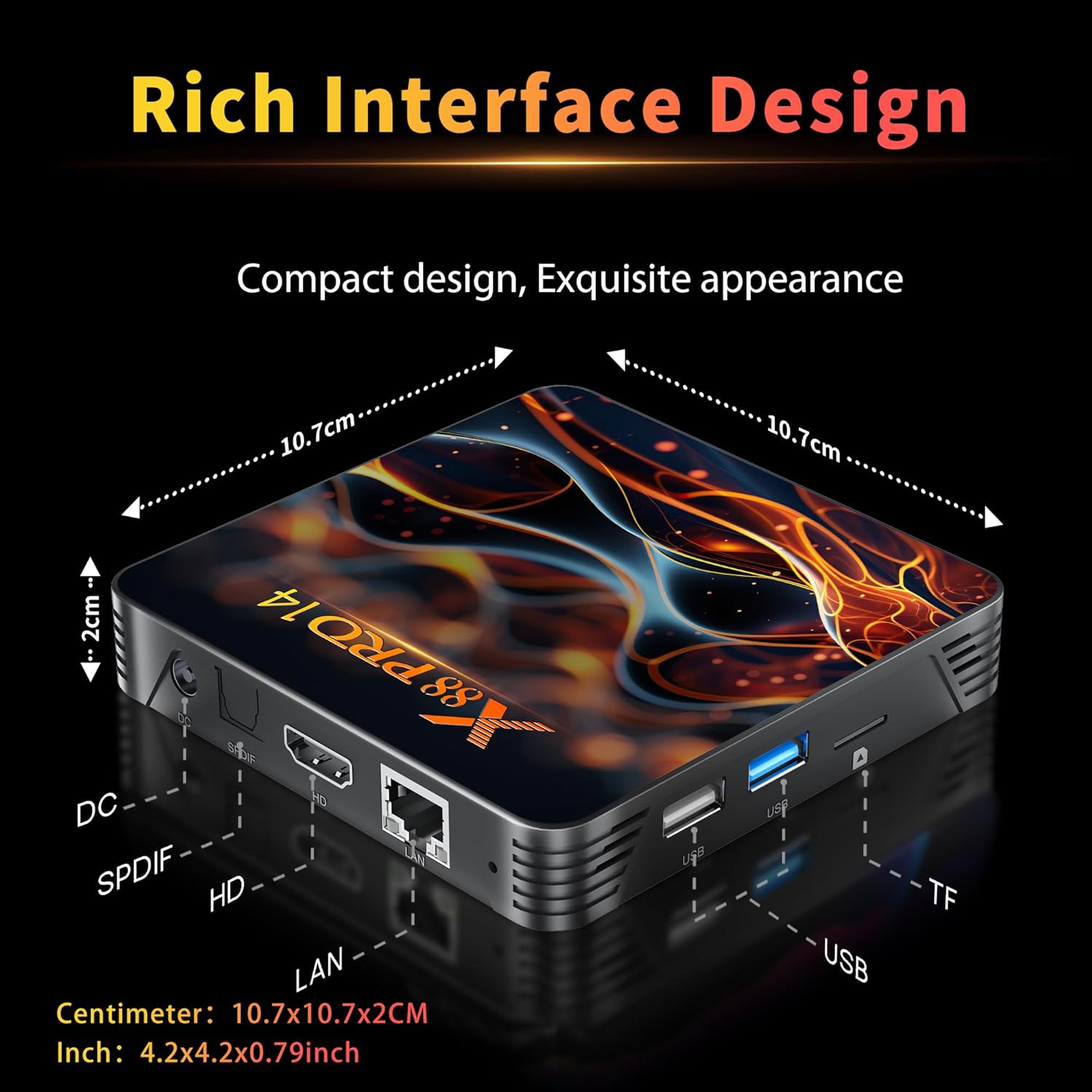
Şekil 3.1: Rear and Side Panel Ports of the RUPA Android TV Box.
This image displays the various connectivity options available on the RUPA Android TV Box. On the rear, from left to right, are the DC power input, SPDIF audio output, HDMI port for video and audio, and a LAN (Ethernet) port. On the side, there are multiple USB ports (including USB 3.0) and a TF (MicroSD) card slot for expandable storage.
- DC Girişi: Verilen güç adaptörünü buraya bağlayın.
- SPDIF: Harici ses sistemlerine bağlanmak için dijital ses çıkışı.
- HDMI: Connect to your TV or display for video and audio output.
- LAN: Kablolu internet bağlantısı için Ethernet portu.
- USB Bağlantı Noktaları: For connecting external devices such as USB drives, keyboards, or mice. Includes USB 3.0 for faster data transfer.
- TF Kart Girişi: Insert a MicroSD card for additional storage.
4. Kurulum Kılavuzu
Follow these steps to set up your RUPA Android TV Box for the first time.

Şekil 4.1: Basic Setup Steps.
This image visually guides the user through the initial setup process. Step 1 shows connecting the TV box to a television using an HDMI cable. Step 2 depicts connecting the TV box to a power outlet using the power adapter. Step 3 illustrates connecting to the internet via Ethernet or Wi-Fi, and using the remote control to navigate the interface.
- Televizyona bağlanın: Use the provided HDMI cable to connect the HDMI port on the TV box to an available HDMI input on your television.
- Gücü bağlayın: Plug the power adapter into the DC input port on the TV box, then plug the adapter into a wall outlet. The device should power on automatically or can be turned on using the remote control.
- Girişi Seçin: Turn on your TV and select the correct HDMI input source using your TV's remote control.
- İlk Kurulum Sihirbazı: Ekranda gösterilen talimatları izleyerek dil seçimi, saat dilimi ve ağ bağlantısı dahil olmak üzere ilk kurulumu tamamlayın.
- Ağ bağlantısı:
- Wifi: Select your Wi-Fi network from the list, enter the password, and connect. The device supports Wi-Fi 6 (2.4G/5.8G Dual-Band).
- Ethernet: If using a wired connection, connect an Ethernet cable from your router to the LAN port on the TV box. The connection should be established automatically.
- Google hesabı: Google Play Store'a ve diğer Google hizmetlerine erişmek için Google hesabınızla oturum açın.
5. Kullanım Talimatları
5.1. Using the Voice Remote Control
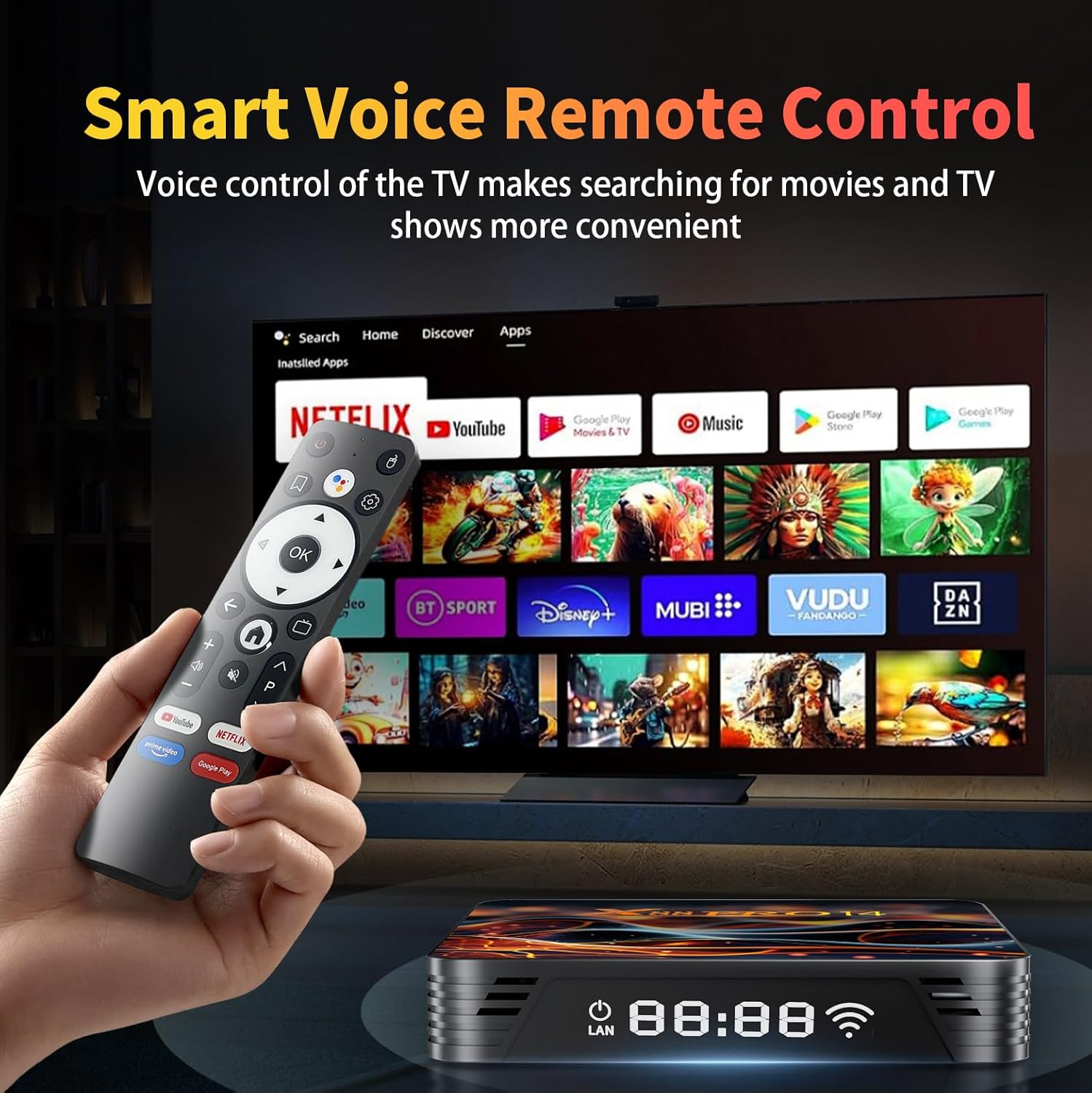
Şekil 5.1: Voice Remote Control and User Interface.
This image shows the RUPA Android TV Box alongside its voice-enabled remote control. The TV screen in the background displays the Android TV interface with various streaming app icons like Netflix, YouTube, Disney+, and more, highlighting the ease of navigation and content access.
The included voice remote control allows for intuitive navigation and voice commands.
- Güç Düğmesi: Cihazı açar veya kapatır.
- Navigasyon Tuş Takımı (Yön Düğmeleri): Menülerde gezinmek ve öğeleri seçmek için kullanılır.
- Tamam Düğmesi: Seçimleri onaylar.
- Geri Düğmesi: Önceki ekrana döner.
- Ana menü tuşu: Ana ekrana döner.
- Sesli Asistan Düğmesi: Press and hold to activate voice commands for searching content, opening apps, or controlling the device.
- Ses Düğmeleri: Ses seviyesini ayarlayın.
- Uygulama Kısayol Düğmeleri: Dedicated buttons for popular streaming services (e.g., YouTube, Netflix).
5.2. Navigating the Android TV Interface
The Android 14.0 interface is designed for easy access to your favorite content.
- Ana Ekran: Displays recommended content, recently used apps, and customizable app shortcuts.
- Uygulamalar: Access all installed applications. You can download more from the Google Play Store.
- Ayarlar: Configure network settings, display options, sound, storage, and other system preferences.
5.3. Screen Mirroring (DLNA)
The RUPA Android TV Box supports screen mirroring, allowing you to display content from your mobile phone or tablet on your TV.
Şekil 5.2: Screen Mirroring Functionality.
This image illustrates the screen mirroring capability of the RUPA Android TV Box, showing content from a smartphone being displayed on a large television screen. This feature allows users to share photos, videos, or other media from their mobile devices directly to their TV.
- Ensure your mobile device and the TV box are connected to the same Wi-Fi network.
- On your mobile device, open the screen mirroring or cast feature (often found in quick settings or display settings).
- Select the RUPA Android TV Box from the list of available devices.
- Your mobile device's screen will now be displayed on your TV.
6. Temel Özellikler Açıklandı
6.1. 4K 8K Ultra HD Resolution

Şekil 6.1: 4K HDR10 Visual Quality.
This image demonstrates the superior visual quality of 4K Ultra HD and HDR10 compared to 1080p Full HD. The 4K side shows significantly sharper details, richer colors, and higher contrast, providing a more immersive viewDeneyim.
The RUPA Android TV Box supports video resolutions up to 4K and 8K, delivering exceptional visual clarity and detail. With HDR10+ support, you can experience super bright colors, sharper contrast, and richer details in compatible content, creating a cinematic viewDeneyim.
6.2. RK3518pro Chipset and Performance

Şekil 6.2: RK3518pro Chipset Performance.
This image highlights the RK3518 Quad-Core Cortex-A53 chipset, emphasizing its low power consumption and good performance. It includes bar graphs indicating significant improvements in multicore computing and response speed compared to previous generations, ensuring smooth operation and multitasking.
Equipped with the powerful RK3518pro Quad-Core Cortex-A53 chipset, 2GB RAM, and 16GB/32GB internal storage, this TV box ensures smooth and responsive operation. It efficiently handles multitasking, allowing you to switch between applications, stream high-definition content, and play games without lag.
6.3. Wi-Fi 6 Dual-Band and Bluetooth 5.0

Şekil 6.3: Wi-Fi 6 Performance Comparison.
This image visually compares the performance of Wi-Fi 6 against Wi-Fi 5, illustrating that Wi-Fi 6 offers a significantly higher transmission rate and average network speed. This translates to an ultra-fast and stable internet experience, especially beneficial in crowded network environments and for high-bandwidth streaming.
Enjoy stable and fast internet access with dual-band Wi-Fi 6 (2.4 GHz and 5.8 GHz). Wi-Fi 6 provides higher speeds, lower latency, and improved performance in crowded network environments. Bluetooth 5.0 allows for seamless connection of wireless accessories such as headphones, speakers, keyboards, and game controllers.
6.4. Android 14.0 İşletim Sistemi
The TV box runs on the latest Android 14.0 system, offering enhanced security features, optimized performance, and access to a vast library of applications through the Google Play Store. The 64-bit Android operating system ensures compatibility with a wide range of powerful apps for endless entertainment options.
7. Bakım
- Temizlik: Use a soft, dry cloth to clean the exterior of the TV box. Do not use liquid cleaners or abrasive materials.
- Havalandırma: Ensure the TV box is placed in a well-ventilated area to prevent overheating. Do not block the ventilation holes.
- Yazılım Güncellemeleri: Periodically check for system updates in the settings menu to ensure optimal performance and access to the latest features and security patches.
- Depolama Yönetimi: Regularly clear cache and uninstall unused apps to free up storage space and maintain performance.

Şekil 7.1: Efficient Heat Dissipation System.
This image highlights the powerful exhaust heat dissipation design of the RUPA Android TV Box. It shows a comparison between an efficient cooling air group and an ordinary cooling unit, indicating that the TV box's design significantly improves heat dissipation and stability, protecting hardware and ensuring stable operation.
8. Sorun Giderme
| Sorun | Olası Neden | Çözüm |
|---|---|---|
| Güç yok | Güç adaptörü bağlı değil veya arızalı. | Ensure the power adapter is securely connected to the TV box and a working power outlet. Try a different outlet. |
| Televizyonda resim yok | Yanlış HDMI girişi seçilmiş veya HDMI kablosu arızalı. | Check that your TV is set to the correct HDMI input. Try a different HDMI port on your TV or a different HDMI cable. |
| Wi-Fi bağlantısı yok | Incorrect Wi-Fi password, router issue, or out of range. | Verify the Wi-Fi password. Restart your router. Ensure the TV box is within range of your Wi-Fi router. Try a wired Ethernet connection if available. |
| Uzaktan kumanda çalışmıyor | Pil zayıflığı veya engel. | Replace the batteries in the remote control. Ensure there are no obstructions between the remote and the TV box. |
| Uygulamalar yavaş veya çöküyor | Too many apps running, low storage, or outdated app version. | Close unused apps. Clear app cache (Settings > Apps > [App Name] > Clear Cache). Update apps from the Google Play Store. Consider a factory reset if issues persist (backup data first). |
9. Özellikler
| Özellik | Detay |
|---|---|
| Model Adı | 2025 |
| İşletim Sistemi | Android 14.0 |
| İşlemci | RK3518pro Quad-Core Cortex-A53 |
| Veri deposu | 2 GB |
| Dahili Depolama | 16 GB / 32 GB (depending on variant) |
| Video Çıkış Çözünürlüğü | Up to 4K (3840x2160 pixels), 8K (7680x4320 pixels) |
| Video Kodlayıcısı | H.265/HEVC |
| Wifi | Wi-Fi 6 (2.4G/5.8G Çift Bant) |
| Bluetooth | Bluetooth 5.0 |
| Ethernet | 10/100M |
| Bağlantı Noktaları | HDMI, USB 2.0/3.0, LAN, SPDIF, TF Card Slot, DC Power |
| Özel Özellikler | HDR10+, DLNA (Screen Mirroring), Voice Remote Control |
| Boyutlar (U x G x Y) | 7.2"U x 4.4"G x 2.2"Y (10.7 x 10.7 x 2 cm) |
10. Garanti ve Destek
The RUPA Android TV Box 14.0 (Model 2025) comes with a standard manufacturer's warranty. Please refer to the warranty card included in your package for specific terms and conditions.
For technical support, troubleshooting assistance, or warranty claims, please contact RUPA customer service through the retailer where you purchased the product or visit the official RUPA webiletişim bilgileri için site.
Çevrimiçi Kaynaklar:
- Ek bilgi ve sıkça sorulan sorular için lütfen şu adresi ziyaret edin: RUPA Store on Amazon.