
1. Giriş
The Lemorele 13-in-1 USB-C Docking Station (Model TC500) is designed to significantly expand the connectivity of your USB-C enabled laptop. This versatile docking station provides multiple ports for external displays, various peripherals, network access, and power delivery, offering a comprehensive solution to enhance your workspace and productivity. It supports triple monitor setups, making it ideal for users requiring extensive display configurations.
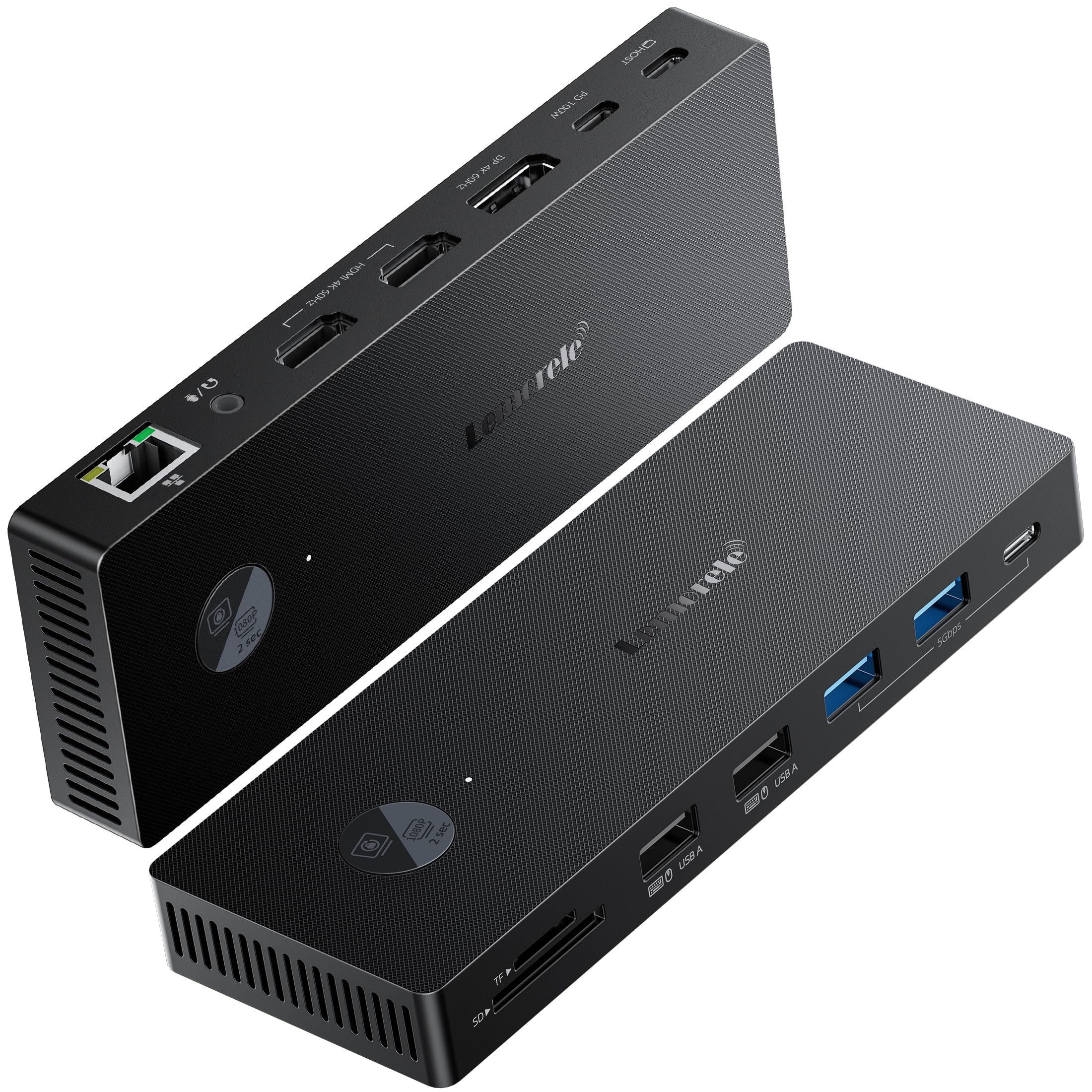
Figure 1: Lemorele 13-in-1 USB-C Docking Station (Model TC500)
2. Ürün Özellikleri ve Bağlantı Noktası Düzeni
The TC500 docking station integrates a wide array of ports to meet diverse connectivity needs:
- Video Çıkışı: 2x HDMI 2.0 ports (up to 4K@60Hz) and 1x DisplayPort 1.2 (up to 4K@60Hz). Supports triple monitor extended display configurations. Note: For triple 4K@30Hz output, DisplayPort requires Display Stream Compression (DSC) support from the host device.
- Güç Teslimatı: 1x USB-C Power Delivery port, supporting up to 100W charging for your laptop (requires a compatible USB-C power adapter, not included).
- Veri Transferi: Multiple USB ports including 1x USB-C 3.0 and 3x USB-A ports (mix of USB 3.0 and USB 2.0 for various peripherals).
- Ağ: 1x Gigabit Ethernet (RJ45) port for stable and high-speed wired internet connection.
- Kart okuyucu: Integrated SD and TF (Micro SD) card slots for convenient data transfer from memory cards.
- Ses: 1x 3.5mm Audio/Microphone combo jack for headphones or speakers.
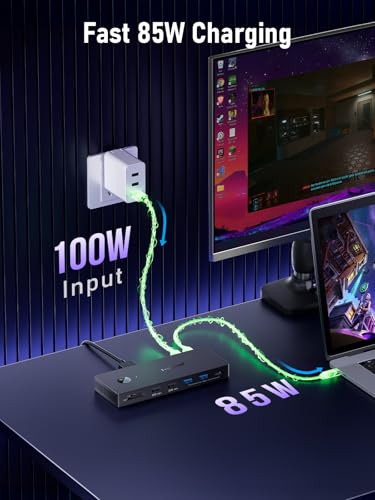
Figure 2: Port layout of the Lemorele TC500 Docking Station
3. Paket İçeriği
Lütfen paketi aşağıdaki öğeler açısından kontrol edin:
- 1x Lemorele 13-in-1 USB-C Docking Station (Model TC500)
- 1x USB-C to USB-C Cable (1.0 meter)
- 1x Kullanım Kılavuzu
4. Kurulum Talimatları
Bağlantı istasyonunuzu kurmak için şu adımları izleyin:
- Gücü Bağlayın (İsteğe bağlı ancak önerilir): If your laptop requires charging via the docking station, connect your laptop's original USB-C power adapter (or a compatible 100W USB-C PD charger) to the USB-C PD input port on the docking station.
- Dizüstü Bilgisayara Bağlan: Use the provided 1.0-meter USB-C to USB-C cable to connect the docking station's host port to a full-featured USB-C port on your laptop. Ensure your laptop's USB-C port supports video output (DisplayPort Alternate Mode) and power delivery for full functionality.
- Ekranları Bağla: Connect your external monitors to the HDMI and/or DisplayPort outputs on the docking station using appropriate cables.
- Çevre Birimlerini Bağlayın: Plug in your USB devices (keyboard, mouse, external hard drives, etc.) into the available USB-A and USB-C data ports. Connect your Ethernet cable to the RJ45 port for wired network access. Insert SD/TF cards as needed.
- Sesi Bağla: If desired, connect headphones or speakers to the 3.5mm audio jack.
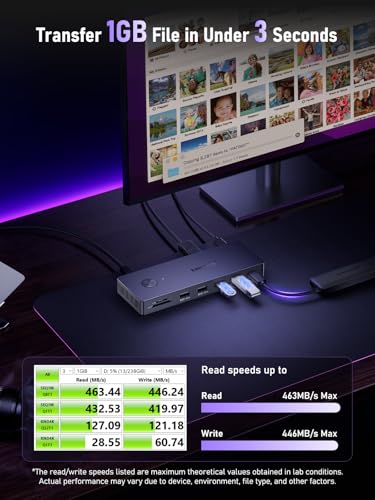
Figure 3: Typical connection diagram for the docking station
5. Kullanım Talimatları
5.1. Ekran Yapılandırması
After connecting your monitors, your operating system should automatically detect them. You may need to adjust display settings:
- Pencereler: Right-click on the desktop, select 'Display settings'. Here you can arrange your displays, choose between 'Extend these displays' or 'Duplicate these displays', and set resolutions and refresh rates.
- MacOS: Go to 'System Settings' (or 'System Preferences') > 'Displays'. You can arrange displays, set resolutions, and choose between 'Mirror Displays' or 'Use as separate displays'. Note that macOS may have limitations on the number of extended displays, especially with certain MacBook models.
The docking station supports single, dual, and triple monitor setups. Ensure your laptop's graphics card and USB-C port support the desired display configuration and resolutions.
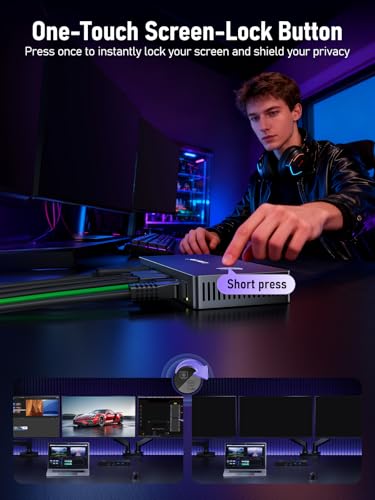
Şekil 4: Ör.ample of a triple display setup with the docking station
5.2. Güç Dağıtımı
When a compatible USB-C power adapter is connected to the PD port, the docking station will pass through up to 100W of power to charge your connected laptop. This allows you to power your laptop and use all connected peripherals with a single USB-C cable connection.
5.3. Veri Transferi
The USB 3.0 ports offer high-speed data transfer for external storage devices, while the USB 2.0 ports are suitable for keyboards, mice, and other low-bandwidth peripherals. The SD/TF card slots allow for quick access to data from memory cards.
6. Sorun Giderme
Sorunlarla karşılaşırsanız, lütfen aşağıdaki yaygın sorun giderme adımlarına bakın:
- Görüntü Çıkışı Yok:
- Ensure the USB-C cable is securely connected to both the docking station and your laptop.
- Verify that your laptop's USB-C port supports DisplayPort Alternate Mode.
- Check that monitor cables are correctly connected and monitors are powered on and set to the correct input source.
- Dizüstü bilgisayarınızın grafik sürücülerini güncellemeyi deneyin.
- Dizüstü bilgisayarınızı yeniden başlatın ve yerleştirme istasyonunu yeniden bağlayın.
- Dizüstü bilgisayara güç aktarımı yok:
- Ensure your USB-C power adapter is connected to the PD input port on the docking station and is functional.
- Dizüstü bilgisayarınızın USB-C bağlantı noktasının Güç Dağıtımını desteklediğini doğrulayın.
- Check the power rating of your adapter; it should be sufficient for your laptop's charging requirements (up to 100W supported by the dock).
- USB Aygıtları Çalışmıyor:
- USB aygıtını yerleştirme istasyonundaki farklı bir bağlantı noktasına yeniden bağlayın.
- Ensure the device is properly powered, if applicable.
- Try connecting the USB device directly to your laptop to rule out device issues.
- Ethernet Bağlantı Sorunları:
- Hem docking istasyonuna hem de yönlendiricinize/modeme bağlanan Ethernet kablosunun bağlantısını kontrol edin.
- Dizüstü bilgisayarınızdaki ağ ayarlarını doğrulayın.
- Try connecting your laptop directly to the router/modem to confirm internet functionality.
- Şarj istasyonu sıcak hissettiriyor:
It is normal for the docking station to become warm during operation, especially when multiple high-power devices or displays are connected. Ensure adequate ventilation around the device.
7. Özellikler
| Özellik | Şartname |
|---|---|
| Marka | Lemorele |
| Model Numarası | TC500 |
| Donanım Arayüzü | USB-C, HDMI, DisplayPort, USB-A, RJ45, SD/TF, 3.5mm Audio |
| Video Çıkışı | 2x HDMI 2.0 (4K@60Hz), 1x DisplayPort 1.2 (4K@60Hz) |
| Üçlü Ekran Desteği | Yes (DP requires DSC for 4K@30Hz in triple mode) |
| USB Bağlantı Noktaları | 1x USB-C 3.0, 3x USB-A (mix of 3.0/2.0) |
| Güç Dağıtımı | Up to 100W (via USB-C PD input) |
| Ethernet | Gigabit (RJ45) |
| Kart Okuyucu | SD, TF (Mikro SD) |
| Ses | 3.5mm Audio/Mic Combo Jack |
| Ürün Ağırlığı | 240 gr |
| Uyumlu Cihazlar | Laptops with full-featured USB-C ports (Windows, macOS) |
| Kablo Uzunluğu | 1.0m USB-C to USB-C |
8. Bakım
Yerleştirme istasyonunuzun uzun ömürlü ve optimum performans göstermesini sağlamak için:
- Temizlik: Use a soft, dry cloth to clean the exterior of the docking station. Avoid liquid cleaners or solvents.
- Depolamak: Cihazı serin, kuru ve doğrudan güneş ışığından ve aşırı sıcaklıklardan uzak bir yerde saklayın.
- İşleme: Cihazı düşürmekten veya sert darbelere maruz bırakmaktan kaçının. Cihazı kendiniz sökmeye veya onarmaya çalışmayın.
9. Garanti ve Destek
This Lemorele TC500 USB-C Docking Station comes with a 2 Yıl Üretici Garantisi.
For technical support, warranty claims, or further assistance, please contact Lemorele customer service through the retailer where you purchased the product or visit the official Lemorele webiletişim bilgileri için site.


