
giriiş
The Hagibis USB4 Docking Station (Model BD246A) is a high-performance hub designed to expand the connectivity of your laptop or desktop. It offers a total bandwidth of 40Gbps, supporting multiple high-speed operations simultaneously. This docking station provides triple display capabilities, fast charging, and various data transfer ports.
Temel Özellikler
- 40Gbps Total Bandwidth: Enables concurrent high-speed operation of multiple ports, offering 4x faster upstream bandwidth compared to most standard Type-C docking stations.
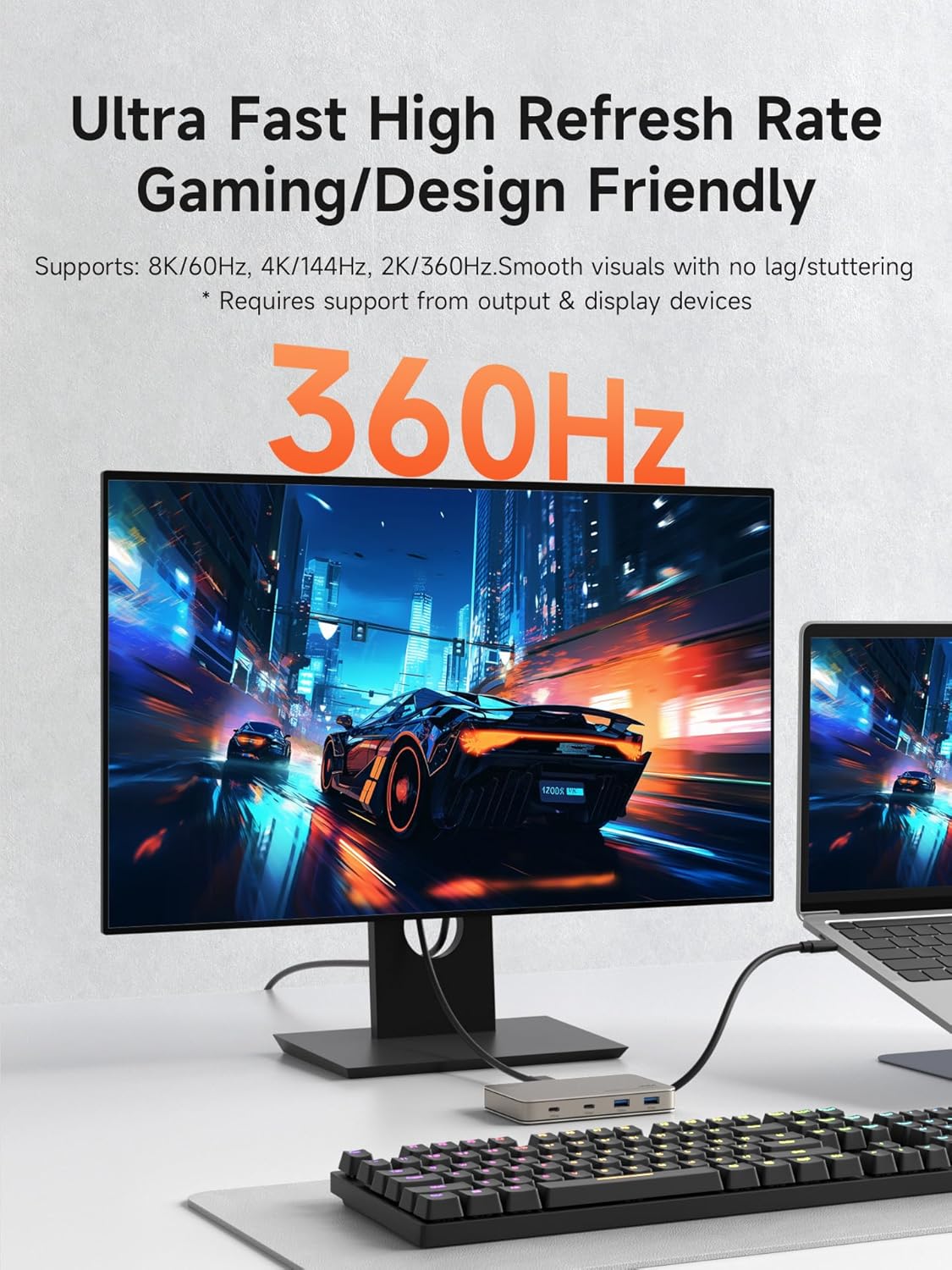
- 8K Ultra-HD Visual Experience: Supports 8K/60Hz, 4K/144Hz, 2K/360Hz for high-quality display output.
- Çoklu Ekran Modları: Supports various external display configurations for Mac OS and Windows devices.
- USB4 Downstream Port: Provides full-function expansion with 40Gbps total bandwidth, 20Gbps data transfer, DP1.4 video output, and 7.5W power.
- 100W PD3.0 Fast Charging: Supports fast charging for the host device while using expansion functions.
Paket İçeriği
Verify that all items are present in your package.
- 1 x Hagibis USB4 Docking Station
- 1 x Full Featured USB4 Cable
- 1 x Kullanım Kılavuzu

Ürün Bittiview
The Hagibis USB4 Docking Station features a durable aluminum alloy casing for efficient heat dissipation. It includes various ports for comprehensive connectivity.
Liman Düzeni

- Ön Portlar: Two USB-C (10Gbps) ports and two USB-A (10Gbps) ports for high-speed data transfer.
- Arka Portlar:
- USB4 Downstream Port (20Gbps, DP1.4, 7.5W): Supports data, video, and power.
- HDMI Port (8K/60Hz): For high-resolution video output.
- PD 100W Power Delivery Port: For charging the host device.
- Yan Liman: HOST (Connect to Host) port with 40Gbps total bandwidth for connecting to your computer.


Kurulum Talimatları
- Ana Bilgisayara Bağlan: Connect the included USB4 cable to the "HOST" port on the docking station and to a Thunderbolt 4/5 or USB4 port on your computer. For optimal performance, your host device must have a Thunderbolt 4/5 or USB4 port supporting 40Gbps bandwidth and DP1.4. If your host only has a 10Gbps port (DP1.2), docking station performance will be reduced.
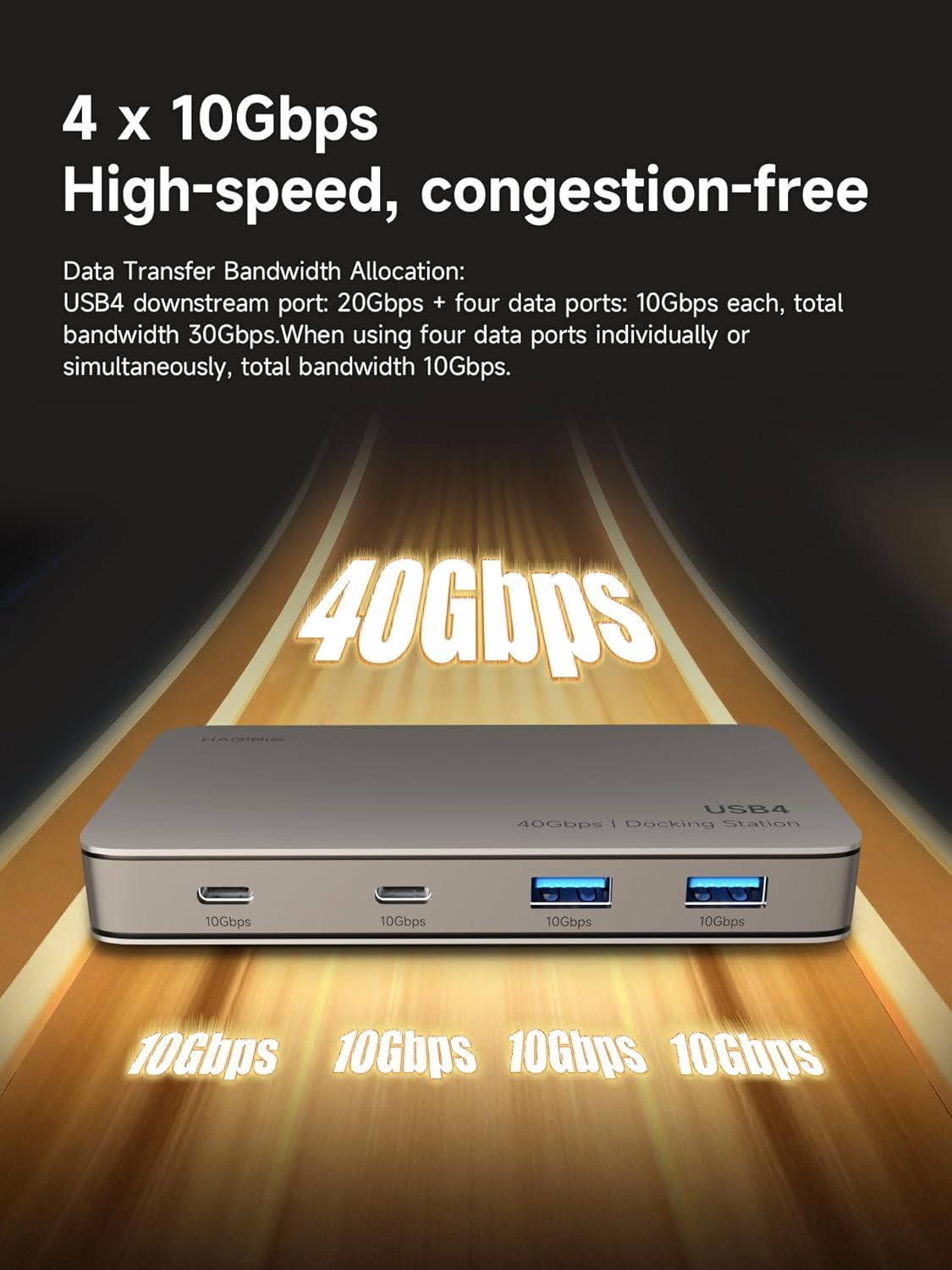
Image: A hand connecting the USB4 cable from the docking station to a laptop's USB-C port. - Güç adaptörünü bağlayın (Önerilir): For stable operation and to utilize the 100W PD charging feature, connect a PD 100W power adapter (not included) to the "PD 100W" port on the docking station. The dock itself consumes approximately 20W of power, providing up to 80W (MAX) to the computer via the HOST port.

Image: A close-up of a power adapter being connected to the PD 100W port on the docking station. - Harici Ekranları Bağlayın:
- For HDMI display, connect an HDMI cable from your monitor to the HDMI 8K/60Hz port on the docking station.
- For a second display, connect a USB-C to DisplayPort (DP) cable or a full-featured USB-C cable from your monitor to the USB4 Downstream Port (20Gbps DP1.4) on the docking station.
Not:
- Display device and connecting cables must also support 8K/60Hz for 8K resolution.
- For Mac OS: M1/M2/M3 Chip supports 1 external display. M1 Pro/M2 Pro/M3 Pro/M4/M4 Pro Chip supports up to 2 external displays (refer to Apple official specs).
- For Windows: Thunderbolt 4/5/USB4 Ports support up to 2 external displays. Full-Function Type-C Ports support 1 external display (via HDMI port).

Image: Two diagrams showing the Hagibis USB4 Docking Station connected to a laptop and two external monitors, illustrating both Extended Mode (ABC) and Mirror Mode (AAA) display configurations for Mac OS and Windows. - USB çevre birimlerini bağlayın: Connect your USB-C and USB-A devices (e.g., external hard drives, keyboards, mice) to the corresponding 10Gbps ports on the front of the docking station.

Image: The Hagibis USB4 Docking Station with various USB devices, including a USB-C SSD, a USB-A flash drive, and another USB-A device, plugged into its front ports.
Kullanım Talimatları
Veri Transferi
The docking station provides a total of 40Gbps bandwidth. The front USB-C and USB-A ports each support 10Gbps data transfer. The USB4 Downstream port supports 20Gbps data transfer. This allows for simultaneous high-speed data transfer across multiple devices without performance degradation.


Video Çıkışı
The docking station supports high-resolution video output through its HDMI 8K/60Hz port and the USB4 Downstream port (DP1.4). Ensure your monitors and cables are compatible with the desired resolution and refresh rates.


Güç Dağıtımı
The PD 100W port allows you to charge your host device while using the docking station. Ensure you use a compatible PD 100W charger for optimal charging performance.
USB4 Downstream Port Functionality
This versatile port supports 20Gbps data transfer, DP1.4 video output, and 7.5W power delivery. It can be used to connect high-speed hard drives, other USB-C docking stations for multi-layer expansion, or USB-C monitors/portable screens.
Bakım
- Temizlik: Use a soft, dry cloth to clean the docking station. Avoid liquid cleaners or aerosols.
- Depolamak: Cihazı serin, kuru ve doğrudan güneş ışığından ve aşırı sıcaklıklardan uzak bir yerde saklayın.
- Isı Dağılımı: Alüminyum alaşımı casing is designed for fast heat dissipation. Ensure adequate airflow around the device during operation.

Sorun giderme
Ekran Çıkışı Yok
- Ensure all cables (USB4 to host, HDMI/USB-C to monitor) are securely connected.
- Verify that your host device (laptop/desktop) and external monitors support the desired resolution and refresh rate.
- Check your computer's display settings to ensure the external monitor is detected and configured correctly (e.g., extended or mirrored mode).
- Confirm that your host device has a Thunderbolt 4/5 or USB4 port for full functionality. Older computers or those with only 10Gbps Type-C ports may have limited display capabilities.
Yavaş Veri Transferi
- Ensure you are using high-speed cables and devices (e.g., USB 3.2 Gen 2 or higher).
- Verify that your host device's port supports 40Gbps bandwidth (Thunderbolt 4/5 or USB4).
- Avoid connecting too many high-bandwidth devices simultaneously if you experience slowdowns.
Şarj Sorunları
- Ensure a PD 100W power adapter is connected to the docking station's PD port.
- Güç adaptörünün ve kablosunun düzgün çalıştığını doğrulayın.
Uyumluluk Notları
- This product supports only Apple computers released after 2019 and Windows computers released after 2022.
- It is not compatible with Thunderbolt 3 interfaces.
- Not compatible with Nintendo Switch (1st Gen / 2nd Gen).
Özellikler
| Özellik | Detay |
|---|---|
| Marka | Hagibiler |
| Model Numarası | BD246A |
| Renk | Altın |
| Malzeme | Alüminyum |
| Donanım Arayüzü | HDMI, Thunderbolt, USB, USB Type C |
| Toplam USB Bağlantı Noktaları | 6 |
| Port Sayısı | 7 |
| Veri Aktarım Hızı | 10 Gigabits Per Second (per 10Gbps port), 20Gbps (USB4 Downstream), 40Gbps (Host Uplink) |
| Video Çıkışı | 8K@60Hz HDMI, DP1.4 via USB4 Downstream Port |
| Güç Dağıtımı | 100W PD3.0 (up to 80W to host) |
| Ürün Boyutları (U x G x Y) | 4.9"U x 2.8"G x 0.6"Y (126 mm x 72 mm x 17 mm) |
| Ürün Ağırlığı | 9.3 Ons |
Garanti
Bu ürün 1 yıl garantilidir. Garanti talepleri için lütfen satın alma belgenizi saklayınız.
Destek
For further assistance or technical support, please visit the official Hagibis store or contact customer service.
Official Hagibis Store: https://www.amazon.com/stores/Hagibis/page/AC3D0178-999A-46CD-BA6C-9B107EC614F4
Ürün Videosu Tanıtımı
Görsel bir açıklama için bu videoyu izleyinview and demonstration of the Hagibis USB4 Docking Station's features and connectivity.
Video: A demonstration of the Hagibis 40Gbps USB4 Docking Station, showcasing its physical appearance, ports, and how to connect it to a laptop and external devices.