
giriiş
Welcome to the user manual for your new Texas Instruments TI-84 Evo Graphing Calculator. This guide provides essential information for setting up, operating, maintaining, and troubleshooting your device. The TI-84 Evo is designed to enhance learning in mathematics and science, featuring a faster processor, increased graphing space, an intuitive icon-based home screen, and Python programming capabilities.
Please read this manual thoroughly to ensure proper use and to maximize the functionality of your calculator.
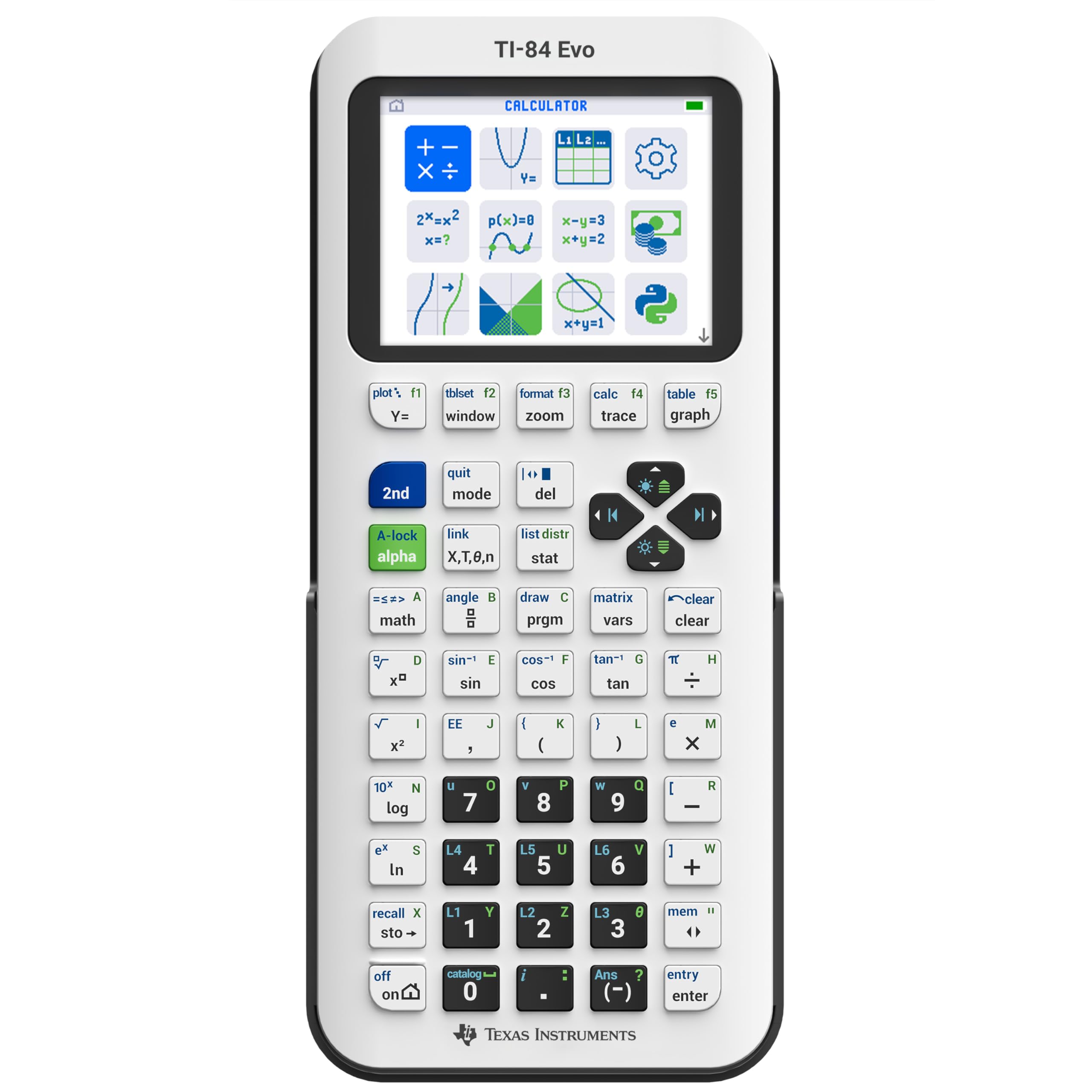
Resim: Ön view of the white TI-84 Evo Graphing Calculator.
Kurmak
1. İlk Ücret
Before first use, fully charge your TI-84 Evo calculator.
- Connect the provided USB-C cable to the calculator's USB-C port.
- Kablo ucunu uyumlu bir USB güç adaptörüne (dahil değildir) veya bilgisayarın USB portuna bağlayın.
- Şarj gösterge ışığı yanacaktır. Tam şarj genellikle birkaç saat sürer.
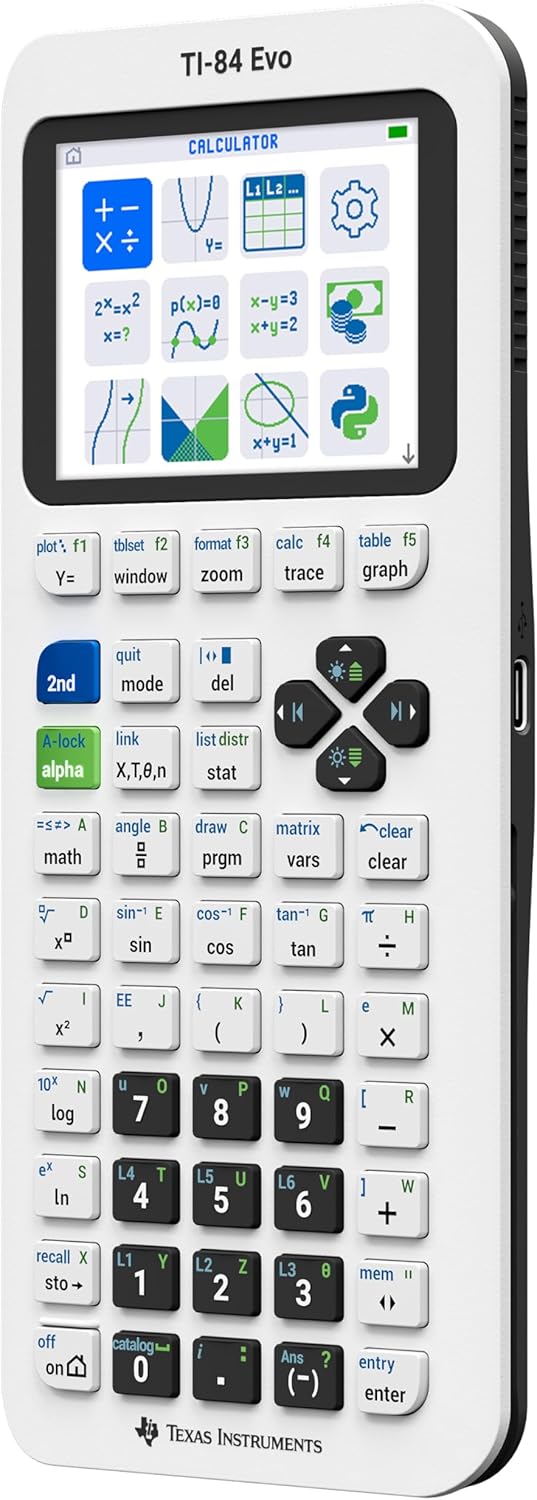
Resim: Yan view of the TI-84 Evo showing the USB-C charging port.
2. Güç Açma/Kapatma
- Açmak için, düğmesine basın. ON button located at the bottom left of the keypad.
- Kapatmak için tuşuna basın 2., Daha sonra ON (which functions as KAPALI).
- The calculator will automatically power off after a period of inactivity to conserve battery.
Kullanım Talimatları
1. Icon-Based Home Screen
The TI-84 Evo features an intuitive icon-based home screen for quick access to common math tools and applications.

Image: The icon-based home screen of the TI-84 Evo, displaying various math tools and applications.
- Use the arrow keys to navigate between icons.
- Basmak GİRMEK to select an application or tool.
Video: Official Texas Instruments video demonstrating the TI-84 Evo Graphing Calculator's features, including the icon-based home screen.
2. Temel Hesaplamalar
Enter numbers and operations using the keypad. Press GİRMEK to compute the result.
- +, -, *, /: Standard arithmetic operations.
- ^: Exponentiation.
- 2.: Accesses the secondary function printed above each key.
- ALFA: Accesses the alphabetic character printed above each key.

Image: Close-up of the TI-84 Evo's simplified keypad, highlighting key layout and functions.
3. Graphing Functions
The TI-84 Evo offers 50% more graphing space for clearer visualization of mathematical relationships.
- Basmak Y= to enter function equations.
- Input your desired function (e.g., X^2).
- Basmak GRAFİK Grafiği görüntülemek için.
- Kullanmak PENCERE to adjust graph settings (Xmin, Xmax, Ymin, Ymax, etc.).
- Kullanmak Yakınlaştır for various scaling options.
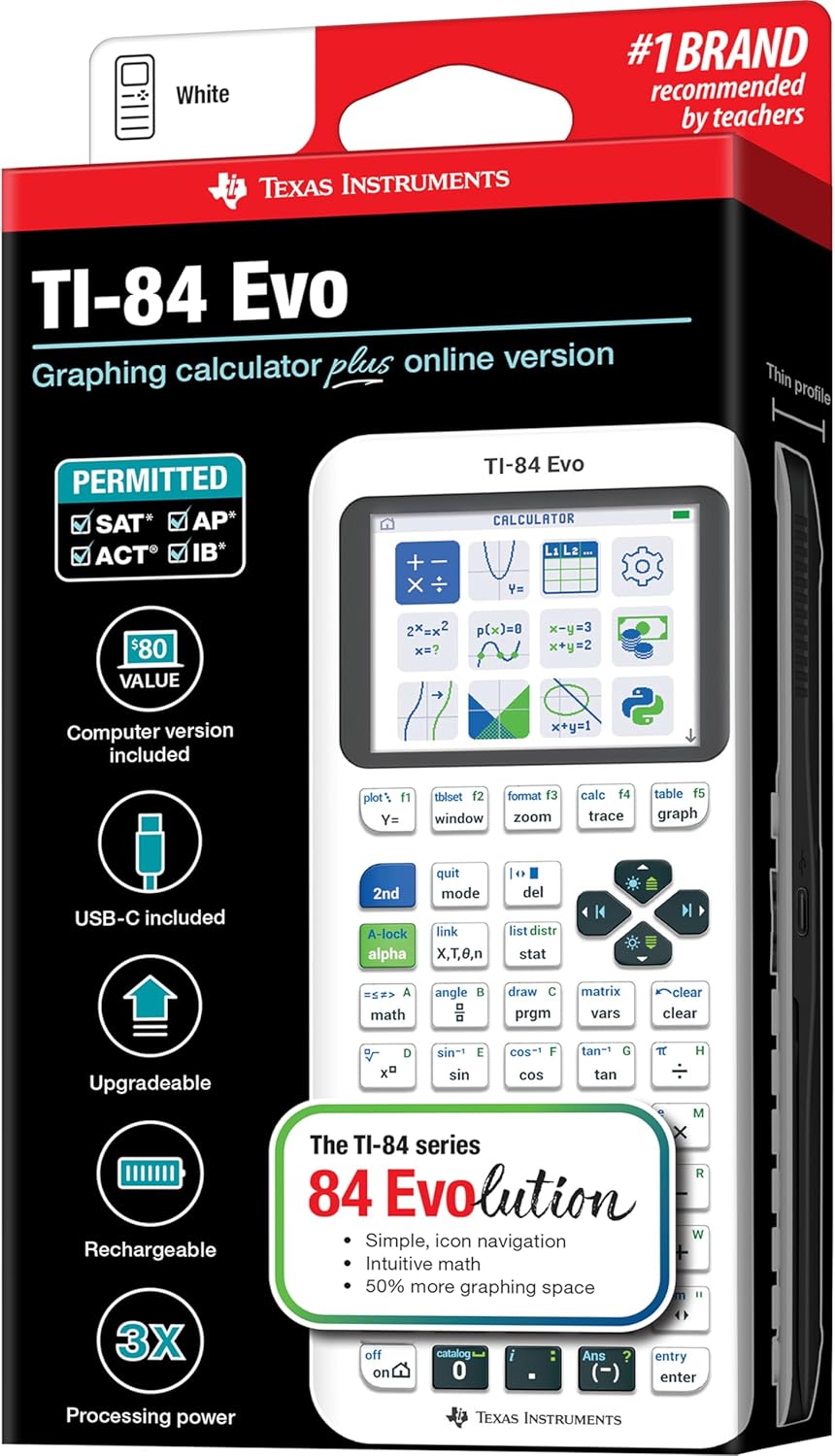
Image: The TI-84 Evo screen displaying a quadratic function graph.
Video: Official Texas Instruments video highlighting the evolution of the TI-84 series, including improved graphing capabilities of the Evo model.
4. Python Programming
The TI-84 Evo includes built-in Python programming functionality, allowing users to write and execute Python scripts.
- Access the Python editor from the icon-based home screen.
- Write, edit, and run Python programs directly on the calculator.
- This feature introduces basic coding skills relevant to real-world applications.
Bakım
1. Pil Bakımı
- The TI-84 Evo uses a rechargeable lithium-ion battery.
- Optimum performansı korumak için pili düzenli olarak şarj edin.
- Pilin uzun süre tamamen boşalmasından kaçının.
- If the calculator will not be used for a long time, charge it to about 50% before storing.
2. Temizlik
- Ekranı ve c'yi temizlemek için yumuşak, kuru bir bez kullanın.asing.
- Aşındırıcı temizleyiciler, çözücüler veya aerosol spreyler kullanmayın.
- Herhangi bir açıklıktan içeriye nem girmesini önleyin.
Sorun giderme
| Sorun | Çözüm |
|---|---|
| Hesap makinesi açılmıyor. | Ensure the battery is charged. Connect to a power source using the USB-C cable. If the issue persists, try resetting the calculator by pressing the SIFIRLAMA button (usually a small hole on the back, requiring a paperclip). |
| Ekran boş veya donmuş. | Basılı tutun ON button for a few seconds to force a restart. If unresponsive, perform a hard reset using the SIFIRLAMA düğme. |
| Yanlış hesaplama sonucu. | Check your input and ensure the calculator is in the correct mode (e.g., radian/degree, float/exact). Refer to the operating instructions for specific function usage. |
| Pil çabuk bitiyor. | Reduce screen brightness. Ensure the calculator is powered off when not in use. Avoid extreme temperatures. If the problem continues, the battery may need service. |
Özellikler
| Özellik | Detay |
|---|---|
| Marka | Teksas Enstrümanları |
| Model Adı | TI-84 Evo |
| Model Numarası | 84EVO/FC |
| Hesap Makinesi Türü | Grafikleme |
| Renk | Beyaz |
| Güç Kaynağı | Pille Çalışan (1 Lityum İyon pil dahil) |
| Ekran Boyutu | 2.8 inç |
| Görüntü Türü | LCD |
| Ürün Boyutları (U x G) | 7.57"U x 3.4"G |
| Ürün Ağırlığı | 7.2 ons |
| UPC | 033317209927 |

Image: Packaging of the TI-84 Evo, showing key features and a comparison table with previous models.
Garanti ve Destek
Garanti Bilgileri
The Texas Instruments TI-84 Evo Graphing Calculator comes with a 1 yıllık sınırlı garanti from the manufacturer. For detailed warranty terms and conditions, please visit the official Texas Instruments education webalan.
Müşteri Desteği
For additional support, resources, and frequently asked questions, please visit the official TI-84 Evo information page: education.ti.com/84evo-info.


