
1. Giriş
Thank you for choosing the ELECROW 5-inch IPS Touch Screen Monitor. This compact display offers a high-definition visual experience with responsive touch functionality, designed for a wide range of applications including single-board computers and mini PCs. This manual provides essential information for the proper installation, operation, and care of your device.

The ELECROW 5-inch IPS Touch Screen Monitor, a versatile display solution.
Temel özellikler şunlardır:
- HD Display Experience: 5-inch IPS capacitive touchscreen with a 1024 x 600 resolution, 178° viewing angle, and support for up to 1080P signal input.
- Responsive Touch: Supports 5-point multi-touch on Windows and single-touch on Raspberry Pi/Jetson Nano.
- Kolay Tak ve Çalıştır: No additional drivers required for most compatible systems.
- Mesleki Fonksiyonlar: Features a headphone jack for audio output and a built-in OSD menu for display adjustments.
2. Kutuda Neler Var?
Lütfen aşağıda listelenen tüm öğelerin paketinizde yer aldığından emin olun:
- 1x 5-inch Touch Screen Monitor
- 1x HD Cable (1m)
- 1x USB-A to USB-C Cable (1m)
- 1x Micro-HD Adapter (for Raspberry Pi 4B & 5)
- 4x Hexagonal Copper Standoff Kit (M2.5)
- 2x Pro Stand
- 1x Tornavida
- 1x User Manual (Quick Start Guide)
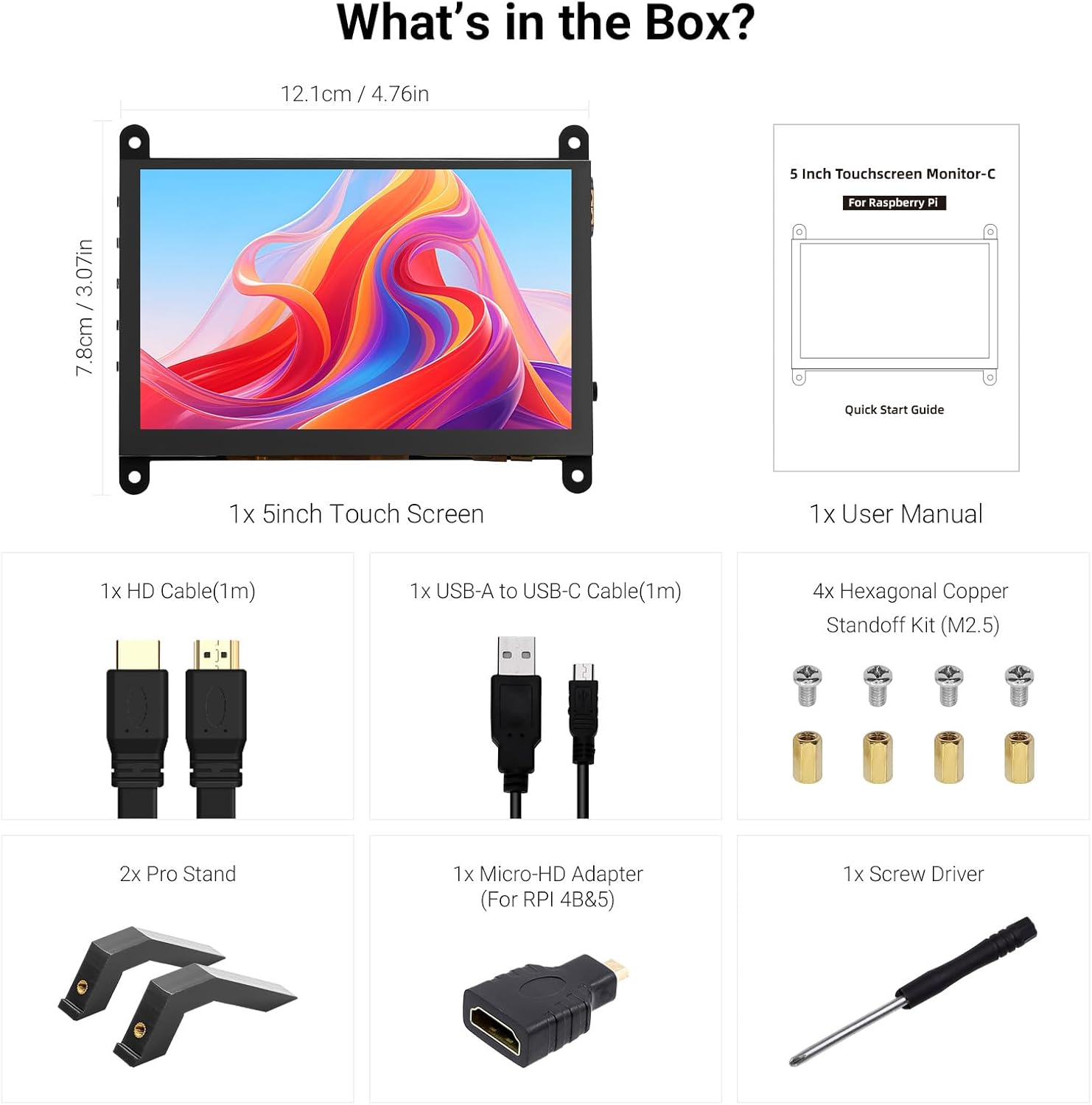
Ürün paketinde bulunan tüm bileşenler.
3. Ürün Bittiview
Familiarize yourself with the ports and buttons on your ELECROW 5-inch Touch Screen Monitor:

Ayrıntılı view of the monitor's ports and control buttons.
- HD Input Port: For video signal input.
- USB-C Bağlantı Noktası: For power supply and touch signal transmission.
- 3.5 mm Kulaklık Girişi: Ses çıkışı için.
- Menü Düğmesi: Ekran Üzeri Görüntüleme (OSD) menüsüne erişim sağlar.
- Left/Up Button: Navigates left or up in the OSD menu.
- Right/Down Button: Navigates right or down in the OSD menu.
- Geri düğmesi: Exits a menu or returns to the previous option.
- Güç Düğmesi: Ekranı açar veya kapatır.
- 20P-FPC-0.5mm Display Port: For flexible cable expansion in embedded systems.
4. Kurulum Talimatları
Follow these steps to connect your ELECROW 5-inch Touch Screen Monitor to a compatible device:
4.1 Raspberry Pi'ye Bağlanma
- Connect HD Cable: Use the provided HD cable to connect the monitor's HD Input Port to the HDMI port on your Raspberry Pi. If using Raspberry Pi 4B or 5, use the included Micro-HD adapter.
- USB Kablosunu Bağlayın: Connect the USB-C port on the monitor to a USB-A port on your Raspberry Pi using the provided USB-A to USB-C cable. This supplies power to the monitor and enables touch functionality.
- Güç Açık: Power up your Raspberry Pi. The display should automatically detect the signal and power on.
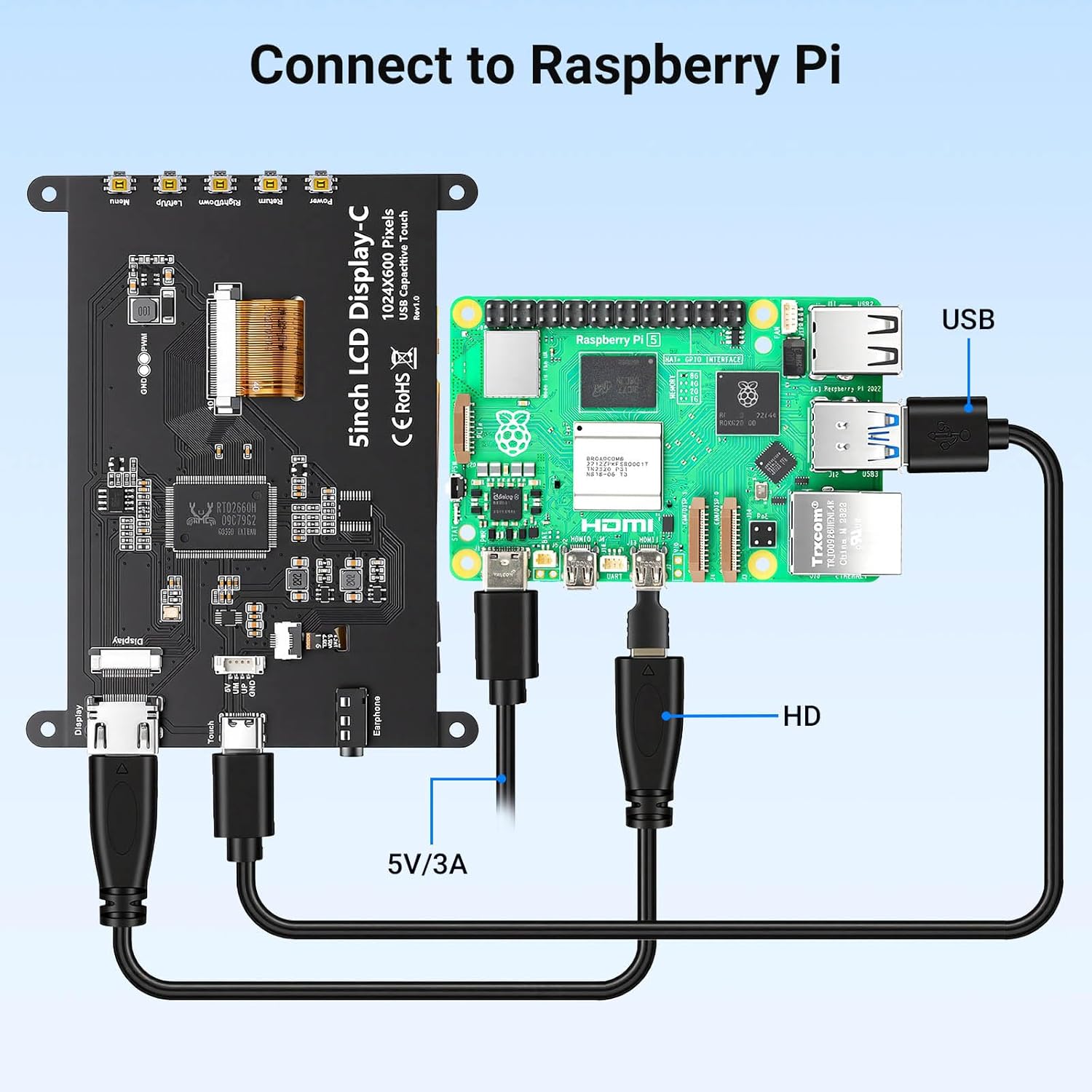
Connection diagram for Raspberry Pi.
4.2 Connecting to Windows PC/Laptop
- Connect HD Cable: Use the provided HD cable to connect the monitor's HD Input Port to the HDMI port on your PC/laptop.
- USB Kablosunu Bağlayın: Connect the USB-C port on the monitor to a USB-A port on your PC/laptop using the provided USB-A to USB-C cable. This provides power and enables touch functionality.
- Güç Açık: Power on your PC/laptop. The display should be recognized automatically. No additional drivers are typically required for Windows 7/8/10/11.
5. Kullanım Talimatları
5.1 Temel İşlemler
- Güç Açma/Kapatma: Press the Power Button (8) to turn the display on or off.
- Dokunma İşlevselliği: The monitor features a capacitive touchscreen. On Windows systems, it supports 5-point multi-touch. On Raspberry Pi (Raspbian, Ubuntu, Kali, Retropie) and Jetson Nano, it supports single-touch operation.

Responsive touch experience for various devices.
5.2 OSD Menü Gezintisi
The On-Screen Display (OSD) menu allows you to adjust various display settings:
- Basın Menu Button (4) OSD menüsünü açmak için.
- Kullanın Left/Up Button (5) Ve Right/Down Button (6) Menü seçenekleri arasında gezinmek için.
- Basın Menu Button (4) Tekrar bir seçenek belirlemek veya bir ayarı onaylamak için.
- Basın Geri Dönüş Düğmesi (7) to exit the current menu or return to the previous level.
Common adjustable settings include Brightness, Contrast, and other display parameters.
5.3 Ses Çıkışı
Connect headphones or external speakers to the 3.5mm Headphone Jack (3) for audio output from the connected device.
6. Uyumluluk
The ELECROW 5-inch Touch Screen Monitor offers broad compatibility with various operating systems and hardware platforms:
- İşletim Sistemleri: Raspbian, Ubuntu, Kali, Retropie, Windows 7/8/10/11, Windows 10 IoT.
- Uyumlu Cihazlar: Raspberry Pi 5, Raspberry Pi 4, Raspberry Pi 3 B+, BB Black, Banana Pi, Jetson Nano, PS4, Xbox.

Broad compatibility with popular operating systems and devices.
7. Özellikler
| Özellik | Detay |
|---|---|
| Marka | ELEKTRİKLİ |
| Model Numarası | DLH04950B |
| Ekran Boyutu | 5 inç |
| Çözünürlük | 1024 x 600 Piksel |
| Görüntü Türü | IPS |
| ViewAçı | 178 Derece |
| Parlaklık | 410 cd/m² |
| Yenileme Hızı | 60 Hz |
| Tepki Süresi | 2 Milisaniye |
| Bağlantı | HDMI, USB Tip C |
| Cilttage | 5 Volt |
| Boyutlar (G x Y) | 12.1 cm x 7.8 cm (4.76 inç x 3.07 inç) |
| Ek Özellikler | Portable, Touchscreen, Headphone Jack, OSD Menu |

Visual representation of key display specifications.
8. Bakım
Doğru bakım ve onarım, monitörünüzün uzun ömürlü olmasını ve en iyi performansı göstermesini sağlayacaktır:
- Ekranın Temizlenmesi: Yumuşak, tiftiksiz bir bez kullanın ve hafifçe kurulayın.ampSu veya ekran temizleme solüsyonu ile durulayın. Sert kimyasallardan, aşındırıcı malzemelerden veya aşırı nemden kaçının.
- Genel Temizlik: Wipe the exterior of the monitor with a dry, soft cloth.
- Depolamak: Monitörü uzun süre kullanılmadığı zamanlarda, doğrudan güneş ışığından ve aşırı sıcaklıklardan uzak, serin ve kuru bir yerde saklayın.
- İşleme: Avoid dropping the monitor or subjecting it to strong impacts. Do not apply excessive pressure to the screen.
- Havalandırma: Ensure the monitor has adequate ventilation to prevent overheating. Do not block any vents.
9. Sorun Giderme
If you encounter issues with your ELECROW 5-inch Touch Screen Monitor, refer to the following common problems and solutions:
9.1 Görüntü Yok / Siyah Ekran
- Bağlantıları Kontrol Edin: Ensure the HD cable is securely connected to both the monitor and the source device.
- Güç Kaynağı: Verify that the USB-C cable is properly connected and providing sufficient power (5V). Try a different USB port or power adapter if available.
- Kaynak Cihaz: Confirm that your source device (e.g., Raspberry Pi, PC) is powered on and outputting a video signal.
- Çözünürlük Ayarları: Ensure the output resolution of your source device is compatible with the monitor (1024x600 or a resolution that can be scaled).
9.2 Touch Function Not Working
- USB Bağlantısı: The USB-C cable is essential for touch functionality. Ensure it is connected to both the monitor and the source device.
- İşletim Sistemi Desteği: Verify that your operating system supports touch input and that necessary drivers (if any, though usually plug-and-play) are installed. For Raspberry Pi, ensure the OS is configured for touch.
- yeniden kalibrasyon: Some operating systems may require touch screen calibration. Refer to your OS documentation for instructions.
9.3 Görüntü Kalitesi Sorunları (Titreme, Bozuk Renkler)
- Kablo Bütünlüğü: Try a different HD cable to rule out a faulty cable.
- Kaynak Sinyali: Test the monitor with a different source device to determine if the issue is with the monitor or the source.
- OSD Ayarları: Adjust brightness, contrast, and other color settings via the OSD menu.
10. Garanti ve Destek
10.1 Garanti Bilgileri
This ELECROW 5-inch Touch Screen Monitor comes with a 1 Yıl Üretici Garantisi. This warranty covers defects in materials and workmanship under normal use. It does not cover damage caused by misuse, accident, modification, or unauthorized repair.
10.2 Teknik Destek
For technical assistance, troubleshooting beyond this manual, or warranty claims, please contact ELECROW customer support through their official website or the platform where you purchased the product. Please have your model number (DLH04950B) and purchase details ready when contacting support.