
1. Giriş
The THINKCAR THINKSCAN 672 is an advanced automotive diagnostic scan tool designed for comprehensive vehicle analysis and maintenance. It features a robust Android 10 operating system, a 7-inch touchscreen display, and powerful diagnostic capabilities. This device is equipped with a TES102 Endoscope Camera, allowing for visual inspection of hard-to-reach areas within the vehicle. The THINKSCAN 672 supports full system diagnostics, bidirectional control, and over 28 special service functions, making it an essential tool for automotive professionals and enthusiasts.

2. Kurulum
2.1 Kutudan Çıkarma ve Bileşenler
Paketi açtığınızda tüm bileşenlerin mevcut olduğundan emin olun:
- THINKSCAN 672 Diagnostic Scan Tool
- TES102 Endoscope Camera
- OBD2 Teşhis Kablosu
- USB Type-C Şarj Kablosu
- Güç Adaptörü
- Kullanım Kılavuzu (bu belge)
- Depolama Kasası
2.2 Araca Bağlantı
- Aracın OBD2 portunu bulun; bu port genellikle sürücü tarafındaki gösterge panelinin altında bulunur.
- Connect the OBD2 diagnostic cable to the THINKSCAN 672 device.
- Plug the other end of the OBD2 diagnostic cable into the vehicle's OBD2 port.
2.3 Açma ve İlk Kurulum
- Once connected to the vehicle, the THINKSCAN 672 will automatically power on, drawing power from the vehicle's OBD2 port. The internal battery will also charge during this time.
- Ekranda beliren yönergeleri izleyerek tercih ettiğiniz dili, saat dilimini ve diğer başlangıç ayarlarını seçin.
- Connect the device to a Wi-Fi network to ensure access to updates and online services.
3. Kullanım Talimatları
3.1 AutoSearch (VIN Scan)
The AutoSearch function automatically identifies the vehicle's Vehicle Identification Number (VIN), brand, model, and year, providing quick access to the vehicle's diagnostic system.
- From the main menu, tap on the 'AutoSearch' icon.
- The device will perform a VIN scan. Please wait for the process to complete.
- Once identified, you will be presented with options for Health Report, System Selection, or Vehicle Information.

3.2 Sağlık Raporu
The Health Report performs a full system scan to detect and display all Diagnostic Trouble Codes (DTCs) present in the vehicle's modules.
- After AutoSearch, select 'Health Report'.
- The device will scan all available systems and list any detected DTCs.
- Yapabilirsiniz view details of each DTC, clear all DTCs (only after repairs are made), or generate a report.
3.3 Sistem Seçimi
For targeted diagnostics, you can manually select specific vehicle systems (e.g., Powertrain, Chassis, Body) to scan.
- From the main menu or after AutoSearch, select 'System Selection'.
- Choose the desired system (e.g., 'Powertrain', 'Chassis', 'Body').
- Within the selected system, you can perform actions such as 'Read Fault Code', 'Clear Fault Memory', 'Read Freeze Frame', 'Read Data Stream', or 'Actuation Test'.
3.4 Canlı Veri Akışı
Monitor real-time data parameters from various sensors and modules in numerical or graphical format.
- Navigate to a specific system (e.g., Engine Control Module) and select 'Read Data Stream'.
- Select the data parameters you wish to monitor. You can select up to 4 parameters to display simultaneously.
- View the data in numerical ('Value') or graphical ('Graph') format. The graphical display allows for easy visualization of parameter changes over time.
- You can record the data, generate a report, or save a sample for later analysis.
3.5 Actuation Test (Bidirectional Control)
Perform active tests on various vehicle components to verify their functionality.
- Navigate to a specific system and select 'Actuation Test'.
- Choose the component you wish to test (e.g., fuel injectors, cooling fan, ABS pump).
- Ekranda gösterilen talimatları izleyerek bileşeni etkinleştirin ve tepkisini gözlemleyin.

4. Maintenance Functions (28+ Resets)
The THINKSCAN 672 offers over 28 special service functions for various maintenance tasks. These functions allow for resetting, relearning, or calibrating specific vehicle systems.

4.1 Common Reset Functions
- Yağ Sıfırlama: Yağ değişiminden sonra motor yağı ömrü sistemini sıfırlar.
- EPB (Brake-pad Reset): Helps replace and reset the brake pad.
- SAS (Steering Angle Reset): Direksiyon açısı sensörünü sıfırlar.
- BMS (Battery Matching): Registers the new battery after replacement.
- DPF (DPF Regeneration): Performs regeneration for diesel particulate filters.
- ABS Kanaması: Bleeds the ABS system to remove air.
- IMMO (Anti-theft/Key Matching): Disables lost keys and adds new keys (for cars with easy IMMO system).
- Enjektör Kodlaması: ECU'ya yeni enjektör numaraları kodları gönderir.
- TPMS Sıfırlama: Lastik basıncı izleme sistemi sensörlerini sıfırlar.
- ETS (Electronics Throttle Adaption): Initializes the throttle actuators to the default state.
- EGR Adaptasyonu: Egzoz Gazı Devirdaim valfini uyarlar.
- Hava/Yakıt Oranı Sıfırlama: Sets or learns air/fuel ratio parameters.
For detailed instructions on each function, refer to the on-device tutorials or the user manual.
5. Sorun Giderme
5.1 Genel Sorun Giderme İpuçları
- Cihaz Açılmıyor: Ensure the OBD2 cable is securely connected to both the device and the vehicle's OBD2 port. Check the vehicle's battery voltage.
- İletişim Hatası: Verify the vehicle's ignition is on. Ensure the OBD2 cable is not damaged. Try connecting to a different vehicle to rule out device issues.
- DTCs Not Clearing: Ensure the underlying issue causing the DTCs has been resolved before attempting to clear them. Clearing codes without addressing the root cause will result in their immediate return.
- Yavaş Çalışma: Ensure the device software is up to date. A stable Wi-Fi connection is recommended for updates.
5.2 Remote Assistance & Feedback
If you encounter persistent issues or require technical support, the THINKSCAN 672 offers built-in support features:
- Geri bildirim: Submit diagnostic reports and feedback directly to the THINKCAR team for analysis and problem resolution.
- Uzaktan Yardım: Get technical support through remote diagnostic tools.
6. Özellikler
| Özellik | Tanım |
|---|---|
| Görüntülemek | 7 inç Dokunmatik Ekran, 1024*600 Çözünürlük |
| İşletim Sistemi | Android 10 |
| İşlemci | 2GB Cortex Quad-Core |
| Hafıza | 2GB RAM, 32GB ROM |
| Bağlantı | 2.4G/5G Wi-Fi, Type-C, Bluetooth |
| Pil | 3150mAh (Rechargeable via OBD2) |
| Araç Uyumluluğu | 140+ car brands since 1996 (American, European, Asian). FCA AutoAuth compatible (2018+ Chrysler, Jeep, Dodge, Fiat). |
| Güncellemeler | Ömür Boyu Ücretsiz Güncellemeler |
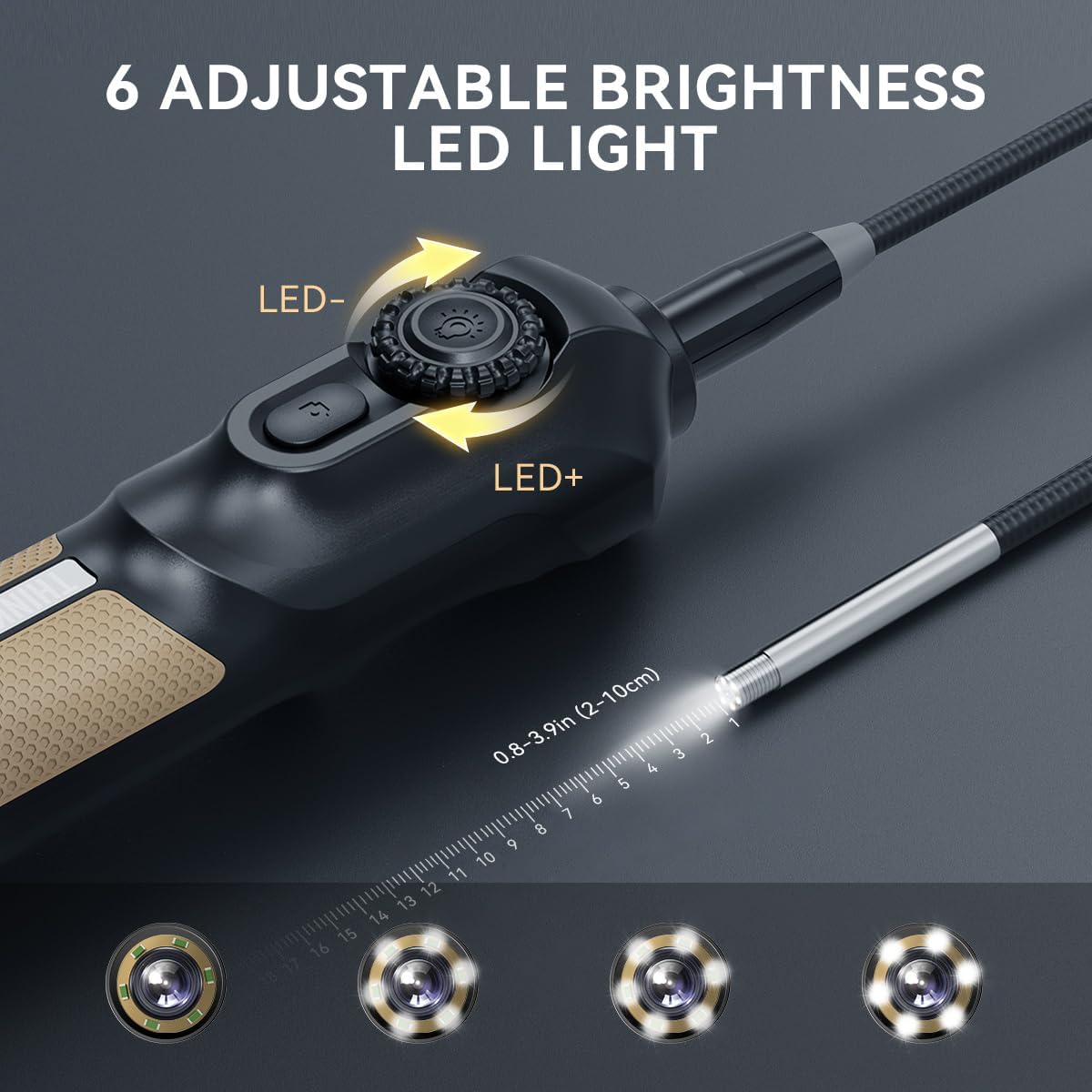
| Endoscope Camera (TES102) | 6 adjustable brightness LED lights, easy entry into hard-to-reach areas, one-click photo/video capture. |

7. Garanti ve Destek
7.1 Garanti Bilgileri
Specific warranty details are not provided in the product data. Please refer to the product packaging or contact THINKCAR customer support for comprehensive warranty information.
7.2 Müşteri Desteği
For any technical support, questions, or assistance, please contact THINKCAR customer service via:
- Çevrimiçi Hizmet: Available through the device's interface.
- E-posta: destek@mythinkcar.com
- Anasayfa: Refer to the device's homepage for additional resources.