
1. Ürün Bittiview
The ADAM elements iKlips S is a compact and secure USB-C Solid State Drive (SSD) designed for portable data storage and transfer. It features fingerprint encryption for enhanced data protection and offers high-speed performance. This manual provides instructions for its setup, operation, and maintenance.
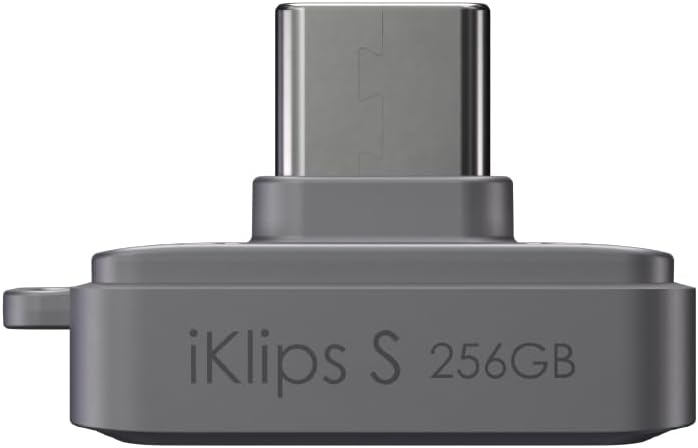
Resim 1.1: Ön view of the iKlips S SSD with USB-C connector.
Temel Özellikler:
- Kompakt Tasarım: Measuring 14.2 x 26 x 17.1 mm, it is designed for portability.
- Yüksek Hızlı Performans: Offers up to 450 MB/s read speed and 400 MB/s write speed.
- Fingerprint Encryption: Advanced biometric security for data protection, supporting up to 20 fingerprints.
- Geniş Uyumluluk: Compatible with iPhone 15/16/17 (USB-C), USB-C iPads, MacBooks, Android phones, and Windows devices.
- Ex-FAT Format Support: Allows transfer of single files larger than 4GB, suitable for high-resolution video formats like ProRes.

Resim 1.2: Üzeriview of the iKlips S core features: Small size, high Speed, Solid State Drive (SSD), and Secure fingerprint encryption.
2. Kurulum ve İlk Kullanım
2.1 Paket İçeriği
- ADAM elements iKlips S USB-C Nano Touch Fingerprint SSD
- Anti-Lost Finger Ring
- Toz Kapağı
2.2 Cihazın Bağlanması
- Locate the USB-C port on your compatible device (e.g., iPhone, iPad, MacBook, Android phone, Windows PC).
- Carefully insert the iKlips S USB-C connector into the device's USB-C port. Ensure it is fully seated.
- Cihaz, işletim sisteminiz tarafından otomatik olarak tanınmalıdır.

Image 2.1: Connecting the iKlips S to a laptop via its USB-C port.
2.3 Parmak İzi Kaydı
To utilize the fingerprint encryption feature, you must register your fingerprints. Refer to the specific software application provided by ADAM elements for your operating system (e.g., iKlips app for iOS/Android, desktop software for Windows/macOS) for detailed instructions on fingerprint setup. Generally, the process involves:
- Install the official ADAM elements iKlips management software on your host device.
- Connect the iKlips S to your device.
- Open the iKlips management software.
- Navigate to the 'Security' or 'Fingerprint Management' section.
- Follow the on-screen prompts to register your fingerprint(s). This typically involves repeatedly placing and lifting your finger on the sensor until the registration is complete. The sensor light may change color (e.g., from red to blue or green) to indicate successful registration.
- You can register up to 20 fingerprints for multiple users or different fingers.
Not: If you experience difficulty registering a fingerprint, ensure your finger is clean and dry, and apply consistent pressure across the sensor. If the sensor does not respond, try reconnecting the device or restarting the management software.

Image 2.2: User scanning a fingerprint on the iKlips S for secure access.
3. Operasyon
3.1 Accessing Data
Once connected and authenticated (if fingerprint encryption is enabled), the iKlips S will appear as an external storage device on your computer or mobile device. You can access its contents through your device's file manager (e.g., Finder on macOS, File Explorer on Windows, Files app on iOS/iPadOS, or a file (Android'deki yönetici uygulaması).
3.2 Aktarma Files
Aktarmak için files, simply drag and drop them to and from the iKlips S icon in your file manager. For mobile devices, use the 'Share' or 'Save to' options within applications to move files to the iKlips S, or use the dedicated iKlips app if available.
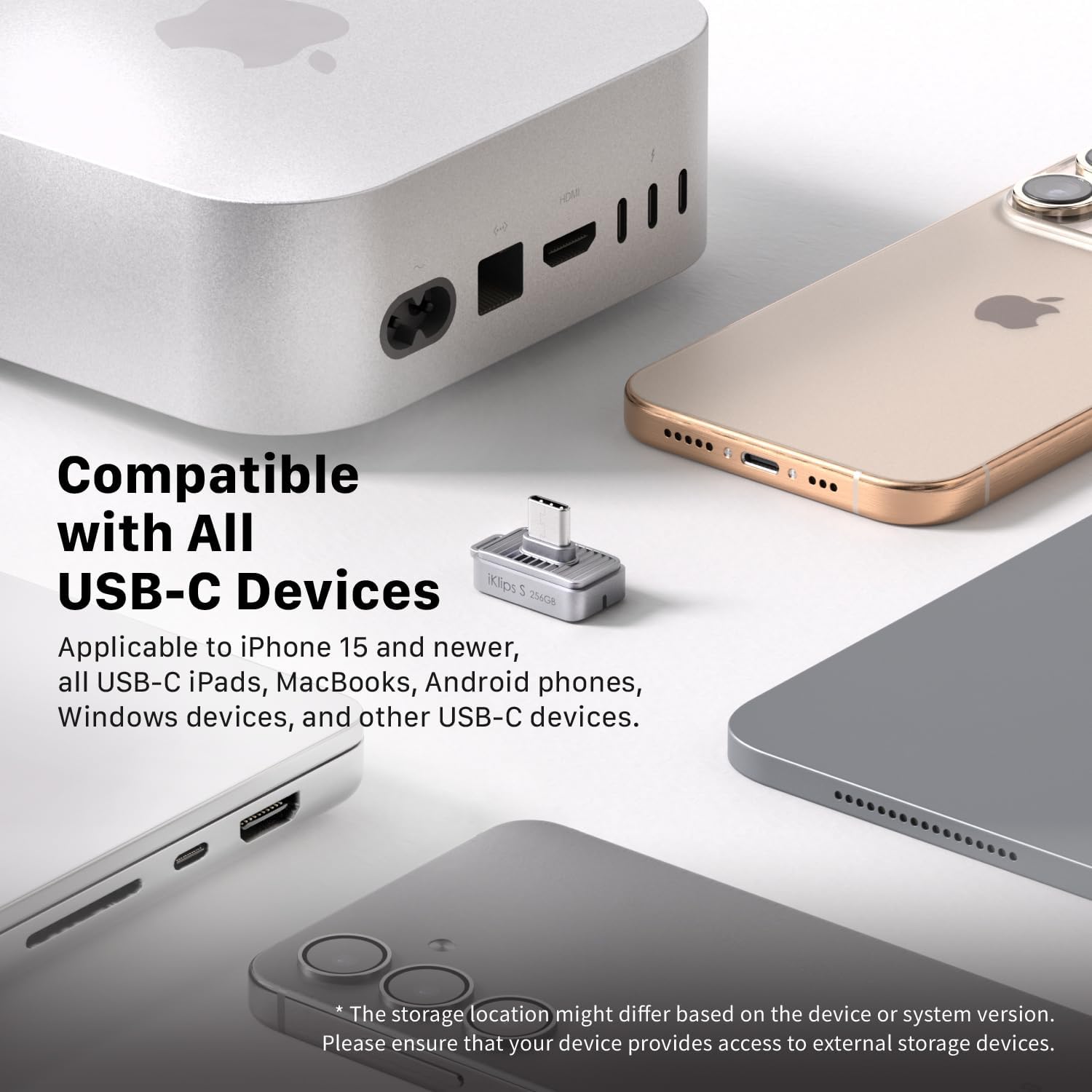
Image 3.1: The iKlips S enables quick connection and backup for mobile devices.
3.3 Using Fingerprint Security
If you have registered fingerprints, the iKlips S will require biometric authentication to unlock its contents. Simply place your registered finger on the fingerprint sensor when prompted by the device or software. The LED indicator on the iKlips S will confirm successful authentication.
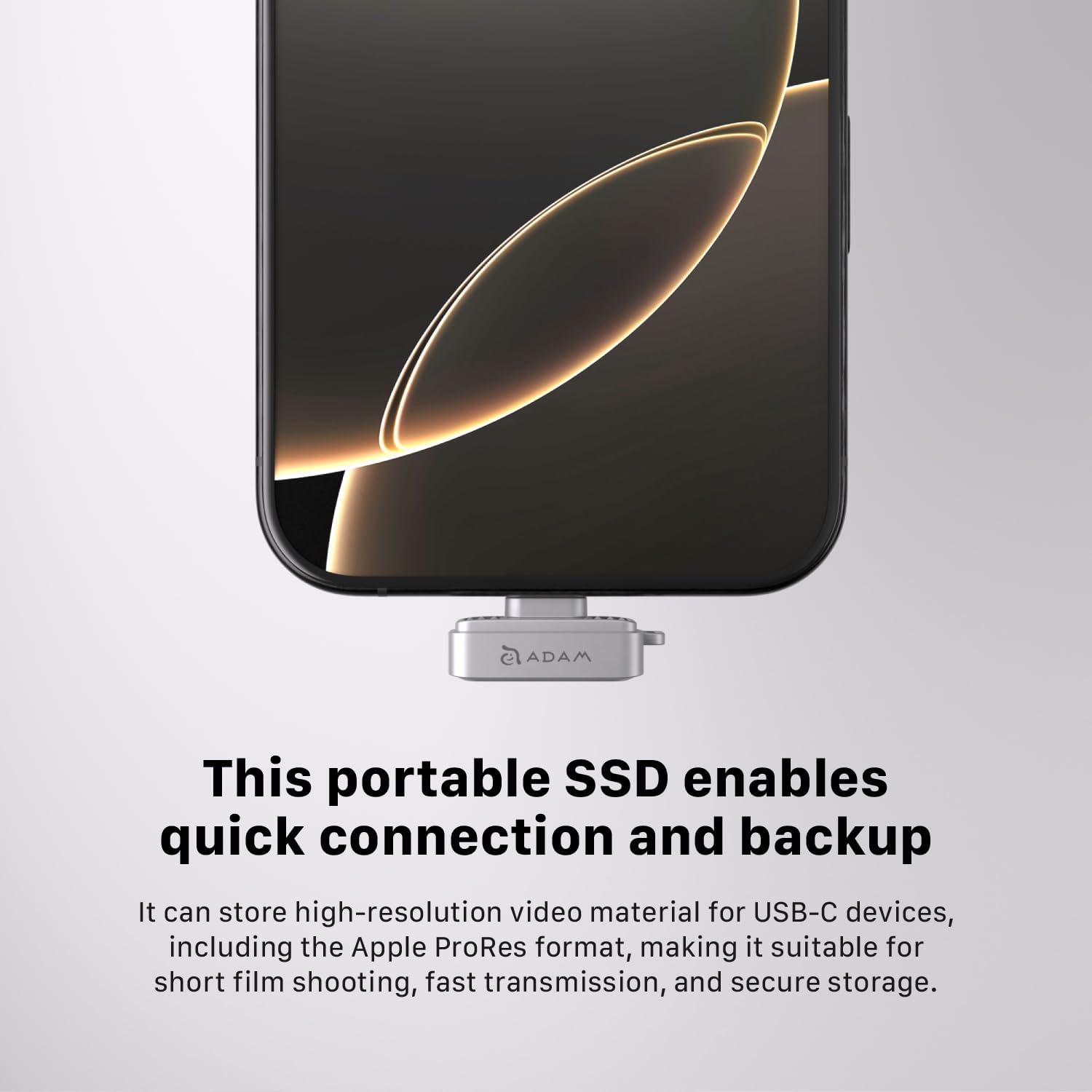
Image 3.2: The iKlips S offers both portability and secure data access through fingerprint recognition.
3.4 Compatibility and File Biçimler
The iKlips S supports the ex-FAT file system, which allows for the storage and transfer of individual files larger than 4GB. This is particularly useful for high-resolution video content, such as Apple ProRes format, commonly used by professional creators.

Image 3.3: The iKlips S is compatible with a wide range of USB-C devices.
4. Bakım
4.1 Temizlik
To clean the iKlips S, gently wipe the exterior with a soft, dry, lint-free cloth. Avoid using liquid cleaners, solvents, or abrasive materials, as these can damage the device or its fingerprint sensor.
4.2 Depolama
When not in use, store the iKlips S in a cool, dry place away from direct sunlight and extreme temperatures. Use the provided dust cap to protect the USB-C connector from dust and debris. Attaching the anti-lost finger ring can help prevent misplacement.
4.3 Veri Yedekleme
While the iKlips S provides secure storage, it is always recommended to maintain regular backups of critical data to multiple locations to prevent data loss from unforeseen circumstances.
5. Sorun Giderme
5.1 Cihaz Tanınmadı
- Bağlantıyı kontrol et: Ensure the iKlips S is fully and correctly inserted into the USB-C port.
- Başka Bir Port/Cihaz Deneyin: Test the iKlips S with a different USB-C port or another compatible device to rule out port or device-specific issues.
- Cihazı Yeniden Başlat: Sometimes, restarting your computer or mobile device can resolve connectivity issues.
- Driver/Software: Ensure you have the latest drivers or the official iKlips management software installed for your operating system.
5.2 Fingerprint Registration/Recognition Issues
- Sensörü Temizleyin: Ensure the fingerprint sensor and your finger are clean and dry.
- Consistent Placement: During registration and recognition, place your finger firmly and consistently on the sensor.
- Parmak İzini Yeniden Kaydet: If recognition consistently fails, try deleting and re-registering your fingerprint through the iKlips management software.
- Yazılım Güncellemesi: Check for updates to the iKlips management software.
5.3 Cihazın Aşırı Isınması
It is normal for storage devices to generate some heat during intensive data transfer operations. If the device feels excessively hot even when idle or performing light tasks, try the following:
- Reduce Workload: Avoid continuous heavy data transfers for extended periods.
- Hava Akışını Sağlayın: Do not obstruct the device or its surroundings, allowing for proper heat dissipation.
- Destek Ekibiyle İletişime Geçin: If overheating persists and affects functionality, contact ADAM elements customer support.
6. Özellikler
| Özellik | Detay |
|---|---|
| Model Adı | iKlips S |
| Ürün Model Numarası | ADRAD256KLSGY |
| Marka | ADAM ELEMENTS |
| Bellek Depolama Kapasitesi | 256 GB |
| Sabit Disk Türü | Solid State Drive (NAND Flash Memory) |
| Bağlantı Teknolojisi | USB-C |
| Donanım Arayüzü | USB |
| Okuma Hızı | Saniyede 450 Megabayta Kadar |
| Yazma Hızı | Saniyede 400 Megabayta Kadar |
| Özel Özellik | Fingerprint Encryption, Password Protection |
| Renk | Gri |
| Ürün Ağırlığı | 0.16 ons |
| Paket Boyutları | 5.1 x 3.5 x 0.7 inç |
7. Garanti ve Destek
For warranty information and technical support, please refer to the official ADAM elements webSite üzerinden satın alabilir veya doğrudan müşteri hizmetleriyle iletişime geçebilirsiniz. Satın alma belgenizi garanti talepleriniz için saklayın.
ADAM elements Official Webalan: www.adamelements.com