
1. Giriş
Thank you for choosing the OMOTON WK209 Wireless Keyboard and Mouse Set. This manual provides detailed instructions for setting up, operating, and maintaining your new wireless peripheral set. Please read this manual carefully before use to ensure optimal performance and longevity of your product.
2. Paket İçeriği
The OMOTON WK209 Wireless Keyboard and Mouse Set package includes the following items:
- 1 x OMOTON WK209 Wireless Keyboard
- 1 x OMOTON Wireless Mouse
- 1 x USB 2.4 GHz Receiver
Note: AAA batteries are required for operation but are not included in the package.
3. Kurulum Kılavuzu
3.1. Pillerin Takılması
Before using the keyboard and mouse, you need to install batteries.
- Klavyenin ve farenin alt tarafında bulunan pil bölmesini bulun.
- Pil kapaklarını açın.
- Insert two AAA batteries into the keyboard and one AAA battery into the mouse, ensuring correct polarity (+/-).
- Pil kapaklarını iyice kapatın.

This image displays the battery compartments for the OMOTON WK209 keyboard and mouse. The keyboard requires two AAA batteries, and the mouse requires one AAA battery. Please note that batteries are not included with the product.
3.2. USB Alıcısını Bağlama
The OMOTON WK209 set uses a single USB receiver for both the keyboard and mouse.
- Locate the USB 2.4 GHz receiver, usually stored in the mouse's battery compartment or packaging.
- Plug the USB receiver into an available USB port on your computer (laptop or desktop PC).
- The system will automatically detect and install the necessary drivers. This is a Plug & Play process and typically requires no manual installation.
- Turn on the mouse using the ON/OFF switch located on its underside. The keyboard does not have a separate power switch; it activates when keys are pressed.

This image illustrates the 2.4 GHz wireless connection of the OMOTON WK209 keyboard and mouse set. It highlights features such as Plug & Play functionality, a stable 2.4G connection, and a wireless range of up to 10 meters (33 feet).
3.3. Uyumluluk
The OMOTON WK209 set is compatible with a wide range of Windows operating systems.
- İşletim Sistemleri: Windows 11, Windows 10, Windows 8, Windows 7, Windows XP.
- Cihazlar: Laptop, Desktop PC.

This image demonstrates the broad compatibility of the OMOTON WK209 set with different Windows operating systems, including Windows 7, 8, 10, and 11, across desktop PCs and laptops.
4. Kullanım Talimatları
4.1. Klavye Kullanımı
The WK209 keyboard features a full-size QWERTZ layout with multimedia keys for enhanced productivity. Simply begin typing after successful connection.
- Multimedya Tuşları: Access functions like volume control, play/pause, and more directly from the keyboard.
- QWERTZ Layout: Standard German keyboard layout for familiar typing experience.
- 8° Eğim: The keyboard is designed with a natural 8-degree tilt for ergonomic comfort during extended use.

This image provides the physical dimensions of the OMOTON WK209 full-size QWERTZ keyboard (43.8 cm x 12.4 cm) and mouse (10.3 cm x 6.6 cm x 3.6 cm). It also notes the keyboard's natural 8-degree tilt for comfortable typing.
4.2. Fare Kullanımı
The WK209 mouse offers precise control and several functional buttons.
- Sol tık: Standart seçim ve aktivasyon.
- Sağ tık: Bağlam menülerine erişim sağlar.
- Kaydırma tekerleği: Dikey kaydırma ve orta tıklama işlevleri için.
- Geri Düğmesi: Geriye doğru gezinir web tarayıcılar veya file kaşifler.
- İleri Düğmesi: İleriye doğru gezinir web tarayıcılar veya file kaşifler.
- Desktop Show/Hide Button: Quickly minimizes all open windows to show the desktop, and restores them with another press.

This image highlights the features of the OMOTON WK209 wireless mouse, including the scroll wheel, left-click button, right-click button, back button, forward button, and a button for showing/hiding the desktop. It also emphasizes its ergonomic design and quiet click functionality.
5. Özellikler
- 2.4 GHz Kablosuz Bağlantı: Provides a stable and reliable connection with a range of up to 10 meters (33 feet).
- Tak ve Çalıştır: Easy setup without the need for additional software or drivers.
- Full-size QWERTZ Layout: Comfortable and familiar typing experience.
- Multimedya Tuşları: Convenient access to media controls.
- Ergonomik Tasarım: The mouse is shaped for comfortable use, and the keyboard features a natural 8-degree tilt.
- Sessiz Çalışma: Both the keyboard and mouse are designed for silent clicks and keystrokes, ideal for quiet environments.
- Düşük Pil Göstergesi: The keyboard features an indicator light to alert you when batteries are running low.

This image illustrates the quiet operation of the OMOTON WK209 keyboard and mouse, highlighting its silent keys and noiseless mouse clicks, suitable for quiet environments.
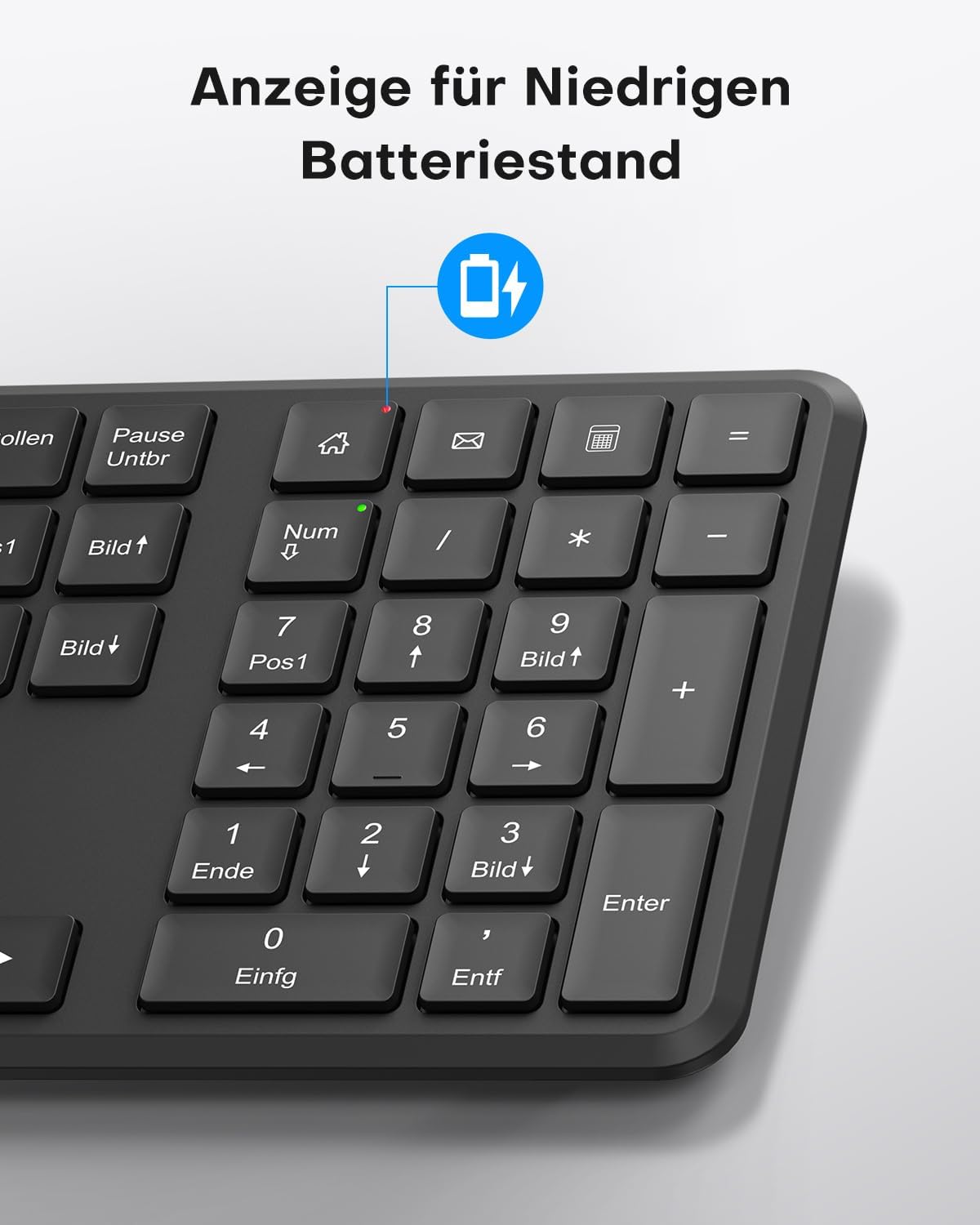
This image points out the low battery indicator on the OMOTON WK209 keyboard, which illuminates to alert the user when batteries need to be replaced.
6. Bakım
To ensure the longevity and optimal performance of your OMOTON WK209 set, follow these maintenance guidelines:
- Temizlik: Klavye ve farenin yüzeylerini temizlemek için yumuşak ve kuru bir bez kullanın. İnatçı kirler için hafifçe kurulayın.amp Bez kullanılabilir, ancak cihazların içine nem girmemesine dikkat edin.
- Pil Değişimi: Replace batteries promptly when the low battery indicator appears or when performance degrades. Always use fresh, high-quality AAA batteries.
- Depolamak: When not in use for extended periods, remove the batteries to prevent leakage. Store the devices in a cool, dry place.
- Sıvılardan Kaçının: Keep the keyboard and mouse away from liquids to prevent damage.
7. Sorun Giderme
If you encounter issues with your OMOTON WK209 set, try the following troubleshooting steps:
- Klavyeden/Fareden Yanıt Yok:
- Ensure batteries are correctly installed and not depleted. Replace them if necessary.
- Make sure the mouse's ON/OFF switch is in the 'ON' position.
- USB alıcısının bilgisayarınızdaki çalışan bir USB bağlantı noktasına güvenli bir şekilde takılı olduğundan emin olun. Farklı bir USB bağlantı noktası deneyin.
- Bilgisayarınızı yeniden başlatın.
- Gecikme veya Kesintili Bağlantı:
- Klavyeyi ve fareyi USB alıcısına yaklaştırın.
- Ensure there are no large metal objects or other wireless devices (e.g., Wi-Fi routers, cordless phones) interfering with the 2.4 GHz signal.
- Try plugging the USB receiver into a front USB port or using a USB extension cable to bring it closer to the devices.
- Keys Not Working Correctly:
- Tuşların altında herhangi bir kalıntı olup olmadığını kontrol edin.
- Ensure the keyboard layout setting on your computer matches the QWERTZ layout.
- Fare İmleci Atlıyor veya Yanlış:
- Farenin alt tarafındaki optik sensörü temizleyin.
- Fareyi temiz, yansıtmayan bir yüzeyde veya fare altlığı üzerinde kullanın.
8. Özellikler
| Özellik | Detay |
|---|---|
| Marka | OMOTON |
| Örnek | Hafta209 |
| Renk | Siyah |
| Bağlantı Teknolojisi | 2.4 GHz Kablosuz |
| Klavye Düzeni | Full-size QWERTZ (German Layout) |
| Özel Özellikler | 2.4 GHz, Full-size, QWERTZ-layout, Battery-operated, Multimedia keys |
| Uyumlu Cihazlar | Dizüstü Bilgisayar |
| Uyumlu İşletim Sistemleri | Windows 11/10/8/7/XP |
| Güç Kaynağı | Battery-Powered (2x AAA for keyboard, 1x AAA for mouse - not included) |
| Ürün Ağırlığı (yaklaşık) | 514 Grams (total set, including packaging) |
| Paket Boyutları | 44.79x13.9x5.3 cm |
| ASIN | B0FQNS3FFB |
9. Garanti ve Destek
OMOTON products are designed for reliability and performance. For warranty information and customer support, please refer to the warranty card included with your purchase or visit the official OMOTON website. If you experience any issues that cannot be resolved using the troubleshooting guide, please contact OMOTON customer service for assistance.