
1. Üzeriview
The CORBOBO AULA F3099 is a versatile wireless keyboard designed for various computing needs, offering multiple connectivity options, customizable RGB backlighting, and a comfortable typing experience. This manual provides detailed instructions for setup, operation, and maintenance.
Temel Özellikler:
- Üç Modlu Bağlantı: Seamlessly switch between 2.4GHz wireless, Bluetooth 5.0, and USB-C wired connections.
- 2-in-1 Multifunction Knob: Control media volume/mute or cycle RGB backlight effects and brightness.
- Programmable Driver: Customize macros and assign functions to individual keys (Windows systems, wired mode only).
- Durable & Quiet Typing: Membrane silicone keys provide a smooth, quiet keystroke feel.
- RGB Arka Aydınlatma: Multiple lighting effects with 16.8 million colors, adjustable brightness and speed.
- Ergonomik Tasarım: Foldable dual-stage stand for adjustable tilt angles to reduce wrist strain.
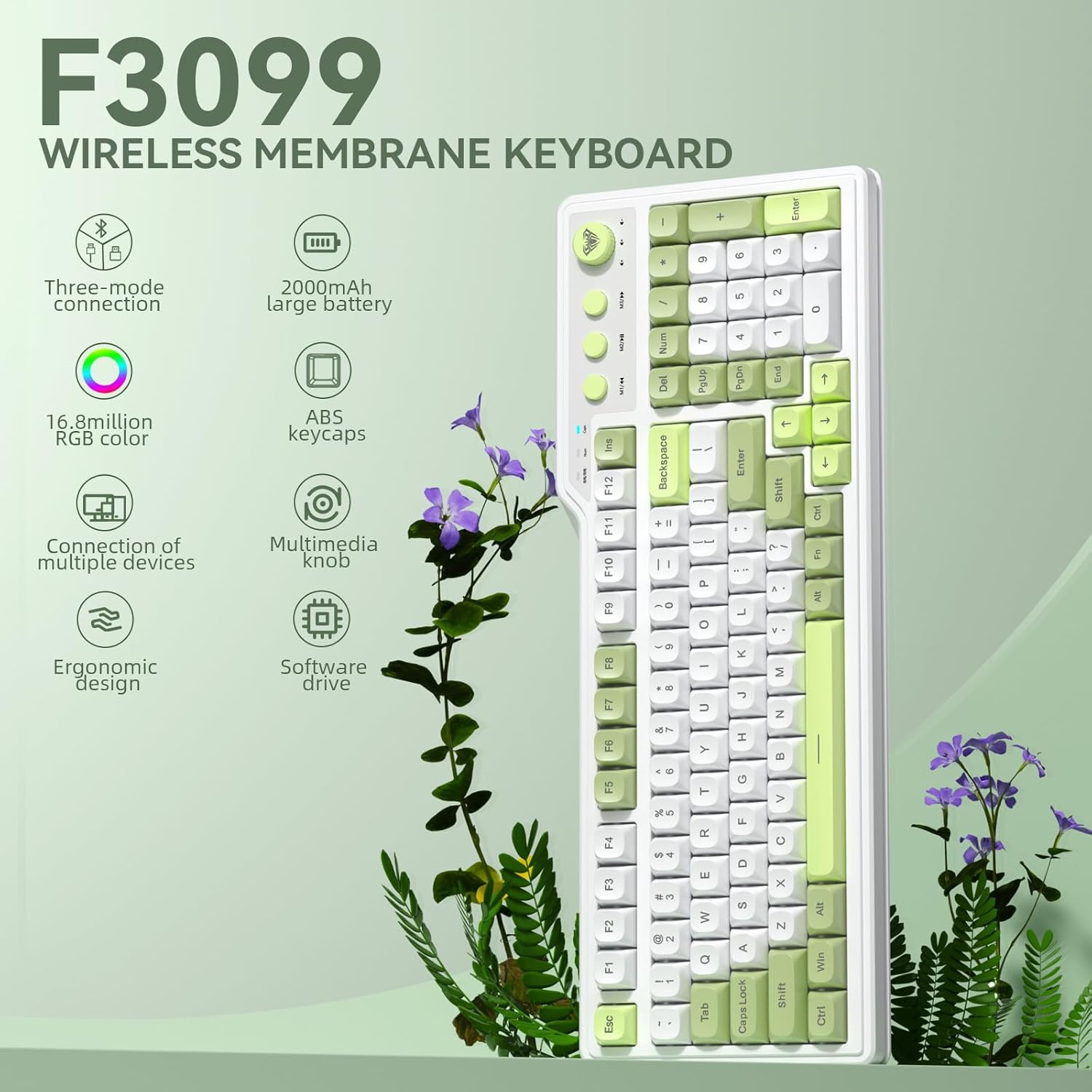
Resim 1.1: Üzeriview of the AULA F3099 Wireless Membrane Keyboard, illustrating its triple-mode connection, 2000mAh battery, RGB color, multi-device support, multimedia knob, ergonomic design, and software driver capabilities.
2. Paket İçeriği
Ürün paketinizde tüm öğelerin mevcut olduğunu doğrulayın:
- AULA F3099 Wireless Keyboard x 1
- Kullanıcı Kılavuzu x 1
- USB-C Kablosu x 1
- Tuş Çektirme x 1
Video 2.1: An unboxing video demonstrating the contents of the AULA F3099 Wireless Keyboard package, including the keyboard, USB-C cable, and keycap puller.
3. Kurulum
The AULA F3099 keyboard supports three connection modes: 2.4GHz wireless, Bluetooth 5.0, and USB-C wired. Choose the mode that best suits your device and needs.
3.1. Güç Açma/Kapatma
Locate the power switch on the back of the keyboard. Slide it to "ON" to power on the keyboard or "OFF" to power it down.
3.2. 2.4GHz Kablosuz Modu
- Locate the 2.4GHz USB receiver stored in the compartment on the back of the keyboard.
- USB alıcısını bilgisayarınızdaki uygun bir USB bağlantı noktasına takın.
- Klavyede tuşuna basın fn + ~ to switch to 2.4GHz wireless mode. The keyboard will automatically connect.

Image 3.1: Illustration of the keyboard's tri-mode connection capabilities, showing 2.4GHz wireless, Bluetooth 5.0, and USB-C wired connections to various devices.
3.3. Bluetooth 5.0 Modu
- Basmak Fn + 1, Fn + 2, veya Fn + 3 Bir Bluetooth kanalı seçmek için. Gösterge ışığı yanıp sönerek eşleştirme modunu belirtir.
- On your device (PC, laptop, smartphone, tablet), go to Bluetooth settings and search for "AULA F3099".
- Eşleştirmek istediğiniz klavyeyi seçin. Bağlantı kurulduktan sonra gösterge ışığı yanıp sönmeyi durduracaktır.
- The keyboard can save up to three different Bluetooth devices. Repeat the process for additional devices on different channels.
Note: Windows 7 and earlier systems do not support Bluetooth connections.
3.4. USB-C Kablolu Mod
- Kutuda bulunan USB-C kablosunu klavyenin USB-C portuna, diğer ucunu ise bilgisayarınızın USB portuna bağlayın.
- Basmak Fn + 4 Kablolu moda geçin. Klavye kullanıma hazır olacaktır.
4. Kullanım Talimatları
4.1. Multifunction Knob & Media Keys
The keyboard features a dual-mode knob and dedicated media keys for enhanced control.
- Anahtarlama Modları: Long-press the knob for 3 seconds to toggle between Gaming Mode and Office Mode.
- Oyun Modu:
- Press the knob to cycle through RGB backlight effects.
- Arka ışık parlaklığını ayarlamak için düğmeyi çevirin.
- M1/M2/M3 keys can be programmed for macros (see section 4.3).
- Ofis Modu:
- Rotate the knob to increase/decrease computer volume.
- Press the knob briefly to mute/unmute audio.
- M1 (Previous Song), M2 (Play/Pause), M3 (Next Song) keys function as standard multimedia controls.

Resim 4.1: Ayrıntılı view of the dual-mode multimedia knob and adjacent media keys, explaining their functionalities for both gaming and office environments.
Video 4.2: A demonstration of the F3099 Wireless Keyboard's media knob functionality, showcasing its use for volume control and backlight adjustments.
4.2. RGB Arka Aydınlatma Kontrolü
The keyboard features multiple RGB lighting effects. Adjust them using the knob or shortcut keys:
- Fn + Son: Adjust lighting colors (in constant light mode).
- Fn + PgUp: Adjust to the next light effect.
- Fn + PgDn: Adjust to the last light effect.
- Fn + [: Adjust lighting brightness up.
- Fn + ]: Adjust lighting brightness down.
- Fn + -: Adjust lighting speed up.
- Fn + =: Adjust lighting speed down.
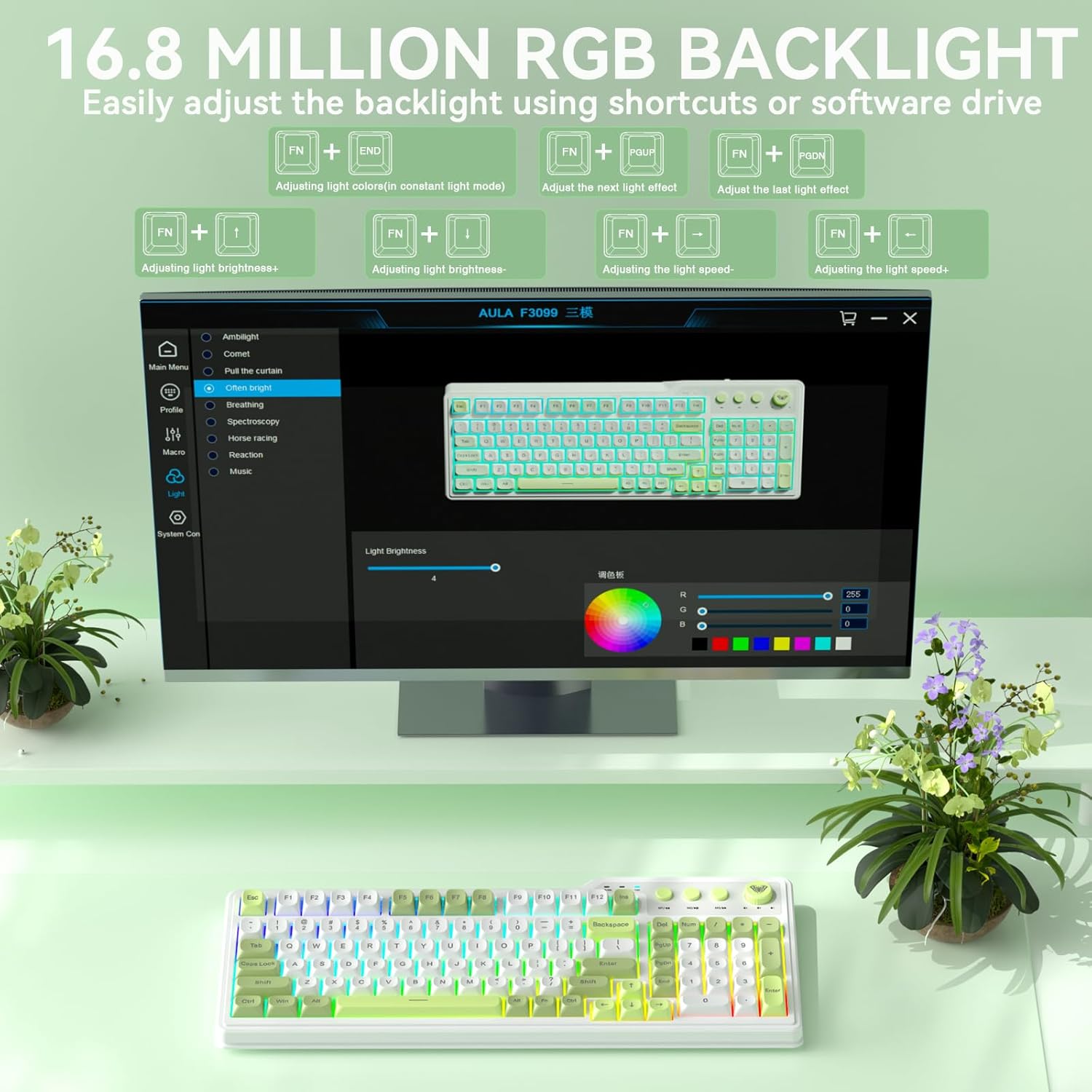
Image 4.3: Visual representation of the 16.8 million RGB backlighting, showing different lighting effects and the shortcut keys for adjustment.
4.3. Programmable Driver & Macro Customization
The F3099 keyboard supports full-key macro programming via its dedicated driver. This feature is available only when the keyboard is connected in wired mode on Windows systems.
- Sürücüyü şuradan indirin: bit.ly/m/corbobo
- Install the driver on your Windows system.
- Connect the keyboard via USB-C cable.
- Open the driver software to access macro customization, key remapping, and advanced RGB settings.

Image 4.4: The software driver interface for the AULA F3099, demonstrating options for macro recording, all-key programmability, and RGB settings.
5. Bakım
5.1. Temizlik
- Temizlemeden önce klavyeyi tüm güç kaynaklarından ayırın.
- Yumuşak, tiftiksiz bir bez kullanın ve hafifçe kurulayın.ampYüzeyi silmek için su veya hafif bir temizleme solüsyonu kullanın.
- For dust and debris between keys, use compressed air or the provided keycap puller to remove keycaps for deeper cleaning.
5.2. Pil doldurma
The keyboard is equipped with a rechargeable battery. Connect the USB-C cable to the keyboard and a power source (computer USB port or USB wall adapter) to charge. The charging indicator light will show the charging status.
5.3. Keycap Removal and Installation
Use the included keycap puller to safely remove and install keycaps for cleaning or customization.
Video 5.1: A short video demonstrating the method for installing accidentally detached keycaps, useful for maintenance and customization.
6. Sorun Giderme
| Sorun | Çözüm |
|---|---|
| Keyboard not connecting via 2.4GHz wireless. | Ensure the USB receiver is securely plugged in and the keyboard is in 2.4GHz mode (fn + ~). Try a different USB port. |
| Klavye Bluetooth üzerinden bağlanmıyor. | Klavyenin Bluetooth eşleştirme modunda olduğundan emin olun (fn + 1/2/3) and your device's Bluetooth is enabled. Forget the device on your computer and re-pair. Ensure your operating system supports Bluetooth 5.0. |
| Tuşlar yanıt vermiyor veya yanlış yazıyor. | Check the connection mode (wired/wireless). Ensure the keyboard is charged. If using the programmable driver, verify macro settings. Restart the keyboard and computer. |
| RGB backlighting is not working or stuck. | Klavyenin açık olduğundan emin olun. Aydınlatma efektleri arasında geçiş yapmayı deneyin. Fn + PgYukarıParlaklığı şu şekilde ayarlayın: Fn + [ or Fn + ]. If using the driver, check lighting settings. |
| Programmable driver not working. | The driver only supports wired mode operation on Windows systems. Ensure the keyboard is connected via USB-C and your system is Windows. Reinstall the driver if necessary. |
7. Özellikler
| Özellik | Detay |
|---|---|
| Ürün Boyutları | 17.51"U x 8.07"G x 1.96"Y |
| Ürün Ağırlığı | 2.57 pound |
| Üretici | ÇORBOBO |
| Ürün Model Numarası | F3099 |
| Piller | 1 Standart Dışı Pil (dahil) |
| Bağlantı Teknolojisi | 2.4GHz, BT 5.0, USB-C |
| Klavye Açıklaması | Membran |
| Özel Özellik | Backlit, Ergonomic, Rechargeable, Volume Roller |
| Klavye Arka Aydınlatma Renk Desteği | RGB (16.8 milyon renk) |
| Uyumlu Cihazlar | Oyun Konsolu, Dizüstü Bilgisayar, PC, Akıllı Telefon, Tablet |
8. Garanti ve Destek
For warranty information and technical support, please refer to the documentation included with your purchase or visit the official CORBOBO webSite. Satın alma belgenizi herhangi bir garanti talebi için saklayın.


