
1. Giriş
This manual provides detailed instructions for the setup, operation, maintenance, and troubleshooting of the RGBlink NDI PTZ Camera Controller (RGBBKT). This device is designed for professional video production environments, offering comprehensive control over various PTZ cameras using multiple protocols.
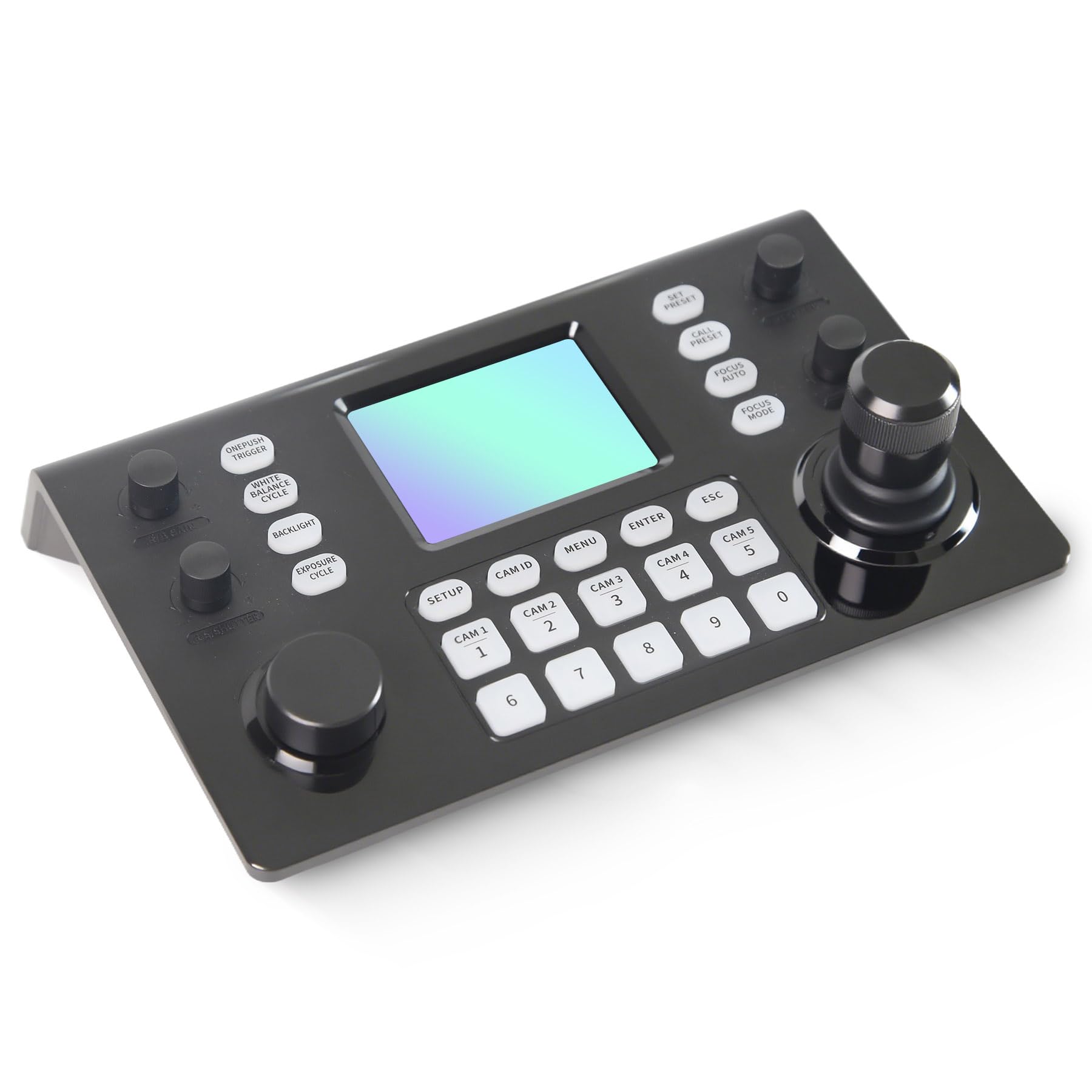
Image 1.1: RGBlink NDI PTZ Camera Controller (RGBBKT).
2. Kurulum
Follow these steps to set up your RGBlink NDI PTZ Camera Controller.
2.1 Paketin Açılması ve İlk Muayene
- Tüm bileşenleri dikkatlice ambalajından çıkarın.
- Verify that all items listed in the packing list are present.
- Inspect the controller for any signs of physical damage. If damage is found, contact your dealer immediately.
2.2 Kontrol Ünitesinin Bağlanması
The RGBlink NDI PTZ Camera Controller supports various connection methods for power and camera control.
- Ethernet Üzerinden Güç (PoE): Connect a single RJ45 Ethernet cable from a PoE-enabled network switch to the controller's LAN port. This provides both power and network connectivity.
- Harici Güç Adaptörü: If PoE is not available, connect the provided power adapter to the DC 12V input port and to a power outlet.
- Kamera Bağlantıları:
- Ethernet (IP Control): Connect PTZ cameras to the same network as the controller via RJ45 Ethernet cables. The controller supports VISCA over IP, ONVIF v2.42, and NDI v5.5 protocols.
- Seri Kontrol: For cameras supporting serial communication, use RS232, RS422, or RS485 interfaces. Connect the appropriate cables from the controller's serial ports to the cameras.

Image 2.1: Rear panel connections including RS-232, RS-422, LAN (PoE), and Power Input.

Resim 2.2: Örn.ample connection diagram showing PTZ Controller, PoE Switch, PTZ Cameras, Audio Mixer, and Computer.

Image 2.3: Diagram illustrating IP camera connections via a network switch.
2.3 Ağ Yapılandırması
For IP-based camera control, ensure the controller and cameras are on the same network segment. The controller supports automatic detection of NDI-enabled PTZ cameras.
- Access the controller's web IP adresini girerek arayüz web browser. (Refer to the device's display or network tools to find the IP address).
- The default login credentials are typically 'admin' with a blank password. It is recommended to set a strong password immediately.
- İçinde web interface, configure camera protocols (e.g., ONVIF, VISCA over IP) and enter camera-specific user credentials if required.

Image 2.4: NDI|HX camera search and control interface on the controller.
3. Operasyon
This section details the operational functions of the RGBlink NDI PTZ Camera Controller.
3.1 Üzeriview Kontrollerin
The controller features a 3.49" LCD display, a 3D joystick, various knobs, and a numeric keypad for intuitive control.

Image 3.1: The controller's 3.49-inch LCD display.

Resim 3.2: Ayrıntılı view of the 3D joystick and multi-function knobs.

Image 3.3: Layout of the controller's buttons and numeric keypad area.
3.2 Kamera Seçimi
- Hızlı Seçim Düğmeleri: Use the dedicated CAM 1-5 buttons for quick selection of up to 5 cameras.
- Sayısal tuş takımı: For cameras beyond the quick select buttons (up to 255), press the kamera kimliği button, then enter the camera number using the numeric keypad, and press GİRMEK.

Image 3.4: The controller's ability to manage multiple cameras.
3.3 PTZ Kontrolü
- Oyun kolu: The 3D joystick controls pan (left/right), tilt (up/down), and zoom (rotate the joystick).
- PT Hız Düğmesi: Adjusts the gimbal movement speed for pan and tilt.
- Zoom Knob: Provides precise zoom control, especially useful in preview mod.
3.4 Image Parameter Adjustment
- IRIS/SHUTTER Knob: Rotate to adjust aperture and shutter speed. Press to switch control modes.
- R/B GAIN Knob: Rotate to adjust red and blue gain. Press to switch control modes.
- FOCUS Button: Basın OTOMATİK ODAKLAMA button to switch the camera to auto focus mode.
- EXPOSURE Button: Cycles through exposure modes (Aperture Priority, Shutter Priority, Gain Priority, Manual Exposure, Auto Exposure).
- ARKA AYDINLATMA Düğmesi: Toggles the camera's backlight mode.
- WHITE BALANCE CYCLE Button: Cycles through white balance modes (Indoor, Outdoor, Manual, Auto).
- ONE PUSH TRIGGER Button: When white balance is set to "One-Push White Balance", press this button to initiate a one-push white balance calibration.

Image 3.5: Functions of buttons and knobs on the left side of the controller.

Image 3.6: Functions of buttons and knobs on the right side of the controller, including preset controls.
3.5 Ön Ayarlar
- SET PRESET Button: Press to enter preset position mode. Use the numeric keys to enter the preset number (0-9) and press GİRMEK kaydetmek. Basmak ESC çıkmak.
- CALL PRESET Button: Press to enter preset recall mode. Use the numeric keys to enter the preset number (0-9) and press GİRMEK to recall. Press ESC çıkmak.
- The controller supports saving and recalling up to 255 presets per camera.
3.6 Menü Navigasyonu
- MENÜ Düğmesi: Press to open or close the camera settings menu. In menu control mode, the joystick controls navigation (up, down, left, right), GİRMEK confirms selections, and ESC acts as a back button.
4. Bakım
Proper maintenance ensures the longevity and optimal performance of your RGBlink NDI PTZ Camera Controller.
4.1 Temizlik
- Use a soft, dry cloth to clean the exterior of the controller.
- İnatçı kirler için hafifçeampBezi su veya aşındırıcı olmayan yumuşak bir temizleme solüsyonuyla yıkayın.
- Avoid using harsh chemicals, solvents, or abrasive materials, as these can damage the surface and display.
- Ensure no liquids enter the device through openings or ports.
4.2 Depolama
- Uzun süre kullanılmayacaksa, kontrol cihazını doğrudan güneş ışığından ve aşırı sıcaklıklardan uzakta, serin ve kuru bir yerde saklayın.
- Cihazınızı tozdan ve nemden koruyun.
5. Sorun Giderme
Bu bölümde karşılaşabileceğiniz yaygın sorunlara çözümler sunulmaktadır.
5.1 Güç Yok
- Güç Kaynağını Kontrol Edin: Güç adaptörünün hem kontrol ünitesine hem de çalışan bir elektrik prizine güvenli bir şekilde bağlı olduğundan emin olun.
- PoE Kontrolü: If using PoE, verify that the Ethernet cable is connected to a PoE-enabled port on your network switch and that the switch is powered on.
- Kablo Bütünlüğü: Inspect the power cable and Ethernet cable for any damage.
5.2 Cannot Control Camera
- Ağ Bağlantısı: For IP cameras, ensure the controller and cameras are on the same network and can communicate. Check network cables and IP addresses.
- Protokol Uyuşmazlığı: Verify that the correct control protocol (e.g., VISCA over IP, ONVIF, NDI, Pelco-D/P) is selected on both the controller and the camera.
- Kamera kimliği: Ensure the correct camera ID is selected on the controller.
- Giriş Kimlik Bilgileri: If the camera requires authentication, confirm that the correct username and password are configured in the controller's web arayüz.
- Seri Bağlantı: For serial control, check RS232/RS422/RS485 cable connections and ensure baud rates and addresses match between the controller and camera.
- Yazılım: Ensure both the controller and cameras have the latest firmware installed. Visit the RGBlink support webgüncellemeler için site.
5.3 LCD Ekran Sorunları
- Görüntü yok: Kontrol cihazının açık olduğundan emin olun.
- Loş ekran: Check if there are any brightness settings on the controller that can be adjusted.
6. Özellikler
| Özellik | Detay |
|---|---|
| Örnek | RGBBKT |
| Boyutlar (U x G x Y) | 11.4 x 7.8 x 5.9 inç (yaklaşık 290 x 200 x 150 mm) |
| Ağırlık | 2.2 pound (yaklaşık 1 kg) |
| Görüntülemek | 3.49 inç LCD |
| Kontrol Protokolleri | VISCA over IP, ONVIF v2.42, NDI v5.5, Pelco-D/P |
| Arayüzler | RS232, RS422, RS485, RJ45 Ethernet (PoE) |
| Camera Capacity | Up to 255 PTZ cameras |
| Güç Girişi | PoE or DC 12V (external adapter) |
| Joystick | High-precision Hall sensor 3D joystick |

Image 6.1: Controller dimensions and typical usage environments.

Image 6.2: Visual representation of supported protocols including RJ45, RS485, RS422, RS232, ONVIF, NDI, Pelco-D, Pelco-P, and Visca.
7. Ürün Videosu Tanıtımı
Watch the official product video for a visual demonstration of the RGBlink NDI PTZ Camera Controller's features and operation.
Video 7.1: Official demonstration of the RGBlink PTZ Camera Controller Joystick, showcasing multi-camera control and key features.
8. Garanti ve Destek
For warranty information, technical support, or service inquiries, please contact RGBlink customer service or visit their official webalan.
- Üretici: Xiamen RGBlink Science & Technology Co.,Ltd.
- Resmi Webalan: www.rgblink.com (Not: Bu bir yer tutucudur URL, please refer to your product packaging or official documentation for the correct support webalan.)
- İletişim Bilgileri: Refer to the RGBlink official website for the most current contact details for technical support and warranty claims.