
Oakcastle IR200
Oakcastle IR200 İnternet Radyosu Kullanım Kılavuzu
Modeli: IR200
1. Giriş
Thank you for choosing the Oakcastle IR200 Internet Radio. This manual provides essential information for the safe and efficient operation of your device. Please read it thoroughly before use and retain it for future reference.
The Oakcastle IR200 is a versatile audio system offering multiple listening options, including Internet Radio, DAB+, FM, Bluetooth 5.3, and AUX input. It features a color display, remote control, and podcast support for a comprehensive audio experience.
2. Paket İçeriği
Kutuyu dikkatlice açın ve aşağıda listelenen tüm öğelerin eksiksiz ve iyi durumda olduğundan emin olun:
- Oakcastle IR200 Internet Radio Unit
- Güç kablosu
- Uzaktan kumanda
- Kullanım Kılavuzu (bu belge)
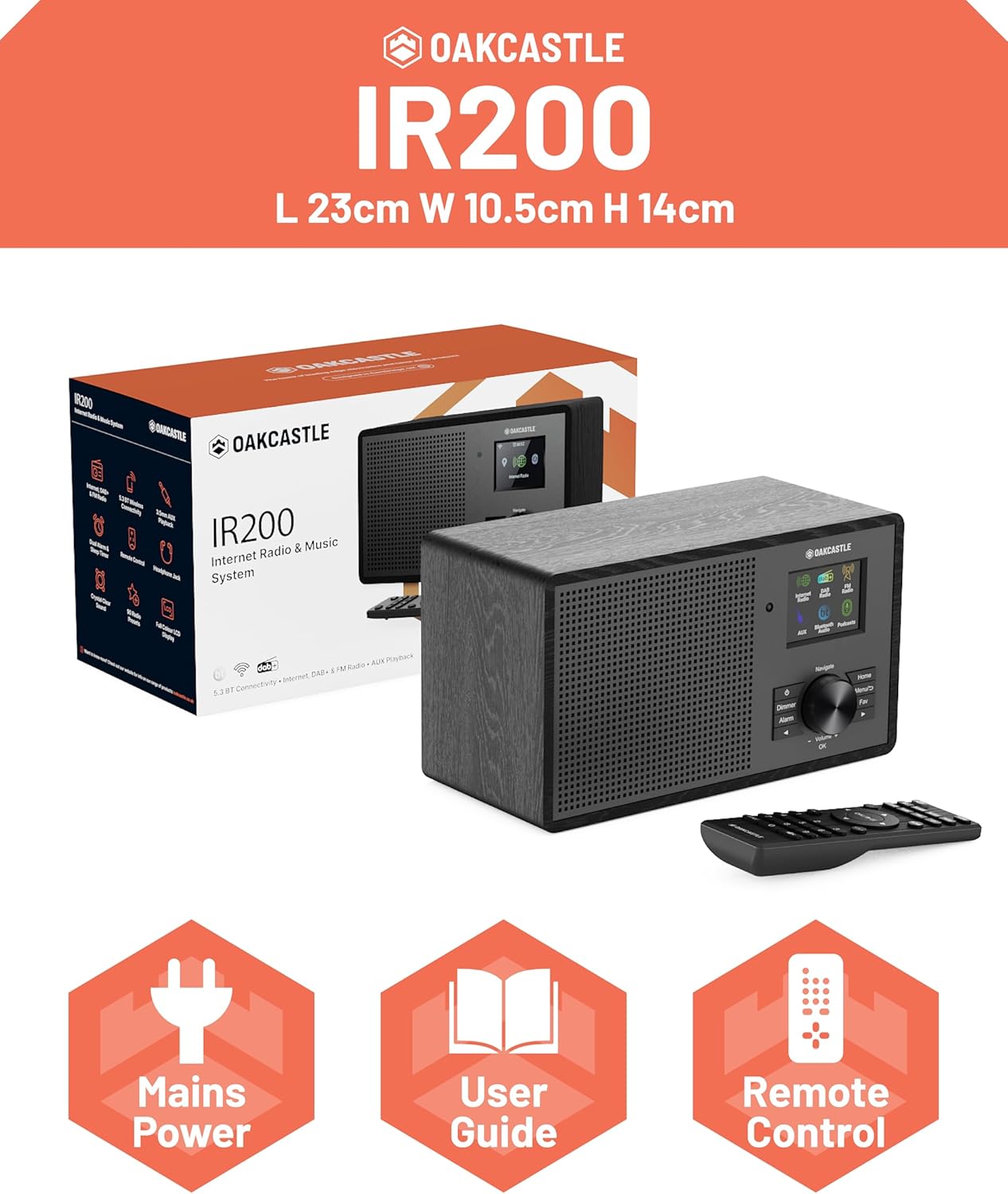
Image 2.1: Contents of the Oakcastle IR200 package, including the radio unit, its box, power cable, remote control, and user manual.
3. Ürün Bittiview
Familiarize yourself with the main components and controls of your Oakcastle IR200 radio.
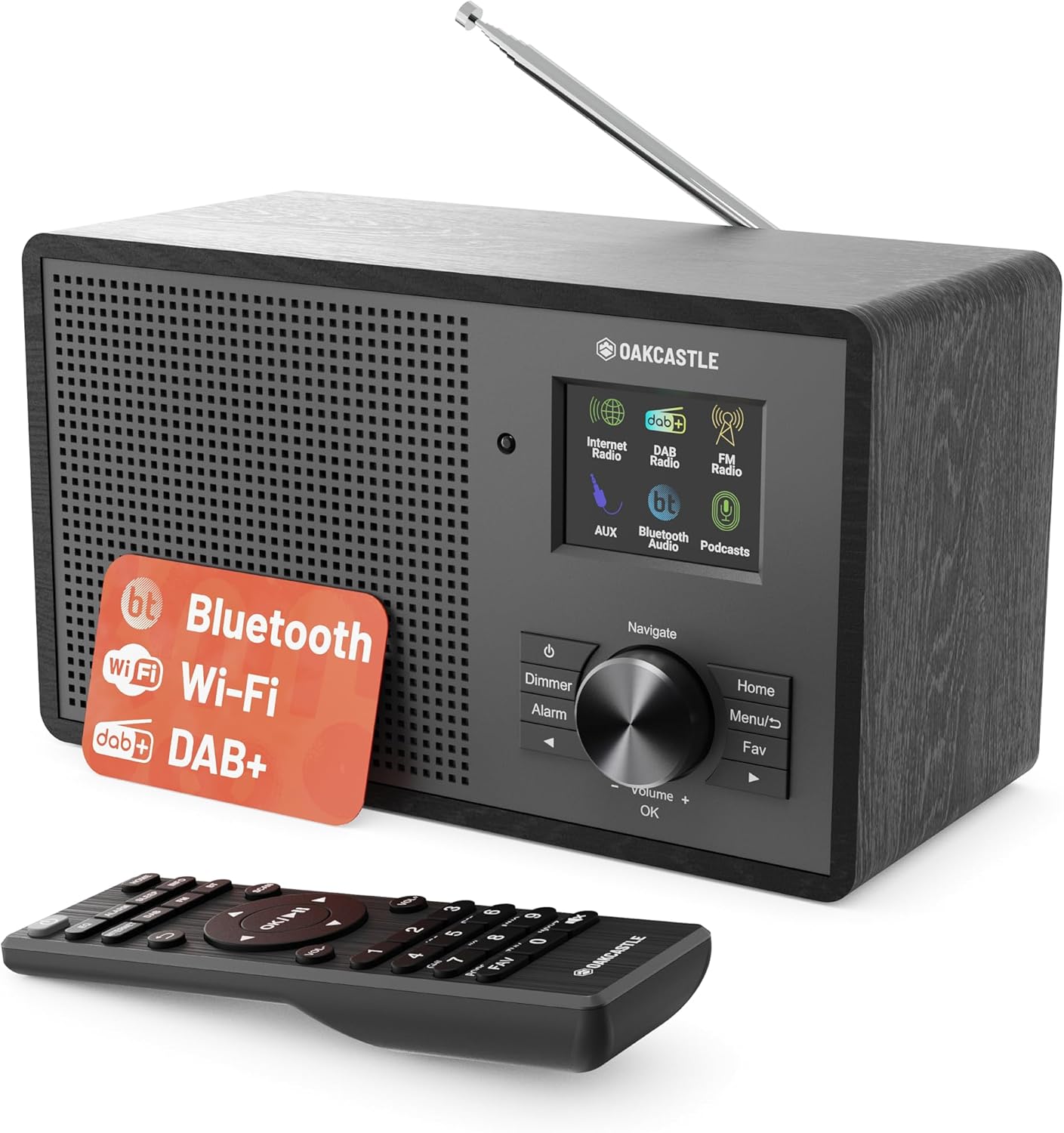
Resim 3.1: Ön view of the Oakcastle IR200 radio, showcasing the display, control knob, buttons, and the included remote control.
3.1 Ön Panel Kontrolleri
- Ekran Görüntüsü: İstasyon bilgilerini, saatini ve menü seçeneklerini gösterir.
- Navigate/Volume/OK Knob: Rotate to navigate menus or adjust volume; press to confirm selections.
- Güç Düğmesi: Cihazı açar/kapatır veya bekleme moduna alır.
- Dimmer Düğmesi: Ekran parlaklığını ayarlar.
- Alarm butonu: Alarm ayarlarını kontrol eder.
- Ana menü tuşu: Ana menüye geri döner.
- Menü Düğmesi: Accesses mode-specific menus.
- Fav Button: Accesses favorite station presets.
3.2 Arka Panel Bağlantıları

Resim 3.2: Arka view of the Oakcastle IR200, highlighting the headphone output and AUX input ports.
- Teleskopik Anten: DAB+ ve FM alımı için.
- AUX Girişi: Harici ses aygıtlarını bağlayın.
- Kulaklık Çıkışı: Özel dinleme için kulaklıkları bağlayın.
- DC IN: Güç adaptörü bağlantısı.
4. İlk Kurulum
4.1 Güç Bağlantısı
- Insert the power cable into the DC IN port on the rear of the radio.
- Plug the other end of the power cable into a wall socket.
- Press the Power button on the front panel or remote control to turn on the radio.
4.2 Anten Ayarı
For optimal DAB+ and FM reception, fully extend the telescopic antenna located at the rear of the unit.
4.3 Network Connection (for Internet Radio)
- Upon first power-on, the radio will guide you through the network setup.
- Select "Network Wizard" or "Wi-Fi Setup" from the menu.
- Radyo, kullanılabilir Wi-Fi ağlarını tarayacaktır. Listeden ağınızı seçin.
- Enter your Wi-Fi password using the navigation knob and OK button.
- Bağlantı kurulduktan sonra, radyo bir onay mesajı gösterecektir.
5. Çalışma Modları
The Oakcastle IR200 offers several listening modes. Press the "Home" button to access the main menu and select your desired mode.
5.1 İnternet Radyosu
Access thousands of global radio stations via your Wi-Fi connection.

Image 5.1: The radio's display screen in Internet Radio mode, showing station information.
- From the main menu, select "Internet Radio".
- You can browse stations by location, genre, or search by name.
- Rotate the Navigate knob to scroll through options and press OK to select.
- To save a station as a favorite, press the "Fav" button during playback.
5.2 DAB+ Radyo
Yüksek kaliteli dijital radyo yayınlarının keyfini çıkarın.

Image 5.2: The radio's display screen in DAB+ Radio mode, showing the current station.
- From the main menu, select "DAB+ Radio".
- Radyo, mevcut DAB+ istasyonlarını otomatik olarak tarayacaktır.
- Use the Navigate knob to select a station from the list.
- To save a station as a favorite, press the "Fav" button during playback.
5.3 FM Radyo
Geleneksel analog FM yayınlarını dinleyin.
- Ana menüden "FM Radyo"yu seçin.
- To auto-scan for stations, press and hold the OK button or use the scan function via the menu.
- To manually tune, rotate the Navigate knob.
- To save a station as a favorite, press the "Fav" button during playback.
5.4 Bluetooth Bağlantısı
Bluetooth özellikli cihazlarınızdan kablosuz olarak ses akışı yapın.

Image 5.3: The radio's display screen in Bluetooth mode, indicating readiness for pairing.
- From the main menu, select "Bluetooth". The radio will enter pairing mode.
- On your external device (e.g., smartphone), enable Bluetooth and search for "Oakcastle IR200".
- Select "Oakcastle IR200" to pair. Once connected, you can stream audio.
5.5 AUX Girişi
Connect external audio sources using a 3.5mm audio cable.
- Connect one end of a 3.5mm audio cable to the AUX IN port on the rear of the radio.
- Diğer ucunu harici cihazınızın kulaklık girişine veya ses çıkışına bağlayın.
- From the main menu, select "AUX".
- Oynatmayı harici cihazınızdan kontrol edin.
5.6 Podcast'ler
Browse and listen to a wide range of podcasts.
- From the main menu, select "Podcasts".
- Browse podcasts by category or search for specific titles.
- Select a podcast to start listening.
6. Ayarlar ve Özellikler
6.1 Sistem Ayarları
Access general system settings via the main menu to configure time, language, display, and more.
- Zaman / Tarih: Set time format, synchronize time.
- Dil: Select your preferred language for the menu.
- Görüntülemek: Adjust backlight, color scheme.
- Ağ: Reconfigure Wi-Fi settings.
- Yazılım Güncellemesi: Ürün yazılımı güncellemelerini kontrol edin ve yükleyin.
6.2 Ekolayzer (EQ)
Customize the audio output to your preference using the equalizer settings, accessible via the remote control or system menu.
6.3 Ön Ayarlar
The radio supports over 90 presets for your favorite Internet, DAB+, and FM stations. To recall a preset, press the "Fav" button and select from the list.
6.4 Alarmlar
Set alarms to wake up to your favorite radio station or a buzzer sound. Access alarm settings via the "Alarm" button on the front panel or remote.
7. Uzaktan Kumanda
Ürünle birlikte gelen uzaktan kumanda, tüm radyo fonksiyonlarına uzaktan kolay erişim sağlar.
Ensure batteries are correctly inserted. Point the remote control towards the front of the radio for optimal response.
7.1 Uzaktan Kumanda İşlevleri
- Güç: On/Off/Standby.
- Hacim +/-: Ses seviyesini ayarlayın.
- Gezinme Düğmeleri (Yukarı/Aşağı/Sol/Sağ): Menülerde gezinin.
- OK: Seçimi onaylayın.
- Mode Buttons (Internet, DAB, FM, Bluetooth, AUX): Modlar arasında geçiş yapın.
- Önceden Ayarlanmış Düğmeler (1-90+): Directly select saved favorite stations.
- EQ: Ekolayzır ayarlarına erişin.
- Menü: Access mode-specific menus.
- Favori: Access favorite station list.
8. Bakım
8.1 Temizlik
To clean the radio, use a soft, dry cloth. Do not use abrasive cleaners, waxes, or solvents as these may damage the finish.
8.2 Genel Bakım
- Cihazı doğrudan güneş ışığından, ısı kaynaklarından ve nemden uzak tutun.
- Üniteyi düşürmekten veya sert darbelere maruz bırakmaktan kaçının.
- Ünite çevresinde uygun havalandırmanın olduğundan emin olun.
9. Sorun Giderme
| Sorun | Olası Neden | Çözüm |
|---|---|---|
| Güç yok | Power cable not connected; wall socket not active. | Check power cable connection; try a different wall socket. |
| Ses yok | Ses seviyesi çok düşük; Sessize alma etkinleştirilmiş; Yanlış kaynak seçilmiş. | Increase volume; Check mute status; Select correct input mode. |
| İnternet radyosuna bağlanılmıyor. | Incorrect Wi-Fi password; Weak Wi-Fi signal; Router issue. | Re-enter Wi-Fi password; Move radio closer to router; Restart router. |
| Zayıf DAB+/FM alımı | Antenna not extended; Poor signal area. | Fully extend antenna; Reposition radio for better signal. |
| Bluetooth eşleştirmiyor | Radio not in pairing mode; Device too far; Device already paired. | Ensure radio is in Bluetooth mode; Move device closer; Unpair from other devices. |
10. Özellikler
| Özellik | Detay |
|---|---|
| Marka | meşe kalesi |
| Örnek | IR200 |
| Renk | Siyah |
| Bağlantı Teknolojisi | Wi-Fi, Bluetooth 5.3, AUX |
| Ayarlama Teknolojisi | İnternet Radyosu, DAB+, FM |
| Özel Özellikler | Bluetooth, EQ, Podcasts, Internet Radio, Remote Control |
| Güç Kaynağı | Electric Cable (Mains) |
| Ürün Boyutları (Y x G x D) | Yaklaşık 14 cm x 10.5 cm x 23 cm |
| Ürün Ağırlığı | 0.94 kilo |
| Uyumlu Cihazlar | MP3 Çalar, Akıllı Telefon, Tablet |
11. Garanti ve Destek
11.1 Garanti Bilgileri
The Oakcastle IR200 comes with a standard warranty. An extended 3-year warranty is available upon product registration on the manufacturer's website. Please refer to the warranty card included in your package or visit the official Oakcastle webayrıntılar için site.
11.2 Müşteri Desteği
For technical assistance, troubleshooting, or further inquiries, please contact Oakcastle customer support. Contact details can typically be found on the official Oakcastle websitede veya garanti belgesinde yer almaktadır.
Ask a question about this manual
Ask about setup, troubleshooting, compatibility, parts, safety, or missing instructions. Manuals+ will review the question and use this page’s manual context to help answer it.