
1. Giriş
Thank you for choosing the Darmoshark M5PRO Mini Wireless Gaming Mouse. This manual provides detailed instructions for setting up, operating, and maintaining your new gaming mouse. The M5PRO features a tri-mode connection (2.4G wireless, Bluetooth, wired), a high-precision PAW3950 optical sensor, and a lightweight design for optimal performance.
2. Ürün Bittiview
The Darmoshark M5PRO is designed for competitive gaming, offering versatile connectivity and advanced sensor technology. Its ergonomic shape is ideal for finger grip players, providing responsive control and comfort during extended use.

Image: Darmoshark M5PRO Mini Wireless Gaming Mouse in various colors, highlighting its design.
Temel Özellikler:
- Üç Modlu Bağlantı: Seamlessly switch between 2.4G wireless, Bluetooth 5.0, and wired USB connections.
- PAW3950 Optik Sensör: Provides up to 30000 DPI, 750 IPS tracking speed, and 50G acceleration for precise and responsive tracking.
- 8KHz Sorgulama Oranı: Experience ultra-low latency with an 8KHz polling rate in 2.4G wireless mode, ensuring rapid response times.
- Ultra Hafif Tasarım: Weighing approximately 38 grams, the mouse reduces hand fatigue during long gaming sessions.
- 5 Programlanabilir Düğme: Customize button functions via the dedicated software.
- Dahili Lityum Pil: High-capacity rechargeable battery for extended wireless usage.
- Geniş Uyumluluk: Compatible with Windows and Apple Mac operating systems.
3. Paket İçeriği
Lütfen paketi aşağıdaki öğeler açısından kontrol edin:
- Darmoshark M5PRO Mini Wireless Gaming Mouse
- 2.4G Kablosuz Alıcı (USB Dongle)
- USB-C - USB-A Kablosu (şarj ve kablolu bağlantı için)
- Kullanım Kılavuzu (bu belge)
- Grip Tape (optional accessory, if included)
4. Kurulum ve Bağlantı
4.1. Kablolu Mod
- Verilen kablonun USB-C ucunu fareye bağlayın.
- Kablonun USB-A ucunu bilgisayarınızdaki uygun bir USB portuna takın.
- Fare otomatik olarak kablolu moda geçecek ve şarj olmaya başlayacaktır.
4.2. 2.4G Wireless Mode (with 8KHz Receiver)
- Paket içerisinde 2.4G kablosuz alıcıyı (USB dongle) bulun.
- 2.4G kablosuz alıcıyı bilgisayarınızdaki kullanılabilir bir USB bağlantı noktasına takın.
- On the bottom of the mouse, locate the tri-mode switching key. Switch it to the 2.4G wireless icon (usually indicated by a small antenna or 'G' symbol).
- The mouse should automatically connect. If not, press and hold the pairing button (if available, refer to the diagram) on the mouse until the indicator light flashes, then release.

Image: M5PRO mouse with its 8KHz wireless receiver for 2.4G connectivity.
4.3. Bluetooth Modu
- On the bottom of the mouse, switch the tri-mode switching key to the Bluetooth icon.
- The mouse's indicator light will start flashing, indicating it is in pairing mode.
- Bilgisayarınızda veya cihazınızda Bluetooth ayarlarını açın.
- Arama new devices and select "Darmoshark M5PRO" from the list.
- Eşleştirme işlemini tamamlamak için ekrandaki talimatları izleyin.
5. Fareyi Çalıştırma
5.1. Düğme Fonksiyonları
The M5PRO mouse features 5 programmable buttons and a scroll wheel.
- Sol tık: Standart birincil tıklama.
- Sağ tık: Standart ikincil tıklama.
- Track Roller Key (Scroll Wheel): Yukarı/aşağı kaydırır ve orta tıklama düğmesi görevi görür.
- DPI Adjustment Key: Önceden ayarlanmış DPI seviyeleri arasında geçiş yapar.
- İleri Düğmesi: Default function for navigating forward in web tarayıcılar veya file kaşifler.
- Geri Al Düğmesi: Default function for navigating backward in web tarayıcılar veya file kaşifler.

Resim: Patlamış view of the M5PRO mouse showing internal components and button layout.
5.2. DPI Ayarlaması
Press the DPI Adjustment Key (located on the underside of the mouse, refer to the product diagram) to cycle through different DPI sensitivity levels. The default DPI settings can be customized using the Darmoshark software.
5.3. Fareyi Şarj Etme
When the battery is low, the mouse's indicator light will typically flash red. Connect the mouse to your computer using the provided USB-C cable to charge it. The indicator light will show charging status and turn off or change color when fully charged.
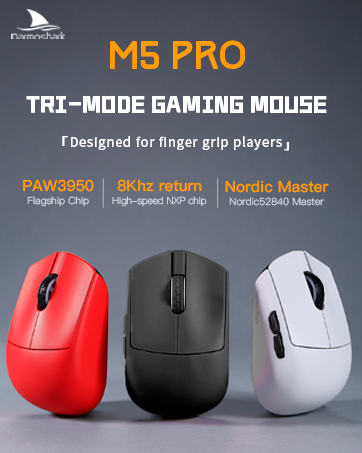
Image: Darmoshark M5PRO mouse charging via USB-C cable, highlighting its built-in lithium battery.
6. Yazılım Özelleştirme
To unlock the full potential of your Darmoshark M5PRO mouse, download and install the official Darmoshark driver software from the manufacturer's webBu yazılım size şunları yapmanıza olanak tanır:
- Customize DPI settings and create multiple profiles.
- Program button functions and macros.
- Anket oranını ayarlayın.
- Manage power settings and battery life.
- Bellenimi güncelleyin.

Image: Darmoshark proprietary driver software interface for mouse customization.
7. Özellikler
| Örnek | M5PRO |
| Sensör | PAW3950 Optik Sensör |
| DPI | 30000 DPI'a kadar |
| İzleme Hızı | 750 IPS |
| Hızlanma | 50G |
| Anket Oranı | 8KHz (2.4G Wireless), 1KHz (Wired/Bluetooth) |
| Bağlantı | 2.4G Kablosuz, Bluetooth 5.0, USB-C Kablolu |
| Düğmeler | 5 Programlanabilir Düğme |
| Ağırlık | Yaklaşık 38g |
| Boyutlar (U x G x Y) | 91.7 mm x 57.4 mm x 35.7 mm |
| Pil | Dahili Lityum Pil (300mAh) |
| Uyumluluk | Windows, Apple Mac |
Image: Product parameter diagram with mouse dimensions.
8. Bakım
- Temizlik: Fareyi temizlemek için yumuşak, kuru bir bez kullanın. Sert kimyasallar veya aşındırıcı malzemeler kullanmaktan kaçının.
- Depolamak: Fareyi serin, kuru ve doğrudan güneş ışığından ve aşırı sıcaklıklardan uzak bir yerde saklayın.
- Pil Bakım: Pil ömrünü uzatmak için fareyi sık sık tamamen boşaltmaktan kaçının. Pil göstergesi düşük olduğunda şarj edin.
9. Sorun Giderme
9.1. Fare Yanıt Vermiyor
- Kablolu Mod: USB kablosunun hem fareye hem de bilgisayara güvenli bir şekilde bağlandığından emin olun. Farklı bir USB bağlantı noktası deneyin.
- 2.4G Kablosuz Modu: Ensure the 2.4G receiver is plugged in and the mouse is switched to 2.4G mode. Try re-pairing the mouse with the receiver. Ensure the mouse battery is charged.
- Bluetooth Modu: Ensure Bluetooth is enabled on your device and the mouse is in Bluetooth pairing mode. Try re-pairing the mouse in your device's Bluetooth settings. Ensure the mouse battery is charged.
9.2. Cursor Movement is Erratic or Inaccurate
- Farenin alt tarafındaki optik sensörü yumuşak ve kuru bir bezle temizleyin.
- Fareyi uygun bir yüzeyde (örneğin, fare altlığı) kullandığınızdan emin olun. Çok yansıtıcı veya şeffaf yüzeylerden kaçının.
- Adjust the DPI settings using the DPI Adjustment Key or the software.
- Check for any software conflicts or outdated drivers. Update mouse drivers if necessary.
9.3. Wireless Connection Issues
- Fare ile alıcı/cihaz arasındaki mesafeyi azaltın.
- Alıcıyı diğer kablosuz cihazların veya parazit kaynaklarının (örneğin, Wi-Fi yönlendiriciler, kablosuz telefonlar) yakınına yerleştirmekten kaçının.
- Farenin tam şarjlı olduğundan emin olun.
10. Resmi Ürün Videosu
Watch the official product video for a visual guide on the Darmoshark M5PRO Mini Wireless Gaming Mouse.
Video: Bir fazlaview Darmoshark M5PRO Kablosuz Oyun Faresinin özelliklerini sergiliyor.asing its design and features in various colors.
11. Garanti ve Destek
For warranty information and technical support, please refer to the warranty card included with your product or visit the official Darmoshark webalan.
Üretici: Darmoshark
Webalan: Darmoshark Official Store