
1. Giriş
This manual provides essential information for the safe and effective operation of your xTool F2 Ultra Dual Laser Engraver. The xTool F2 Ultra is a versatile machine equipped with both a 60W MOPA fiber laser and a 40W diode laser, designed for engraving and cutting a wide range of materials. Please read this manual thoroughly before operating the device to ensure proper usage and to prevent damage or injury.

Figure 1: xTool F2 Ultra Dual Laser Engraver. This image shows the compact, enclosed design of the laser engraver.
2. Güvenlik Bilgileri
The xTool F2 Ultra is a Class 4 laser engraver. Adherence to safety guidelines is paramount to prevent injury and equipment damage. Always observe the following precautions:
- Göz Koruması: Never look directly at the laser beam. Always wear appropriate laser safety glasses during operation, even with the enclosed design.
- Havalandırma: Operate the machine in a well-ventilated area or use an external exhaust system to remove fumes and particulate matter generated during engraving and cutting.
- Kapalı Tasarım: Keep the protective lid closed during operation. The enclosure is designed to contain the laser and fumes.
- Malzeme Uyumluluğu: Only engrave or cut materials approved for laser processing. Certain materials can produce toxic fumes or catch fire.
- Acil durdurma: Acil durdurma butonunun yerini ve çalışma şeklini öğrenin.
- Nezaret: Çalışma sırasında makineyi asla gözetimsiz bırakmayın.
- Yanıcı malzemeler: Yanıcı maddeleri çalışma alanından uzak tutun.

Figure 2: Safety Features. This image highlights the fully enclosed design, reinforced enclosure, and safety sensor for emergency auto-stop, ensuring safe operation.
3. Temel Özellikler
The xTool F2 Ultra combines advanced laser technology with intelligent features to deliver high-performance engraving and cutting.
3.1. Ultimate Dual-Laser Powerhouse
Bir ile donatılmış 60W MOPA fiber laser ve bir 40W diyot lazer, the F2 Ultra can process a vast array of materials including all metals, wood, acrylic, leather, glass, rubber, and fabric. It supports vibrant color engraving, precise 3D deep engraving, and cutting capabilities up to 2 mm metal, 20 mm acrylic, and 23 mm wood.

Figure 3: 60W MOPA Fiber Laser. This image illustrates the MOPA laser's ability to engrave and cut various materials, including metals.
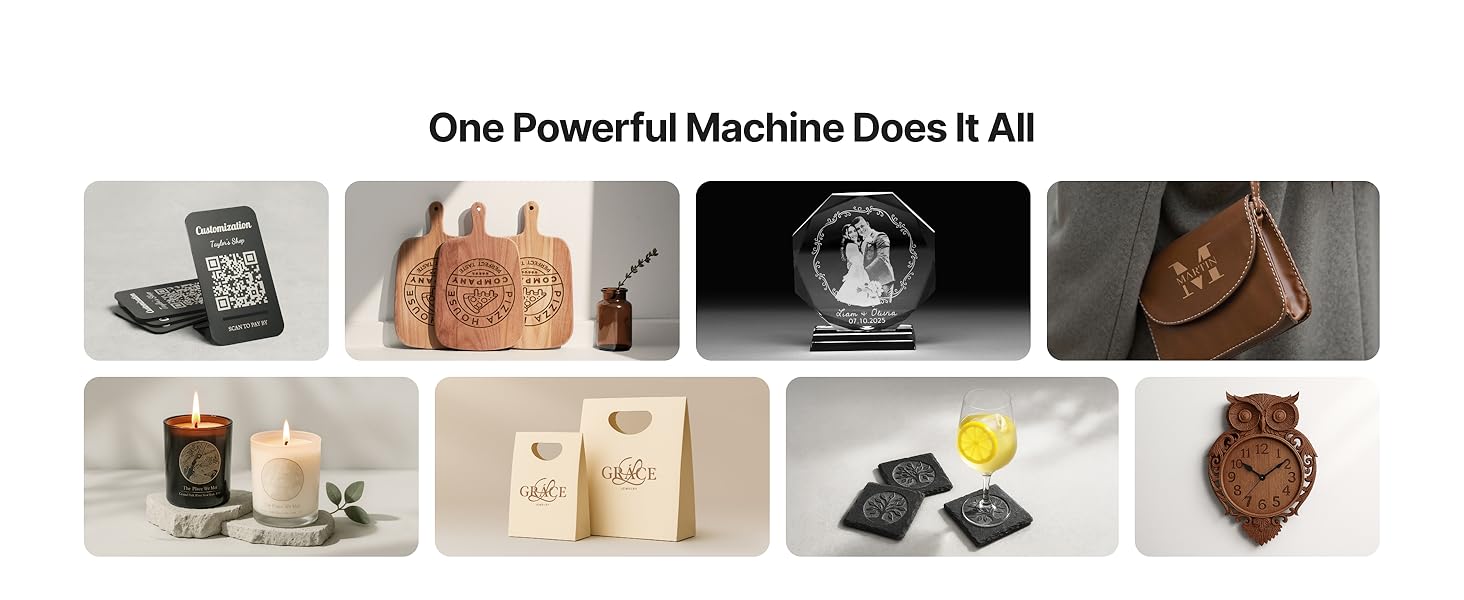
Figure 4: 40W Diode Laser. This image demonstrates the diode laser's effectiveness on materials like wood, acrylic, and leather.
3.2. All-Metal Capability
The 60W MOPA fiber laser excels in diverse metal applications, including 3D embossing, deep engraving, color engraving, and cutting up to 2mm metal. It also supports black marking on aluminum, laser cleaning, and thin metal welding on materials such as gold, silver, stainless steel, brass, and titanium.
3.3. Engraving 100+ Consistent Colors on Metal
Achieve over 100 vibrant and consistent colors on metals due to the precisely calibrated structure and premium optical system. Pre-set color files are available for one-click engraving of a color matrix, simplifying parameter selection.
Video 1: Create Holographic Color on Metal with the F2 Ultra. This video demonstrates the process and results of creating holographic color effects on metal using the xTool F2 Ultra.
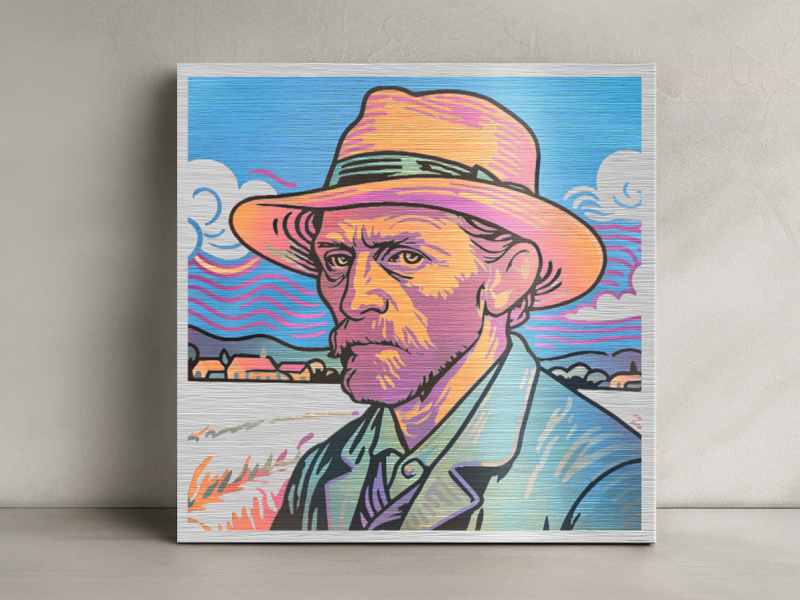
Figure 5: Color Engraving Examples. This image displays various metal items engraved with a wide spectrum of colors.
3.4. AI-Powered Precision & Simplicity
Dual 48MP AI cameras enhance positioning accuracy to 0.2mm, a 60% improvement over single-camera systems. AI features include auto-detection of materials, suggested settings, one-click focus, and precise preview En iyi sonuçlar için.
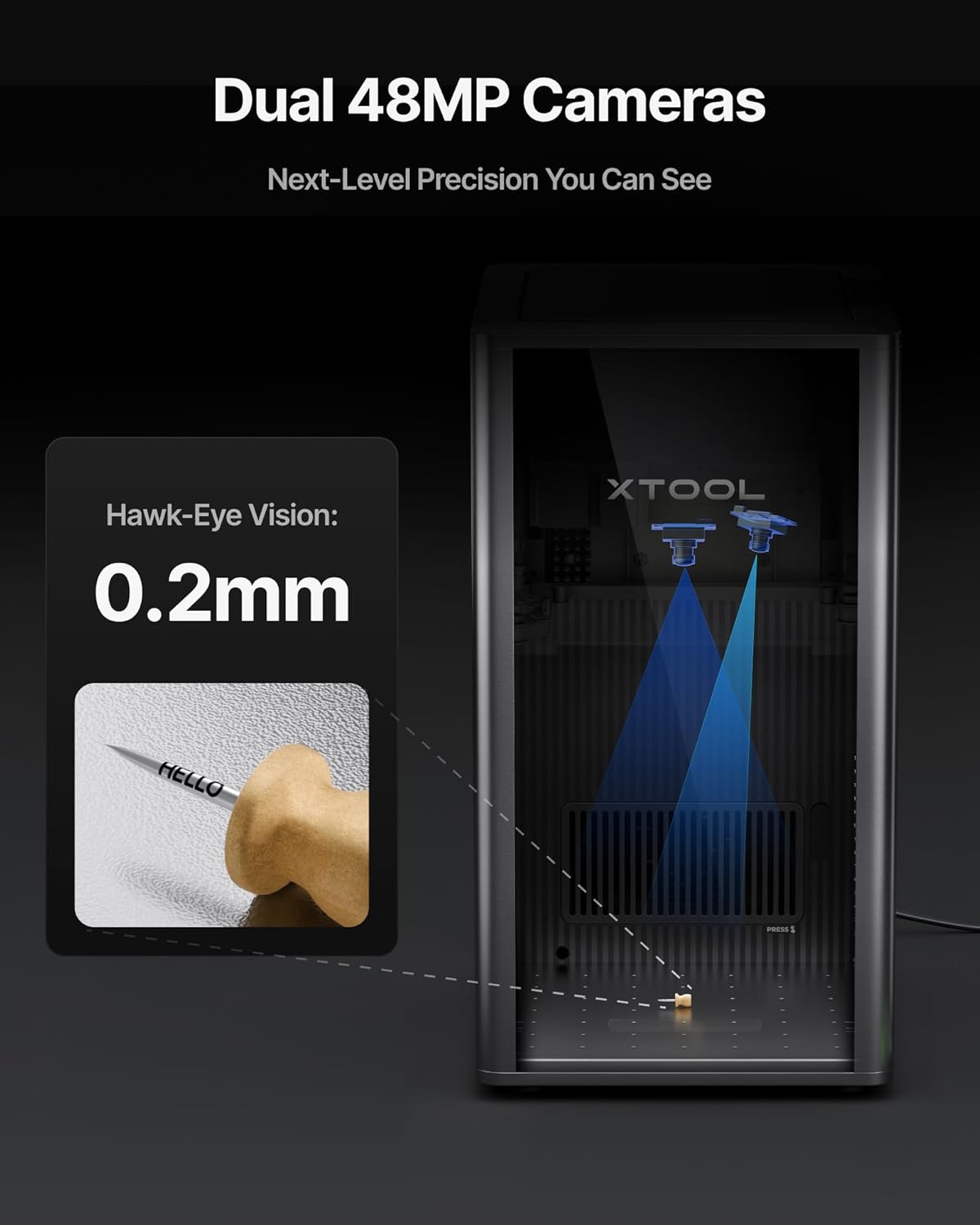
Figure 6: Dual 48MP AI Cameras. This image shows the dual camera system within the engraver, illustrating its role in precise positioning.
Video 2: Color Engraving with AI-Powered F2 Ultra. This video demonstrates the AI features assisting in color engraving, including material recognition and setting suggestions.
3.5. Industrial-Grade Productivity
Operating at speeds up to 15,000mm/s, the 60W MOPA laser significantly reduces 3D embossing time. The F2 Ultra offers a desktop working space of 8.7"x 8.7", expandable to 8.7" x 19.7" with the optional auto conveyor, enabling automated batch processing for high-volume orders.
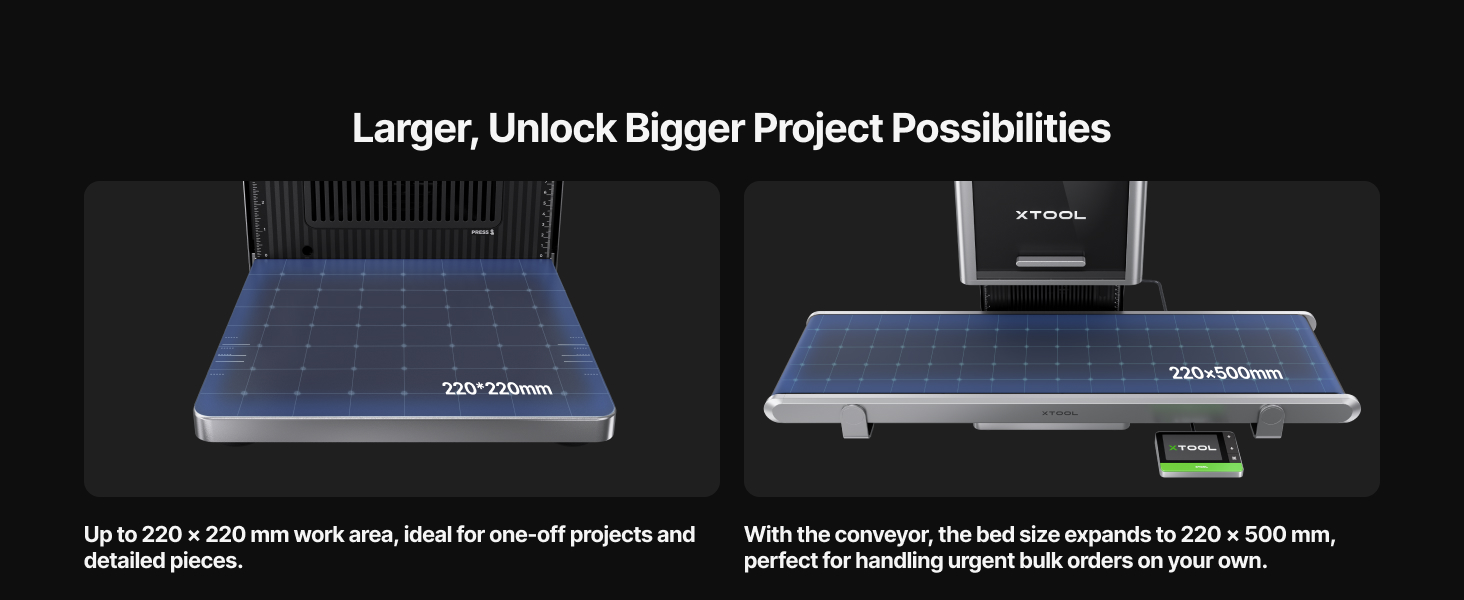
Figure 7: Expanded Work Area. This image shows the standard work area and its expansion with the auto conveyor for larger projects.

Figure 8: Auto Streamline Production. This image illustrates the machine set up with the auto conveyor for efficient batch processing.
4. Kurulum
Follow these steps to set up your xTool F2 Ultra:
- Paketin açılması: Carefully remove the engraver and all accessories from the packaging. Retain packaging for future transport or storage.
- Atama: Place the machine on a stable, level, and non-flammable surface. Ensure adequate space around the unit for ventilation and operation.
- Güç Bağlantısı: Güç adaptörünü cihaza ve ardından uygun bir elektrik prizine bağlayın.
- Yazılım Kurulumu: Download and install the xTool Creative Space software from the official xTool webalan (www.xtool.com/softwareKurulum için ekrandaki talimatları izleyin.
- İlk Bağlantı: Connect the xTool F2 Ultra to your computer via USB cable or Wi-Fi as prompted by the software.
5. Kullanım Talimatları
This section outlines the general procedure for operating your xTool F2 Ultra.
- Güç Açık: Turn on the xTool F2 Ultra using the power button.
- Malzeme Yerleştirme: Open the protective lid and place your material securely on the workbed. Ensure it is flat and within the working area.
- Yazılım Arayüzü: Launch the xTool Creative Space software on your computer.
- Tasarım Yüklemesi: Tasarımınızı içe aktarın file or create a new one within the software.
- Material Recognition & Settings: The AI cameras may auto-detect the material. Confirm or manually select the material type. Adjust laser parameters (power, speed, frequency, passes) based on the material and desired effect. Utilize the pre-set color files for metal color engraving.
- Odaklanma: Use the auto-focus function or manually adjust the focus for optimal laser performance.
- Önview & Positioning: Use the dual 48MP cameras to preview the design placement on your material. Adjust the design position as needed for precise alignment.
- İşe Başla: Close the protective lid. Initiate the engraving or cutting process from the software. Monitor the progress through the transparent lid.
- Tamamlama: Once the job is complete, wait for the machine to cool down and for any fumes to clear before opening the lid and removing the material.
Video 3: 5 Reasons for Upgrading to F2 Ultra. This video provides an overview of the machine's capabilities and ease of use, relevant to understanding its operation.
Video 4: Dinosaur Fossil Embossed Coin with xTool F2 Ultra. This video demonstrates a specific engraving process, showcasing the machine's ability to create detailed embossed designs.
6. Bakım
Regular maintenance ensures the longevity and optimal performance of your xTool F2 Ultra.
- Çalışma Alanının Temizlenmesi: After each use, clean the workbed and interior of the machine to remove debris and dust. Use a soft cloth and avoid abrasive cleaners.
- Lazer Lens Temizliği: Periodically inspect and clean the laser lens according to the instructions provided in the detailed product guide (available on the xTool website). Use only approved lens cleaning solutions and wipes.
- Yazılım Güncellemeleri: Regularly check for and install software updates for xTool Creative Space to ensure compatibility and access to new features and improvements.
- Havalandırma Sistemi: Ensure the ventilation system (if external) is clean and free of obstructions to maintain efficient fume extraction.
7. Sorun Giderme
Bu bölümde karşılaşabileceğiniz yaygın sorunlar ele alınmaktadır.
| Sorun | Olası Neden | Çözüm |
|---|---|---|
| Misalignment of Engraving | Material not flat; camera calibration needed; incorrect design placement. | Ensure material is perfectly flat. Perform camera calibration in software. Use the software's preview function for precise design positioning. |
| Software Connectivity Issues | Outdated software; driver issues; network problems. | Update xTool Creative Space to the latest version. Check USB cable connection or Wi-Fi stability. Restart both the machine and computer. Verify system requirements for the software. |
| Safety Lockout Not Engaging | Lid not fully closed; sensor obstruction. | Ensure the protective lid is completely closed and latched. Check for any debris obstructing the safety sensor. If the issue persists, contact xTool support. |
| Inconsistent Color Engraving on Metal | Incorrect laser parameters (power, speed, frequency); material variations. | Color engraving requires precise tuning. Utilize the pre-set color files in the software as a starting point. Perform small test engravings on scrap material to dial in optimal settings for specific metals and desired colors. |
8. Özellikler
| Özellik | Detay |
|---|---|
| Ürün Boyutları | 16.88 x 11.57 x 20.51 inç |
| Ürün Model Numarası | MXF-K003-002 |
| Ürün Ağırlığı | 67.9 pound |
| Üretici | Makeblock Co., Ltd. |
| Lazer Tipi | 60W MOPA Fiber Laser & 40W Diode Laser |
| Gravür Hızı | 15,000 mm/sn'ye kadar |
| Kameralar | Dual 48MP AI Cameras |
| Konumlandırma Doğruluğu | 0.2mm |
| Çalışma Alanı | 8.7" x 8.7" (expandable to 8.7" x 19.7" with auto conveyor) |
| Lazer Sınıfı | Sınıf 4 |
9. Garanti ve Destek
Garanti bilgileri ve teknik destek için lütfen resmi xTool sayfasına bakın. websiteyi ziyaret edin veya doğrudan satıcıyla iletişime geçin.
- Koruma Planları: Optional 4-Year Protection Plans may be available for purchase. Please check with the retailer for details.
- Satıcı Desteği: For product-specific inquiries and support, contact "xTool Official" as the primary seller.
- Çevrimiçi Kaynaklar: Visit the xTool official website for FAQs, software downloads, and additional resources.