
1. Ürün Bittiview
The PeriPage P92 is a compact and lightweight thermal tattoo stencil printer designed for both professional tattoo artists and enthusiasts. It utilizes inkless thermal technology to produce clear and precise tattoo lines, streamlining the stencil creation process. This printer offers versatile connectivity options, including Bluetooth and USB, making it compatible with a wide range of devices such as smartphones, tablets, and PCs.

Image: The PeriPage P92 Tattoo Stencil Printer, a sleek black device, shown on a desk with a printed tattoo stencil.
Temel Özellikler:
- Taşınabilir Tasarım: Compact and lightweight (approximately 15.2 ounces) for easy transport.
- Mürekkepsiz Termal Teknoloji: Mürekkep kartuşuna olan ihtiyacı ortadan kaldırarak işletme maliyetlerini düşürür.
- Yüksek Uyumluluk: Supports Android, iOS, Windows, and macOS devices.
- Çok Yönlü Bağlantı: Connects via Bluetooth for wireless printing or USB for wired connections.
- Powerful Mobile App: The "PeriPage APP" provides abundant resources, including built-in tattoo templates and design editing tools.
- Verimli Baskı: Capable of printing clear and precise tattoo lines in seconds.
- Uzun Pil Ömrü: Built-in 2600mAh rechargeable battery, capable of printing up to 200 pages per charge.
2. Kurulum Kılavuzu
2.1 Kutudan Çıkarma ve İlk Şarj
Carefully remove all components from the packaging. Before first use, ensure the printer is fully charged using the provided USB cable and a compatible power adapter. The power indicator light will typically change to indicate a full charge.
2.2 Yazılım Kurulumu
To operate the PeriPage P92, you will need to install the appropriate software:
- For Smartphones/Tablets (Android/iOS): Download the "PeriPage APP" from your device's respective app store (Google Play Store for Android, Apple App Store for iOS).
- For PCs (Windows/macOS): Download the printer driver from the official PeriPage webalan: https://www.ileadtek.com/en/download.html.

Image: The PeriPage P92 printer connected to a laptop via USB and a smartphone via Bluetooth, illustrating multi-device compatibility.
2.3 Şablon Kağıdının Yüklenmesi
- Yazıcının kapalı veya bekleme modunda olduğundan emin olun.
- Gently insert the tattoo stencil paper (thermal paper, 8.5x11 inches) into the paper feed slot at the front of the printer.
- The printer will automatically detect and feed the paper into position. Ensure the transfer film side is facing up.

Image: A step-by-step visual guide showing how to power on the printer, insert stencil paper, and initiate printing via the app.
3. Kullanım Talimatları
3.1 Açma/Kapatma
To power on the printer, press and hold the power button (usually located on the top or side) for approximately 2 seconds until the indicator light illuminates. To power off, press and hold the power button again until the light turns off.
3.2 Cihazınıza Bağlanma
- Bluetooth Bağlantısı:
- Akıllı telefonunuzda veya tabletinizde Bluetooth'un etkin olduğundan emin olun.
- Open the "PeriPage APP".
- Within the app, search for and select the PeriPage P92 printer to establish a connection.
- USB Bağlantısı:
- Kutu içeriğinde bulunan USB kablosunu kullanarak yazıcıyı bilgisayarınıza bağlayın.
- Ensure the printer driver is installed on your PC.
- The printer should be recognized as a printing device.
3.3 Using the PeriPage App for Printing
The "PeriPage APP" is your primary interface for creating and printing tattoo stencils.
- Open the "PeriPage APP" on your connected device.
- You can choose to use built-in tattoo templates or import your personal designs. The app offers tools for editing, resizing, and adjusting your designs.
- Once your design is ready, select the print option within the app.
- Confirm print settings (e.g., density, size) if prompted.
- The printer will then feed the stencil paper and print your design.

Image: Screenshots of the PeriPage mobile application interface, demonstrating design editing, template selection, and 3D preview özellikler.

Image: The PeriPage P92 printer actively printing a tattoo stencil design onto thermal paper, with a smartphone displaying the design.
4. Bakım
4.1 Yazıcıyı Temizleme
Düzenli temizlik baskı kalitesinin korunmasına yardımcı olur ve yazıcınızın ömrünü uzatır.
- Dış: Wipe the exterior of the printer with a soft, dry cloth. Avoid using abrasive cleaners or solvents.
- Termal Baskı Kafası: If print quality degrades, gently clean the thermal print head with an alcohol wipe or a specialized thermal printer cleaning pen. Ensure the printer is off and cooled down before cleaning.
- Kağıt Yolu: Periodically check the paper path for any dust or debris and remove it carefully.
4.2 Depolama
Yazıcıyı serin, kuru ve doğrudan güneş ışığından ve aşırı sıcaklıklardan uzak bir yerde saklayın. Uzun süre kullanılmadığında, yazıcının tamamen şarj olduğundan emin olun ve ardından kapatın.
5. Sorun Giderme
This section addresses common issues you might encounter with your PeriPage P92 printer.
5.1 Düşük Baskı Kalitesi
- Soluk İzler:
- Check if the thermal paper is loaded correctly with the transfer film side facing up.
- Ensure the printer's battery is sufficiently charged.
- Termal baskı kafasını temizleyin (Bölüm 4.1'e bakın).
- Adjust print density settings within the PeriPage APP.
- Streaks or Gaps:
- Clean the thermal print head.
- Ensure the paper is free from wrinkles or damage.
- Incomplete Designs (Large Shadows/Complex Images): The printer is optimized for clear line drawings. Complex images with large shaded areas may not transfer optimally.
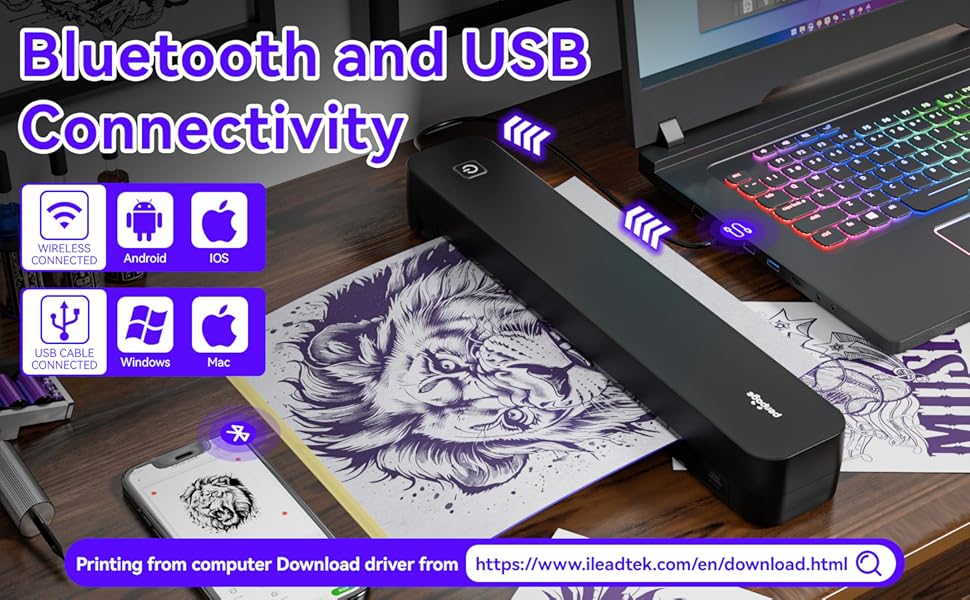
Image: A comparison showing effective line drawings and less shadowy prints versus bad effects with large shadows and complex images, illustrating optimal design types for the printer.
5.2 Bağlantı Sorunları
- Bluetooth Bağlanmıyor:
- Yazıcının açık olduğundan ve cihazınızın menzilinde olduğundan emin olun.
- Cihazınızda Bluetooth'un etkin olduğunu doğrulayın.
- Hem yazıcınızı hem de cihazınızı yeniden başlatın.
- Bluetooth ayarlarınızda cihazı unutun ve tekrar eşleştirmeyi deneyin.
- USB Tanınmıyor:
- Ensure the USB cable is securely connected to both the printer and your PC.
- Verify that the correct printer drivers are installed on your PC.
- Farklı bir USB portu veya kablo deneyin.
5.3 Kağıt Sıkışması
If paper gets jammed, gently pull the paper out in the direction of the paper path. Avoid forcing it, as this can damage the printer mechanisms. Ensure paper is loaded straight and not wrinkled.
6. Özellikler
| Özellik | Detay |
|---|---|
| Marka | Çevre Sayfası |
| Model Adı | HDD-P92 |
| Bağlantı Teknolojisi | Bluetooth, USB |
| Baskı Teknolojisi | Termal (Mürekkepsiz) |
| Özel Özellik | Taşınabilir |
| Renk | Siyah |
| Yazıcı Çıktısı | Tek renkli |
| Max Print Speed (B&W) | Dakikada 6 sayfa |
| Ürün Ağırlığı | 15.2 ons |
| Ürün Boyutları (D x G x Y) | 2.13"D x 4"G x 11.4"Y |
| Denetleyici Türü | Android, iOS |
| Basılı Medya | Termal Kağıt |
| Uyumlu Cihazlar | Dizüstü bilgisayarlar, Masaüstü bilgisayarlar, Akıllı telefonlar, Tabletler |
| Kontrol Yöntemi | Uygulama |
| Maksimum Medya Boyutu | A4, 8.5x11 Inches |
| Pil | 2600mAh rechargeable, prints ~200 pages per charge |
7. Garanti Bilgileri
According to the product specifications, there is "Not Application" for warranty. Please refer to your retailer's return policy or contact the seller directly for any issues or concerns regarding your purchase.
8. Destek
Daha fazla yardım için lütfen aşağıdaki kaynaklara başvurun:
- PeriPage APP: The mobile application often includes help sections, FAQs, and direct support contact options.
- Resmi Webalan: Visit the PeriPage official website for updated drivers, FAQs, and support contact information: www.ileadtek.com.
- Satıcı Desteği: Contact the seller (Ileadtek Inc.) through the platform where you purchased the product for specific purchase-related inquiries.