
1. Giriş
The DSD TECH SH-C31G is an isolated USB to CAN FD adapter designed for reliable high-speed CAN FD communication in demanding industrial environments. This manual provides essential information for setting up, operating, maintaining, and troubleshooting your device.

Figure 1: DSD TECH SH-C31G Isolated USB CAN FD Adapter
2. Ürün Bittiview
2.1 Temel Özellikler
- Industrial CAN FD Support: Enables high-speed CAN FD communication in demanding environments such as automotive, industrial automation, and robotics.
- Complete Signal & Power Isolation: Protects equipment from ground loops and electrical noise in high-voltage/noisy environments. The SH-C31G is an enhanced version of the SH-C31A, with added protection and isolation features for industrial applications.
- Canable 2.0 Base & Firmware Updatable: Based on open-source hardware, it features flash-compatible firmware that enables full CAN FD functionality via Cangaroo software.
- Open-Source Hardware Design: All circuit diagrams, Bill of Materials (BOM), and design files are publicly available on the DSD TECH official webözelleştirme için site.
2.2 Paket İçeriği
Paketinizde tüm öğelerin mevcut olduğundan emin olun:
- 1 x Isolated USB to CAN FD Adapter (SH-C31G)
- 1 x USB-A to USB-B Cable

Şekil 2: Paket İçeriği
3. Kurulum
3.1 Donanım Bağlantısı
Connect the SH-C31G adapter to your computer using the provided USB-A to USB-B cable. Ensure the CAN-H and CAN-L terminals are correctly wired to your CAN bus network. The device features a Boot Switch and an R120 Switch for configuration.
- Boot Switch: Used for entering DFU (Device Firmware Update) mode. Set to OFF for normal operation (Work Mode) and ON for firmware updates.
- R120 Switch: Engages or disengages the 120 Ohm termination resistor for the CAN bus.

Figure 3: SH-C31G Component Layout
3.2 Sürücü Kurulumu
For Windows operating systems, the device typically uses standard USB drivers. In Work Mode (Boot Switch OFF), it should be recognized as a 'candleLight USB to CAN adapter' or similar in Device Manager. For DFU Mode, it will appear as an 'STM Device in DFU Mode'. No specific driver installation is usually required for basic operation with compatible software like Cangaroo.
3.3 Donanım Yazılımı Güncellemesi
The SH-C31G supports firmware updates. This process is typically performed to enable full CAN FD functionality or to update to the latest features.
- Ayarla Boot Switch için ON konum.
- Connect the adapter to your computer via USB.
- Your computer's Device Manager should show an 'STM Device in DFU Mode'.
- Use a compatible flashing tool (e.g., STM32CubeProg or the web-based updater at canable.io/updater/canable1.html) to flash the desired firmware (e.g., slcan with FD support).
- After flashing, disconnect the device, set the Boot Switch geri dönmek KAPALIve yeniden bağlanın.

Şekil 4: Ürün Yazılımı Güncelleme Süreci

Şekil 5: Aygıt Yöneticisi Views (Work Mode vs. DFU Mode)
4. Kullanım Talimatları
4.1 Using with Cangaroo (Windows)
The SH-C31G adapter is compatible with Cangaroo software for Windows, allowing you to monitor and interact with CAN bus networks.
- Ensure the adapter is in Work Mode (Boot Switch OFF) and connected to your PC.
- Launch the Cangaroo software.
- Navigate to the 'Measurement' menu and select 'Start Measurement' (or press F5).
- In the 'Measurement Setup' window, select the appropriate driver (e.g., 'candleLight') and verify the interface details.
- Configure the CAN bitrate and other settings as required for your CAN network.
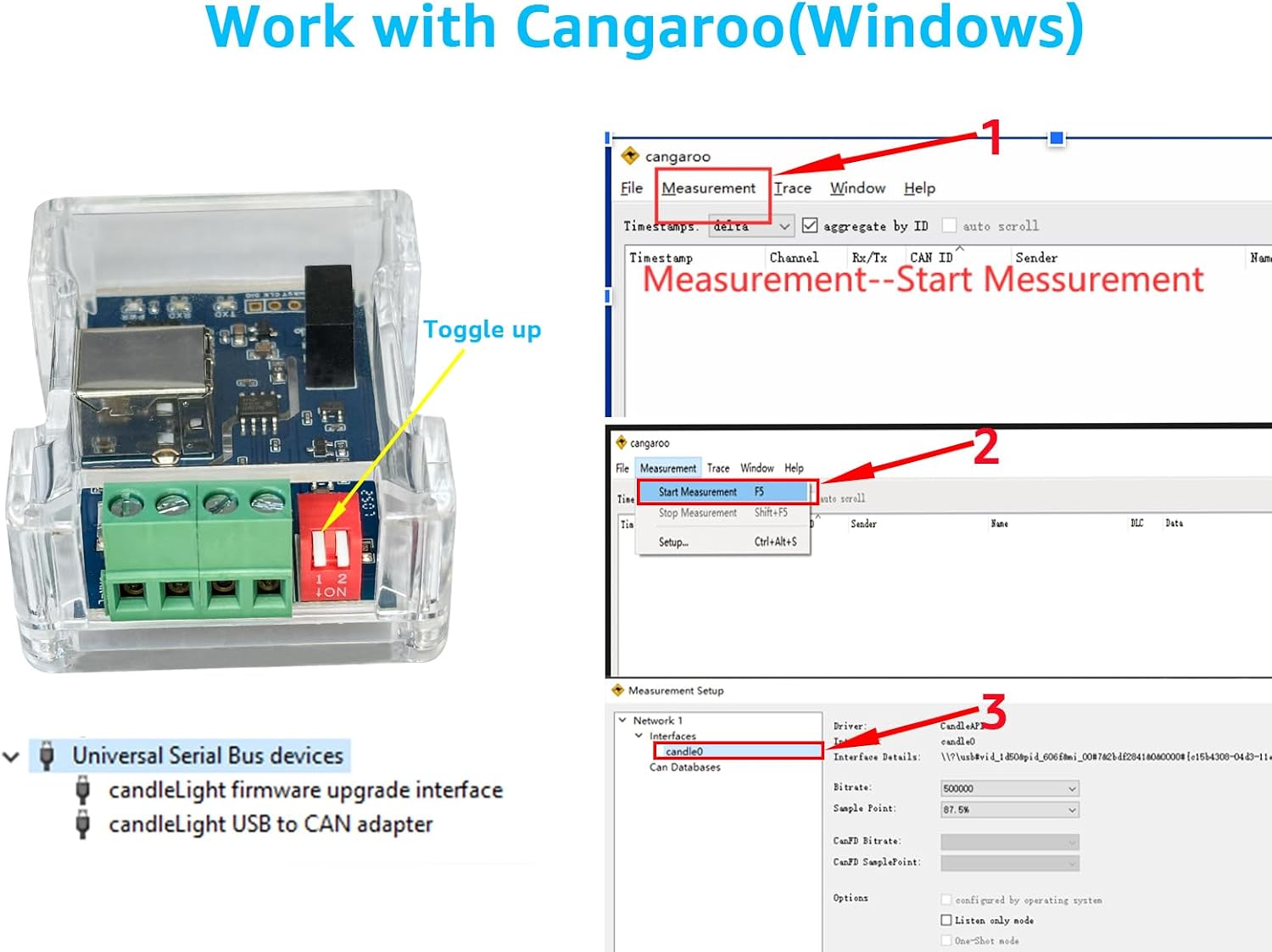
Figure 6: Cangaroo Software Interface
4.2 CAN Bus Communication
The adapter facilitates communication between your computer and a CAN bus network. Data sent from your computer can be accepted by specific CAN nodes, while other nodes may ignore it based on their configuration. Similarly, data from CAN nodes can be received and processed by your computer.

Figure 7: USB to CAN Bus Communication Diagram
5. Özellikler
| Özellik | Tanım |
|---|---|
| Marka | DSD TECH |
| Örnek | SH-C31G |
| Donanım Arayüzü | USB 2.0 Tip B |
| Uyumlu Cihazlar | Dizüstü Bilgisayar |
| Ürün Boyutları (U x G x Y) | 6x5x2.4 cm |
| Ürün Ağırlığı | 44.1 gram |
| Veri Bağlantı Protokolü | USB |
| CAN FD Support | Evet |
| İzolasyon | Evet |
| UPC | 794251081399 |
| ASIN | B0FHHCSZY8 |
| Menşei ülke | Çin |
6. Bakım
The DSD TECH SH-C31G adapter is designed for durability and requires minimal maintenance. To ensure optimal performance and longevity:
- Cihazı temiz tutun ve tozdan ve kirden arındırın. Temizlik için yumuşak, kuru bir bez kullanın.
- Cihazı aşırı sıcaklıklara, neme veya doğrudan güneş ışığına maruz bırakmaktan kaçının.
- Ensure all cable connections are secure to prevent intermittent communication issues.
- Regularly check for and install the latest firmware updates from the official DSD TECH or Canable webSite, performans iyileştirmelerinden ve yeni özelliklerden faydalanacak.
7. Sorun Giderme
If you encounter issues with your DSD TECH SH-C31G adapter, consider the following troubleshooting steps:
- Cihaz tanınmadı:
- Ensure the USB cable is securely connected to both the adapter and your computer.
- Bilgisayarınızdaki farklı bir USB bağlantı noktasına bağlanmayı deneyin.
- Verify the Boot Switch is in the OFF position for normal operation. If it's in ON, the device will be in DFU mode.
- Check Device Manager for any unrecognized devices or driver issues. Reinstalling drivers or updating firmware might be necessary.
- CAN Communication Errors:
- Confirm that the CAN-H and CAN-L connections are correct and secure.
- Ensure the CAN bus termination (R120 Switch) is correctly set for your network configuration. Typically, the R120 resistor should be ON if the adapter is at one end of the bus, and OFF if it's in the middle or not required.
- Verify that the CAN bitrate configured in your software matches the bitrate of the CAN bus network.
- Adaptörde veya kablolarda herhangi bir fiziksel hasar olup olmadığını kontrol edin.
- Firmware Güncelleme Sorunları:
- Ensure the Boot Switch is in the ON position before connecting for a firmware update.
- Use the recommended flashing tool and follow the instructions precisely.
- Eğer bir web-based updater, ensure your browser and internet connection are stable.
8. Garanti ve Destek
DSD TECH provides comprehensive support for its products:
- Lifetime Maintenance Support: All DSD TECH products come with lifetime maintenance support.
- 1-Year Product Replacement Service: A 1-year product replacement service is included with your purchase.
For further assistance, please visit the official DSD TECH webWeb sitesini ziyaret edin veya satın alma platformunuz aracılığıyla müşteri desteğiyle iletişime geçin.