
1. Giriş
Thank you for choosing the PRIXTON Prado XL 15.6-inch Digital Photo Frame. This manual provides essential information for setting up, operating, and maintaining your device. Please read it carefully before use to ensure optimal performance and longevity of your digital photo frame.
The PRIXTON Prado XL features a vibrant 15.6-inch Full HD IPS touchscreen display, offering clear and vivid image reproduction. With built-in Wi-Fi, 32GB of internal memory, and support for both photos and videos, it allows you to easily share and display your cherished memories. The frame also includes integrated speakers and multiple input options, including USB Type-C, USB-A, and an SD card slot, providing versatile ways to manage your content.
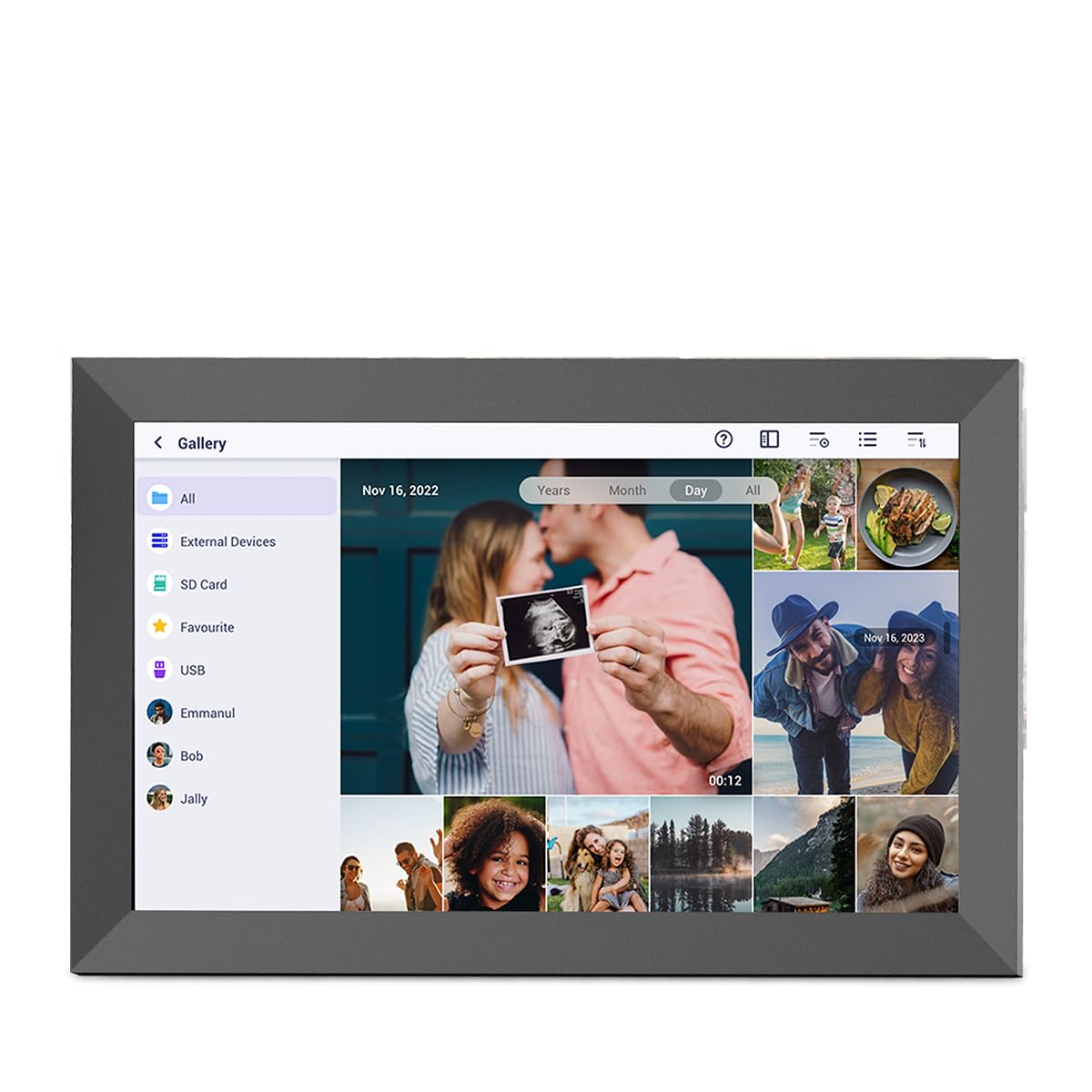
Image: The PRIXTON Prado XL digital photo frame showcasinGeorgia aile fotoğrafı.
2. Paket İçeriği
Lütfen aşağıdaki öğelerin kutucuğunu işaretleyin:
- PRIXTON Prado XL 15.6-inch Digital Photo Frame
- Güç Adaptörü
- Kullanım Kılavuzu (bu belge)
3. Ürün Bittiview
Familiarize yourself with the various ports and controls on your digital photo frame.

Image: Back panel of the frame, highlighting the power button, USB-A, USB-C, SD card slot, and headphone jack.
Temel Bileşenler:
- Güç Düğmesi: Located on the back, used to turn the frame on/off or put it into sleep mode.
- USB-A Bağlantı Noktası: For connecting USB flash drives to transfer photos and videos.
- USB Tip-C Bağlantı Noktası: For connecting compatible devices or for data transfer.
- SD Kart Yuvası: For inserting SD cards to display or transfer media.
- Kulaklık girişi: Harici ses aygıtlarını bağlamak için.
- DC Güç Girişi: Güç adaptörünü bağlamak için.
- Duvara Montaj Delikleri: For mounting the frame on a wall.
4. Kurulum
4.1 Açma
- Connect the power adapter to the DC Power Input port on the back of the frame.
- Güç adaptörünü duvar prizine takın.
- The frame will automatically power on. If not, press and hold the Power Button for a few seconds.
4.2 İlk Yapılandırma
İlk çalıştırmada, başlangıç kurulum sürecinde size rehberlik edilecektir:
- Dil Seçin: Tercih ettiğiniz dili listeden seçin.
- Wi-Fi'ye bağlanın: Select your Wi-Fi network and enter the password. A stable internet connection is required for app functionality and software updates.
- Tarih ve Saati Ayarlayın: Configure the correct date, time, and time zone.
4.3 Connecting with the Uhale App
The Uhale app allows you to easily send photos and videos directly to your frame from your smartphone.
- Uygulamayı indirin: Arama "Uhale" in your smartphone's app store (iOS or Android) and install it.
- Bir hesap oluşturun: Open the Uhale app and follow the instructions to create a new user account.
- Çerçeveyi eşleştirin: On your digital photo frame, navigate to the "Settings" menu and find the "Bind Device" or "Add Device" option. This will display a unique code or QR code.
- Enter Code/Scan QR: In the Uhale app, select "Add Device" and either manually enter the code displayed on your frame or use your phone's camera to scan the QR code.
- Eşleştirme işlemi tamamlandıktan sonra, fotoğraflarınızı ve videolarınızı çerçeveye göndermeye başlayabilirsiniz.

Image: A smartphone screen showing the Uhale app interface next to the digital photo frame.
5. Çerçeveyi Çalıştırma
5.1 Dokunmatik Ekran Navigasyonu
The Prado XL features a responsive touchscreen for easy navigation:
- Musluk: Select an item or open a menu.
- Tokatlamak: Navigate through photos, menus, or lists.
- Yakınlaştırmak için sıkıştırma: Zoom in or out on photos (if supported by software).
5.2 Fotoğraf ve Video Ekleme
There are several ways to add media to your frame:
5.2.1 Via Uhale App
- Open the Uhale app on your paired smartphone.
- Göndermek istediğiniz fotoğraf veya videoları seçin.
- Tap the "Send" or "Share" button to transfer them to your frame.
- The media will appear on your frame shortly, provided it is connected to Wi-Fi.
5.2.2 Via USB Drive or SD Card
- Insert a USB flash drive into the USB-A port or an SD card into the SD card slot.
- The frame will detect the external storage. Navigate to the "Gallery" or "Files" section.
- Select the desired photos or videos and choose to copy them to the frame's internal memory.

Image: User interacting with the Uhale app to send content to the digital photo frame.
5.3 Managing Content and Slideshows
- Galeri: Access all your stored photos and videos. You can view them individually or start a slideshow.
- Silmek: Select unwanted media and choose the delete option.
- Slayt Gösterisi Ayarları: Customize slideshow duration, transition effects, and playback order in the settings menu.

Image: The digital photo frame displaying a lively birthday party scene.
6. Ayarlar Menüsü
Access the settings menu by tapping the gear icon on the home screen. Here you can configure various aspects of your frame:
- Görüntülemek: Adjust brightness, screen sleep time, and display mode.
- Wifi: Ağ bağlantılarınızı yönetin.
- Tarih & Saat: Manually set or synchronize date and time.
- Depolamak: View internal storage usage and manage external storage devices.
- Hakkında: View device information, including software version and model number.
7. Bakım
7.1 Ekranı Temizleme
Dokunmatik ekranı temizlemek için yumuşak, tiftiksiz bir bezle hafifçe silin. İnatçı lekeler için hafifçe silin.ampBezi su veya ekrana zarar vermeyen bir temizleme solüsyonuyla silin. Sert kimyasallar veya aşındırıcı malzemeler kullanmaktan kaçının.
7.2 Yazılım Güncellemeleri
Ensure your frame is connected to Wi-Fi to receive automatic software updates. Updates provide new features, performance improvements, and bug fixes. You can manually check for updates in the "Settings" > "About" menu.
8. Sorun Giderme
| Sorun | Olası Çözüm |
|---|---|
| Çerçeve açılmıyor. | Güç adaptörünün hem çerçeveye hem de çalışan bir elektrik prizine güvenli bir şekilde bağlı olduğundan emin olun. Farklı bir priz deneyin. |
| Wi-Fi'ye bağlanılamıyor. | Check if your Wi-Fi router is on and working. Re-enter the Wi-Fi password carefully. Move the frame closer to the router. |
| Fotoğraflar/videolar görünmüyor. | Verify that the media has been successfully uploaded via the app or copied from USB/SD. Check file formats for compatibility. Ensure the frame is connected to Wi-Fi if using the app. |
| Dokunmatik ekran çalışmıyor. | Restart the frame by holding the power button. Ensure the screen is clean and free of debris. |
| Frame is slow or freezes. | Restart the frame. Clear some internal storage if it is nearly full. |
9. Özellikler
| Özellik | Detay |
|---|---|
| Model Numarası | 10006183 |
| Ekran Boyutu | 15.6 inç |
| Görüntü Türü | IPS Dokunmatik Ekran |
| Çözünürlük | 1920 x 1080 Tam HD |
| Dahili Bellek | 32 GB Flaş |
| Veri deposu | 1 GB |
| Bağlantı | Wifi |
| Limanlar | USB Type-C, USB-A, SD Card Slot, Headphone Jack |
| Ses | Entegre Hoparlörler |
| Boyutlar (U x G x Y) | 14x21x2.51 cm |
10. Garanti ve Destek
PRIXTON products are designed and manufactured to the highest quality standards. For information regarding warranty coverage, please refer to the warranty card included with your product or visit the official PRIXTON webalan.
If you encounter any issues or have questions not covered in this manual, please contact PRIXTON customer support for assistance. You can find contact details on the PRIXTON websiteniz veya satın alma platformunuz aracılığıyla.
Çevrimiçi destek: Visit the PRIXTON Store on Amazon