1. Giriş
This user manual provides detailed instructions for the Bemi Cognita Tab 6+ E-Reader. Please read this manual carefully before using your device to ensure proper operation and to maximize your reading experience. Keep this manual for future reference.
1.1 Paket İçeriği
- Bemi Cognita Tab 6+ E-Reader
- USB Şarj Kablosu
Kutuyu açtığınızda tüm ürünlerin eksiksiz ve iyi durumda olduğundan emin olun.
2. Cihaz Bittiview
Familiarize yourself with the physical components of your Bemi Cognita Tab 6+ E-Reader.

Şekil 2.1: Ön view of the Bemi Cognita Tab 6+ E-Reader. The device features a 6-inch E-Ink display with the Bemi logo and model name visible. The screen is designed to mimic paper for a comfortable reading experience.

Şekil 2.2: Ön ve arka view of the Bemi Cognita Tab 6+ E-Reader. This image highlights the device's thin design and the textured back cover, which provides a secure grip.

Şekil 2.3: Taraf view of the Bemi Cognita Tab 6+ E-Reader, illustrating the location of the power button and a small LED indicator. This button is used for turning the device on/off and waking it from sleep.
2.1 Temel Bileşenler:
- 6-inch E-Ink Touchscreen: Glare-free display for comfortable reading.
- Güç Düğmesi: Located on the side for turning the device on/off and sleep/wake.
- USB-C Bağlantı Noktası: Şarj ve veri aktarımı için.
- MicroSD Kart Yuvası: Expandable storage up to 256GB.
- Yan Kontrol Düğmeleri: For page turning and navigation.
- SMARTlight: Adjustable front light for reading in various conditions.
3. Kurulum
3.1 İlk Şarj
Before first use, fully charge your Bemi Cognita Tab 6+ E-Reader. Connect the provided USB cable to the device's USB-C port and the other end to a compatible USB power adapter (not included) or a computer's USB port.
- Tam şarj genellikle yaklaşık 2-3 saat sürer.
- Şarj gösterge ışığı şarj durumunu gösterecektir.
3.2 Açma/Kapatma
- Açmak İçin: Press and hold the Power button (refer to Figure 2.3) for a few seconds until the screen activates.
- Kapatmak İçin: Press and hold the Power button until a power-off menu appears, then select "Power Off".
- Uyumak/Uyanmak: Briefly press the Power button to put the device into sleep mode or wake it up.
3.3 Wi-Fi Bağlantısı
Connecting to Wi-Fi allows you to download books, transfer files, and access online services.
- From the home screen, tap the Ayarlar simge.
- Seçme Wifi.
- Wi-Fi anahtarını açın. On.
- The device will scan for available networks. Select your desired network from the list.
- İstendiğinde şifreyi girin ve ardından dokunun Bağlamak.
3.4 İlk Yapılandırma
Upon first power-on, you may be guided through initial setup steps, including language selection and time zone settings. Follow the on-screen prompts.
4. Kullanım Talimatları
4.1 Arayüzde Gezinme
The Bemi Cognita Tab 6+ features a touch-sensitive E-Ink screen and physical side buttons for navigation.
- Dokunma Hareketleri: Tap to select, swipe to scroll, pinch to zoom (where supported).
- Yan Düğmeler: Use the physical buttons on the side to turn pages forward or backward during reading.
- G-Sensörü: The device automatically rotates the screen orientation based on how you hold it, accommodating both right and left-handed users.
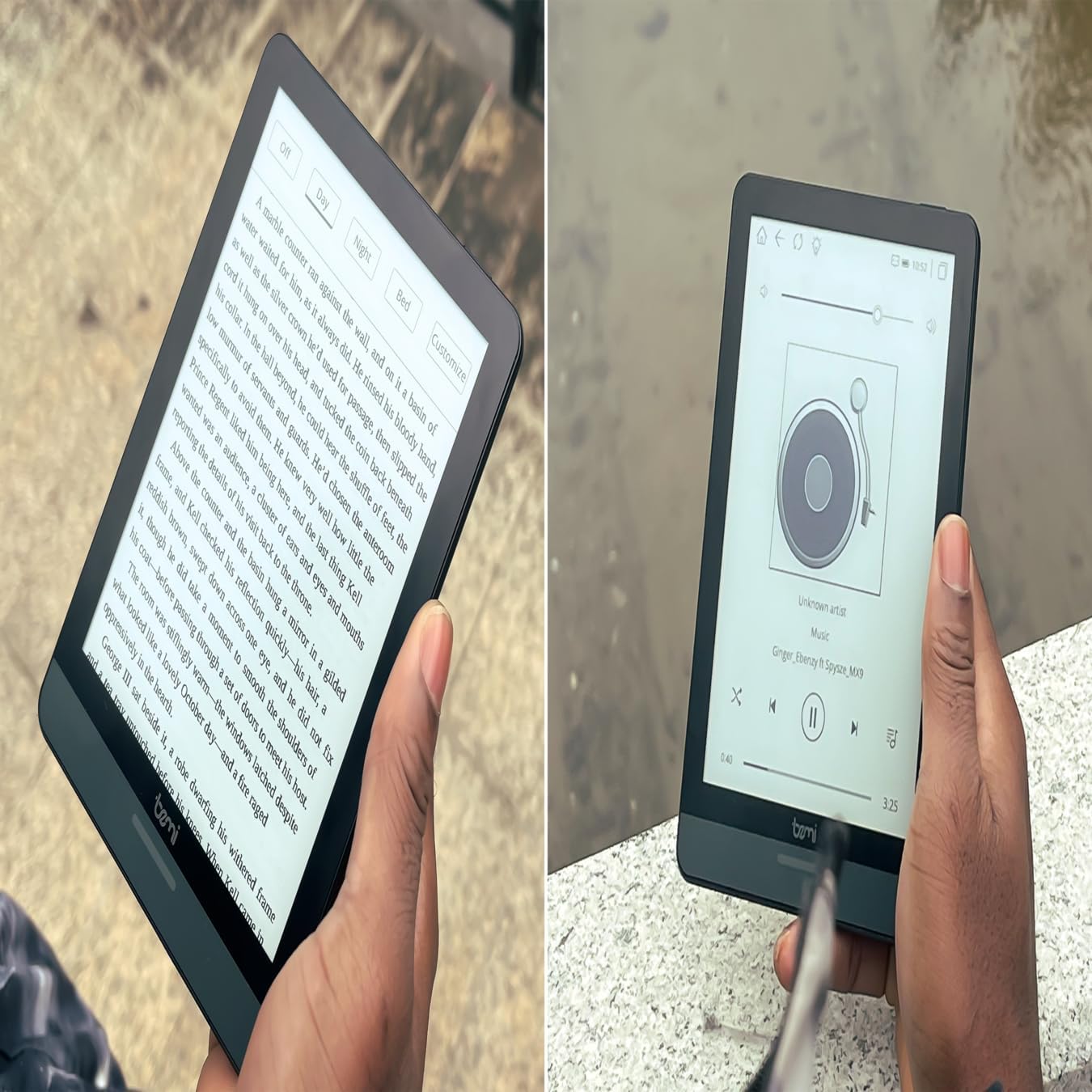
Şekil 4.1: User holding the Bemi Cognita Tab 6+ E-Reader while reading. The image shows the clear text display on the E-Ink screen, highlighting the device's readability.
4.2 Kitap Okuma
To open and read a book:
- Ana ekrandan, üzerine dokunun. Kütüphane or Kitaplar simge.
- Browse your collection or use the search function to find a book.
- Tap on the book cover to open it.
- Use the touch screen or side buttons to turn pages.
4.3 Adjusting SMARTlight
The SMARTlight feature allows you to adjust both the brightness and color temperature of the screen's front light.
- During reading, tap the center of the screen to bring up the reading menu.
- Ara Işık or SMARTlight simge.
- Adjust the sliders for brightness (intensity) and color temperature (warm to cool) to your preference.
4.4 Aktarma Files
You can transfer e-books and other supported files to your device via Wi-Fi or USB cable.
- Wi-Fi Üzerinden: If your device supports cloud services or direct Wi-Fi transfer, follow the specific application instructions.
- USB Kablosu ile:
- Connect your E-Reader to a computer using the provided USB cable.
- Cihaz, bilgisayarınızda çıkarılabilir bir depolama sürücüsü olarak görünecektir.
- Drag and drop your desired files (e.g., EPUB, PDF, MOBI) into the appropriate folders on the E-Reader (e.g., "Books" folder).
- Kabloyu çıkarmadan önce cihazı bilgisayarınızdan güvenli bir şekilde çıkarın.
4.5 MicroSD Kart Kullanımı
To expand storage, insert a microSD card (up to 256GB) into the designated slot.
- Gently insert the microSD card with the gold contacts facing down until it clicks into place.
- Çıkarmak için, kartı hafifçe içeri doğru itin, kendiliğinden dışarı fırlayacaktır.
- Files on the microSD card will be accessible through the device's file manager or library.
5. Bakım
5.1 Cihazın Temizlenmesi
- Cihazın ekranını ve gövdesini yumuşak, tüy bırakmayan bir bezle nazikçe silin.
- İnatçı lekeler için hafifçeampBezi suyla veya elektronik cihazlar için özel olarak tasarlanmış bir ekran temizleyiciyle silin.
- Sert kimyasallar, aşındırıcı malzemeler ve aşırı nem kullanmaktan kaçının.
5.2 Pil Bakımı
- Pil ömrünü uzatmak için pili sık sık tamamen boşaltmaktan kaçının.
- Uzun süre kullanılmayacaksa cihazı serin ve kuru bir yerde saklayın.
- Charge the device regularly, even if not used, to prevent deep discharge.
5.3 Depolama
When not in use, store your E-Reader in a protective case to prevent scratches and damage to the screen.
6. Sorun Giderme
If you encounter issues with your Bemi Cognita Tab 6+, refer to the following common solutions:
| Sorun | Çözüm |
|---|---|
| Cihaz açılmıyor. | Ensure the battery is charged. Connect the device to a power source for at least 30 minutes. If it still doesn't turn on, try a hard reset by holding the power button for 10-15 seconds. |
| Ekran donmuş veya tepkisiz. | Perform a soft reset by holding the power button for 5-7 seconds until the device restarts. If the issue persists, try a hard reset. |
| Wi-Fi'ye bağlanılamıyor. | Check if Wi-Fi is enabled in settings. Verify the Wi-Fi password. Restart your E-Reader and your Wi-Fi router. Ensure you are within range of the Wi-Fi signal. |
| Books are not appearing in the library. | Sağlamak files are in a supported format (e.g., EPUB, PDF). If transferred via USB, ensure they are in the correct folder. Try refreshing the library or restarting the device. |
| Pil çabuk bitiyor. | Reduce screen brightness. Turn off Wi-Fi and Bluetooth when not in use. Close background applications. Ensure the device is not constantly searching for networks. |
7. Özellikler
| Özellik | Detay |
|---|---|
| Model Adı | Bemi Cognita Tab 6+ |
| Ekran Boyutu | 6 Inches (E-Ink Carta, 1024x758, 212 ppi) |
| Dahili Bellek | 32 GB |
| Genişletilebilir Depolama | 256 GB'a kadar MicroSD kart yuvası |
| Bağlantı | Wi-Fi, Bluetooth |
| İşletim Sistemi | Android 8.1 |
| İnsan Arayüzü Girişi | Touchscreen, Side Control Buttons |
| Özel Özellikler | Adjustable SMARTlight, G-Sensor for auto-rotation, Glare-Free & Eye-Friendly E-Ink Display |
| Boyutlar (Yaklaşık) | 7 mm kalınlık |
| Dahil Bileşenler | USB kablosu |
8. Garanti ve Destek
8.1 Garanti Bilgileri
Your Bemi Cognita Tab 6+ E-Reader comes with a standard manufacturer's warranty. Please refer to the warranty card included in your product packaging or visit the official Bemi webGaranti kapsamı ve süresi ile ilgili detaylı şartlar ve koşullar için siteyi ziyaret edin.
Ek koruma sağlayan isteğe bağlı koruma planları mevcut olabilir. Ayrıntılar için lütfen satıcınızla iletişime geçin.
8.2 Müşteri Desteği
For technical assistance, troubleshooting beyond this manual, or warranty claims, please contact Bemi customer support:
- Webalan: www.bemi-electronics.com
- E-posta: Refer to the Bemi webiletişim için e-posta adresi.
- Telefon: Refer to the Bemi website for contact phone numbers.
When contacting support, please have your device model (Cognita Tab 6+) and purchase information ready.