
1. Giriş ve Üzeriview
Welcome to your new DigiLand 10.1-inch Android Tablet MID1050. This manual provides essential information for setting up, operating, and maintaining your device. The tablet features a 10.1-inch display, an Octa-core processor, 6GB RAM, 32GB internal storage (expandable), and runs on Android 15. Please read this manual thoroughly to ensure proper use and to maximize your tablet's potential.
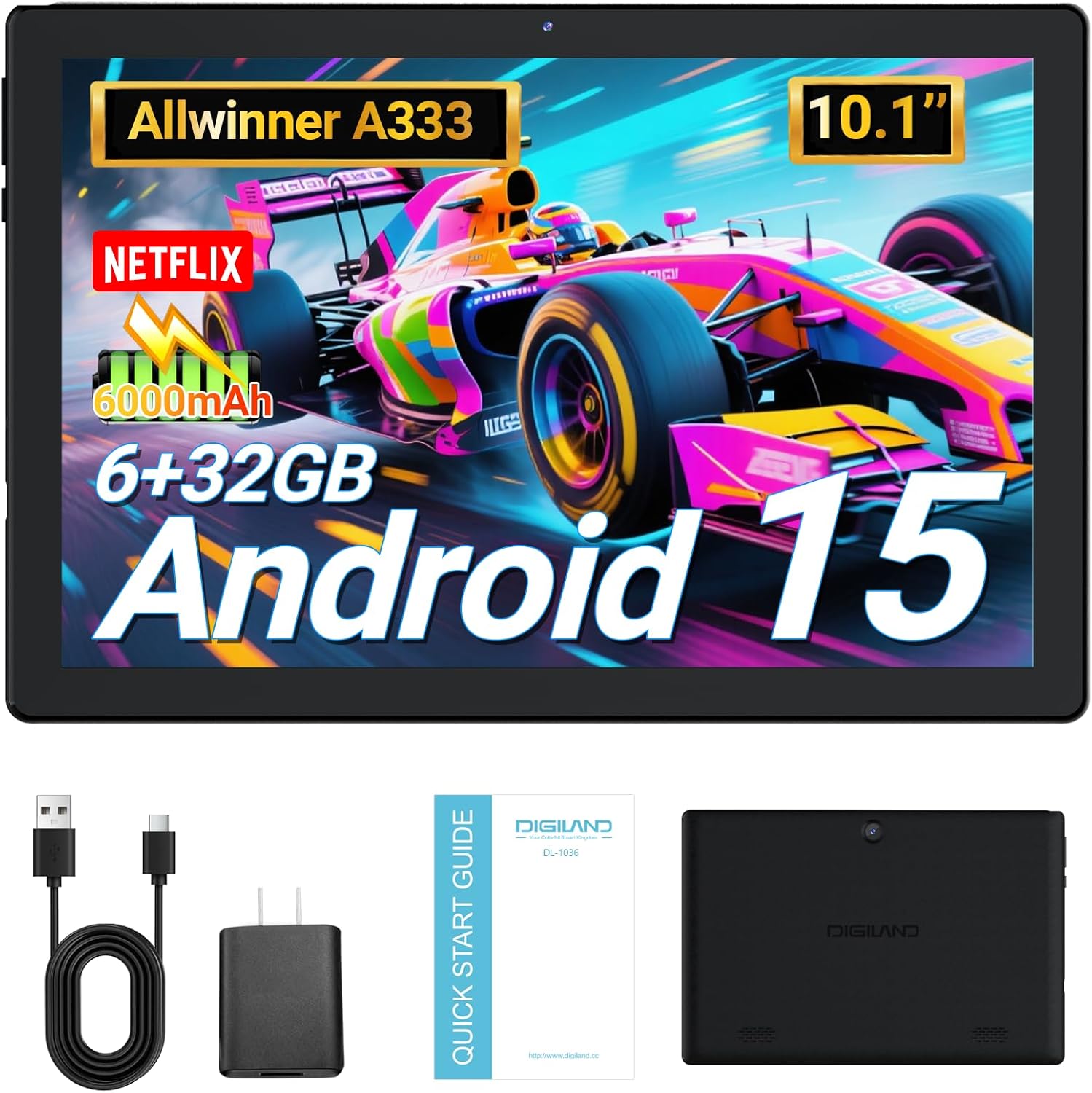
Image: DigiLand 10.1-inch Android Tablet MID1050.
2. Ürün Özellikleri
- Latest Android 15 System: Experience enhanced compatibility, faster response times, and smoother operation. The tablet is GMS certified and comes with Google Play pre-installed, supporting popular social applications.
- Yüksek Performans: Equipped with a high-performance Octa-core CPU, 6GB RAM (expandable to 3+3GB), and 32GB ROM. Storage can be expanded up to 1TB using an SD card.
- Çok Fonksiyonlu Tasarım: Features a 5MP rear camera and a 2MP front camera. Includes Bluetooth 5.0, built-in GPS, 5G WiFi, FM radio, dual-speakers, and a 3.5mm headphone jack.
- 10.1 inç HD Ekran: Enjoy a clear and vibrant visual experience with an 800x1280 IPS display. The 6000mAh rechargeable battery provides 8-10 hours of mixed use.

Resim: Üzeriview of DigiLand Android Tablet features.
3. Kutuda Neler Var?
Upon unboxing your DigiLand tablet, please ensure all the following items are present:
- 1 x DigiLand 10.1-inch Android Tablet
- 1 x USB Kablosu
- 1 x 5V/1A Power Adapter (US regulations)
- 1 x Kullanım Kılavuzu (bu belge)
- 1 x Garanti Kartı
- 1 x Children's Silicone Case
4. Kurulum Kılavuzu
4.1 Tableti Şarj Etme
Before first use, fully charge your tablet. Connect the provided USB cable to the tablet's Type-C port and the power adapter. Plug the adapter into a standard electrical outlet. The battery indicator on the screen will show charging status.
4.2 Açma/Kapatma
- Açmak İçin: Press and hold the Power button (located on the side) until the DigiLand logo appears.
- Kapatmak İçin: Güç tuşuna basılı tutun, ardından ekrandaki seçeneklerden 'Gücü kapat' seçeneğini seçin.
4.3 İlk Kurulum
Upon first power-on, follow the on-screen prompts to configure your tablet:
- Tercih ettiğiniz dili seçin.
- Bir Wi-Fi ağına bağlanın.
- Google hesabınızla giriş yapın veya yeni bir hesap oluşturun.
- Review ve şartlar ve koşulları kabul edin.
- Ekran kilidini ayarlayın (PIN, desen veya şifre).
4.4 MicroSD Kart Takma
To expand storage, locate the MicroSD card slot on the side of the tablet. Gently insert the MicroSD card (up to 1TB supported) into the slot until it clicks into place. Ensure the card is oriented correctly.

Image: Diagram showing the location of ports and buttons on the DigiLand Android Tablet.
5. Kullanım Talimatları
5.1 Temel Gezinme
The tablet uses a multi-touch display. Common gestures include:
- Musluk: Bir öğe seçin veya bir uygulama açın.
- Tokatlamak: Ekranlar veya listeler arasında gezinin.
- Tutam: Görüntüleri yakınlaştırın veya uzaklaştırın ve web sayfalar.
- Uzun basma: Bağlamsal menülere erişin veya simgeleri taşıyın.
5.2 Wi-Fi'ye Bağlanma
İnternete bağlanmak için:
- Git Ayarlar > Ağ ve internet > Wifi.
- Wi-Fi'yi aç/kapat On.
- İstediğiniz ağı listeden seçin.
- İstendiğinde şifreyi girin ve ardından dokunun Bağlamak.
5.3 Bluetooth Eşleştirme
Bluetooth cihazlarına bağlanmak için:
- Git Ayarlar > Bağlı cihazlar > Bluetooth.
- Bluetooth'u aç/kapat On.
- Bluetooth cihazınızın eşleştirme modunda olduğundan emin olun.
- Select your device from the 'Available devices' list and follow any on-screen instructions to complete pairing.
5.4 Kamera Kullanımı
Tablette 2 MP ön kamera ve 5 MP arka kamera bulunuyor.
- Açın Kamera Uygulamayı ana ekrandan veya uygulama çekmecesinden açın.
- Fotoğraf çekmek için deklanşöre dokunun.
- Kamera simgesini kullanarak ön ve arka kameralar arasında geçiş yapın.
- Video kaydetmek için video modunu seçin.

Image: Capturing moments with the tablet's cameras.
5.5 Uygulama Yönetimi
Download and manage applications:
- Uygulamaları Yükle: Açın Google Play Mağazası Uygulamayı bulun, istediğiniz uygulamayı arayın ve dokunun. Düzenlemek.
- Uygulamaları Kaldır: Long-press an app icon on the home screen or app drawer, then drag it to 'Uninstall' or go to Ayarlar > Uygulamalar > uygulamayı seçin > Kaldır.

Image: The tablet's screen showing various applications.
5.6 Bölünmüş Ekran Çoklu Görevi
The tablet supports split-screen mode for multitasking:
- Kullanmak istediğiniz ilk uygulamayı açın.
- Ekranın altından yukarı doğru kaydırın ve basılı tutarak son kullanılan uygulamalara erişin.
- İlk uygulamanın kartının üst kısmındaki uygulama simgesine dokunun, ardından 'Bölünmüş ekran'ı seçin.
- Ekranın diğer yarısını doldurmak için son kullandığınız uygulamalardan veya uygulama çekmecenizden ikinci uygulamayı seçin.

Image: Tablet displaying two applications simultaneously in split-screen mode.
5.7 Video Playback Demonstration
Watch this video for a demonstration of the tablet's functions and video playback capabilities.
Video: Android 15 Tablet Product Function Demonstration by GuYi-USA. This video showcases the tablet's interface and media playback.
6. Bakım
6.1 Tabletinizi Temizleme
Use a soft, lint-free cloth to clean the screen and body of the tablet. Avoid using abrasive cleaners, alcohol, or harsh chemicals, as these can damage the screen and finish.
6.2 Pil Bakımı
- Tableti aşırı sıcaklıklara (sıcak veya soğuk) maruz bırakmaktan kaçının.
- Charge the battery regularly, but avoid leaving it fully charged or fully depleted for extended periods.
- Yalnızca ürünle birlikte verilen şarj cihazını veya onaylı uyumlu bir şarj cihazını kullanın.
6.3 Yazılım Güncellemeleri
Regularly check for and install software updates to ensure your tablet has the latest features, security patches, and optimal performance. Go to Ayarlar > Sistem > Sistem güncellemesi.
6.4 Depolama Yönetimi
En iyi performansı korumak için tabletinizin depolama alanını düzenli olarak yönetin:
- Kullanılmayan uygulamaları kaldırın.
- Uygulama önbelleklerini temizle (Ayarlar > Uygulamalar > uygulama seç > Depolama ve önbellek > Önbelleği temizle).
- Büyük transfer file(Fotoğraflar, videolar) gibi dosyaları bulut depolama alanına veya harici bir MicroSD karta kaydedin.
7. Sorun Giderme
If you encounter issues with your tablet, refer to the following common problems and solutions:
| Sorun | Çözüm |
|---|---|
| Tablet will not turn on | Ensure the battery is sufficiently charged. Connect the tablet to the charger for at least 30 minutes before attempting to power on again. |
| Wi-Fi bağlantı sorunları | Check if your Wi-Fi router is working correctly. Restart both the router and the tablet. Forget the network in tablet settings and reconnect. |
| Uygulamalar çöküyor veya donuyor | Clear the app's cache (Settings > Apps > [App Name] > Storage & cache > Clear cache). If the problem persists, try uninstalling and reinstalling the app. |
| Yavaş performans | Close unnecessary background applications. Free up storage space by deleting old files or uninstalling unused apps. Restart the tablet. |
| Ekran tepkisiz | Tableti yeniden başlatmak için Güç düğmesini yaklaşık 10-15 saniye basılı tutun. |
8. Özellikler
Key technical specifications for the DigiLand 10.1-inch Android Tablet MID1050:
| Özellik | Detay |
|---|---|
| Model Numarası | MID1050 |
| İşletim Sistemi | Android 15 |
| Ekran Boyutu | 10.1 inç |
| Maksimum Ekran Çözünürlüğü | 800x1280 IPS |
| İşlemci | Octa-core (A133P) |
| Veri deposu | 6 GB |
| Dahili Depolama | 32 GB (TF kartıyla 1 TB'a kadar genişletilebilir) |
| Ön Kamera | 2 MP |
| Arka Kamera | 5 MP |
| Pil Kapasitesi | 6000mAh (Approx. 8-10 hours mixed use) |
| Kablosuz Bağlantı | 5G WiFi (802.11g) |
| Bluetooth | 5.0 |
| Boyutlar (UxGxY) | 10.1 x 5.5 x 0.3 inç |
| Ürün Ağırlığı | 2.01 pound |
9. Garanti ve Destek
9.1 Ürün Garantisi
The DigiLand 10.1-inch Android Tablet MID1050 comes with a one-year warranty from the date of purchase. This warranty covers manufacturing defects and ensures the product meets quality standards.
9.2 Müşteri Desteği
For any quality problems, technical assistance, or warranty claims, please contact our customer service team. You can reach us via your Amazon Purchase Record. We are committed to ensuring customer satisfaction and providing the best possible service.