
Ürün Bittiview
The TECKNET Rechargeable Bluetooth Mouse offers versatile connectivity and an ergonomic design for enhanced productivity. It supports dual Bluetooth modes (5.0/3.0) and a 2.4G USB-A connection, allowing seamless switching between up to three devices. Key features include a long-lasting 800mAh rechargeable battery, adjustable DPI settings for precise tracking, and silent click technology for a quiet working environment.

Resim: Üzeriview of the TECKNET Tri-Mode Bluetooth Mouse highlighting its features: Bluetooth 5.0/3.0, 2.4G Wireless, 6-level DPI, Rechargeable, Silent Click, and LED Light.
Paket İçeriği
Paketin içinde tüm öğelerin mevcut olduğundan emin olun:
- TECKNET Rechargeable Bluetooth Mouse
- C Tipi Şarj Kablosu
- USB Receiver (located in the back of the mouse)
- Kullanım Kılavuzu (bu belge)
Kurulum ve Bağlantı
Fareyi Şarj Etme
The mouse is equipped with an 800mAh rechargeable battery. Before first use, or when the battery indicator light signals low power, connect the mouse to a power source using the provided Type-C charging cable. A full charge takes approximately 1.5 hours and can provide up to 3 months of use (based on 2 hours/day usage).

Image: The TECKNET mouse connected via a USB-C cable for charging, illustrating its rechargeable battery feature.
Connecting via 2.4G Wireless (USB Receiver)
- USB alıcısını farenin altındaki bölmede bulun.
- Farenin altındaki güç düğmesini "AÇIK" konumuna getirin.
- Press the channel switch button on the bottom of the mouse until the indicator light for 2.4G (usually BT1 or BT2, depending on the model's default) is active.
- Plug the USB receiver into an available USB-A port on your computer. The mouse should connect automatically.
Connecting via Bluetooth (BT5.0 / BT3.0)
- Farenin altındaki güç düğmesini "AÇIK" konumuna getirin.
- Press the channel switch button on the bottom of the mouse to select either BT1 or BT2. The corresponding Bluetooth indicator light will flash, indicating pairing mode.
- On your device (PC, laptop, tablet), go to Bluetooth settings.
- Arama available devices and select "TK-MS026 5.X" or "TK-MS026 3.X" to connect.
- Bağlandıktan sonra gösterge ışığının yanıp sönmesi duracak ve sabit kalacaktır.
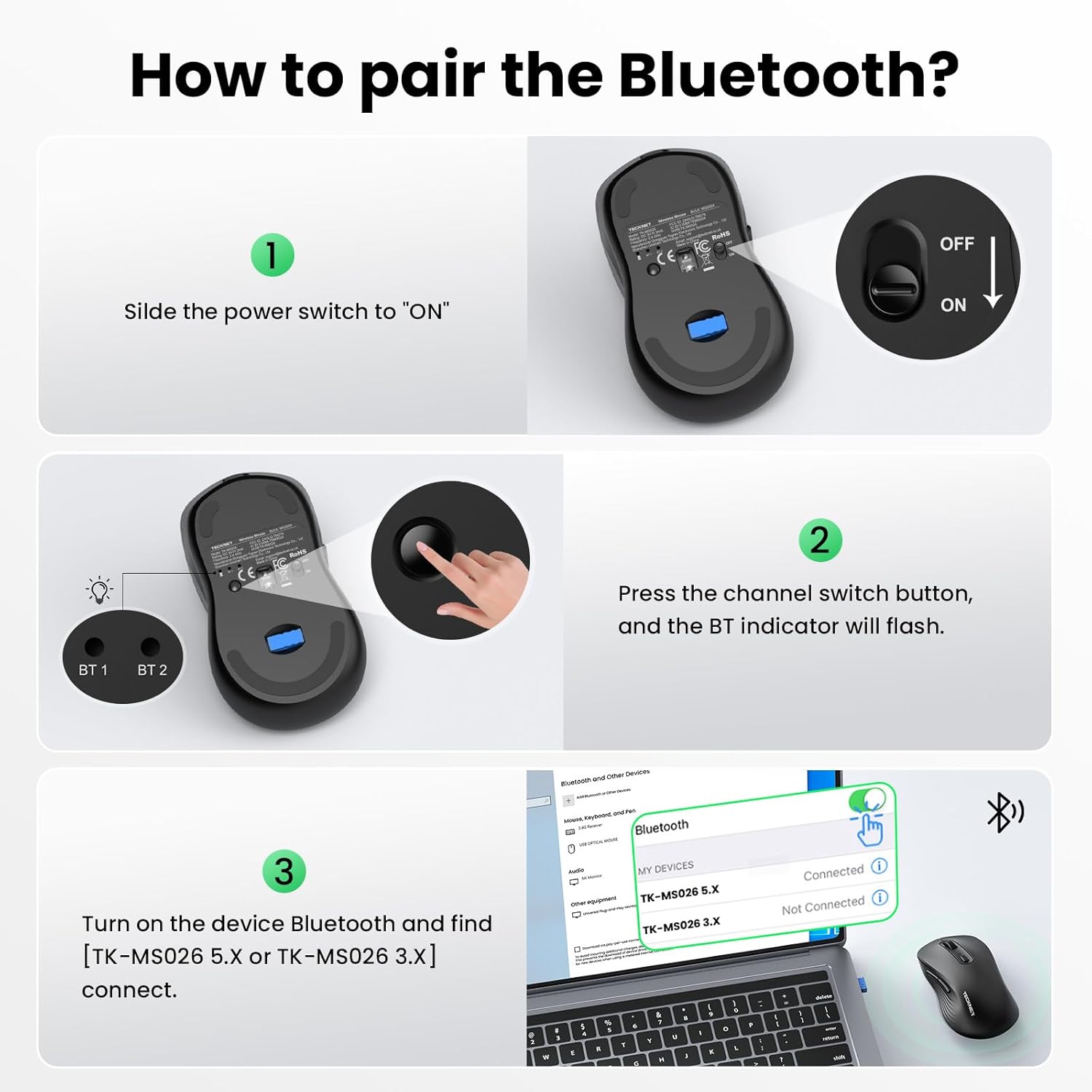
Image: Step-by-step guide on pairing the mouse via Bluetooth, showing the power switch, channel switch button, and device Bluetooth settings.
Video: Official TECKNET video demonstrating the Bluetooth mouse features and connectivity. This video shows the mouse's dual mode for 3 devices and one-click switching for multi-task efficiency.
Kullanım Talimatları
Çoklu Cihaz Geçişi
The mouse supports connection to up to three devices simultaneously (one via 2.4G USB-A, two via Bluetooth). Use the channel switch button on the underside of the mouse to cycle between connected devices. The indicator lights (BT1, BT2, 2.4G) will show the active connection.

Image: The TECKNET mouse demonstrating its ability to connect to three devices (laptop, desktop, tablet) and switch between them.
DPI Hassasiyetinin Ayarlanması
The mouse features 6 adjustable DPI settings (800/1200/1600/2400/3200/4800) to suit various tasks and preferences. Press the DPI switch button, located near the scroll wheel, to cycle through the sensitivity levels. A higher DPI setting results in faster cursor movement, ideal for gaming or large displays, while a lower DPI offers more precision for tasks like graphic design or spreadsheet editing.

Image: Visual representation of the mouse's 6 adjustable DPI levels, showing how different settings are suitable for web browsing, graphic design, and gaming.
Sessiz Tıklama Özelliği
The mouse incorporates advanced click technology to reduce noise by 90%. This feature ensures a quiet working environment, making it suitable for shared workspaces, libraries, or late-night use without disturbing others.

Image: The TECKNET mouse on a desk, illustrating its silent click feature in a quiet setting, with a sleeping child in the background.
Ergonomik Tasarım
Designed for comfort, the mouse features a natural curved shape that supports the palm and fingers, reducing wrist strain by up to 35%. Its dimensions (4.6 × 2.7 × 1.6 inches) are suitable for medium to large hand sizes.
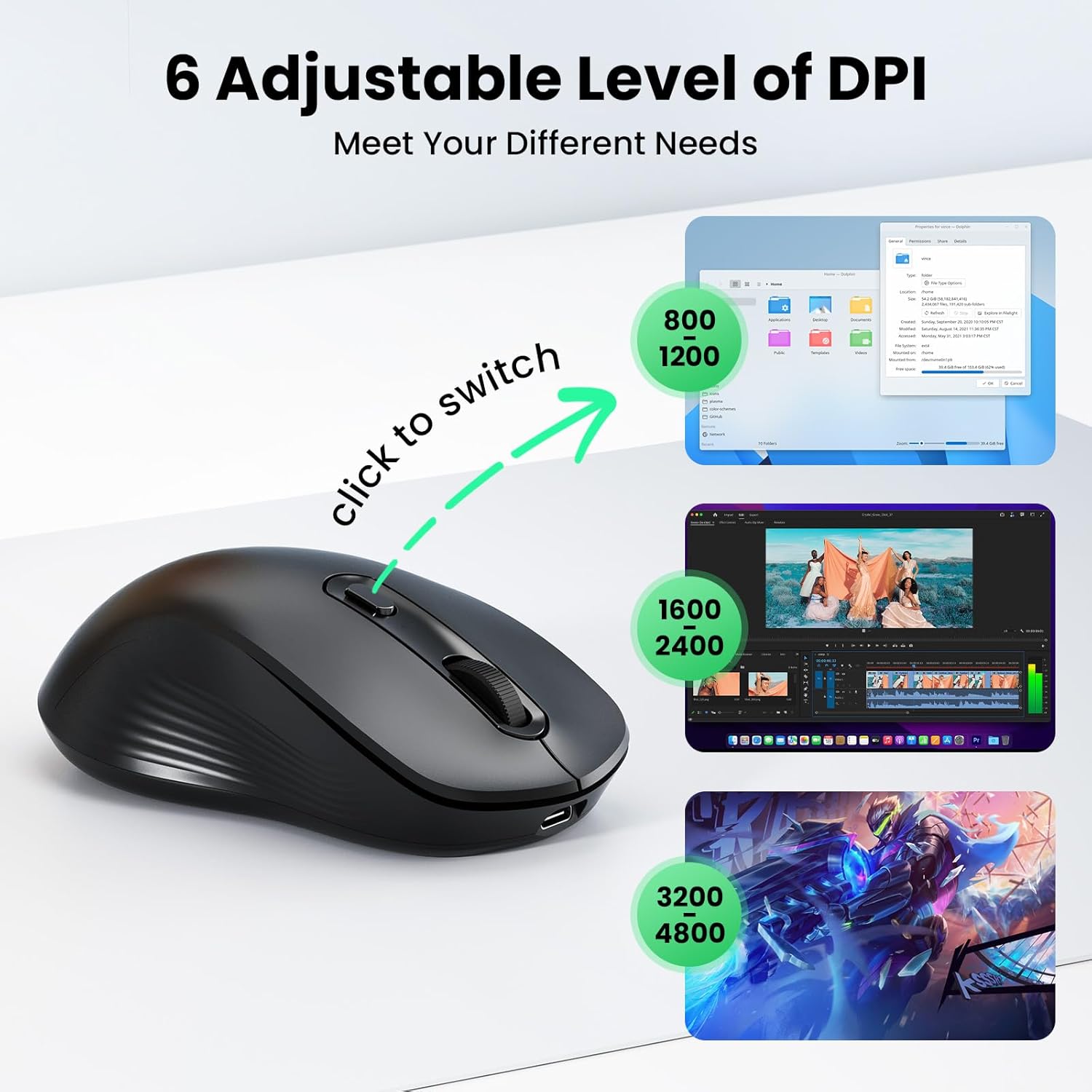
Image: An illustration demonstrating the ergonomic design of the mouse and a hand size guide (M/L) for optimal comfort.
Bakım
- Temizlik: Fareyi temizlemek için yumuşak ve kuru bir bez kullanın. İnatçı kirler için hafifçe kurulayın.amp İç bileşenlere nem girmemesini sağlamak için bez kullanılabilir.
- Depolamak: Uzun süre kullanılmadığında pil ömrünü korumak için fareyi kapatın. Serin, kuru ve doğrudan güneş ışığından ve aşırı sıcaklıklardan uzak bir yerde saklayın.
- Pil Bakım: To prolong battery life, avoid fully discharging the mouse frequently. Recharge when the low battery indicator appears.
Sorun giderme
| Sorun | Olası Neden | Çözüm |
|---|---|---|
| Fare yanıt vermiyor | Power switch is off; Low battery; Incorrect connection mode; USB receiver not plugged in (for 2.4G); Bluetooth not paired. | Ensure the mouse is turned ON. Charge the mouse. Verify the correct connection mode (2.4G, BT1, or BT2) is selected. For 2.4G, ensure the USB receiver is securely plugged in. For Bluetooth, re-pair the mouse via your device's Bluetooth settings. |
| İmleç hareketi düzensiz veya yavaş | Low battery; Dirty optical sensor; Mouse used on an unsuitable surface; DPI setting is too low. | Charge the mouse. Clean the optical sensor on the underside of the mouse. Use the mouse on a clean, non-reflective surface or a mouse pad. Adjust the DPI setting to a higher level using the DPI switch button. |
| Cihazlar arasında geçiş yapılamıyor. | Devices not properly paired or connected to the selected channel. | Ensure each device is correctly paired to its designated channel (2.4G, BT1, or BT2). Press the channel switch button firmly to cycle through modes. |
Özellikler
| Özellik | Detay |
|---|---|
| Marka | TECKNET |
| Örnek | B0FF4XF8P3 |
| Renk | Siyah |
| Bağlantı Teknolojisi | Bluetooth (5.0/3.0), 2.4G Wireless (USB-A) |
| Hareket Algılama Teknolojisi | Optik |
| DPI Ayarları | 800, 1200, 1600, 2400, 3200, 4800 |
| Düğme Miktarı | 6 (Left, Right, Scroll Wheel, DPI Switch, Forward, Back) |
| El Yönelimi | İki elini de kullanabilen |
| Pil Kapasitesi | 800mAh Şarj Edilebilir |
| Pil Ömrü | Up to 3 months (2h/day usage) |
| Şarj Süresi | Yaklaşık 1.5 saat |
| Uyumlu Cihazlar | Personal Computer (PC, Mac, Linux) |
| İşletim Sistemi Desteği | Windows 10/11, macOS, Linux, Chrome OS, iPadOS, Android |
| Ürün Boyutları (U x G) | 4.6"L x 2.7"W (11.8cm x 6.9cm) |
| Malzeme | ABS (Enclosure) |
Garanti ve Destek
Each TECKNET product comes with lifetime support. If you encounter any issues or are not satisfied with your product or service, please contact TECKNET customer support. Registration may be required to activate full lifetime support benefits.
For further assistance, please visit the official TECKNET webLütfen siteyi ziyaret edin veya satın alma işleminizle birlikte verilen iletişim bilgilerine başvurun.