
1. Giriş
This manual provides comprehensive instructions for the installation, operation, maintenance, and troubleshooting of your NEWFAST 1200Mbps Dual Band WiFi Extender, model RE523. Please read this manual carefully before using the device to ensure proper setup and optimal performance.
2. Ürün Bittiview
The NEWFAST RE523 WiFi Extender is designed to expand your existing wireless network coverage and eliminate Wi-Fi dead zones. It supports dual-band operation, offering speeds up to 1200Mbps (300Mbps on 2.4GHz and 867Mbps on 5.8GHz) for a stable and fast internet connection.
2.1 Temel Özellikler
- High-Speed Dual-Band WiFi: Up to 1200Mbps (300Mbps 2.4GHz + 867Mbps 5.8GHz).
- Genişletilmiş Kapsam: Equipped with 4 external 3dBi high-gain antennas, rotatable 180° for optimal signal reception and coverage.
- LCD Akıllı Ekran: Kolay izleme için gerçek zamanlı durum bilgisi sağlar.
- Çoklu Çalışma Modları: Supports Repeater, Bridge, AP, Router, and Client modes.
- Kolay Kurulum: One-click WPS setup or webtabanlı yapılandırma.
- Geniş Uyumluluk: Compatible with 802.11 ac/a/b/g/n routers.
- Yüksek Cihaz Kapasitesi: Can connect up to 35 wireless devices simultaneously.
2.2 Paket İçeriği
- NEWFAST 1200Mbps WiFi Extender (RE523)
- Kullanım Kılavuzu (bu belge)
- Ethernet Kablosu (bölgeye göre değişiklik gösterebilir)
2.3 Fiziksel Bileşenler
Below is an image of the NEWFAST RE523 WiFi Extender, highlighting its main components.
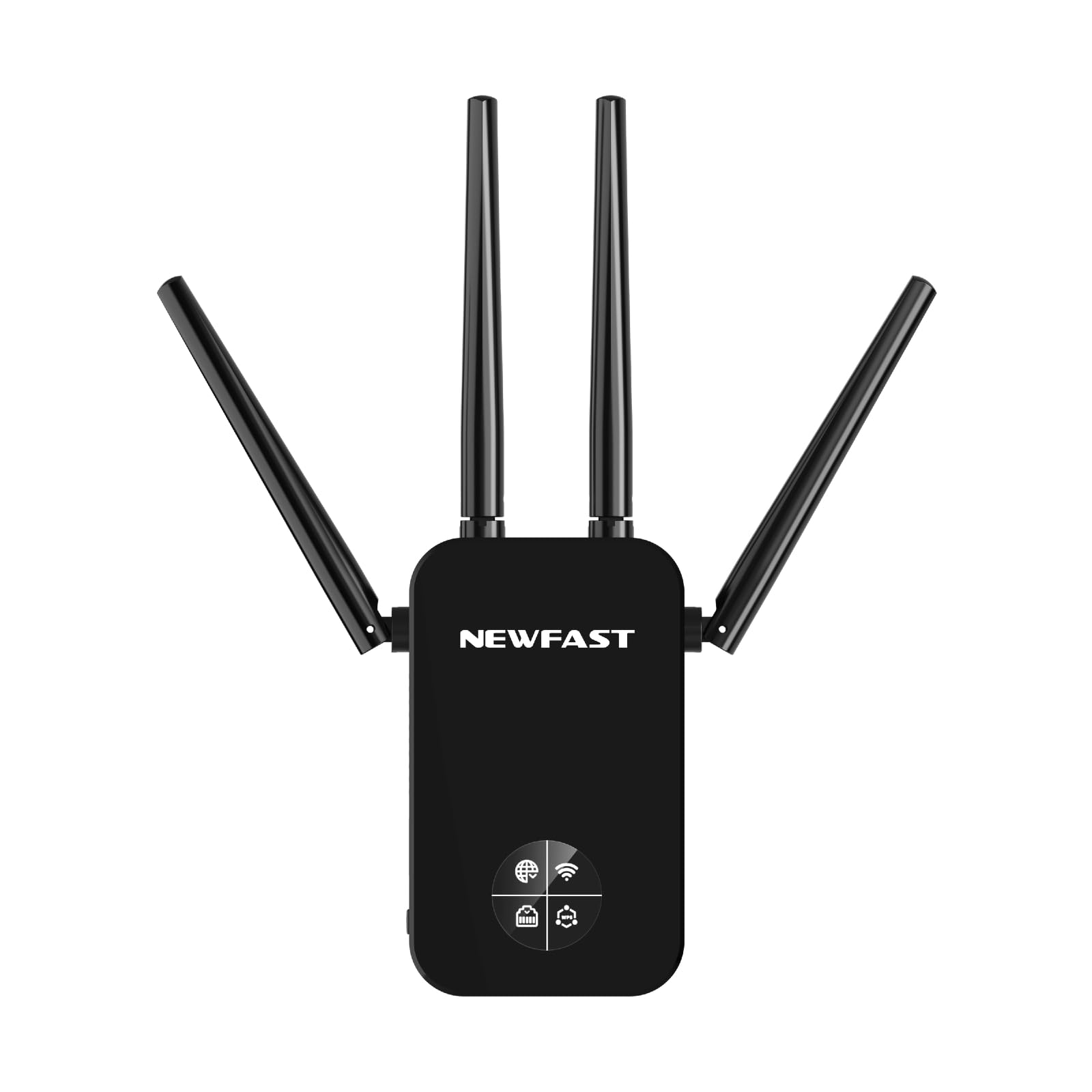
Figure 1: NEWFAST RE523 WiFi Extender. The device features four adjustable external antennas, an LCD screen on the front, and an Ethernet port on the side.
- Antenler: Four external antennas for signal transmission and reception.
- LCD Ekran: Shows connection status, signal strength, and operating mode.
- WPS Düğmesi: For quick and secure connection to a router.
- Ethernet Bağlantı Noktası: For wired connections in various operating modes.
- Güç LED'i: Güç durumunu gösterir.
3. Kurulum Talimatları
The NEWFAST RE523 offers two primary methods for setup: WPS (Wi-Fi Protected Setup) and Web Kullanıcı arayüzü (Web Kullanıcı Arayüzü).
3.1 WPS Setup (Recommended for quick setup)
- Güç Açık: Plug the RE523 extender into an electrical outlet near your main router. Wait for the Power LED to turn solid.
- Yönlendiricide WPS'yi etkinleştirin: Press the WPS button on your main Wi-Fi router. Refer to your router's manual for the exact location and timing.
- Genişleticide WPS'yi etkinleştirin: Within 2 minutes of pressing the WPS button on your router, press the WPS button on the NEWFAST RE523 extender. The WPS LED on the extender will blink.
- Bağlantıyı Bekleyin: The extender will automatically connect to your router. Once connected, the Signal LED on the extender will turn solid, indicating a successful connection.
- Extender'ın yerini değiştirin: Unplug the extender and move it to a location halfway between your router and the Wi-Fi dead zone. Ensure the Signal LED indicates a good signal strength from your router.
3.2 Web UI Kurulumu
- Güç Açık: Plug the RE523 extender into an electrical outlet near your main router. Wait for the Power LED to turn solid.
- Extender'ın Ağına Bağlanın: On your computer or mobile device, connect to the Wi-Fi network broadcast by the extender (e.g., "NEWFAST_EXT_2.4G" or "NEWFAST_EXT_5G"). No password is required initially.
- Erişim Web Arayüz: Bir tane aç web browser and enter the default IP address or domain name (usually found on a sticker on the device or in a quick start guide, e.g.,
http://192.168.1.254orhttp://newfastwifi.net). - Giriş yapmak: Varsayılan kullanıcı adını ve şifreyi girin (örneğin, admin/admin).
- Ekrandaki Talimatları İzleyin: The setup wizard will guide you through selecting your main Wi-Fi network, entering its password, and configuring the extender's network name (SSID) and password.
- Kurulumu Tamamla: After configuration, the extender will restart. Once the Signal LED turns solid, the setup is complete.
- Extender'ın yerini değiştirin: Unplug the extender and move it to a location halfway between your router and the Wi-Fi dead zone. Ensure the Signal LED indicates a good signal strength from your router.
4. Çalışma Modları
The NEWFAST RE523 supports five operating modes to suit various network requirements.
- Tekrarlayıcı Modu: Extends the existing Wi-Fi coverage of your main router. This is the most common mode for eliminating dead zones.
- AP (Erişim Noktası) Modu: Converts a wired network connection into a wireless one. Connect the extender to your router via an Ethernet cable, and it will broadcast a new Wi-Fi network.
- Yönlendirici Modu: Birincil yönlendirici görevi görerek yeni bir özel ağ oluşturur. Bu mod genellikle modeminiz varken yönlendiriciniz olmadığında kullanılır.
- Köprü modu: Connects two separate networks, allowing devices on one network to communicate with devices on another.
- İstemci Modu: Allows wired-only devices (e.g., smart TVs, gaming consoles) to connect to a wireless network. The extender receives Wi-Fi and provides an Ethernet connection to the device.
Bu modlar arasında geçiş yapabilirsiniz. web management interface after initial setup.
5. Bakım
- Temizlik: Cihazı temizlemek için yumuşak, kuru bir bez kullanın. Sıvı veya aerosol temizleyiciler kullanmayın.
- Atama: Place the extender in a well-ventilated area, away from direct sunlight, heat sources, and moisture. Avoid placing it near large metal objects or electrical appliances that may cause interference.
- Donanım Yazılımı Güncellemeleri: Periodically check the NEWFAST official webEn iyi performansı ve güvenliği sağlamak için yazılım güncellemeleri için site.
- Reset: If the device malfunctions or you forget the login credentials, you can perform a factory reset by pressing and holding the reset button (usually a small pinhole button) for about 5-10 seconds while the device is powered on.
6. Sorun Giderme
- Kurulumdan Sonra İnternet Erişimi Yok:
- Ensure the extender is receiving a strong signal from your main router (check the Signal LED).
- Ana yönlendiricinizin internet erişimine sahip olduğundan emin olun.
- Re-run the setup process, ensuring you enter the correct Wi-Fi password for your main router.
- Try relocating the extender closer to your main router.
- Slow Speed or Frequent Disconnections:
- Relocate the extender to an optimal position, ideally halfway between your router and the desired coverage area, where it receives a good signal.
- Minimize physical obstructions (walls, large appliances) between the extender, router, and client devices.
- Diğer elektronik cihazlardan kaynaklanan paraziti kontrol edin.
- Yönlendiricinizin yazılımının güncel olduğundan emin olun.
- Erişilemiyor Web Yönetim Sayfası:
- Cihazınızın genişleticinin Wi-Fi ağına bağlı olduğundan emin olun.
- Tarayıcıya girilen IP adresinin veya alan adının doğru olup olmadığını doğrulayın.
- Tarayıcınızın önbelleğini temizlemeyi veya farklı bir tarayıcı kullanmayı deneyin.
- If you've changed the extender's IP address, use the new one. If forgotten, perform a factory reset.
7. Özellikler
| Marka | YENİHIZLI |
| Örnek | RE523 |
| Kablosuz İletişim Standardı | 802.11a/b/g/n/ac |
| Veri Aktarım Hızı | 1200 Megabits per second (Mbps) |
| Frekans Bant Sınıfı | Çift Bant (2.4 GHz ve 5.8 GHz) |
| Antenler | 4 Harici 3dBi Anten |
| Ethernet Bağlantı Noktası | 1x LAN/WAN Port |
| Renk | Siyah |
8. Garanti ve Destek
NEWFAST products come with a standard manufacturer's warranty. For specific warranty terms and conditions, please refer to the warranty card included with your product or visit the official NEWFAST website. For technical support, troubleshooting assistance, or to download the latest drivers and firmware, please visit the NEWFAST support page or contact their customer service directly.
Official NEWFAST Webalan: NEWFAST Mağazası Amazon'da (Please check the product packaging or official documentation for the direct manufacturer webbir site.)