
giriiş
The Mercusys MA72XH is a high-performance Wi-Fi 6 AX1800 USB adapter designed to provide fast and stable wireless connectivity for your desktop or laptop computer. Featuring dual-band support, USB 3.0 interface, and advanced security protocols like WPA3, this adapter enhances your online experience for streaming, gaming, and video calls. This manual provides detailed instructions for the proper installation, operation, and maintenance of your MA72XH adapter.
Paket İçeriği
Paketinizin aşağıdaki öğeleri içerdiğini doğrulayın:
- 1 x Mercusys MA72XH AX1800 High-Performance Dual-Band Wireless USB Adapter
- 1 x Hızlı Kurulum Kılavuzu
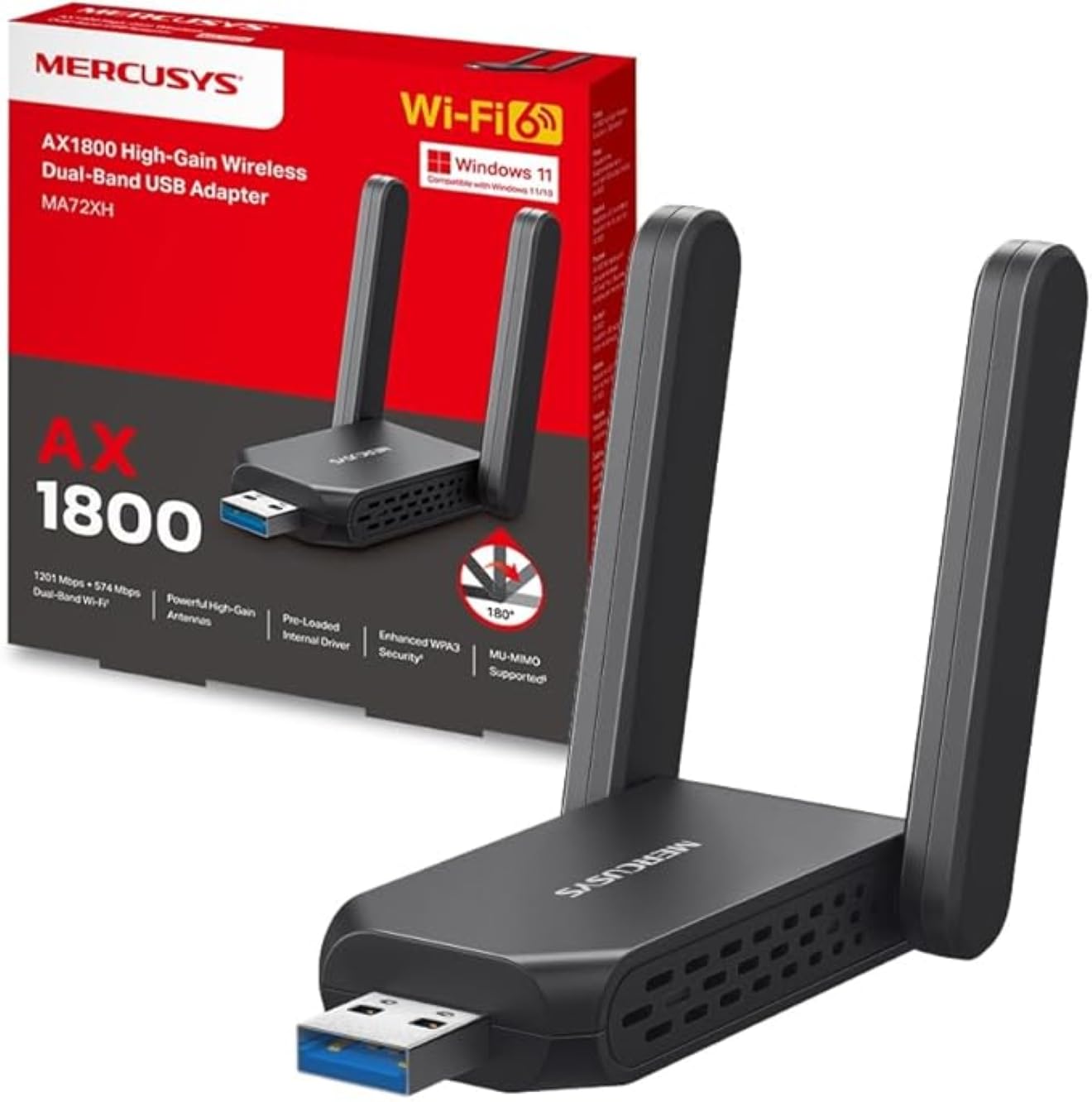
Image: The Mercusys MA72XH WiFi 6 AX1800 USB Adapter, showcasing its compact design and two adjustable external antennas.
Ürün Özellikleri
- High-Speed Dual-Band Wi-Fi: Achieves speeds up to 1201 Mbps on the 5 GHz band and 574 Mbps on the 2.4 GHz band, supported by two high-performance antennas.
- Preloaded Internal Driver: Offers simple plug-and-play installation for most Windows 10/11 systems, eliminating the need for manual driver downloads in many cases.
- MU-MIMO Teknolojisi: Enables the adapter to communicate with multiple devices simultaneously, reducing latency and improving overall network efficiency.
- Enhanced WPA3 Security: Utilizes the latest Wi-Fi security standard to provide robust protection for your network and personal data against unauthorized access.
- USB 3.0 Arayüzü: Ensures superior data transfer speeds, optimizing performance for high-definition streaming, online gaming, and large file transfers when paired with Wi-Fi 802.11ax.
- Geniş Uyumluluk: Fully compatible with Windows 10 and Windows 11 operating systems.
Kurulum Kılavuzu
Follow these steps to install your Mercusys MA72XH WiFi adapter:
- Adaptörü takın: Plug the MA72XH adapter into an available USB 3.0 port on your desktop or laptop computer. For optimal performance, use a USB 3.0 port (often blue inside).
- Sürücü Kurulumu:
- Otomatik Kurulum: In most cases, Windows 10 or 11 will automatically detect the adapter and install the necessary drivers from its preloaded internal memory. Wait for a notification indicating successful driver installation.
- Manual Installation (if needed): If the driver does not install automatically, or if you encounter issues, you may need to download the latest drivers from the official Mercusys support website. Insert the adapter, then navigate to the Mercusys support page for the MA72XH model, download the driver, and follow the on-screen instructions for installation.
- Antenleri Ayarlayın: Position the two external antennas for optimal signal reception. Generally, pointing them upwards or slightly angled can improve performance.
- Wi-Fi Ağına Bağlan:
- Once the driver is installed, click the Wi-Fi icon in your computer's system tray (usually in the bottom-right corner).
- Mevcut ağlar listesinden istediğiniz Wi-Fi ağını seçin.
- Enter the network security key (password) if prompted, then click "Connect".
Your Mercusys MA72XH adapter should now be connected to your wireless network.
Kullanım Talimatları
The Mercusys MA72XH operates as a standard Wi-Fi adapter once installed.
- Connecting/Disconnecting: Manage your Wi-Fi connections through the standard Windows network settings. Click the Wi-Fi icon in the system tray to view available networks, connect to a new one, or disconnect from an existing one.
- Çift Bantlı Çalışma: The adapter automatically selects the optimal band (2.4 GHz or 5 GHz) based on network conditions and router capabilities. If your router broadcasts separate SSIDs for each band, you can manually choose to connect to the 5 GHz network for higher speeds or the 2.4 GHz network for better range.
- MU-MIMO Benefits: When connected to a MU-MIMO compatible router, the MA72XH can process data streams to and from multiple devices simultaneously, leading to more efficient network usage and reduced buffering, especially in busy network environments.
Bakım
To ensure the longevity and optimal performance of your MA72XH adapter:
- Sürücü Güncellemeleri: Mercusys resmi sitesini düzenli olarak kontrol edin. website for the latest driver updates. Keeping your drivers current can improve performance, stability, and security.
- Fiziksel Bakım: Keep the adapter clean and free from dust. Avoid exposing it to extreme temperatures, humidity, or direct sunlight. Do not attempt to disassemble the device.
- Anten Yerleşimi: Ensure the antennas are not obstructed and are positioned for the best possible signal reception. Avoid placing the adapter near large metal objects or other electronic devices that may cause interference.
- Güvenli Bağlantı: Always ensure the adapter is firmly seated in the USB port to prevent intermittent connections.
Sorun giderme
If you encounter issues with your Mercusys MA72XH adapter, refer to the following common solutions:
- Wi-Fi Bağlantısı Yok:
- Adaptörün çalışan bir USB bağlantı noktasına güvenli bir şekilde takılı olduğundan emin olun. Farklı bir USB bağlantı noktası deneyin.
- Bilgisayarınızın ayarlarında Wi-Fi'nin etkinleştirilmiş olduğundan emin olun.
- Check if the adapter's driver is correctly installed in Device Manager (Windows Key + X > Device Manager > Network adapters). If there's a yellow exclamation mark, reinstall the driver.
- Restart your computer and your Wi-Fi router.
- Yavaş Wi-Fi Hızı:
- Ensure you are connected to the 5 GHz band if available and your router supports it, as it generally offers higher speeds.
- Move closer to your Wi-Fi router or adjust the adapter's antennas for better signal strength.
- Diğer elektronik cihazlardan (örneğin, mikrodalga fırınlar, kablosuz telefonlar) kaynaklanan parazitleri kontrol edin.
- Adaptörünüzün sürücülerini en son sürüme güncelleyin.
- Sık Sık Bağlantı Kesilmeleri:
- Ensure the adapter is not loose in the USB port.
- Disable any power-saving features for the USB port in Device Manager (right-click the adapter > Properties > Power Management tab, uncheck "Allow the computer to turn off this device to save power").
- Yönlendiricinizin yazılımını güncelleyin.
- Try connecting to a different Wi-Fi channel on your router to avoid congestion.
- Sürücü Kurulum Hatası:
- Sürücü kurulumu sırasında antivirüs yazılımını geçici olarak devre dışı bırakın.
- Download the driver directly from the Mercusys official website and run the installer as an administrator.
- Windows işletim sisteminizin güncel olduğundan emin olun.
Özellikler
| Marka | MERKÜSLER |
| Model Numarası | MA72XH |
| kablosuz standardı | IEEE 802.11ax (Wi-Fi 6) |
| Veri Aktarım Hızı | 1800 Mbps'ye kadar (5 GHz'de 1201 Mbps, 2.4 GHz'de 574 Mbps) |
| Sıklık | Çift Bant (2.4 GHz ve 5 GHz) |
| Arayüz | USB 3.0 |
| Güvenlik | WPA3, WPA2, WPA |
| Uyumluluk | , Windows 10 Windows 11 |
| Antenler | 2 High-Performance External Antennas |
| Boyutlar (U x G x Y) | 11.3x10.1x2.7 cm |
| Ağırlık | 50 gr |
Garanti ve Destek
Garanti bilgileri ve teknik destek için lütfen resmi Mercusys web sitesine başvurun. website or the documentation included with your product. You can typically find support resources, FAQs, and contact information by visiting www.mercusys.com/support and searching for your model (MA72XH).