
giriiş
This manual provides essential information for setting up, operating, maintaining, and troubleshooting your Acer AL15-33P laptop. Please read this guide thoroughly to ensure proper use and to maximize the lifespan of your device.
Kurmak
1. Kutudan Çıkarma ve İlk İnceleme
Carefully remove the laptop and all accessories from the packaging. Check for any visible damage. The package should include the laptop, power adapter, and this user manual.

Ön view of the Acer AL15-33P laptop with the screen displaying the Windows desktop.
2. Gücü Bağlama
- AC adaptör kablosunu güç adaptörüne bağlayın.
- Plug the DC output connector of the power adapter into the power input port on the side of your laptop.
- AC güç kablosunu elektrik prizine takın.
The battery will begin charging automatically. It is recommended to fully charge the battery before initial use.
3. İlk Önyükleme ve Windows Kurulumu
- Dizüstü bilgisayarın kapağını açın.
- Press the power button, typically located on the keyboard deck or side, to turn on the laptop.
- Follow the on-screen instructions to complete the Windows 11 setup process. This includes selecting your region, language, accepting terms, and setting up a user account.
Dizüstü Bilgisayarınızı Çalıştırma
1. Klavye ve Dokunmatik Yüzey Kullanımı
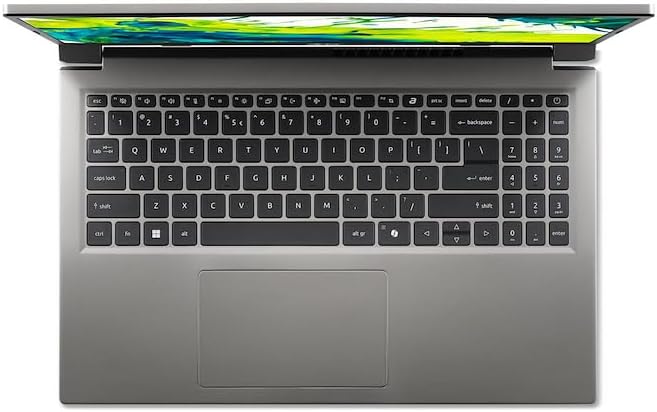
Yukarıdan aşağıya view Dizüstü bilgisayarın klavyesi ve dokunmatik yüzeyi.
- Klavye: The laptop features a full-size keyboard. Use the function (Fn) key in combination with F-keys for special functions like adjusting brightness, volume, or enabling/disabling Wi-Fi.
- Dokunmatik yüzey: The integrated touchpad supports multi-touch gestures. Tap to click, use two fingers to scroll, and pinch to zoom.
2. Çevre Birimlerini Bağlama
Your Acer AL15-33P laptop is equipped with various ports for connecting external devices.

Right side of the laptop showing ports including USB and audio jack.

Left side of the laptop showing ports including power, USB-C, HDMI, and USB-A.
- USB Bağlantı Noktaları: Harici sabit diskler, fareler veya klavyeler gibi USB aygıtlarını bağlayın.
- HDMI Bağlantı Noktası: Connect an external monitor or TV for a larger display.
- Ses jakı: Kulaklıkları veya harici hoparlörleri bağlayın.
- USB-C Bağlantı Noktası: For data transfer and potentially display output or charging, depending on the specific model configuration.
3. Kablosuz Bağlantı
- Wifi: Kablosuz ağa bağlanmak için görev çubuğundaki Wi-Fi simgesine tıklayın, ağınızı seçin ve gerekirse şifreyi girin.
- Bluetooth: To pair Bluetooth devices, go to Windows Settings > Bluetooth & devices, and turn on Bluetooth.
4. Güç Yönetimi
- Uyku modu: Close the lid or select 'Sleep' from the Start menu to put the laptop into a low-power state.
- Kapat: To turn off the laptop completely, go to the Start menu, click the Power icon, and select 'Shut down'.
- Tekrar başlat: To restart the laptop, go to the Start menu, click the Power icon, and select 'Restart'.
Bakım
1. Dizüstü Bilgisayarın Temizlenmesi
- Yumuşak, tiftiksiz bir bez kullanın ve hafifçe kurulayın.ampEkranı temizlemek için su veya ekran temizleyici kullanın.
- Klavye ve kasa için yumuşak bir bez kullanın. Sert kimyasallardan veya aşındırıcı malzemelerden kaçının.
- Periodically use compressed air to clear dust from the cooling vents to prevent overheating.
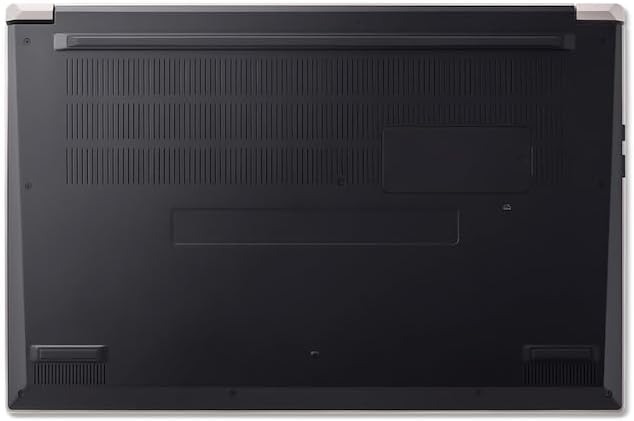
Alt view of the laptop, highlighting the ventilation grilles.
2. Pil Bakımı
- Akünün sık sık tamamen boşalmasından kaçının.
- Dizüstü bilgisayarı uzun süre saklayacaksanız, pilin yaklaşık %50-70 oranında şarjlı olduğundan emin olun.
- Operate the laptop in a moderate temperature environment.
3. Yazılım Güncellemeleri
Regularly update your operating system and drivers to ensure optimal performance and security. Windows Update can be accessed via Settings > Windows Update.
4. Depolama Yönetimi
Periyodik olarak yenidenview ve gereksiz olanları silin files to free up storage space. Utilize cloud storage or external drives for backups of important data.
Sorun giderme
This section addresses common issues you might encounter with your Acer AL15-33P laptop.
| Sorun | Olası Çözüm |
|---|---|
| Dizüstü bilgisayar açılmıyor. | Ensure the power adapter is securely connected and the outlet is working. Try a different outlet. If the battery is completely drained, it may take a few minutes to show signs of life after plugging in. |
| Ekran boş veya siyah. | Check if the laptop is powered on. Try pressing Fn + F6 (or the corresponding display toggle key) to cycle through display modes. Connect an external monitor to check if the issue is with the laptop's screen. |
| Wi-Fi bağlantı sorunları. | Ensure Wi-Fi is enabled (Fn + F3 or check Windows settings). Restart your router and modem. Check if other devices can connect to the Wi-Fi network. Update Wi-Fi drivers. |
| Dizüstü bilgisayar yavaş çalışıyor. | Close unnecessary applications. Check Task Manager for processes consuming high CPU or memory. Run a disk cleanup. Ensure Windows and drivers are up to date. |
Özellikler
The following are key specifications for the Acer AL15-33P model. Note that specific configurations may vary.
- Modeli: Acer AL15-33P
- İşlemci: Intel Core i3-N355
- VERİ DEPOSU: 8 GB
- Depolamak: 512 GB SSD
- Görüntülemek: 15.6 inç
- İşletim Sistemi: Windows 11
- Marka: Acer
Garanti ve Destek
Your Acer AL15-33P laptop comes with a standard manufacturer's warranty. Please refer to the warranty card included with your product for specific terms and conditions, including the warranty period and coverage details.
Teknik destek, sürücü indirmeleri veya servis soruları için lütfen resmi Acer destek sayfasını ziyaret edin website or contact Acer customer service directly. Have your laptop's serial number ready when contacting support.
Acer Desteği Webalan: www.acer.com/support