
1. Giriş
This manual provides detailed instructions for the setup, operation, maintenance, and troubleshooting of your TECWARE Phantom S 75% Gasket-Mounted Mechanical Keyboard. Please read this manual thoroughly before using the product to ensure optimal performance and longevity.

Image 1.1: The TECWARE Phantom S 75% Gasket-Mounted Mechanical Keyboard, showcasinkompakt tasarımı ve RGB arka aydınlatması ile.
2. Paket İçeriği
Paketin içinde tüm öğelerin mevcut olduğundan emin olun:
- TECWARE Phantom S Mechanical Keyboard
- USB-C - USB-A Kablosu
- 2.4GHz Wireless Dongle (typically stored in the keyboard)
- Tuş Çektirmesi
- Anahtar Çektirme
- Kullanım Kılavuzu (bu belge)
3. Ürün Özellikleri
The TECWARE Phantom S keyboard incorporates several design and functional elements for an enhanced user experience:
3.1. Gasket-Mounted Design with Multi-layered DampEning
The keyboard features a gasket-mounted structure combined with multiple layers of foam padding. This design contributes to a softer, more cushioned typing feel and improved acoustic dampening, reducing typing noise.
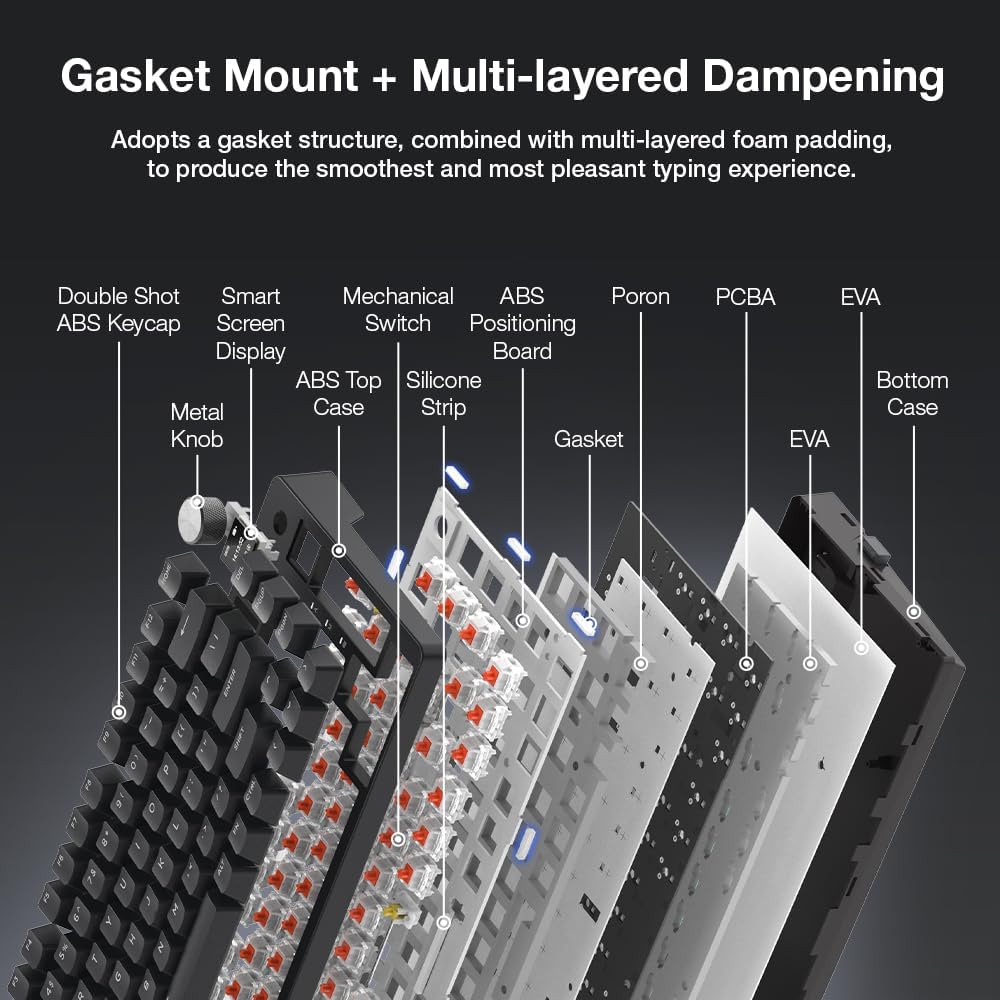
Image 3.1: Exploded diagram illustrating the gasket mount and multi-layered dampening components, including the metal knob, double shot ABS keycaps, smart screen display, ABS top case, silicone strip, mechanical switch, ABS positioning board, gasket, Poron, PCBA, EVA, and bottom case.
3.2. TFT Display and Multifunction Knob
An integrated TFT display provides visual feedback for various settings and system information. A dedicated multifunction knob allows for quick adjustments to volume, brightness, and mode selection.

Image 3.2: Close-up of the customizable TFT LCD display and the multifunction knob, alongside a representation of the dedicated software interface for customization.
3.3. Three Modes of Connectivity
The keyboard supports three connectivity options: wired via USB-C, 2.4GHz wireless via a dedicated dongle, and Bluetooth 5.0. This allows for versatile use across different devices and setups.
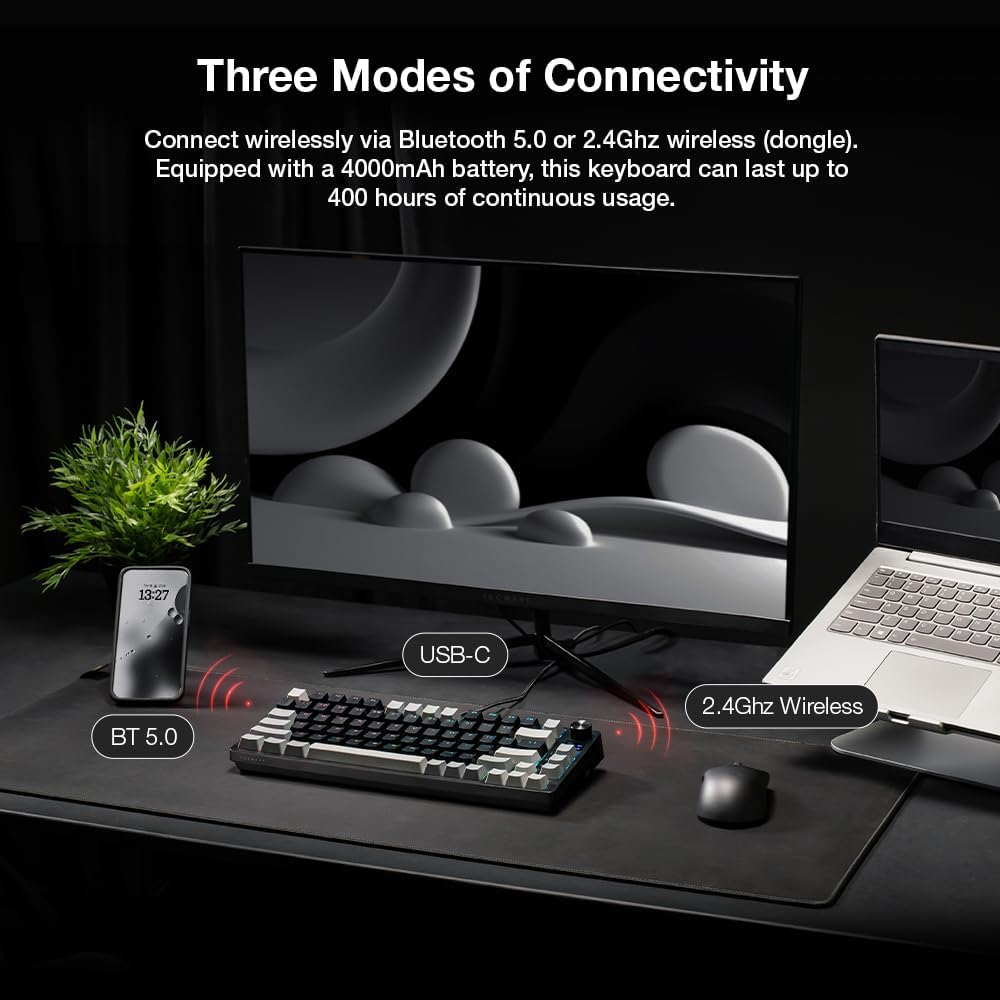
Image 3.3: Illustration of the three connectivity modes: Bluetooth 5.0, USB-C wired connection, and 2.4GHz wireless via a dongle, demonstrating its versatility with various devices.
3.4. Lubed & Tuned Tecware Custom Switches
Equipped with north-facing, pre-lubed Tecware Wraith Red switches, the keyboard offers smooth and consistent linear keystrokes. The switches are tuned for optimal performance and aligned with key legends for clear shine-through effects.
- Tahrik Gücü: 45 ± 8 gr
- Bottom Out Force: 60 ± 8 gr
- Toplam Seyahat Mesafesi: 3.6 ± 0.2 mm
- Tip: Doğrusal

Resim 3.4: Ayrıntılı view of the Tecware Wraith Red linear switches, highlighting their pre-lubed nature and key specifications.
3.5. Double Shot ABS Keycaps and Adjustable Feet
The keyboard features durable double shot ABS keycaps designed for longevity. Adjustable feet allow users to customize the typing angle for ergonomic comfort.

Resim 3.5: Views of the keyboard's side profile, illustrating the OEM keycap profile and the adjustable feet for ergonomic customization.
3.6. Uzun Pil Ömrü
Equipped with a 4000mAh battery, the keyboard offers extended usage times, up to 400 hours of continuous use, minimizing the need for frequent recharging.
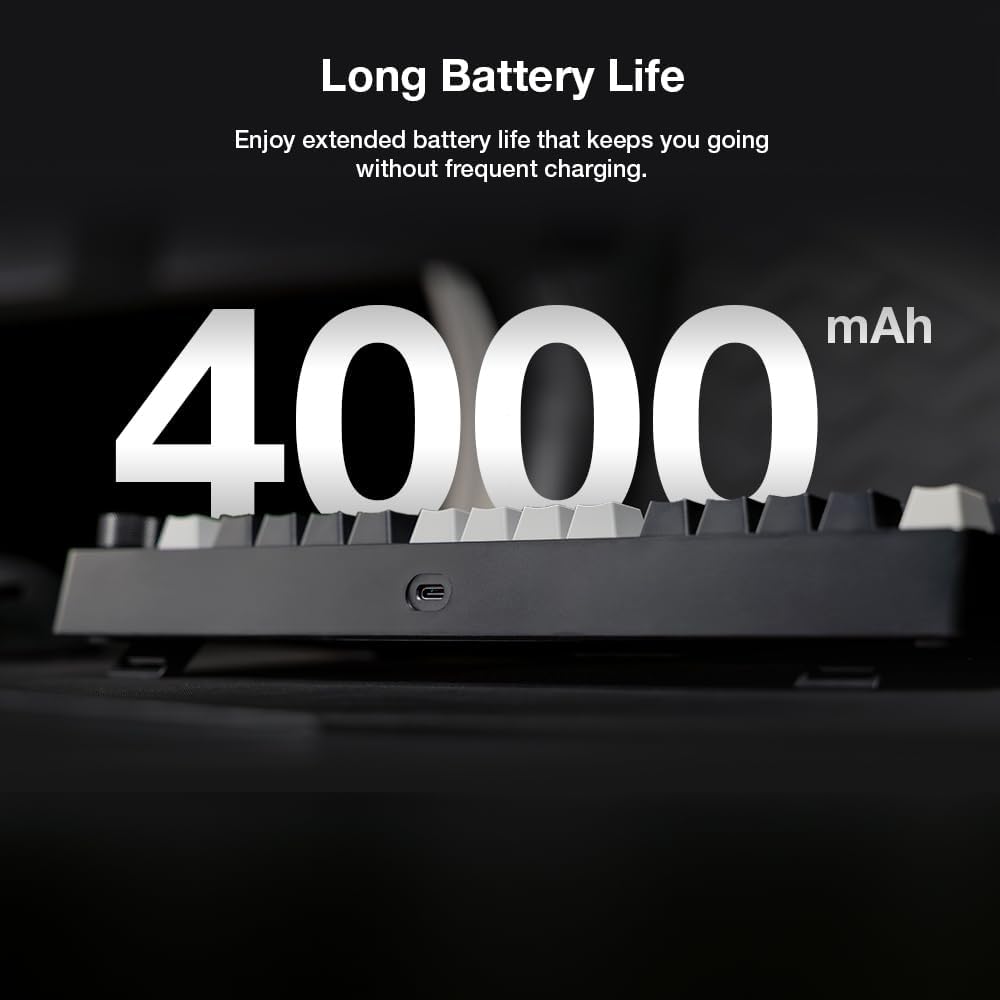
Image 3.6: Visual representation emphasizing the 4000mAh battery capacity of the keyboard, indicating extended battery life.
4. Kurulum
4.1. İlk Şarj
Before first use, connect the keyboard to a USB power source using the provided USB-C cable. The TFT display will indicate charging status. A full charge is recommended for optimal battery performance.
4.2. USB-C ile Bağlantı (Kablolu Mod)
- Klavyedeki USB-C portunu bulun.
- Connect one end of the USB-C cable to the keyboard and the other end to an available USB-A port on your computer.
- Klavye işletim sisteminiz tarafından otomatik olarak tanınacaktır.
4.3. 2.4GHz Kablosuz Bağlantı
- Locate the 2.4GHz wireless dongle, typically stored in a compartment on the keyboard.
- Insert the dongle into an available USB-A port on your computer.
- On the keyboard, switch the connectivity mode to 2.4GHz (refer to the operating section for mode switching instructions).
- Klavyenin otomatik olarak bağlanması gerekiyor.
4.4. Bluetooth 5.0 üzerinden bağlantı
- On the keyboard, switch the connectivity mode to Bluetooth (refer to the operating section for mode switching instructions).
- The keyboard will enter pairing mode, indicated on the TFT display.
- Cihazınızda (bilgisayar, tablet, akıllı telefon) Bluetooth ayarlarını açın ve yeni cihazları arayın.
- Select "TECWARE Phantom S" from the list of available devices to pair.
5. Kullanım Talimatları
5.1. Temel Klavye Fonksiyonları
The keyboard functions as a standard 75% layout mechanical keyboard. All keys perform their labeled functions. Utilize the Fn key in combination with other keys for secondary functions, typically indicated by smaller icons or text on the keycaps.
5.2. Using the Multifunction Knob
The knob located on the top right of the keyboard provides quick control over various settings:
- Döndür: Adjusts volume by default. Can be customized via software for brightness control or other functions.
- Basmak: Mutes/unmutes audio by default. Can be customized via software for mode switching or other functions.
5.3. TFT Display Functions
The TFT display provides real-time information and allows for customization:
- Göstergeler: Displays battery level, connectivity mode (wired, 2.4GHz, BT), Caps Lock, Num Lock, etc.
- Özelleştirme: Through the dedicated TECWARE software, you can upload custom animations (GIFs), set up keyboard profiles, and control RGB lighting effects directly on the display.
5.4. Software Installation and Usage
For advanced customization of the TFT display, key assignments, macros, and RGB lighting, download and install the dedicated TECWARE Phantom S software from the official TECWARE website. The software provides a graphical interface for managing keyboard settings.
Not: Ensure your keyboard is connected to the computer (preferably via USB-C) when using the software for firmware updates and settings synchronization.
6. Bakım
6.1. Klavyeyi Temizleme
- Temizlemeden önce klavyeyi tüm güç kaynaklarından ayırın.
- Yumuşak, tiftiksiz bir bez kullanın ve hafifçe kurulayın.ampTuş kapaklarını ve diğer yüzeyleri silmek için su veya hafif bir temizleme solüsyonu kullanın.asing.
- For deeper cleaning, use the provided keycap puller to remove keycaps and a can of compressed air to clear debris from beneath them.
- Klavyenin yüzeyine veya tuş başlıklarındaki yazılara zarar verebilecek sert kimyasallar veya aşındırıcı malzemeler kullanmaktan kaçının.
6.2. Anahtar Değişimi (Çalışırken Değiştirilebilir)
The TECWARE Phantom S features hot-swappable switches, allowing for easy replacement without soldering.
- Birlikte verilen tuş kapağı sökme aparatını kullanarak istediğiniz tuş kapağını nazikçe çıkarın.
- Using the provided switch puller, carefully grip the switch from its top and bottom clips and pull it straight up.
- Yeni anahtarın pinlerini PCB üzerindeki deliklerle hizalayın. Pinlerin düz olduğundan emin olun.
- Yeni düğmeyi yerine oturıncaya kadar hafifçe bastırın. Zorlamayın.
- Tuş başlığını değiştirin.
7. Sorun Giderme
7.1. Klavye Yanıt Vermiyor
- Kablolu: USB-C kablosunun hem klavyeye hem de bilgisayara güvenli bir şekilde bağlandığından emin olun. Farklı bir USB bağlantı noktası veya kablo deneyin.
- 2.4GHz Kablosuz: Ensure the dongle is properly inserted and the keyboard is in 2.4GHz mode. Try re-pairing by switching modes.
- Bluetooth: Ensure Bluetooth is enabled on your device and the keyboard is in Bluetooth pairing mode. Re-pair the device if necessary.
- Pil: Check the battery level on the TFT display. Charge the keyboard if the battery is low.
7.2. RGB Backlighting Not Working/Incorrect
- Check keyboard shortcuts for RGB control (often Fn + arrow keys or specific function keys).
- Ensure the brightness is not set to zero.
- Use the TECWARE software to adjust or reset RGB settings.
7.3. TFT Display Issues
- If the display is blank, ensure the keyboard is powered on and charged.
- If custom animations are not displaying correctly, verify the file format and size requirements in the TECWARE software.
- Try resetting the keyboard settings via the software.
7.4. Tuşlar Kaydedilmiyor
- Remove the keycap and switch for the affected key. Inspect the switch pins for bends or damage. Straighten bent pins carefully or replace the switch if damaged.
- Anahtarın PCB'ye tam olarak oturduğundan emin olun.
8. Özellikler
| Örnek | Phantom S (Red Switch Linear) |
| Düzen | %75 (80 tuşlu) |
| Anahtar Türü | Tecware Wraith Red (Linear, Hot-swappable) |
| Bağlantı | USB-C Kablolu, 2.4GHz Kablosuz, Bluetooth 5.0 |
| Pil Kapasitesi | 4000mAh |
| keycaps | Double Shot ABS |
| Görüntülemek | TFT Ekran |
| Boyutlar | 14.57 x 7.32 x 2.2 inç |
| Ürün Ağırlığı | 2.29 pound |
| Uyumlu Cihazlar | PC |
| UPC | 810072523778 |
9. Garanti ve Destek
9.1. Garanti Bilgileri
TECWARE products are covered by a limited warranty against manufacturing defects. The specific terms and duration of the warranty may vary by region and retailer. Please retain your proof of purchase for warranty claims.
9.2. Müşteri Desteği
For technical assistance, warranty inquiries, or further information, please visit the official TECWARE website or contact their customer support channels. Contact details can typically be found on the TECWARE websitede veya ürün ambalajında yer almamaktadır.