
1. Giriş
This manual provides essential information for the safe and efficient use of your BOOX Go 7 ePaper Tablet. Please read it thoroughly before operating the device and retain it for future reference.

Figure 1.1: BOOX Go 7 ePaper Tablet
2. Güvenlik Bilgileri
- Cihazı aşırı sıcaklıklara, doğrudan güneş ışığına veya yüksek neme maruz bırakmayın.
- Cihazı düşürmekten veya güçlü darbelere maruz bırakmaktan kaçının.
- Şarj etmek için yalnızca birlikte verilen USB kablosunu kullanın.
- Keep the device away from water and liquids, despite its water-repellent features.
- Cihazı kendiniz sökmeye veya onarmaya çalışmayın. Yetkili servis personeliyle iletişime geçin.
3. Paket İçeriği
Paketin içinde tüm öğelerin mevcut olduğundan emin olun:
- BOOX Go 7 ePaper Tablet
- USB kablosu
- Hızlı Başlangıç Kılavuzu (bölgeye göre değişiklik gösterebilir)

Figure 3.1: BOOX Go 7 Package Contents
4. Cihaz Bittiview
4.1 Fiziksel Bileşenler
Familiarize yourself with the main components of your BOOX Go 7 tablet:
- E Ink Screen: 7-inch monochrome display with 300 ppi resolution.
- Ön ışık: Adjustable illumination for reading in various lighting conditions.
- Page-Turn Buttons: Ergonomically designed buttons for easy navigation.
- USB-C Bağlantı Noktası: Şarj ve veri aktarımı için.
- Güç Düğmesi: Üst kenarda yer almaktadır.
- Dahili Mikrofon: Ses girişi için.
- Dahili Çift Hoparlör: Ses çıkışı için.

Figure 4.1: Page-Turn Buttons and Water-Repellent Protection
5. Kurulum
5.1 İlk Şarj
Before first use, fully charge your BOOX Go 7 tablet. Connect the provided USB-C cable to the device and a compatible power adapter (not included) or a computer's USB port. The charging indicator will show the charging status.
5.2 Güç Açma/Kapatma
- Açmak İçin: Press and hold the Power button until the BOOX logo appears.
- Kapatmak İçin: Güç düğmesine basılı tutun, ardından ekrandaki seçeneklerden "Kapat"ı seçin.
- Uyumak/Uyanmak: Güç düğmesine kısaca basın.
5.3 Ağ Bağlantısı (Wi-Fi)
- Ana ekrandan, hızlı ayarlar paneline erişmek için yukarıdan aşağıya doğru kaydırın.
- Wi-Fi'yi etkinleştirmek için Wi-Fi simgesine dokunun.
- Wi-Fi ayarlarını açmak için Wi-Fi simgesine dokunup basılı tutun.
- Listeden istediğiniz ağı seçin ve istendiğinde şifreyi girin.
- Bağlantı kurulduktan sonra, Wi-Fi simgesi başarılı bir bağlantıyı gösterecektir.
6. Kullanım Talimatları
6.1 Temel Gezinme
- Dokunmatik ekran: Tap, swipe, and pinch to navigate menus, open applications, and interact with content.
- Page-Turn Buttons: Use the physical buttons on the side to turn pages in documents and books.
6.2 Reading Documents and Books
The BOOX Go 7 supports various document formats. Open your desired file from the library. Use the page-turn buttons or swipe gestures to navigate through pages. Adjust font size, contrast, and frontlight settings for optimal reading comfort.
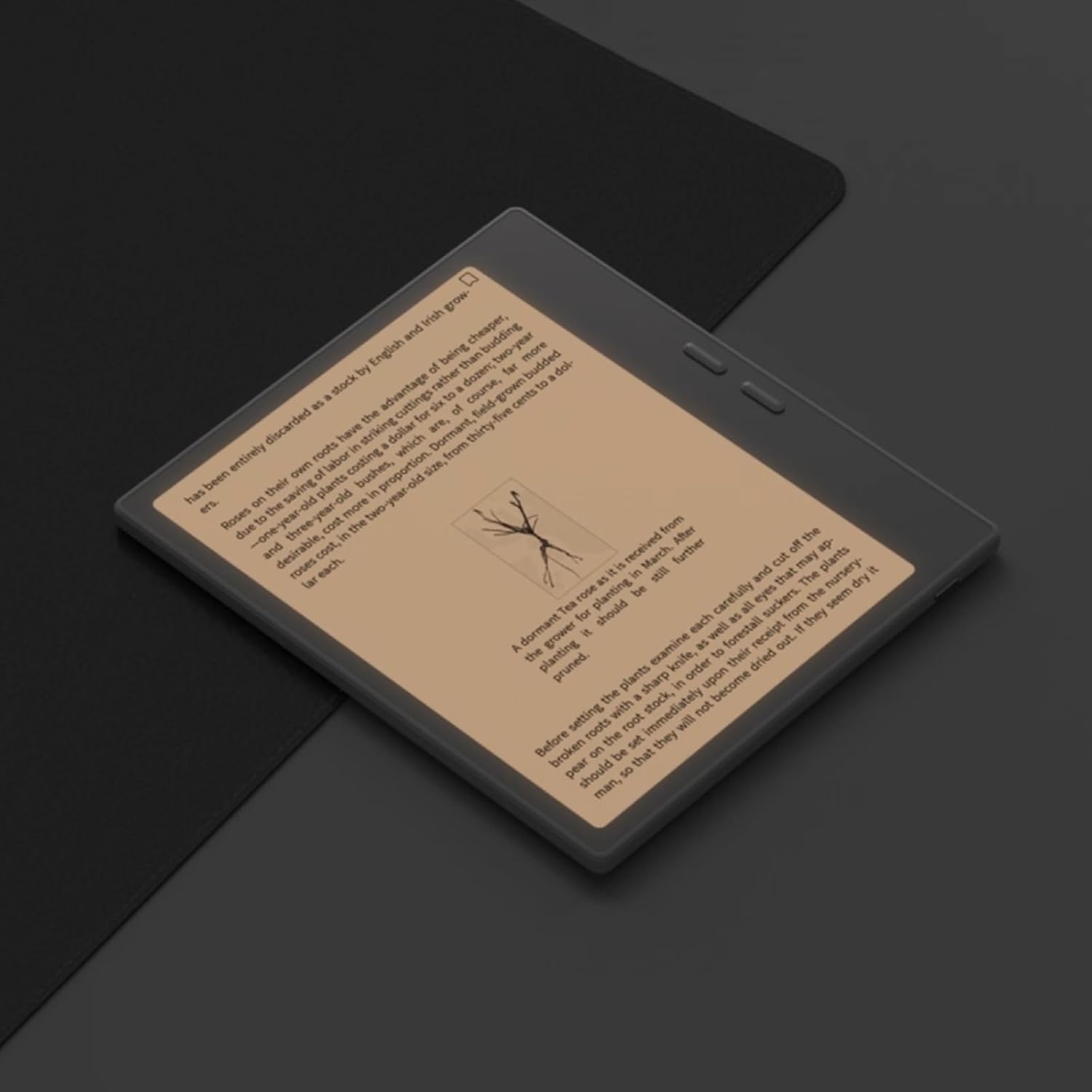
Figure 6.1: Reading with Frontlight
6.3 Android Uygulamalarını Kullanma
As an Android 13 device, the BOOX Go 7 allows installation of various applications from the Google Play Store. Navigate to the App Store, search for your desired application, and install it. Note that some applications may not be fully optimized for ePaper displays.

Figure 6.2: Various Android Applications on BOOX Go 7
6.4 Note-Taking and Drawing
Utilize the stylus (if included or purchased separately) for note-taking, sketching, and annotating documents. The device offers various templates and tools for creative and organizational tasks.

Figure 6.3: Stylus Use for Note-Taking

Figure 6.4: Handwriting to Text Conversion
7. Bakım
7.1 Cihazın Temizlenmesi
Use a soft, lint-free cloth to gently wipe the screen and body of the device. Do not use harsh chemicals, abrasive cleaners, or excessive moisture.
7.2 Yazılım Güncellemeleri
Regularly check for and install software updates to ensure optimal performance and access to new features. Connect to Wi-Fi and navigate to Ayarlar > Sistem > Sistem Güncellemesi Mevcut güncellemeleri kontrol etmek için.
8. Sorun Giderme
- Cihaz açılmıyor: Cihazın şarjının dolu olduğundan emin olun. Cihazı bir güç kaynağına bağlayın ve tekrar deneyin.
- Ekran yanıt vermiyor: Perform a soft reset by holding the Power button for 10-15 seconds.
- Wi-Fi bağlantı sorunları: Verify your Wi-Fi password and router settings. Try restarting your router and the device.
- Uygulamalar çöküyor: Ensure applications are updated to their latest versions. Clear the app's cache or reinstall if issues persist.
9. Özellikler
| Marka | ÇANTA |
| Model Adı | 7'e git |
| Depolama Kapasitesi | 64 GB |
| Ekran Boyutu | 7 inç |
| Maksimum Ekran Çözünürlüğü | 300 Pixels per inch |
| İşletim Sistemi | Android 13 |
| Renk | Noir (Siyah) |
| Kurulu RAM Boyutu | 4 GB |
| Özel Özellikler | USB OTG support, Expandable storage, Stylus support |
| Model Yılı | 2025 |
| Pil Türü | Lityum iyon |
| Pil Enerji İçeriği | 8.8 Watt-saat |
| İşlemci Markası | Qualcomm |
| İşlemci Açıklaması | Qualcomm Snapdragon |
| Kamera | Kamera yok |
| Sensör Tipi | Jiroskop |
| Item Dimensions (LxWxT) | 15.6L x 0.6W x 13.7T centimeters |
| Giriş Yöntemi | Touchscreen with stylus |
| Grafik Kartı Açıklaması | Entegre |
| Uyumlu Cihazlar | Kalem |
| Görüntü Türü | Elektronik Mürekkep |
| Ekran Çözünürlüğü | 1280 x 800 piksel |
| En Boy Oranı | 16:10 |
| Donanım Bağlantı | USB |
| Kablosuz Teknoloji | Bluetooth, Wi-Fi (802.11ax) |
| Toplam USB Bağlantı Noktaları | 1 |

Figure 9.1: BOOX Go 7 Energy Label (EPREL Bağlantısı)
10. Garanti Bilgileri
The BOOX Go 7 ePaper Tablet comes with a 2 yıllık sınırlı garanti. This warranty covers manufacturing defects under normal use. For specific terms and conditions, please refer to the warranty card included in your package or contact customer support.
The standard return policy allows for returns within 30 days of purchase for refund or replacement.
11. Destek
For technical assistance, troubleshooting, or warranty claims, please contact BOOX customer service. You can find support resources and submit inquiries through the official BOOX help center.
- Donanım Yazılımı Güncellemeleri: BOOX commits to at least 3 years of firmware updates for each product.
- Bulut Depolama: 10 GB of free cloud storage is provided for each user.
- Yanıt Süresi: Müşteri sorularına genellikle 24 saat içinde yanıt verilir.
Daha fazla bilgi için şu adresi ziyaret edin: BOOX Brand Store on Amazon.