
1. Giriş
This manual provides essential information for the setup, operation, maintenance, and troubleshooting of your ViewSonic IFP55G1 55-inch 4K UHD ViewBoard Interactive Display. Please read this manual thoroughly before using the product to ensure proper and safe operation.
The ViewSonic IFP55G1 is a 55-inch 4K Ultra HD (3840x2160p) interactive display designed for educational and business environments. It features multi-point touch recognition, an OPS slot for external PCs, 10W dual speakers, and versatile connectivity options including HDMI, VGA, USB Hub, and USB-C inputs. Its OS-free design allows flexibility with various computing solutions.
Temel Özellikler:
- Ultra HD Resolution: 55 Inch 4K Ultra HD (3840x2160p) interactive display for crisp visuals.
- Advanced Multi-Touch: Allows multiple users to write and interact simultaneously with fingers and passive pens.
- Esnek Bağlantı: Equipped with a powerful quad-core processor and versatile ports including HDMI, VGA, RJ45, and USB.
- OS-Free Design: Provides enhanced security and flexibility to integrate with your preferred operating system via external PC or OPS device.
- Write-Away Technology: Enables instant writing with the stylus without extended setup.
2. Kutuda Neler Var?
Aşağıda listelenen tüm ürünlerin paketinizde mevcut olduğundan emin olun. Herhangi bir ürün eksik veya hasarlıysa, lütfen derhal bayinizle iletişime geçin.
- ViewSonic IFP55G1 Interactive Display
- 3m USB 2.0 touch cable x 1
- Touch pen (Passive pen) x 2 (VB-PEN-002)
- 3m güç kablosu
- HDMI 2.0 cable 3m x 1
- Hızlı Başlangıç Kılavuzu + Uyumluluk bildirimi
- RS232 adaptörü
- Screw (wall mount 4)
- Kamera Plakası
- Remote control with AAA battery (Optional)
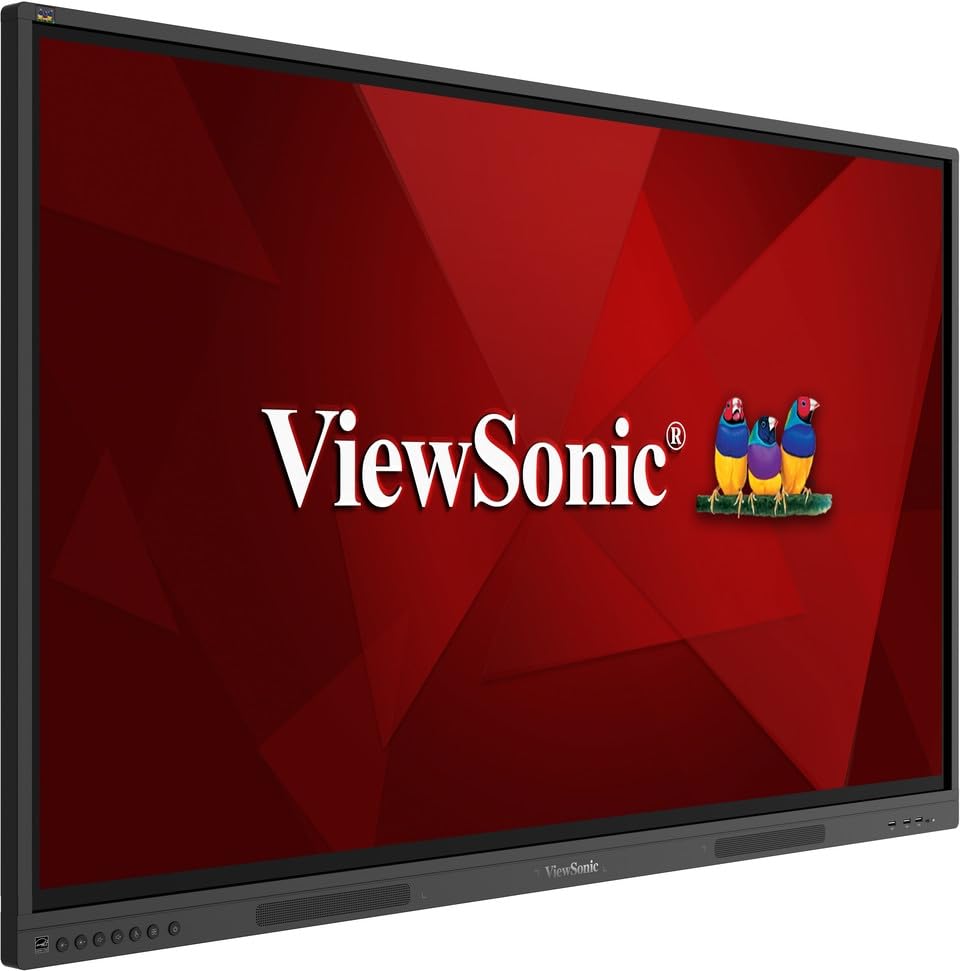
Resim: ViewSonic IFP55G1 55-inch ViewBoard Interactive Display, front view.
3. Kurulum Talimatları
3.1 Ekranın Montajı
The IFP55G1 can be wall-mounted or installed on a compatible mobile cart (sold separately). Ensure the mounting solution supports the display's weight (approximately 59.3 lbs / 26.9 kg) and dimensions (3.37 x 49.7 x 30.3 inches).
- For wall mounting, use the provided wall mount screws and ensure the wall structure is robust enough.
- Follow the instructions provided with your specific wall mount or mobile cart.
3.2 Çevre Birimlerini Bağlama
The display offers various ports for connecting external devices. Refer to the image below for port locations.

Resim: Yan view of'un ViewSonic IFP55G1 interactive display showing various input ports including HDMI, VGA, and USB.
- Güç Bağlantısı: Connect the 3m power cable to the display and a grounded power outlet.
- Video Girişi: Connect your external PC or media player to the display using an HDMI 2.0 cable (provided), VGA cable, or USB-C cable. The display has 3 HDMI ports, 1 VGA port, and USB-C connectivity.
- Dokunma İşlevselliği: For interactive touch features with an external PC, connect the 3m USB 2.0 touch cable from the display's USB-B (Touch) port to a USB-A port on your PC.
- OPS Slot: If using an optional ViewSonic Slot-in PC (OPS device), insert it into the dedicated OPS slot on the rear of the display. This provides an integrated computing solution.
- Ağ: Connect an Ethernet cable to the RJ45 port for wired network access.
- USB Cihazları: Use the available USB-A ports to connect USB drives, keyboards, mice, or other peripherals.

Resim: ViewSonic IFP55G1 display demonstrating connectivity with various external devices, including laptops and mini PCs, highlighting its 'Bring Your Own Devices' capability.
4. Kullanım Talimatları
4.1 Açma/Kapatma
- Güç Açık: Press the power button located on the display's front or side panel, or use the remote control. The display will power on and show the input source.
- Kapat: Press the power button again. A confirmation message may appear; select 'Power Off'. For complete power disconnection, unplug the power cable.
4.2 Giriş Kaynağının Seçilmesi
Use the 'Source' button on the display or remote control to cycle through available input sources (HDMI 1, HDMI 2, HDMI 3, VGA, USB-C, OPS).
4.3 Dokunmatik İşlevselliğin Kullanımı
Once the USB touch cable is connected to your external PC, the display will function as a multi-touch input device. You can use your fingers or the provided passive pens for interaction.
- Parmak Dokunuşu: Use gestures similar to a tablet or smartphone for navigation, zooming, and drawing.
- Passive Pens: The two included passive pens (VB-PEN-002) allow for precise writing and drawing on the screen. The display's Write-Away technology enables instant use of the pens.

Image: A group of individuals collaborating around a ViewSonic IFP55G1 interactive display in a modern meeting room, demonstrating its multi-touch capabilities for instantaneous collaboration.
4.4 Ses Kontrolü
The display features integrated 10W dual speakers. Adjust volume using the remote control or the buttons on the display panel.
5. Bakım
5.1 Ekranın Temizlenmesi
- Ekran: Ekranı yumuşak, tiftiksiz bir bezle nazikçe silin. İnatçı lekeler için hafifçe silin.ampen the cloth with water or a non-abrasive, ammonia-free screen cleaner. Do not spray cleaner directly onto the screen.
- Casing: C'yi silinasinYumuşak ve kuru bir bezle silin. Sert kimyasallar veya aşındırıcı malzemeler kullanmaktan kaçının.
5.2 Genel Bakım
- Ekranın üzerine ağır nesneler koymaktan kaçının.
- Do not block ventilation openings on the rear of the display.
- Ekranı doğrudan güneş ışığından, ısı kaynaklarından ve aşırı nemden uzak tutun.
6. Sorun Giderme
Eğer sorunlarla karşılaşırsanız ViewSonic IFP55G1, refer to the following common problems and solutions.
6.1 Görüntü Yok / Siyah Ekran
- Güç kablosunun hem ekrana hem de çalışan bir elektrik prizine güvenli bir şekilde bağlı olduğundan emin olun.
- Verify that the display is powered on (power indicator light should be active).
- Check that the video cable (HDMI, VGA, USB-C) is securely connected to both the display and the source device (PC, OPS).
- Select the correct input source using the 'Source' button on the display or remote control.
- Ensure the source device (PC, OPS) is powered on and outputting a video signal.
6.2 Dokunmatik İşlevsellik Çalışmıyor
- Confirm the USB touch cable is securely connected from the display's USB-B (Touch) port to a USB-A port on your external PC.
- Ensure your external PC's operating system has the necessary drivers installed for touch input.
- Restart both the display and the connected PC.
6.3 Ses Yok
- Check the volume level on the display and the connected source device.
- Ensure the audio output from your source device is routed correctly to the display (e.g., via HDMI).
- If using an external audio system, ensure it is properly connected and powered on.
7. Özellikler
Aşağıda teknik özellikler yer almaktadır. ViewSonic IFP55G1 interactive display.
| Özellik | Şartname |
|---|---|
| Marka | ViewSonik |
| Model Adı | IFP55G1 |
| Ekran Boyutu | 55 inç |
| Ekran Çözünürlüğü Maksimum | 3840x2160 Piksel (4K UHD) |
| Yerel Çözünürlük | 3840x2160 |
| Görüntü Türü | LCD |
| En Boy Oranı | 16:9 |
| İnsan Arayüzü Girişi | Dokunmatik ekran |
| Bağlantı Teknolojisi | Ethernet, HDMI, USB Type C, VGA |
| Total Number of HDMI Ports | 3 |
| Toplam USB Bağlantı Noktaları | 9 |
| Video Çıkış Arayüzü | Ekran Bağlantı Noktası |
| Ses Çıkışı | Integrated 10W Dual Speakers |
| Ürün Boyutları (LxWxY) | 3.37 x 49.7 x 30.3 inç |
| Ürün Ağırlığı | 59.3 Pound |
| Renk | Siyah |
| Özel Özellikler | All-in-one USB port, Anti Glare Display, Light Sensor, Speakers, Touchscreen |
| Uyumlu Cihazlar | Masaüstü, Dizüstü |
| UPC | 766907024654 |
8. Garanti ve Destek
8.1 Garanti Bilgileri
The ViewSonic IFP55G1 interactive display comes with an industry-leading 3 yıllık sınırlı garanti on parts, labor, and backlight. Onsite warranty service may also be available. Please refer to the warranty card included in your package or visit the official ViewSonik website for detailed terms and conditions, and information on optional warranty extensions.
8.2 Müşteri Desteği
For technical assistance, product inquiries, or warranty claims, please contact ViewSonic's award-winning customer service team. Contact information can be found on the official ViewSonik webSitede veya ürününüzle birlikte verilen Hızlı Başlangıç Kılavuzunda bulabilirsiniz.