
Fuers 16-Channel Hybrid 6-in-1 DVR
Fuers 16-Channel Hybrid 6-in-1 DVR User Manual
Model: 16-Channel Hybrid 6-in-1 DVR
giriiş
This manual provides detailed instructions for the installation, operation, and maintenance of your Fuers 16-Channel Hybrid 6-in-1 Digital Video Recorder (DVR). This DVR supports up to 5MP cameras and offers versatile compatibility with AHD, TVI, CVI, CVBS, IP, and XVI camera types. It features H.265+ video compression for efficient storage, human detection for intelligent alerts, and 24/7 non-stop recording with a pre-installed 1TB hard drive.
Paket İçeriği
Paketinizde tüm öğelerin mevcut olduğundan emin olun:
- 16-Channel DVR Recorder with 1TB Hard Drive
- Güç Adaptörü
- USB Mouse
- Kullanıcı Kılavuzu
Note: Cameras, HDMI cables, and network cables are not included and must be purchased separately.
Kurulum Kılavuzu
Follow these steps to set up your Fuers 16-Channel Hybrid 6-in-1 DVR.
1. Fiziksel Bağlantılar
- Ekranı Bağla: Plug your monitor's HDMI or VGA cable into the corresponding port on the back of the DVR.
- USB Fareyi Bağlayın: USB fareyi DVR üzerindeki USB bağlantı noktalarından birine takın.
- Kameraları Bağlayın: Connect your surveillance cameras to the 'VIDEO IN' BNC ports (V1-V16) on the DVR using video input cables. Ensure secure connections.
- Connect Network (Optional for Remote Access): If you plan to use remote monitoring via the mobile app or PC software, connect an Ethernet cable from your router to the LAN port on the DVR.
- Gücü bağlayın: Plug the DVR power adapter into the DVR's power input and then into a power outlet. The DVR will power on automatically.
2. İlk Yapılandırma
Upon first boot, the system will guide you through initial setup steps. Use the connected USB mouse to navigate the on-screen menus.
- Dil Seçimi: Tercih ettiğiniz dili seçin.
- Tarih ve Saat: Doğru tarih ve saati ayarlayın.
- Ağ Ayarları: If connected to a network, ensure DHCP is enabled or configure static IP settings as needed.
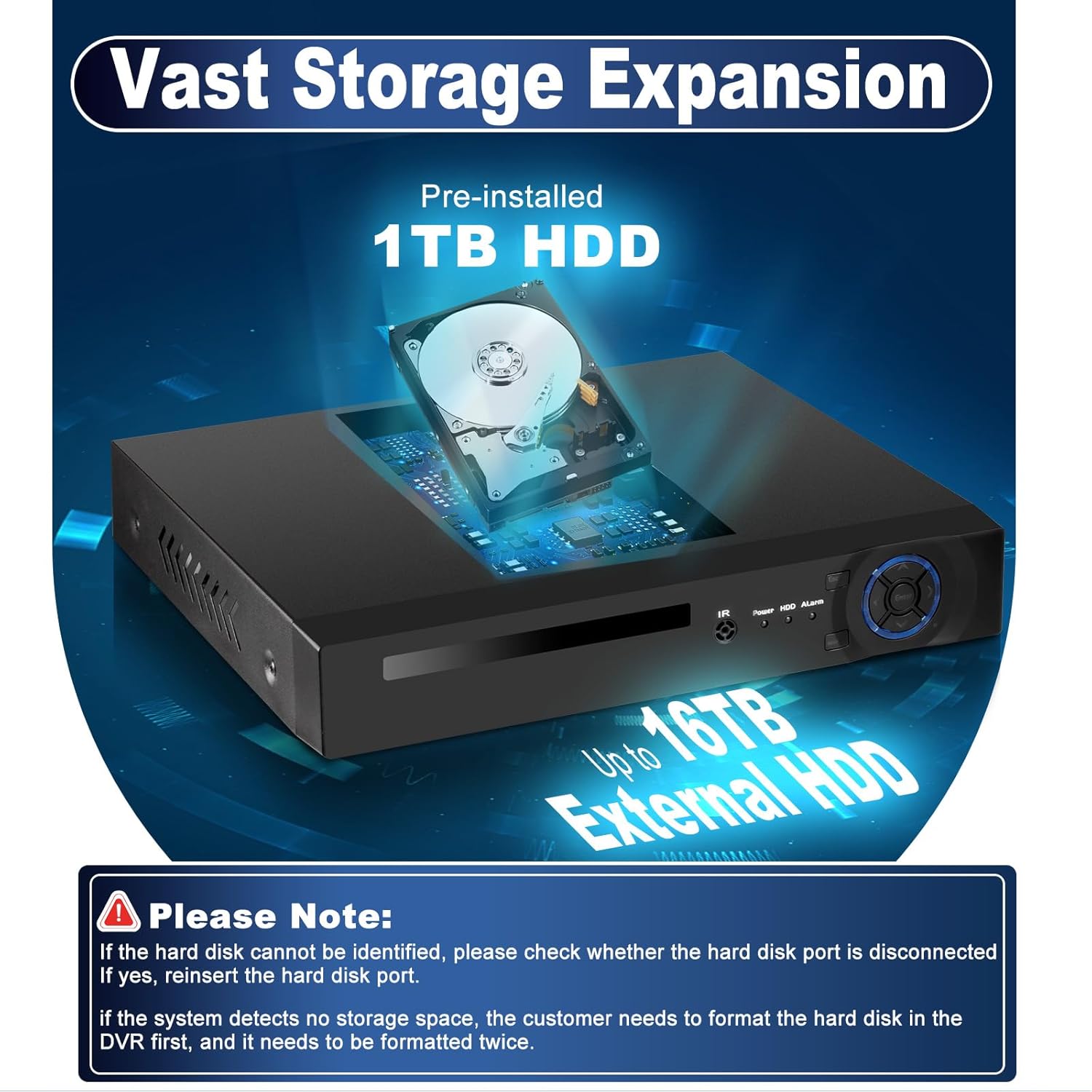
- Sabit Sürücü Başlatma: The pre-installed 1TB hard drive may need to be formatted before use. Follow the on-screen prompts.
Kullanım Talimatları
Ana Menü Navigasyonu
Canlıya sağ tıklayın view screen to access the main menu. Key menu options include:
- Kayıt: Configure recording schedules, view kaydedilmiş footage (Playback), and backup data.
- Alarm: Set up motion detection, human detection, vehicle detection, and other alarm triggers. Configure notifications such as instant app pushes and email alerts.
- Sistem: Access general system settings, user management, network configuration, and system information.
- Gelişmiş: For advanced settings like storage management, user accounts, firmware upgrades, and import/export configurations.
- Bilgi: View HDD information, system logs, and software version.

Uzaktan Erişim ve Mobil Uygulama
The Fuers DVR supports remote viewing via mobile applications (XMEye, Icsee) and PC software (VMS). This allows you to monitor your security feeds from anywhere with an internet connection.
- Ağa bağlan: Ensure your DVR is connected to your router via an Ethernet cable.
- İndir uygulaması: Download the 'XMEye' or 'Icsee' app from the App Store (iOS) or Google Play Store (Android). For PC, download the VMS software.
- Cihaz Ekle: Open the app, register an account, and add your DVR device. This typically involves scanning a QR code displayed on the DVR's monitor or manually entering the device ID.
- Canlı View: Once added, you can access live camera feeds, playback recordings, and manage settings remotely.

For direct download of the XMEye app, visit: http://d.xmeye.net/Xmeye
Temel Özellikler
- High Picture Quality: Supports up to 5MP resolution for clear and detailed image capture.
- 16-Channel Hybrid Capacity: Connects up to 16 surveillance cameras with 6-in-1 compatibility (AHD/TVI/CVI/CVBS/IP/XVI).
- H.265+ Video Sıkıştırma: Advanced compression technology for longer recording times and up to 50% storage savings compared to H.264, while maintaining image quality.
- Akıllı Alarm: Features motion detection, human detection, and vehicle detection with instant notifications and email alerts.
- 24/7 Non-Stop Recording: Continuous recording with a pre-installed 1TB hard drive, expandable up to 16TB.
- Uzaktan Erişim: Monitor live feeds and playback recordings via smartphone, tablet, or PC from anywhere.


Sorun giderme
Kamera Uyumluluğu
It is crucial to confirm camera compatibility before connecting. Incompatible cameras may prevent normal operation or result in no signal/display issues.
- DVR Supported Specifications:
- 16*5MN@12fps: Supports cameras with frame rate not exceeding 12fps and resolution not exceeding 5MN (6-in-1).
- 16*4MN@15fps: Supports cameras with frame rate not exceeding 15fps and resolution not exceeding 4MN (6-in-1).
- 16*1080P@15fps(XVI): Supports cameras with frame rate not exceeding 15fps and resolution not exceeding 1080P.
- HDMI Cable Compatibility: Ensure your HDMI cable and monitor support HDMI 1.6 or higher. Using incompatible HDMI versions may result in no signal or display issues.
Refer to your camera's user manual or contact the camera vendor for specific camera and HDMI specifications.
Önemli Not:
Some cameras support multiple resolution modes (e.g., 5MN, 4MN, 3MN, 1080N). If this applies, confirm with the camera seller how to switch the resolution mode to match the DVR's supported specifications.

Hard Drive Issues
Lütfen aklınızda bulundurun:
- If the hard disk cannot be identified, check if the hard disk port is disconnected. Reinsert the hard disk if necessary.
- If the system detects no storage space, the hard drive may need to be formatted. It might require formatting twice for proper recognition.

Özellikler
| Özellik | Detay |
|---|---|
| Marka | Fuers |
| Model Numarası | 051ae4f0-dc2c-45d2-98f7-0a4022cb0008 |
| Kanallar | 16 Kanal |
| Kamera Uyumluluğu | Hybrid 6-in-1 (AHD/TVI/CVI/CVBS/IP/XVI) |
| Maksimum Çözünürlük Desteği | 5 MP |
| Video Sıkıştırma | H.265 + |
| Built-In Storage | 1TB Sabit Sürücü |
| Maksimum Depolama Kapasitesi | Up to 16TB (External HDD) |
| Kayıt Modu | 24/7 Non-Stop Recording |
| Algılama Özellikleri | Human Detection, Motion Detection, Vehicle Detection |
| Uzaktan Erişim | Smartphone (XMEye/Icsee App), Tablet, PC (VMS) |
Garanti ve Destek
The Fuers 16-Channel Hybrid 6-in-1 DVR comes with a 1 Yıllık Garanti.
For technical support, troubleshooting assistance, or warranty claims, please contact Fuers customer service through the retailer where the product was purchased or visit the official Fuers webiletişim bilgileri için site.
Ask a question about this manual
Ask about setup, troubleshooting, compatibility, parts, safety, or missing instructions. Manuals+ will review the question and use this page’s manual context to help answer it.