
1. Giriş
This manual provides instructions for the installation, use, and maintenance of your BoxWave ClearTouch Anti-Glare Screen Protector, designed specifically for the APROTII Monitor AR 7+ (7 inch). This screen protector is engineered to reduce glare, resist fingerprints, and protect your device's screen from scratches and smudges.
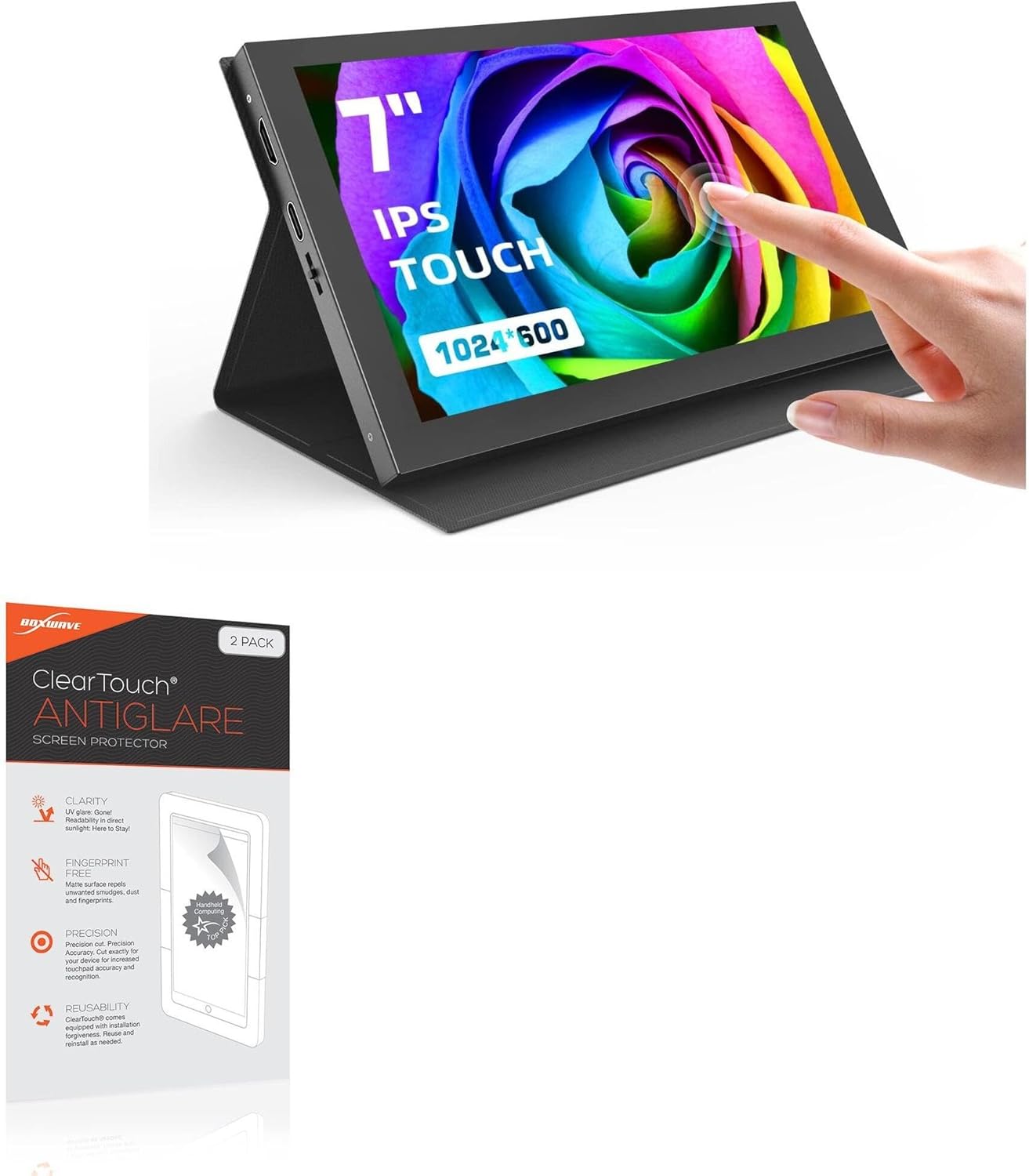
Image 1.1: APROTII Monitor AR 7+ with the BoxWave ClearTouch Anti-Glare Screen Protector applied, demonstrating its fit and anti-glare properties.
2. Paket İçeriği
Aşağıda listelenen tüm öğelerin paketinizde bulunduğunu doğrulayın:
- Two (2) BoxWave ClearTouch Anti-Glare Screen Protectors
- One (1) Applicator Card
- One (1) Microfiber Cleaning Cloth
- One (1) Dust Removing Sticker

Image 2.1: The BoxWave ClearTouch Anti-Glare Screen Protector 2-pack, showing the two protectors and included installation accessories.

Resim 2.2: Ayrıntılı view of the installation accessories: an applicator card, a microfiber cleaning cloth, and a dust removing sticker.
3. Kurulum Kılavuzu
Follow these steps for optimal screen protector application:
- Çalışma Alanınızı Hazırlayın: Ensure you are in a clean, dust-free environment. Wash your hands thoroughly to avoid transferring oils or dirt to the screen.
- Clean the Device Screen: Use the included microfiber cleaning cloth to gently wipe the APROTII Monitor AR 7+ screen, removing any smudges or fingerprints. For stubborn marks, a small amount of screen cleaner (not included) can be applied to the cloth, then wipe the screen dry.
- Tozu Temizleyin: Use the dust removing sticker to lift any remaining dust particles from the screen. Lightly press the sticker onto the screen and peel it off. Repeat as necessary until the screen is completely dust-free.
- Align the Screen Protector: Carefully peel back a small portion of the protective layer (usually marked '1' or 'Back') from one end of the screen protector. Align the exposed edge of the screen protector with the corresponding edge of your monitor screen. Ensure all cutouts (if any) match your device's features.
- Koruyucu ürünü uygulayın: Slowly and steadily peel off the rest of the protective layer '1' while simultaneously lowering the screen protector onto the monitor screen. Use the applicator card to gently smooth out any air bubbles as you go, pushing them towards the edges.
- Remove Top Layer: Once the screen protector is fully applied and all bubbles are removed, locate the second protective layer (usually marked '2' or 'Front'). Carefully peel this layer off.
- Son Muayene: Perform a final check for any remaining bubbles or dust. Small bubbles often dissipate over 24-48 hours.
Note: The special glueless adhesive ensures a clean application without leaving sticky residue.
4. Ürün Özellikleri
4.1 Anti-Glare Technology
The ClearTouch Anti-Glare screen protector features a specialized matte surface designed to disperse light, significantly reducing glare and reflections. This improves screen readability in various lighting conditions, including direct sunlight. It also reduces 90% of UV rays, contributing to eye comfort.
4.2 Anti-Smudge and Anti-Fingerprint Surface
The ultra-smooth matte surface is engineered to repel smudges, oils, and fingerprints, keeping your screen cleaner for longer. This oleophobic layer helps maintain a clear view and responsive touch experience.

Image 4.1: Visual comparison demonstrating the anti-smudge properties of the ClearTouch screen protector against an unprotected screen.
4.3 Paper-like Feel
The matte finish provides a unique paper-like texture, enhancing the tactile experience when interacting with your screen. This can be particularly beneficial for writing or drawing applications, offering a more natural feel.
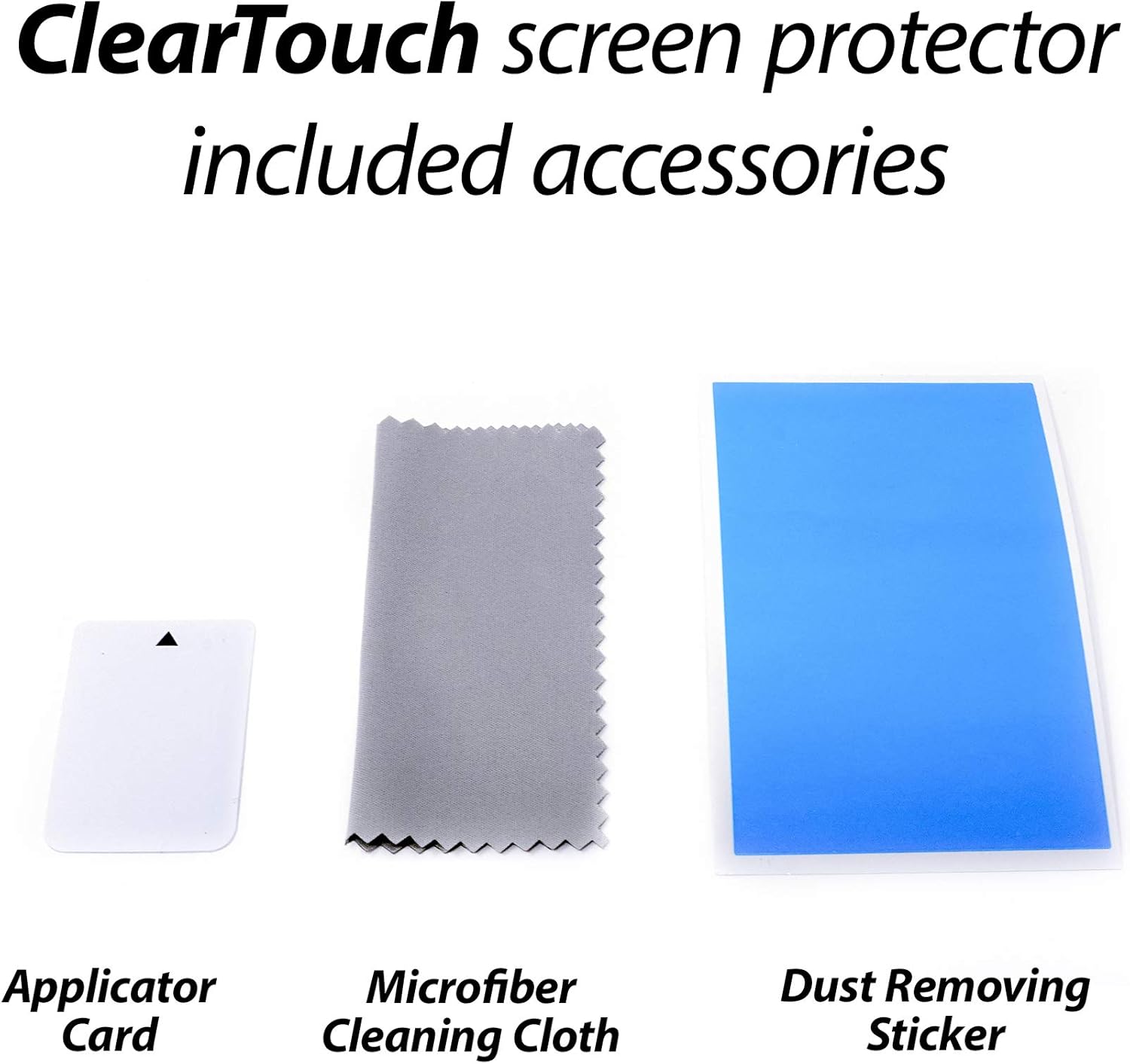
Image 4.2: A stylus interacting with a screen protector, highlighting the paper-like feel for writing and drawing.
4.4 Precision-Cut Design
Each ClearTouch screen protector is precision-cut to match the exact dimensions, contours, and cut-outs of the APROTII Monitor AR 7+ (7 inch), ensuring a perfect fit and full accessibility to all device functionalities.
4.5 Glueless Adhesive
The screen protector utilizes a special glueless adhesive that ensures a secure application without leaving any sticky residue upon removal, protecting your device's screen from potential damage.
4.6 Two-Pack Inclusion
The package includes two (2) ClearTouch Anti-Glare screen protectors, providing a spare for future use or for sharing.
5. Bakım
To maintain the clarity and effectiveness of your screen protector:
- Regularly clean the screen protector with the included microfiber cloth to remove dust and smudges.
- Avoid using harsh chemicals, abrasive materials, or paper towels, as these can scratch the surface or degrade the anti-glare coating.
- If necessary, a small amount of water or a screen-safe cleaning solution can be lightly sprayed onto the microfiber cloth (not directly onto the screen protector) for cleaning.
6. Sorun Giderme
6.1 Air Bubbles After Installation
- Küçük Kabarcıklar: Many small bubbles will naturally disappear within 24-48 hours as the adhesive settles.
- Large Bubbles: Gently lift the nearest edge of the screen protector until the bubble is exposed. Use the applicator card to push the bubble towards the lifted edge while slowly reapplying the protector.
6.2 Dust Particles Under the Protector
- Carefully lift the nearest edge of the screen protector. Use the dust removing sticker to gently dab and lift the dust particle from both the screen and the adhesive side of the protector. Reapply the protector slowly.
6.3 Misalignment
- If the protector is significantly misaligned, carefully peel it off completely. Clean the screen again thoroughly and attempt reinstallation, paying close attention to alignment before full application. The glueless adhesive allows for reapplication.
7. Özellikler
| Özellik | Detay |
|---|---|
| Marka | Kutu dalgası |
| Örnek | ClearTouch Anti-Glare (2-Pack) |
| Uyumlu Cihaz | APROTII Monitor AR 7+ (7 inch) |
| Malzeme | Polietilen Tereftalat |
| Ekran Yüzeyi Açıklaması | Matte, Anti-Glare, Anti-Fingerprint |
| Ürün Ağırlığı | 1.6 ons |
8. Garanti ve Destek
For warranty information or technical support regarding your BoxWave ClearTouch Anti-Glare Screen Protector, please refer to the manufacturer's official website or contact their customer service directly. Contact details are typically provided on the product packaging or the manufacturer's webalan.