
1. Giriş
This manual provides detailed instructions for the Vgate iCar3 ELM327 OBD2 Diagnostic Scanner. This device is designed to read diagnostic trouble codes (DTCs) and display real-time vehicle performance data when connected to a vehicle's On-Board Diagnostics II (OBD2) port. It supports both Bluetooth and WiFi connectivity for use with compatible Android applications.
2. Ürün Bittiview
The Vgate iCar3 is a compact OBD2 interface. It features a standard OBD2 connector for direct plug-in to your vehicle's diagnostic port and provides wireless communication capabilities.
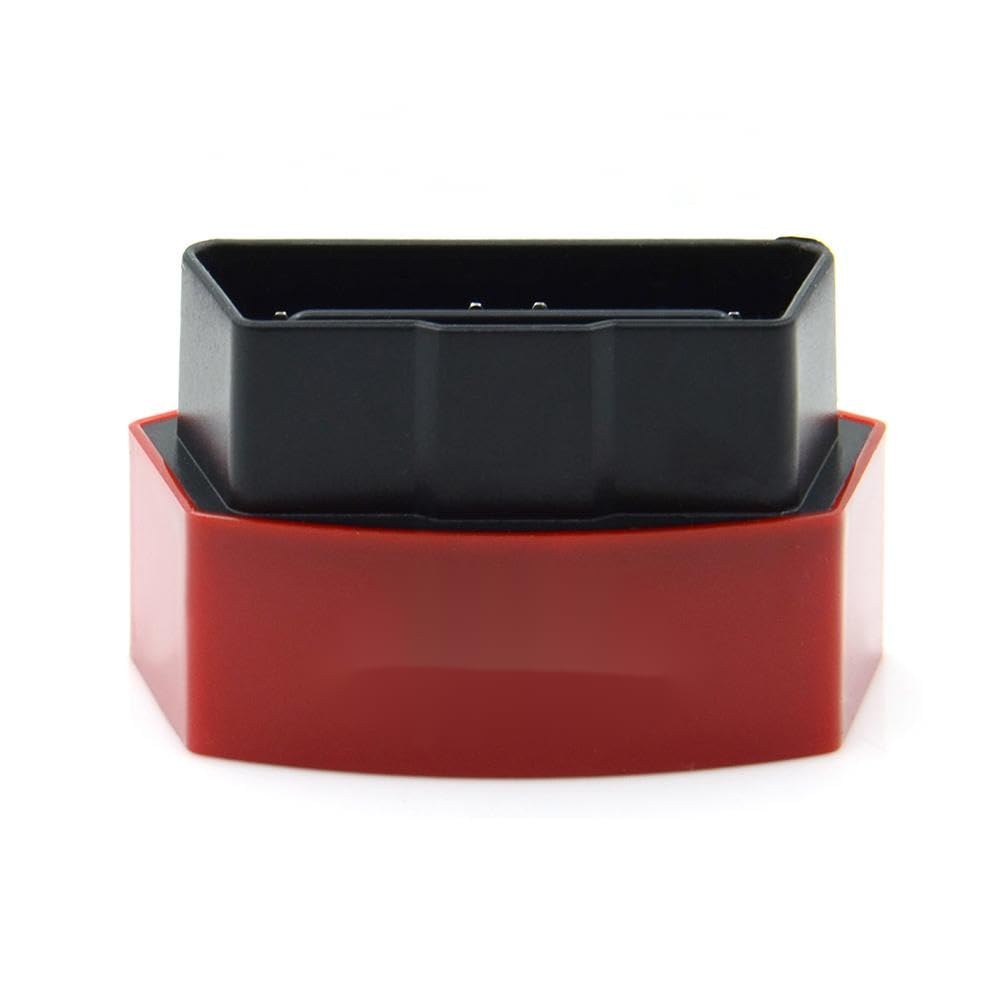
Şekil 1: The Vgate iCar3 ELM327 OBD2 Diagnostic Scanner. This image shows the compact red and black device, with the black OBD2 connector visible on top of the red base.
3. Kurulum Talimatları
3.1. Cihaz Kurulumu
- OBD2 Portunu Bulun: OBD2 portu genellikle aracın sürücü tarafında, gösterge panelinin altında bulunur. Tam konum için aracınızın kullanım kılavuzuna bakın.
- Cihazı Bağlayın: Firmly plug the Vgate iCar3 scanner into the vehicle's OBD2 port. Ensure a secure connection.
- Kontak Açık: Turn the vehicle's ignition to the 'ON' position (do not start the engine unless required by your diagnostic application). The device's indicator lights should illuminate, indicating power.
3.2. Software Setup (Android)
The Vgate iCar3 requires a compatible OBD2 diagnostic application on your Android device. Popular applications include Torque Lite/Pro, OBD Fusion, Car Scanner ELM OBD2, etc. Download your preferred application from the Google Play Store.
3.3. Kablosuz Bağlantı
Depending on your iCar3 model (Bluetooth or WiFi), follow the respective connection steps:
Bluetooth modelleri için:
- Bluetooth'u etkinleştir: On your Android device, go to Settings > Bluetooth and ensure Bluetooth is enabled.
- Eşleştirme Cihazı: Scan for available devices. The scanner should appear as 'Vgate' or 'OBDII'. Select it to pair. The default pairing code is usually '1234' or '0000'.
- Configure App: Open your chosen OBD2 application. Go to its settings and select 'Bluetooth' as the connection type, then choose the paired 'Vgate' or 'OBDII' device.
WiFi özellikli modeller için:
- WiFi'yi etkinleştirin: On your Android device, go to Settings > Wi-Fi and ensure Wi-Fi is enabled.
- Ağa bağlan: Scan for available Wi-Fi networks. The scanner will broadcast a network named 'V-LINK', 'OBDII', or similar. Connect to this network. No password is typically required.
- Configure App: Open your chosen OBD2 application. Go to its settings and select 'Wi-Fi' as the connection type. Ensure the correct IP address (usually 192.168.0.10 or 192.168.0.11) and port (usually 35000) are configured.
4. Kullanım Talimatları
Once the Vgate iCar3 is connected to your vehicle and paired with your Android device and OBD2 application, you can begin diagnostics.
- Start the Application: Launch your chosen OBD2 diagnostic application on your Android device.
- Bağlantı Kurun: The application should automatically attempt to connect to the iCar3 scanner. Confirm that the connection status in the app indicates a successful link.
- Arıza Teşhis Kodlarını (DTC'ler) okuyun: Navigate to the 'Read Codes' or 'DTCs' section of your application. This will display any active or pending fault codes stored in your vehicle's Engine Control Unit (ECU).
- DTC'leri temizle: If necessary, and after addressing the underlying issue, you can use the 'Clear Codes' function in the app to turn off the Check Engine Light (CEL). Uyarı: Do not clear codes without understanding and fixing the problem, as this can mask serious issues.
- View Canlı veri: Access the 'Live Data' or 'Dashboard' section to monitor various vehicle parameters in real-time, such as engine RPM, vehicle speed, coolant temperature, fuel system status, and more.
- Perform Sensor Tests: Some applications allow you to perform specific sensor tests or view freeze frame data, which captures vehicle conditions at the moment a DTC was set.
5. Bakım
The Vgate iCar3 scanner requires minimal maintenance to ensure longevity and proper function.
- Temizlik: Cihazı yumuşak ve kuru bir bezle silin. Sert kimyasallar veya aşındırıcı temizleyiciler kullanmaktan kaçının.
- Depolamak: Kullanmadığınız zaman, cihazı doğrudan güneş ışığından ve aşırı sıcaklıklardan uzakta, serin ve kuru bir yerde saklayın.
- Donanım Yazılımı Güncellemeleri: Check the Vgate official website or your diagnostic application's support page for any available firmware updates for the iCar3.
6. Sorun Giderme
If you encounter issues with your Vgate iCar3 scanner, refer to the following common troubleshooting steps:
- Cihaz Açılmıyor:
- Ensure the device is securely plugged into the OBD2 port.
- Aracın kontak anahtarının 'AÇIK' konumda olduğundan emin olun.
- Check the vehicle's OBD2 port for any damage or blown fuses (refer to your vehicle's manual).
- Cannot Connect via Bluetooth/WiFi:
- Ensure Bluetooth/WiFi is enabled on your Android device.
- For Bluetooth: Unpair and re-pair the device. Try default codes '1234' or '0000'.
- For WiFi: Ensure you are connected to the 'V-LINK' or 'OBDII' network and not your home Wi-Fi. Verify app settings for IP and port.
- Close and restart the diagnostic application.
- Android cihazınızı yeniden başlatın.
- Application Not Reading Data:
- Confirm the iCar3 is properly connected to the vehicle and your Android device.
- Ensure the correct connection type (Bluetooth/WiFi) and device are selected in the app settings.
- Try a different OBD2 diagnostic application to rule out app-specific issues.
- Verify your vehicle supports the ELM327 protocol (most vehicles manufactured after 1996 do).
7. Özellikler
| Özellik | Detay |
|---|---|
| Model Adı | iCar3 |
| Üretici Parça Numarası | lzqcsf-25215-469 |
| Bağlantı | Bluetooth / WiFi (model dependent) |
| Desteklenen Protokoller | OBD2 (ISO15765-4 (CAN), ISO14230-4 (KWP2000), ISO9141-2, J1850 VPW, J1850 PWM) |
| Çalışma Hacmitage | 9V ~ 16V |
| Çalışma Akımı | 45mA |
| Çalışma Sıcaklığı | -40°C ila 85°C |
| Desteklenen Cihazlar | Android akıllı telefonlar ve tabletler |
8. Garanti ve Destek
Specific warranty information for this product is not provided in the available data. For warranty claims or technical support, please refer to the retailer or manufacturer's official support channels where the product was purchased.