
1. Giriş
The Wanbo T2 Ultra is a compact and versatile projector designed for home entertainment. It features Android TV 11.0, offering access to a wide range of streaming applications. With 500 ANSI lumens brightness and native 1080P Full HD resolution, it delivers clear and vibrant images. Advanced features like auto-focus, automatic keystone correction, and integrated HiFi speakers enhance the user experience. This manual provides detailed instructions for setup, operation, and maintenance of your Wanbo T2 Ultra projector.
2. Paket İçeriği
Lütfen aşağıdaki öğelerin kutucuğunu işaretleyin:
- Wanbo T2 Ultra Projector Unit
- Uzaktan kumanda
- Güç kablosu
- HDMI Kablosu
- Kullanım Kılavuzu (bu belge)
- Cleaning Tools (if included)

Image: Projector and accessories in packaging. Actual contents may vary slightly.
3. Ürün Bittiview
3.1 Projector Unit

Resim: Ön view of the Wanbo T2 Ultra Projector.
3.2 Bağlantı Noktaları ve Bağlantılar

Resim: Arka view of the Wanbo T2 Ultra Projector showing various input/output ports.
- HDMI (ARC) Bağlantı Noktası: Connect to external devices such as laptops, gaming consoles, or TV boxes. Supports Audio Return Channel.
- USB Bağlantı Noktası: Medya oynatmak için USB depolama aygıtlarını bağlayın.
- Ses Bağlantı Noktası (3.5 mm): Harici kulaklık veya hoparlör bağlayın.
- Güç Girişi: Connect the power cable to supply power to the projector.
4. Kurulum
4.1 Güç Bağlantısı
- Güç kablosunu projektör üzerindeki Güç Girişi bağlantı noktasına bağlayın.
- Güç kablosunun diğer ucunu elektrik prizine takın.
- Cihazı açmak için projektördeki veya uzaktan kumandadaki güç düğmesine basın.
4.2 İlk Kurulum
Upon first use, follow the on-screen prompts to complete the initial setup, including language selection and Wi-Fi connection.
4.2.1 Wi-Fi Bağlantısı
- Şuraya git: Ayarlar Ana ekrandan.
- Seçme Ağ ve İnternet.
- Wi-Fi'yi açın ve listeden istediğiniz ağı seçin.
- Ekran klavyesini kullanarak Wi-Fi şifresini girin ve onaylayın.
Video: Illustrates Wi-Fi and Bluetooth connection steps. Note: This video may feature a different projector model but demonstrates the general process.
4.3 Odak ve Trapez Düzeltme
The Wanbo T2 Ultra features automatic focus and keystone correction for optimal image clarity and shape.
4.3.1 Otomatik Ayarlama
- The projector automatically adjusts focus and keystone when powered on or moved.
- Obstacle avoidance and automatic screen adjustment features ensure the image fits perfectly on your projection surface.

Image: The projector automatically adjusting focus and keystone correction for a clear, rectangular image.
4.3.2 Manual Adjustment (if needed)
- Git Ayarlar > görüntü Düzeltme.
- Seçme Elle Keystone Düzeltme to adjust the four corners of the image.
- Seçme Odak > Manuel Odaklama to fine-tune the image sharpness using the F+ and F- buttons on the remote.
4.4 Ekran Ayarı
The projector supports digital zoom to adjust the screen size without moving the unit.
- Git Ayarlar > görüntü Düzeltme.
- Seçme Screen Zoom and Position.
- Use the directional buttons to adjust the position and the volume buttons to adjust the zoom (50% to 100%).
4.5 Projection Modes
The projector can be used in various orientations:
- Ön Projeksiyon: Projeksiyon cihazı ekranın önüne yerleştirildi.
- Arka Projeksiyon: Projeksiyon cihazı yarı saydam bir perdenin arkasına yerleştirildi.
- Tavan Projeksiyonu: Projector mounted upside down on the ceiling. The integrated stand allows for easy adjustment for ceiling or wall projection.
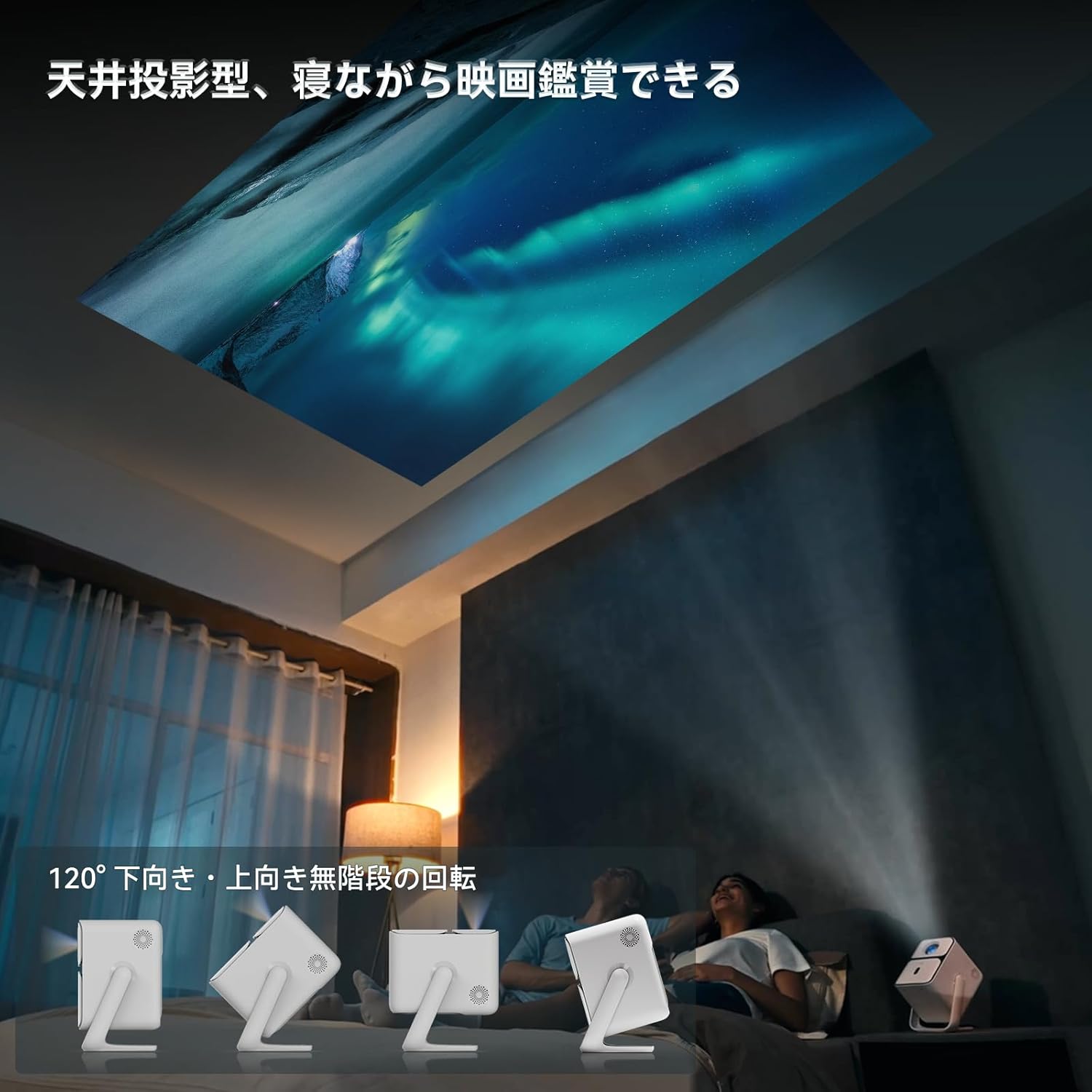
Image: Projector positioned for ceiling projection, allowing viewuzanarak.
Video: Demonstrates ceiling projection mode. Note: This video may feature a different projector model but demonstrates the general process.
5. Kullanım Talimatları
5.1 Uzaktan Kumanda İşlevleri

Image: Remote control for the projector, showing buttons for power, navigation, volume, focus, and direct access to streaming apps like Netflix, YouTube, and Prime Video.
- Güç Düğmesi: Projektörü açar/kapatır.
- Sesli Arama: Sesli komutlar için Google Asistan'ı etkinleştirir.
- One-Touch Focus: Initiates automatic focus adjustment.
- Yön Tuşları (Yukarı/Aşağı/Sol/Sağ): Menülerde ve seçimlerde gezinin.
- Tamam Düğmesi: Seçimleri onaylar.
- Geri Düğmesi: Önceki ekrana döner.
- Ana menü tuşu: Ana ekrana döner.
- Hacim +/-: Ses seviyesini ayarlar.
- Focus +/- (F+/F-): Manually adjusts focus.
- Sessiz tuşu: Sesi kapatır/açar.
- Input Signal Switch: Giriş kaynağını değiştirir.
- Uygulama ayarları: Accesses application settings.
- Projeksiyon Ayarları: Accesses projection-related settings.
- Direct App Buttons: Dedicated buttons for Netflix, YouTube, Prime Video, and Disney+.
5.2 App Management (Android TV 11.0)
The Wanbo T2 Ultra runs on Android TV 11.0, providing access to the Google Play Store.
- Uygulamalara Erişim: From the home screen, you can directly launch pre-installed apps or navigate to the Google Play Store to download more.
- Yayın Hizmetleri: Enjoy popular services like Netflix, Prime Video, YouTube, Disney+, Hulu, U-NEXT, and more. The projector supports Google Widevine DRM L1 for high-quality content playback.
- Google Asistan: Press the Voice Search button on the remote to use voice commands for searching content, controlling playback, and more.

Image: The projector displaying the Android TV 11.0 home screen, featuring various streaming applications.
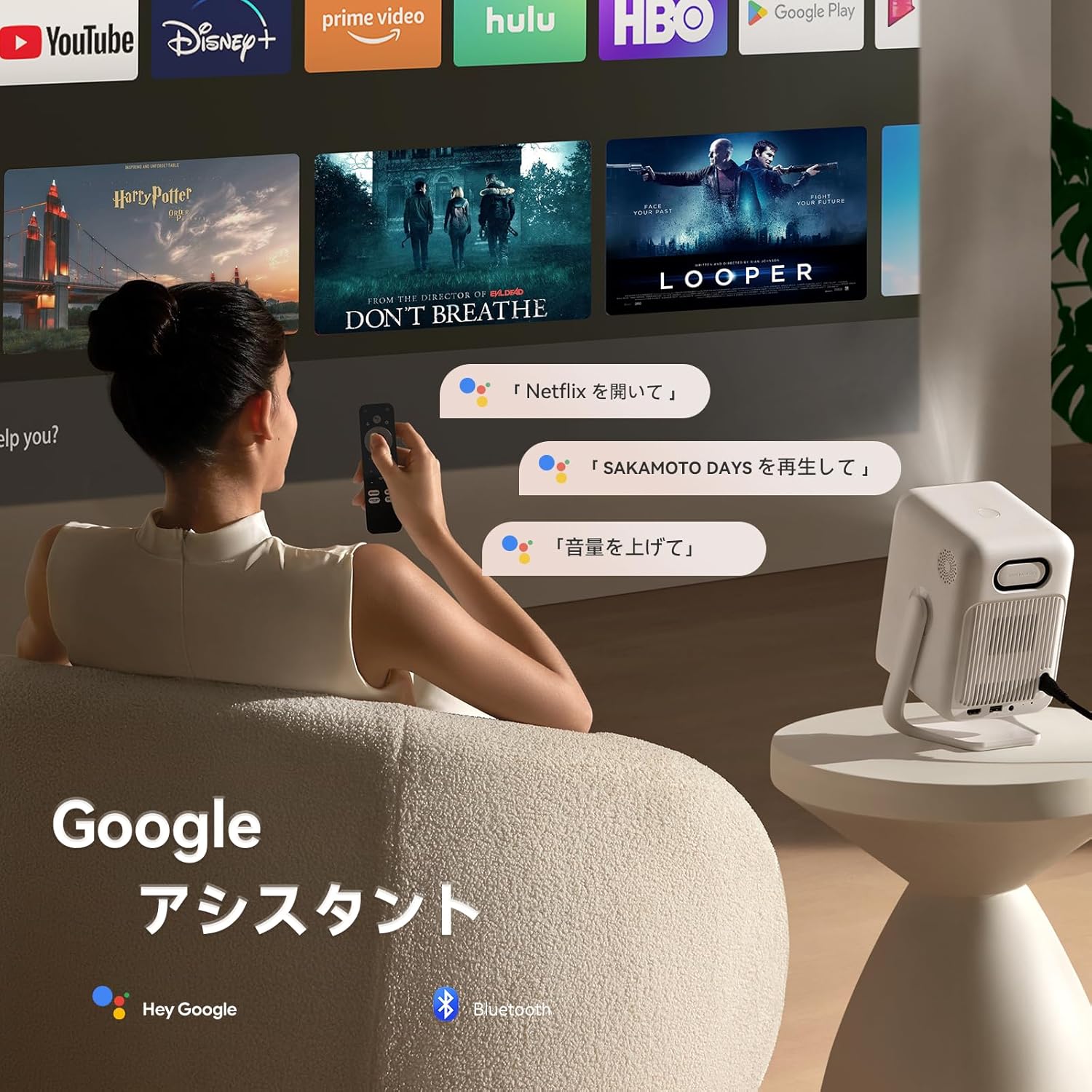
Image: A user utilizing the Google Assistant feature with the remote control to search for content.
5.3 Bağlantı
The Wanbo T2 Ultra offers multiple connectivity options for various devices.
5.3.1 HDMI Bağlantısı
- Connect an HDMI cable from your external device (e.g., laptop, game console) to the HDMI port on the projector.
- The projector will automatically detect the HDMI input. If not, navigate to Sinyal Kaynağı and select the corresponding HDMI input.
Video: Demonstrates HDMI connection. Note: This video may feature a different projector model but demonstrates the general process.
5.3.2 USB Bağlantısı
- Projektördeki USB bağlantı noktasına bir USB depolama aygıtı takın.
- A notification will appear on the screen. Select to open the file manager and browse your media.
Video: Demonstrates USB connection. Note: This video may feature a different projector model but demonstrates the general process.
5.3.3 Bluetooth Bağlantısı
- Git Ayarlar > Bluetooth & Accessories.
- Bluetooth'un etkinleştirildiğinden emin olun.
- Seçme Cihaz Ekle and choose your Bluetooth device (e.g., headphones, speakers) from the list to pair.
Video: Illustrates Bluetooth connection steps. Note: This video may feature a different projector model but demonstrates the general process.
5.3.4 Wireless Screen Mirroring (Chromecast/AirPlay)
The projector has built-in Chromecast for seamless screen mirroring from iOS and Android devices.
- Ensure your mobile device and projector are connected to the same Wi-Fi network.
- On your mobile device, open a compatible app (e.g., YouTube, Netflix) and tap the Cast icon to select the projector.
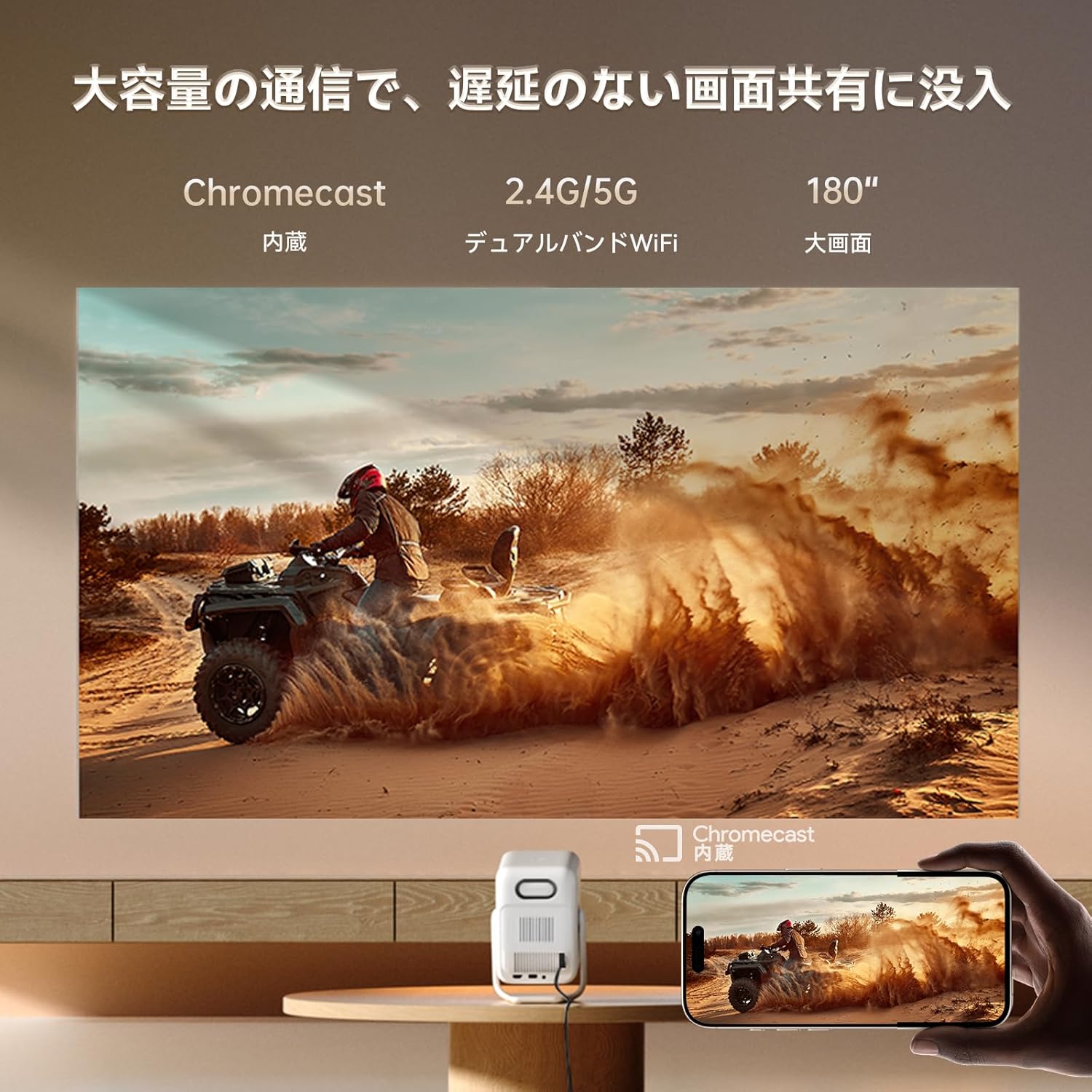
Image: A smartphone wirelessly casting content to the projector, demonstrating Chromecast functionality.
5.4 Ses Ayarları
The projector features dual 5W HiFi speakers (10W total) with an independent DSP amplifier for rich sound. You can also connect external audio devices.
5.4.1 Ses Modlarını Ayarlama
- Git Ayarlar > Ekran ve Ses > Ses efektleri.
- Choose from various sound modes like Standard, Movie, Music, News, or Sports to optimize audio for your content.
5.4.2 Bluetooth Hoparlör Modu
You can use the projector as a standalone Bluetooth speaker.
- Ana ekrandan şunu seçin: Bluetooth Müzik.
- On your mobile device, enable Bluetooth and connect to the projector (device name: ISINBOX_AC311 or similar).
Video: Demonstrates Bluetooth speaker mode. Note: This video may feature a different projector model but demonstrates the general process.
6. Bakım
6.1 Temizlik
- Mercek: Use a soft, lint-free cloth or lens cleaning paper to gently wipe the lens. Avoid abrasive materials or excessive pressure.
- Dış: Projektörün dış yüzeyini yumuşak, kuru bir bezle silin. Sıvı temizleyiciler veya çözücüler kullanmayın.
- Havalandırmalar: Toz birikmesini önlemek ve performansı ile kullanım ömrünü olumsuz etkilemesini engellemek için havalandırma ızgaralarını düzenli olarak temizleyin. Yumuşak bir fırça veya basınçlı hava kullanabilirsiniz.
6.2 Depolama
- Projeksiyon cihazını serin, kuru ve doğrudan güneş ışığından ve aşırı sıcaklıklardan uzak bir yerde saklayın.
- If storing for an extended period, place the projector in its original packaging or a protective case to prevent dust accumulation and damage.
7. Sorun Giderme
If you encounter issues with your Wanbo T2 Ultra projector, refer to the following common solutions:
| Sorun | Olası Neden | Çözüm |
|---|---|---|
| No image/Power off | Power cable disconnected; Projector off | Check power connections; Press power button |
| Bulanık görüntü | Out of focus; Incorrect keystone | Use auto-focus or manual focus; Adjust keystone correction |
| Ses yok | Volume too low; Muted; Incorrect audio output | Increase volume; Unmute; Check audio settings |
| Wi-Fi/Bluetooth bağlantı sorunları | Incorrect password; Device out of range; Interference | Verify password; Move closer to router/device; Reduce interference |
| Uzaktan kumanda çalışmıyor | Low battery; Obstruction; Not paired | Replace batteries; Remove obstructions; Re-pair remote |
8. Özellikler
| Özellik | Şartname |
|---|---|
| Marka | WANBO |
| Örnek | T2 Ultra |
| İşletim Sistemi | Android TV 11.0 |
| Parlaklık | 500 ANSI Lümenleri |
| Yerel Çözünürlük | 1920 x 1080 piksel (Tam HD) |
| Atış Oranı | 1.2:1 |
| Konuşmacı | 10W HiFi Stereo (Dual 5W) |
| Bağlantı | HDMI (ARC), USB, 3.5mm Audio Jack, 5G Wi-Fi, Bluetooth |
| Özel Özellikler | Auto-Focus, Auto Keystone Correction, Auto Screen Adjustment, Obstacle Avoidance, Digital Zoom (50-100%), Chromecast Built-in |
| Boyutlar (G x D x Y) | 14.48x14.22x21.84 cm |
| Ağırlık | 2.2 kilo |
9. Garanti ve Destek
9.1 Ürün Garantisi
The Wanbo T2 Ultra projector comes with a 12-month warranty covering quality-related issues. For customers who follow the official Wanbo social media accounts (@wanboglobal), the product warranty is automatically extended to 18 months.
9.2 Müşteri Desteği
For any questions or support needs, please contact us:
- E-posta: support@szwanbo.net
We aim to respond to all inquiries within 24 hours. Lifetime support is provided for product usage.