
Keychron K5X-A3
Keychron K5 QMK Ultra-Slim Full Size Wireless Mechanical Gaming Keyboard User Manual
Model: K5X-A3
1. Ürün Bittiview
The Keychron K5 QMK Version 2 is a low-profile wireless mechanical keyboard designed for both gaming and office use. It features a 100% full-size layout with 104 keys, QMK firmware for extensive customization, and enhanced acoustic foams for an improved typing experience. The keyboard supports both Bluetooth 5.2 wireless and wired USB-C connections, making it compatible with Mac, Windows, iOS, and Android devices.

Image: Keychron K5 QMK keyboard with brown switches and additional keycaps.
2. Kurulum Talimatları
2.1 Kutudan Çıkarma ve İlk İnceleme
Carefully remove the keyboard and all accessories from the packaging. Verify that all components are present, including the keyboard, USB-C cable, keycap puller, and switch puller (if applicable).
2.2 Klavyeyi Şarj Etme
Connect the provided USB-C cable to the keyboard's USB-C port and the other end to a power source (e.g., computer USB port or USB wall adapter). The charging indicator light will show the charging status. A full charge typically takes a few hours.
2.3 Bluetooth aracılığıyla bağlanma
- Locate the Bluetooth/Off/Cable switch on the side of the keyboard.
- Slide the switch to the 'Bluetooth' position.
- Press and hold the 'Fn' + '1' (or '2', '3') key combination for 4 seconds until the '1' (or '2', '3') key starts flashing rapidly. This indicates the keyboard is in pairing mode.
- On your device (computer, phone, tablet), enable Bluetooth and search for 'Keychron K5'.
- Select the keyboard from the list of available devices to complete the pairing process. The corresponding key ('1', '2', or '3') will stop flashing and remain lit to indicate a successful connection.
- You can pair up to three devices and switch between them using 'Fn' + '1', 'Fn' + '2', or 'Fn' + '3'.
2.4 Connecting via Wired (USB-C)
To use the keyboard in wired mode, slide the Bluetooth/Off/Cable switch to the 'Cable' position. Connect the USB-C cable from the keyboard to your device. The keyboard will automatically switch to wired mode.
2.5 Switching Between Mac/Windows Modes
The keyboard has a dedicated switch to toggle between Mac and Windows/Android layouts. Locate the 'Win/Android Mac/iOS' switch on the side of the keyboard and slide it to the appropriate operating system. This ensures correct key mapping for your system.

Image: Close-up of the Keychron K5 keyboard showing the Bluetooth/Off/Cable switch and the Mac/Windows/iOS/Android mode switch.
2.6 Klavye Açısının Ayarlanması
The Keychron K5 features adjustable feet that allow you to set the keyboard at a 3-degree or 7-degree angle for ergonomic comfort. Extend or retract the feet as desired.
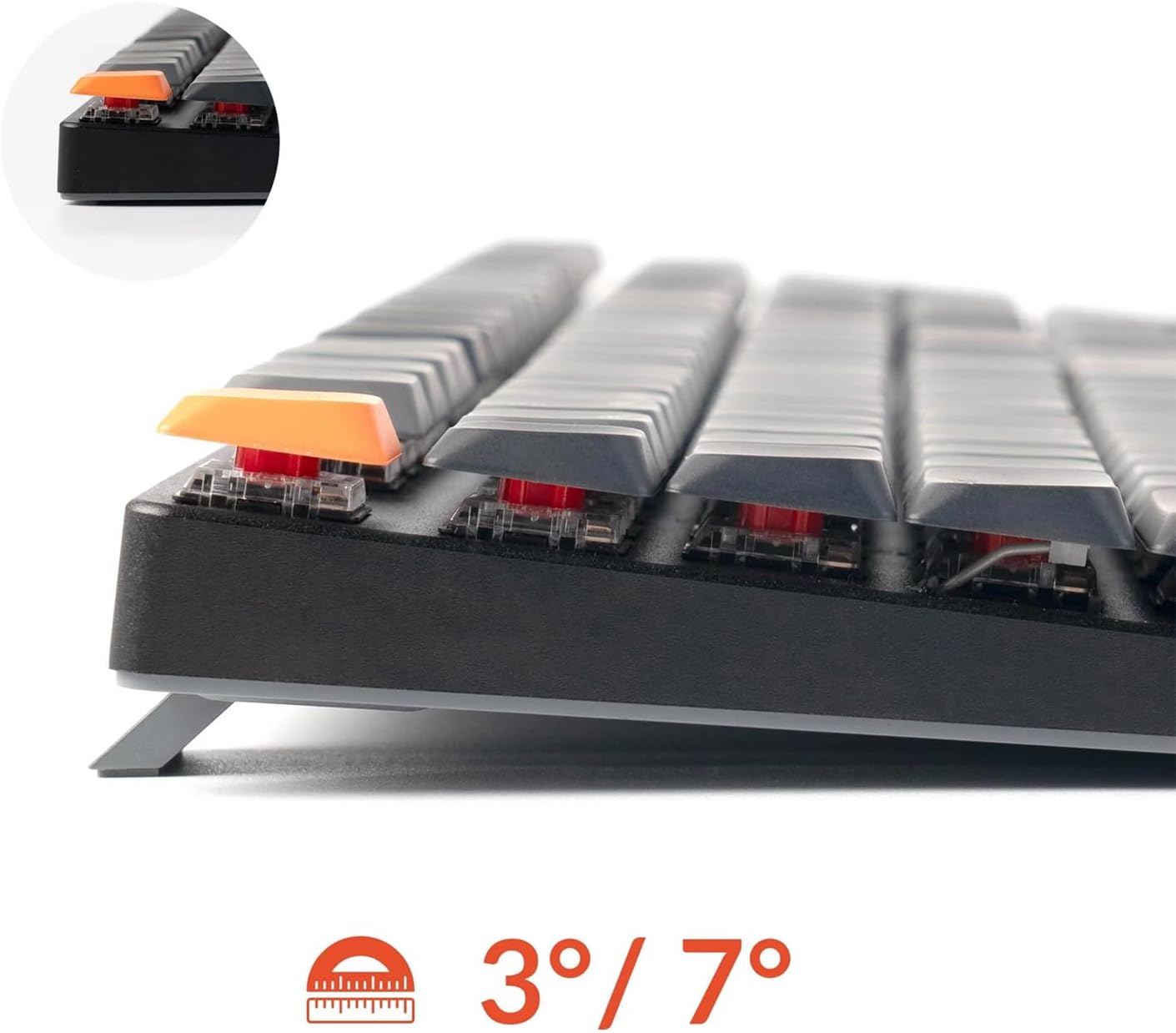
Resim: Yan view of the Keychron K5 keyboard illustrating the adjustable feet for 3-degree and 7-degree typing angles.
3. Kullanım Talimatları
3.1 Temel Tuş Fonksiyonları
The Keychron K5 operates as a standard 104-key full-size keyboard. Function keys (F1-F12) can be accessed directly or by holding the 'Fn' key, depending on your operating system settings. Multimedia keys are typically integrated with the function row.
3.2 Arka Işık Kontrolü
The keyboard features a white LED backlight. Use the dedicated backlight key (often indicated by a light bulb icon) or 'Fn' key combinations to cycle through different lighting effects and adjust brightness levels.
3.3 QMK Customization with Keychron Launcher
The Keychron K5 QMK Version 2 supports open-source QMK firmware, allowing for extensive customization of key remapping, macros, and shortcuts. This can be managed through the Keychron Launcher web başvuru.
- Access the Keychron Launcher web app through your web tarayıcı.
- Connect your keyboard to your computer via the USB-C cable.
- Within the application, you can remap individual keys, create complex macros, and configure various settings.
- Save your custom layouts to the keyboard's firmware.

Image: Screenshot of the Keychron Launcher web application interface, demonstrating key remapping and macro creation options for the K5 keyboard.
3.4 Polling Rate Information
The keyboard operates with a polling rate of 1000 Hz in wired mode, providing minimal latency. In wireless (Bluetooth) mode, the polling rate is 125 Hz.
3.5 Redesigned Stabilizers
The Keychron K5 QMK Version 2 features redesigned stabilizers to ensure consistent keypresses, particularly for larger keys like the spacebar, shift, and enter keys. This design maintains the stab and switch at the same level for improved stability.

Image: Diagram illustrating the redesigned stabilizers for the Keychron K5 keyboard, showing how the stab and switch remain level for enhanced key stability.
4. Bakım
4.1 Klavyeyi Temizleme
To clean the keyboard, first disconnect it from all power sources (unplug the USB-C cable and turn off Bluetooth). Use a can of compressed air to remove dust and debris from between the keycaps. For surface cleaning, gently wipe the keycaps and frame with a soft, slightly damp Bez. Sert kimyasallar veya aşırı nem kullanmaktan kaçının.
4.2 Pil Bakımı
The keyboard is equipped with a rechargeable Lithium Ion battery. To prolong battery life:
- Pilin sık sık tamamen boşaltılmasından kaçının.
- Klavyeyi uzun süre kullanılmayacaksa serin ve kuru bir yerde saklayın.
- Klavyeyi aşırı sıcaklıklara maruz bırakmayın.
5. Sorun Giderme
5.1 Bağlantı Sorunları
- Bluetooth Bağlanmıyor: Ensure the keyboard is in Bluetooth mode and in pairing mode (Fn + 1/2/3 flashing). Check your device's Bluetooth settings. Try forgetting the device on your computer and re-pairing.
- Kablolu bağlantı çalışmıyor: Ensure the keyboard is in 'Cable' mode. Try a different USB-C cable or a different USB port on your computer.
5.2 Temel Tepki Hızı
- Anahtar Kayıt Edilemiyor: Clean around the affected key with compressed air to remove any obstructions.
- Key Chatter (Double Input): This can sometimes be resolved by updating the keyboard firmware. Refer to the Keychron webEn son yazılım ve güncelleme talimatları için siteyi ziyaret edin.
5.3 Firmware Güncellemesi
Periodically check the official Keychron website for firmware updates. Firmware updates can improve performance, add features, and resolve known issues. Follow the instructions provided on the Keychron website carefully when performing an update.
5.4 Fabrika Ayarlarına Sıfırlama
If you encounter persistent issues or wish to revert all settings to default, you can perform a factory reset. Consult the Keychron website or support documentation for the specific key combination to perform a factory reset for the K5 QMK Version 2.
6. Özellikler
The following table details the technical specifications of the Keychron K5 QMK Ultra-Slim Full Size Wireless Mechanical Gaming Keyboard (Model: K5X-A3).
| Özellik | Detay |
|---|---|
| Model Adı | K5X-A3 |
| Marka | Anahtarkron |
| Klavye Açıklaması | Gaming Mechanical |
| Bağlantı Teknolojisi | USB-C, Bluetooth 5.2 |
| Uyumlu Cihazlar | Laptop, PC, Phone, Tablet (Mac, Windows, iOS, Android) |
| Özel Özellik | QMK Firmware, Enhanced Acoustic Foams |
| Renk | Kahverengi Anahtar |
| Malzeme | Plastik, Metal |
| Güç Kaynağı | Pille Çalışan (1 Lityum İyon pil dahil) |
| Ürün Ağırlığı | 2.57 pound |
| Paket Boyutları | 17.56 x 7.83 x 6.46 inç |

Resim: Patlamış view diagram showing the internal layers of the Keychron K5 keyboard, including keycaps, switches, aluminum plate, foam layers, PCB, battery, and bottom case.
7. Garanti ve Destek
Keychron products are typically covered by a limited warranty. For detailed warranty information, including terms, conditions, and duration, please refer to the official Keychron webSiteyi veya ürününüzle birlikte gelen garanti belgesini inceleyin.
If you encounter any issues that cannot be resolved using the troubleshooting steps provided in this manual, or if you require further assistance, please contact Keychron customer support through their official website. When contacting support, please have your product model (K5X-A3) and purchase details readily available.
Ask a question about this manual
Ask about setup, troubleshooting, compatibility, parts, safety, or missing instructions. Manuals+ will review the question and use this page’s manual context to help answer it.