
giriiş
Thank you for choosing the NEWFAST WiFi 6E PCIe Network Card. This card is designed to provide high-speed wireless connectivity and Bluetooth functionality for your desktop PC. Featuring the Intel AX210 chipset, it supports the latest WiFi 6E standard, offering tri-band operation (2.4GHz, 5.8GHz, and 6GHz) with speeds up to 5374Mbps. The integrated Bluetooth 5.3 ensures fast and reliable connections to your wireless peripherals. This manual will guide you through the installation process, operation, and provide troubleshooting tips.

Üzerindeview of the NEWFAST WiFi 6E PCIe Card's multi-performance features, including WiFi 6E standard, Bluetooth 5.3 upgrade, Tri-Band support (6GHz/5.8GHz/2.4GHz), 5374Mbps speed, WPA-PSK/WPA2-PSK/WPA3 security, OFDMA, MU-MIMO technology, and power saving capabilities.
Kutuda Neler Var?
Lütfen paket içeriğini kontrol ederek tüm öğelerin mevcut olduğundan emin olun:
- 1 x NEWFAST WiFi 6E PCIe Network Card
- 1 x Multi-language Instruction Manual (this document)
- 1 x Bluetooth Cable
- 2 x 5dBi Anten
- 2 x Vida
Özellikler
| Özellik | Detay |
|---|---|
| Marka | YENİHIZLI |
| Örnek | NF-P395 |
| Yonga seti | Intel AX210 |
| kablosuz standardı | WiFi 6E (IEEE 802.11ax) |
| Veri Bağlantı Protokolü | IEEE 802.11ac/a/b/g/n, IEEE 802.11ax |
| Frekans Bantları | 2.4 GHz, 5.8 GHz, 6 GHz (Üç Bant) |
| Maksimum Veri Aktarım Hızı | 5374 Mbps (2.4GHz: 574Mbps, 5.8GHz: 2400Mbps, 6GHz: 2400Mbps) |
| Bluetooth Sürümü | Bluetooth 5.3 |
| Donanım Arayüzü | PCI-E X1, X4, X8, X16 (PCI slots not supported) |
| Antenler | 2 x 5dBi Harici Antenler |
| Güvenlik Özellikleri | WPA-PSK/WPA2-PSK/WPA3 |
| Desteklenen İşletim Sistemi | Windows 10 (64 bit), Windows 11 (64 bit) |
| Ebatlar (Paket) | 19.9x11.9x3.4 cm |
| Ürün Ağırlığı | 230 gr |

Detailed breakdown of WiFi 6E speeds across 6GHz, 5.8GHz, and 2.4GHz bands, highlighting the Intel AX210 chip and Bluetooth 5.3 capabilities.
Kurulum Talimatları
1. Donanım Kurulumu
- Bilgisayarınızı Kapatın: Before starting, ensure your computer is completely powered off and unplugged from the power outlet.
- Bilgisayar Kasasını Açın: Anakarta erişmek için bilgisayar kasanızın yan panelini çıkarın.
- Locate a PCI-E Slot: Find an available PCI-E X1, X4, X8, or X16 slot on your motherboard. Note: Standard PCI slots are not compatible.
- Insert the WiFi Card: Carefully align the NEWFAST WiFi 6E PCIe card with the chosen PCI-E slot and press it firmly until it is securely seated.
- Kartı Güvenceye Alın: Use the provided screw to fasten the card's bracket to your PC case.
- Bluetooth Kablosunu Bağlayın: Connect one end of the provided Bluetooth cable to the 9-pin USB header on the WiFi card and the other end to an available F_USB header on your motherboard. This connection is essential for Bluetooth functionality.
- Antenleri takın: Screw the two 5dBi external antennas onto the connectors at the back of the WiFi card. Adjust their orientation for optimal signal reception.
- Bilgisayar Kasasını Kapatın: Bilgisayar kasasının yan panelini yerine takın ve güç kablosunu yeniden bağlayın.

Illustration of compatible PCI-E slots on a desktop motherboard.
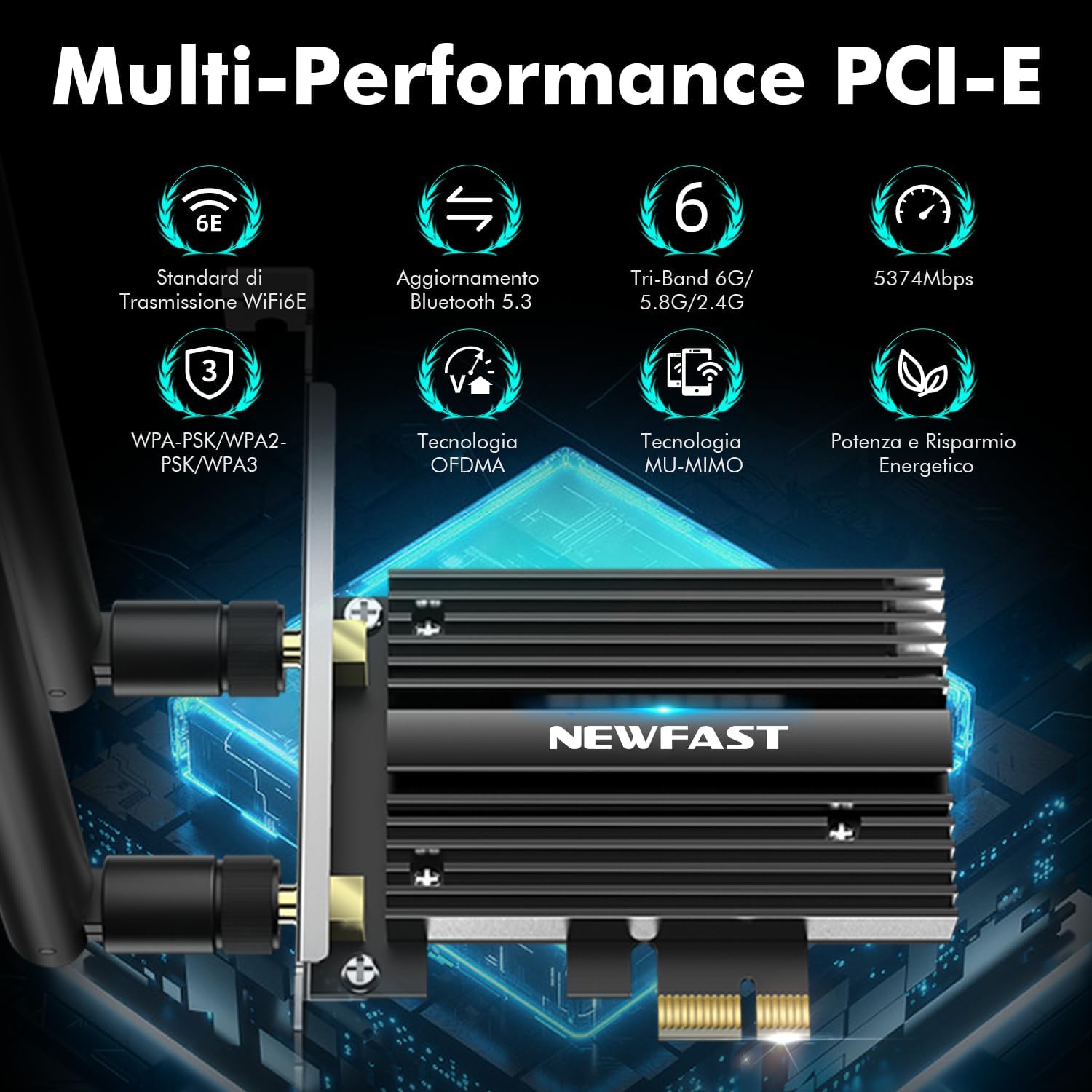
The NEWFAST WiFi 6E PCIe Card with its two external antennas.
2. Sürücü Kurulumu
After hardware installation, power on your PC. You will need to install the drivers for both WiFi and Bluetooth functionality. Drivers are typically available on the manufacturer's website. If you do not have internet access, you may need to download them on another device and transfer them via USB.
- Sürücüleri İndirin: Visit the NEWFAST official website or the Intel support page for the AX210 chipset to download the latest WiFi and Bluetooth drivers for Windows 10 (64-bit) or Windows 11 (64-bit).
- WiFi Sürücüsünü yükleyin: Locate the downloaded WiFi driver file (usually an executable .exe file) and run it. Follow the on-screen instructions to complete the installation.
- Bluetooth Sürücüsünü Yükleyin: Similarly, locate and run the Bluetooth driver file. Follow the installation wizard.
- Bilgisayarı yeniden başlatın: After installing both drivers, restart your computer to ensure all changes take effect.

The WiFi card supports Windows 10 (64-bit) and Windows 11 (64-bit).
Kullanım Talimatları
1. Bir WiFi Ağına Bağlanma
- Ağ Ayarlarına Erişim: On your Windows desktop, click the WiFi icon in the system tray (usually bottom-right corner).
- Ağ Seçin: Kullanılabilir WiFi ağlarının bir listesi görünecektir. İstediğiniz ağı seçin.
- Şifreyi Girin: If prompted, enter the network security key (password) and click 'Connect'.
- Bağlantıyı Doğrulayın: Once connected, the WiFi icon will indicate an active connection. You can now browse the internet.
2. Using Bluetooth 5.3
Ensure the Bluetooth cable is correctly connected to your motherboard's F_USB header for Bluetooth functionality.
- Bluetooth'u etkinleştir: Go to Windows Settings > Devices > Bluetooth & other devices. Ensure Bluetooth is turned 'On'.
- Pair a Device: 'Bluetooth veya başka bir cihaz ekle' seçeneğine tıklayın ve 'Bluetooth'u seçin.
- Aygıtın Keşfedilebilir Olmasını Sağla: Put your Bluetooth device (e.g., headphones, mouse, controller) into pairing mode. Refer to your device's manual for specific instructions.
- Seçin ve Bağlanın: Your PC will scan for nearby Bluetooth devices. Select your device from the list and follow any on-screen prompts to complete pairing.

The Bluetooth 5.3 feature allows connection to various peripherals with improved speed and range.
Bakım
The NEWFAST WiFi 6E PCIe Network Card is designed for reliable, long-term performance with minimal maintenance. Follow these guidelines:
- Sürücüleri Güncel Tutun: Regularly check the NEWFAST or Intel webEn iyi performans ve güvenliği sağlamak için en son WiFi ve Bluetooth sürücülerinin bulunduğu site.
- Uygun Hava Akışını Sağlayın: Make sure your PC case has adequate ventilation to prevent overheating, which can affect the card's performance. The card's aluminum heatsink is designed for efficient heat dissipation.
- Clean Antennas: Occasionally wipe the antennas with a soft, dry cloth to remove dust.
- Fiziksel Hasardan Kaçının: Handle the card with care during installation and avoid bending or stressing the antennas.
Sorun giderme
If you encounter issues with your NEWFAST WiFi 6E PCIe Network Card, refer to the following common problems and solutions:
- WiFi Bağlantısı Yok:
- Ensure the card is properly seated in the PCI-E slot.
- Verify that WiFi drivers are correctly installed and updated.
- Check if the antennas are securely attached.
- Confirm that your router is powered on and broadcasting a WiFi signal.
- Try restarting your PC and router.
- No Bluetooth Functionality:
- Ensure the Bluetooth cable is securely connected to both the WiFi card and the motherboard's F_USB header. This is crucial for Bluetooth.
- Verify that Bluetooth drivers are correctly installed and updated.
- Check Windows Bluetooth settings to ensure Bluetooth is enabled.
- Bilgisayarınızı yeniden başlatmayı deneyin.
- Yavaş WiFi Hızları:
- Ensure you are connected to a WiFi 6E compatible router for optimal speeds.
- Diğer elektronik cihazlardan kaynaklanan paraziti kontrol edin.
- Daha iyi sinyal alımı için antenin yönünü ayarlayın.
- Yönlendiricinizin yazılımını güncelleyin.
- Ensure your PC is within a reasonable range of your WiFi router.
- Cihaz Algılanamadı:
- Double-check all physical connections, including the PCI-E slot and Bluetooth cable.
- İşletim sisteminizin Windows 10 (64-bit) veya Windows 11 (64-bit) olduğundan emin olun.
- Check Device Manager in Windows for any unknown devices or driver errors.
Garanti ve Destek
NEWFAST products are designed for quality and reliability. For specific warranty information, please refer to the warranty card included with your product or visit the official NEWFAST webalan.
If you encounter any configuration issues, technical problems, or require further assistance, please do not hesitate to contact NEWFAST customer support. Our team is ready to help you.
- Çevrimiçi destek: Visit the NEWFAST official webSSS, sürücü indirmeleri ve destek iletişim bilgileri için site.
- E-posta Desteği: Ürün ambalajınıza veya resmi bilgilere bakın webMüşteri destek e-posta adresinin bulunduğu site.


