
giriiş
This manual provides detailed instructions for the setup, operation, maintenance, and troubleshooting of your POFAN Wireless HDMI Transmitter and Receiver (Model G58). This device is designed to wirelessly transmit 4K video and audio signals from various HDMI output devices to displays such as HDTVs, projectors, and monitors, eliminating the need for physical HDMI cables.
The system supports 2.4GHz and 5GHz dual-band transmission, offering a stable connection for streaming video, audio, and files. It is a plug-and-play solution, requiring no driver installations or complex network configurations.
Paket İçeriği
Lütfen paketinizde tüm öğelerin mevcut olduğundan emin olun:
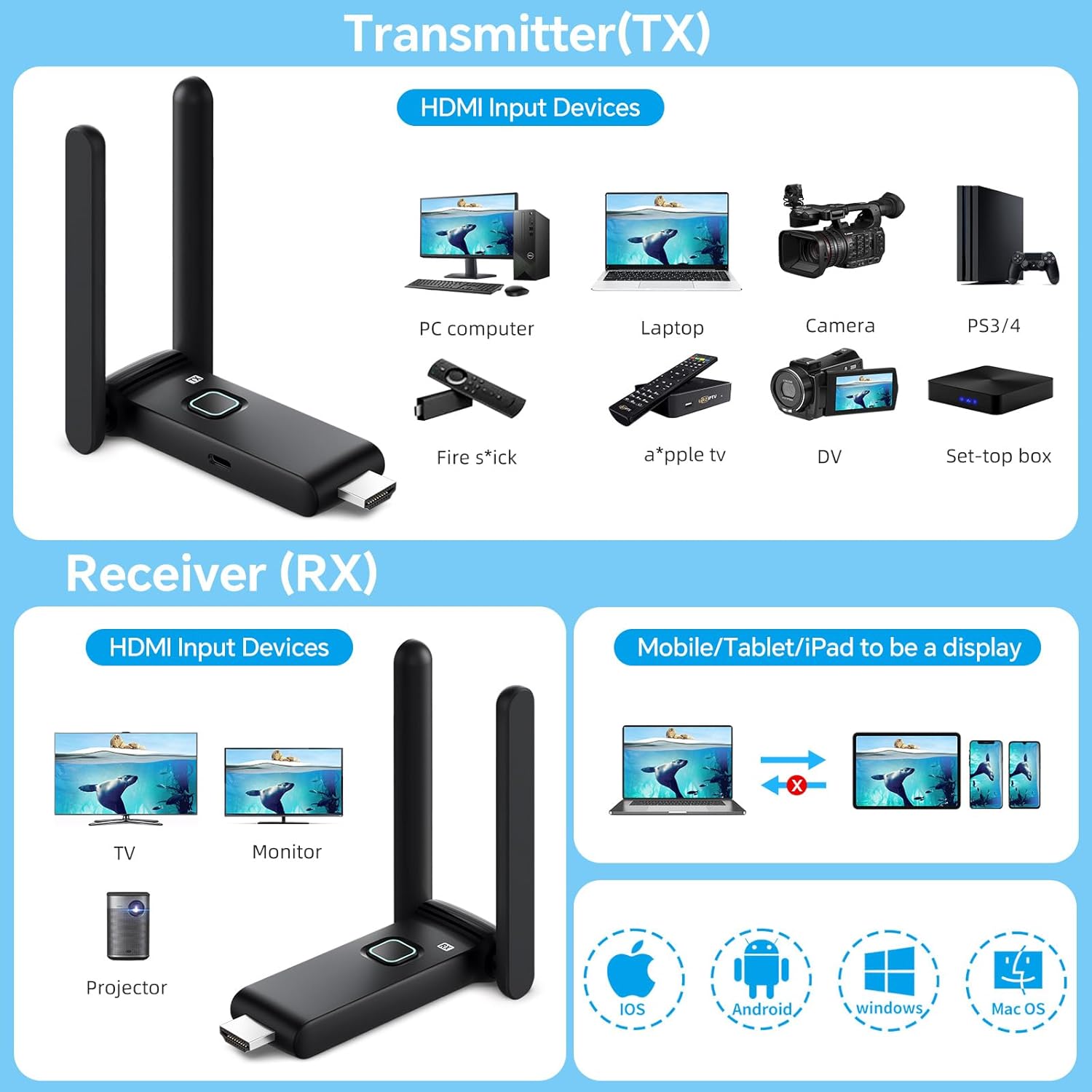
- 1 x HDMI Verici (TX)
- 1 x HDMI Alıcı (RX)
- 1 x Kullanım Kılavuzu
- 1 x USB-C to HDMI Adapter
- 1 x HDMI Kablosu
- 2 x USB-C Kabloları
- 1 x Mini/Micro HDMI Adapter

Kurulum Talimatları
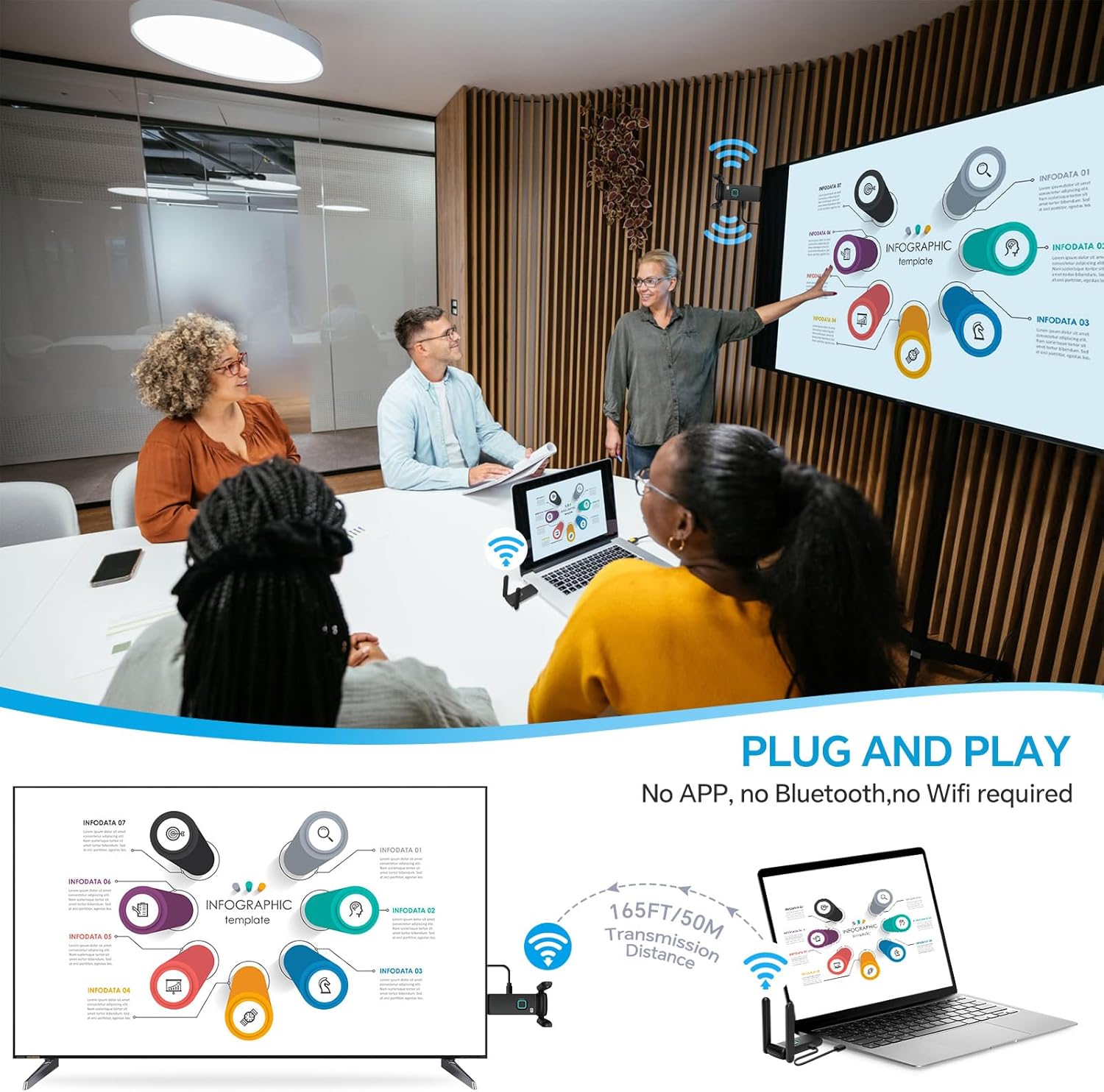
The POFAN Wireless HDMI system is designed for plug-and-play operation, requiring no software installation.
- Vericiyi (TX) bağlayın: Plug the Transmitter (TX) into the HDMI output port of your source device (e.g., laptop, PC, TV box, camera). Ensure the TX unit receives power, typically via a USB-C cable connected to a power source (5V/1A recommended) or a USB port on your source device.
- Alıcıyı (RX) bağlayın: Plug the Receiver (RX) into the HDMI input port of your display device (e.g., HDTV, projector, monitor). Ensure the RX unit receives power, typically via a USB-C cable connected to a power source (5V/1A recommended) or a USB port on your display device.
- Güç Açık: Power on both your source device and display device.
- Otomatik Bağlantı: The Transmitter and Receiver will automatically pair and establish a connection. The display should show the content from your source device.
Important Power Note: Use a 5V/1A power supply for stable connection. Insufficient power from a device's USB port (e.g., laptop, TV) may cause interruptions or delays. It is recommended to use a dedicated charger for power.
Kullanım Talimatları
Kablosuz İletim Menzili
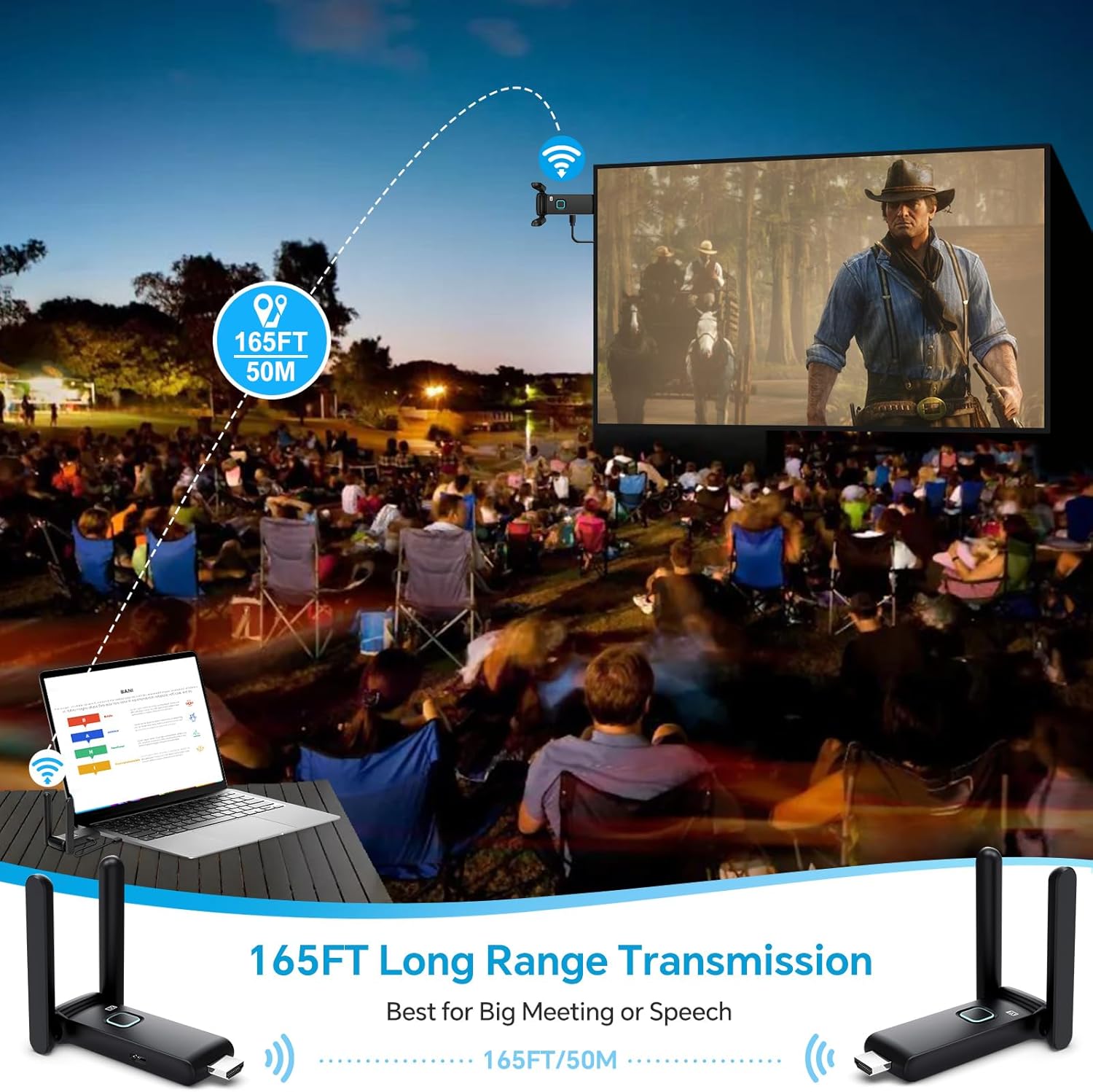
The system provides a robust and stable signal with a line-of-sight range of up to 165 feet (50 meters). When transmitting through walls or floors, the range may decrease to approximately 32 feet (10 meters).
Multi-Screen Synchronization
The wireless HDMI extender delivers seamless 4K video transmission across displays with ultra-low latency, enabling synchronized multi-screen playback. One Transmitter (TX) can be connected with up to 4 Receivers (RX) to display content on multiple screens simultaneously. The system supports up to 6 RX displays.


Using the TuTuPlay App for Mobile Device Integration
For enhanced functionality, you can use the TuTuPlay App to turn your smartphone or tablet into a second screen or for real-time monitoring.
- Connect TX to HDMI output device and power it.
- Install TuTuPlay App on your iPhone or other smartphone.
- Find "TUTULINK-xxx" in Wi-Fi settings and connect. The original password is "12345678".
- Open RScreen on iPhone/other smartphones for syncing.


Video Demonstration: Multiple Receivers
Video 1: Multiple Receivers - Up to 4 RX Can connect to 4 TVs. This video demonstrates the POFAN Wireless HDMI system's capability to connect a single transmitter to multiple receivers, allowing content to be displayed on up to four televisions simultaneously.
Bakım
- Temizlik: Cihazları temizlemek için yumuşak, kuru bir bez kullanın. Sıvı temizleyicilerden veya çözücülerden kaçının.
- Depolamak: Cihazları serin, kuru ve doğrudan güneş ışığından ve aşırı sıcaklıklardan uzak bir yerde saklayın.
- Güç Kaynağı: Always ensure a stable 5V/1A power supply for optimal performance. Avoid using underpowered USB ports from source or display devices, as this can lead to unstable connections or signal interruptions.
- Isı Dağılımı: The devices feature a large-area window opening design for better heat dissipation. Ensure these areas are not obstructed during use.

Sorun giderme
| Sorun | Olası Neden | Çözüm |
|---|---|---|
| No signal on display / Black screen |
|
|
| Intermittent signal / Flickering screen |
|
|
| Audio but no video / Video but no audio |
|
|
| Lag or delay in transmission |
|
|
Özellikler
| Özellik | Detay |
|---|---|
| Marka | POFAN |
| Model Numarası | G58 |
| Bağlantı Teknolojisi | Wireless (Ethernet, HDMI) |
| Kablosuz Frekans | 2.4G/5.8G çift bant |
| İletim Mesafesi | Up to 165FT/50M (line of sight); approx. 32FT/10M (through walls/floors) |
| Yenileme Hızı | 60Hz |
| Gecikme | Yaklaşık 0.1'ler |
| Max Receivers Supported | Up to 6 RX units |
| Uyumlu Cihazlar | Laptop, Set-top box, Television, Screen, Video camera, Blu-ray players, DVDs, Digital SLRs, Cable/Satellite TV receivers, Tablets, Apple laptops, Sony/Canon cameras. |
| Bağlayıcı Türü | HDMI |
| Güç Kaynağı | 5V/1A (önerilen) |
| Dahili Medya | HDMI Receiver, HDMI Transmitter |
Garanti Bilgileri
This POFAN product is covered by a 1 Yıllık Üretici Garantisi from the date of purchase. This warranty covers defects in materials and workmanship under normal use. It does not cover damage caused by misuse, accident, unauthorized modification, or external causes such as power surges.
Garanti talepleri için lütfen satın alma belgenizi saklayın.
Müşteri Desteği
For technical assistance, troubleshooting, or warranty inquiries, please contact POFAN customer support through the following channels:
- Çevrimiçi destek: Visit the official POFAN store on Amazon: POFAN Amazon Store
- Üretici: POFAN (Vendor: kebaixin)
When contacting support, please have your product model number (G58) and proof of purchase readily available.