
giriiş
This manual provides essential information for setting up, operating, maintaining, and troubleshooting your HP 14 inch Laptop. Please read this guide thoroughly to ensure proper use and to maximize the performance and longevity of your device.

Image: An HP 14 inch laptop being used by a person on a kitchen counter, demonstrating its portability and suitability for various environments.
1. İlk Kurulum
1.1 Kutudan Çıkarma ve İlk Çalıştırma
Carefully remove the laptop and all accessories from the packaging. Ensure all components are present:
- HP 14 inch Laptop
- Güç Adaptörü
- Belgeleme
Connect the power adapter to the laptop's power port and then to a wall outlet. Press the power button to turn on the laptop. Follow the on-screen instructions to complete the initial Windows 11 setup, including language selection, network connection, and user account creation.
1.2 Çevre Birimlerini Bağlama
Dizüstü bilgisayarınızda harici aygıtları bağlamak için çeşitli bağlantı noktaları bulunur:

Resim: Yan view of the HP 14 inch laptop, highlighting the various ports available for connecting peripherals such as USB devices and external displays.
- USB 3.2 Gen 1 Type-C (5Gbps): Modern USB-C cihazlarını bağlamak için.
- USB 3.2 Gen 1 Type-A (2x, 5Gbps): Fare, klavye ve harici sürücüler gibi standart USB aygıtları için.
- HDMI v1.4: Harici ekranlara veya projektörlere bağlanmak için.
- Kulaklık/Mikrofon Kombo Jakı: Ses giriş/çıkış cihazları için.
Simply plug the peripheral's cable into the corresponding port on the laptop. Most devices are plug-and-play and will be recognized automatically by Windows 11.
2. Operasyon
2.1 Temel Kullanım
The laptop features a standard keyboard and a responsive touchpad for navigation. Familiarize yourself with the function keys (Fn) for quick access to settings like volume, brightness, and Wi-Fi.
2.2 Connecting to Networks (Wi-Fi)
Your laptop supports Wi-Fi 6 for fast wireless connectivity. To connect to a Wi-Fi network:
- Görev çubuğundaki (genellikle sağ alt köşede) Wi-Fi simgesine tıklayın.
- İstediğiniz ağı listeden seçin.
- İstendiğinde ağ güvenlik anahtarını (şifresini) girin.
- "Bağlan"a tıklayın.
2.3 Bluetooth Aygıt Eşleştirme
The laptop includes Bluetooth 5.3 for connecting wireless accessories. To pair a Bluetooth device:
- Git Ayarlar > Bluetooth ve cihazlar.
- Bluetooth'un açık olduğundan emin olun. On.
- Tıklamak Cihaz ekle ve seç Bluetooth.
- Bluetooth cihazınızı eşleştirme moduna alın.
- Select your device from the list and follow any on-screen prompts.
2.4 Webkam
The integrated 720p HD camera is suitable for video calls and conferences. For privacy, your laptop features a physical privacy shutter. Slide the shutter to cover or uncover the camera lens as needed.
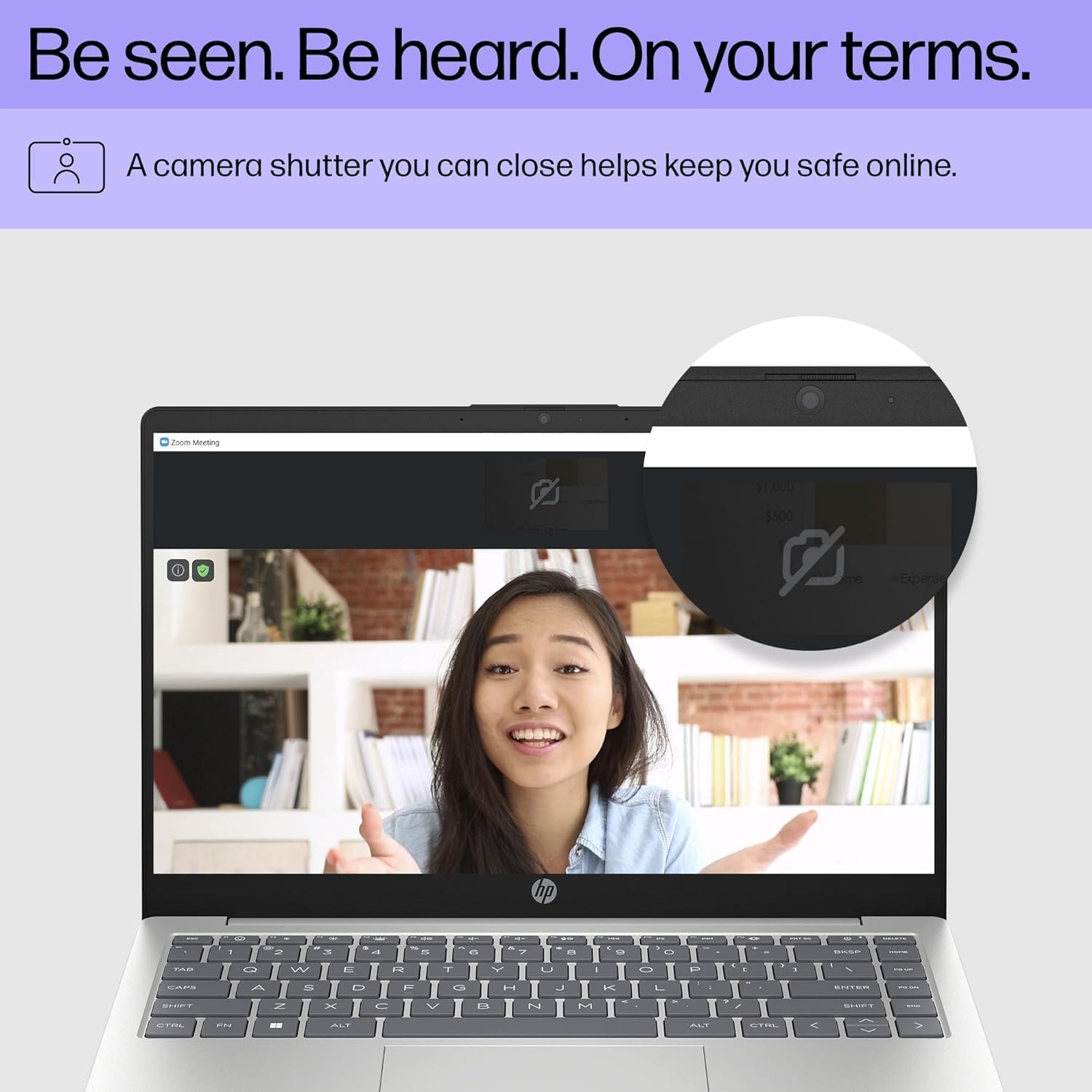
Image: Close-up of the HP laptop's integrated webcam, showing the physical privacy shutter in the open position. This feature allows users to physically block the camera lens for enhanced privacy.
2.5 Pil Yönetimi
The laptop is equipped with a 3-cell 41Wh battery, providing up to 8 hours of non-gaming battery life. To optimize battery longevity:
- Pilin sık sık tamamen boşaltılmasından kaçının.
- Keep the laptop in a cool, dry environment.
- Ekran parlaklığını rahat edeceğiniz bir seviyeye ayarlayın.
- Utilize Windows power saving modes when on battery power.

Image: Diagram illustrating the HP laptop's dimensions (14" display, 12.74" W, 8.46" D, 0.70" H) and indicating up to 8 hours of mixed usage battery life. This highlights the laptop's portability and endurance.
3. Bakım
3.1 Dizüstü Bilgisayarınızı Temizleme
Düzenli temizlik, dizüstü bilgisayarınızın görünümünü ve işlevselliğini korumanıza yardımcı olur:
- Ekran: Hafifçe yumuşak, tüy bırakmayan bir bez kullanın.ampSu veya ekran temizleyici ile temizleyin. Sert kimyasallardan kaçının.
- Klavye ve Şasi: Yumuşak bir bez kullanın. İnatçı kirler için hafifçe kurulayın.ampHafif sabunlu su ile ıslatılmış bir bez kullanılabilir ve açıklıklara sıvı girmemesine dikkat edilir.
- Limanlar: Basınçlı hava kullanarak portlardaki tozu nazikçe temizleyin.
3.2 Yazılım Güncellemeleri
Keep your Windows 11 operating system and drivers updated to ensure optimal performance and security. Windows Update typically handles this automatically, but you can manually check by going to Ayarlar > Windows Update.
3.3 Storage and Memory Management
Your laptop is equipped with a 4TB NVMe M.2 SSD and 64GB DDR4 RAM. While these provide ample capacity, regular management is recommended:
- Gereksiz olanları periyodik olarak silin fileDepolama alanını boşaltmak için uygulamalar ve uygulamalar.
- Büyük hacimli dosyalar için bulut depolama alanını kullanın files to reduce local drive usage.
- Windows 11 includes tools like Storage Sense (in Settings > System > Storage) to automate cleanup.
4. Yaygın Sorunların Giderilmesi
4.1 Güç Sorunları
- Dizüstü bilgisayar açılmıyor: Güç adaptörünün hem dizüstü bilgisayara hem de çalışan bir elektrik prizine güvenli bir şekilde bağlı olduğundan emin olun. Farklı bir priz deneyin.
- Pil şarj olmuyor: Verify the power adapter connection. Check for any damage to the adapter or cable.
4.2 Ekran Sorunları
- Ekranda görüntü yok: If connected to an external monitor, ensure the correct input source is selected on the monitor. Try pressing Fn + F4 (or the equivalent display toggle key) to switch display outputs.
- Ekranı karart: Adjust brightness using the function keys (e.g., Fn + F2/F3) or through Windows display settings.
4.3 Bağlantı Sorunları (Wi-Fi/Bluetooth)
- Wi-Fi'ye bağlanılamıyor: Ensure Wi-Fi is enabled in Windows settings. Restart your router and the laptop. Check if other devices can connect to the network.
- Bluetooth cihazı eşleşmiyor: Ensure the Bluetooth device is in pairing mode and within range. Restart Bluetooth on the laptop and the device.
For more detailed troubleshooting or persistent issues, refer to the HP support website veya müşteri hizmetleriyle iletişime geçin.
5. Özellikler
Detailed technical specifications for your HP 14 inch Laptop (Model EP01):

Image: Infographic detailing key specifications of the HP 14 inch laptop, including 13th Gen Intel Core i7-1355U processor, 16GB DDR4-3200 MHz RAM, 1TB PCIe NVMe M.2 SSD, Intel Iris Xe Graphics, Windows 11 Home, and a Full HD IPS anti-glare display.
| Özellik | Şartname |
|---|---|
| Marka | HP |
| Model Adı | 14 inch Laptop (EP01) |
| İşlemci | 13th Generation Intel Core i7-1355U (10 Cores, up to 5.0GHz) |
| Grafikler | Intel Iris Xe Grafikleri (Tümleşik) |
| Bellek (RAM) | 64GB DDR4 3200 MHz SDRAM (Upgraded from 16GB) |
| Depolamak | 4TB NVMe M.2 SSD (Upgraded from 1TB) |
| Görüntülemek | 14" FHD (1920 x 1080) IPS Anti-Glare, 300 nits, 45% NTSC, 60Hz |
| İşletim Sistemi | Windows 11 Ev |
| Bağlantı | Wi-Fi 6 (2x2), Bluetooth 5.3 |
| Limanlar | 1x USB 3.2 Gen 1 Type-C, 2x USB 3.2 Gen 1 Type-A, 1x HDMI v1.4, 1x Headphone/Microphone Combo Jack |
| Kamera | Gizlilik Deklanşörlü 720p HD Kamera |
| Ses | Çift hoparlör |
| Pil | 3 Hücreli 41 Wh (Oyun dışı kullanımda 8 saate kadar) |
| Boyutlar (U x G x Y) | 12.74 x 8.46 x 0.70 inç |
| Ağırlık | 5.13 pound |
| Renk | Doğal Gümüş |
| UPC | 194850841057 |
6. Garanti ve Destek
6.1 Ürün Garantisi
Your HP laptop comes with a standard manufacturer's warranty. For specific details regarding coverage, duration, and terms, please refer to the warranty documentation included with your product or visit the official HP support webSite. Garanti genellikle normal kullanım koşullarındaki malzeme ve işçilik kusurlarını kapsar.
6.2 Müşteri Desteği
For technical assistance, service, or further inquiries, please contact HP Customer Support:
- Çevrimiçi destek: Ziyaret etmek destek.hp.com sürücüler, kılavuzlar ve sorun giderme kılavuzları için.
- Telefon Desteği: Refer to the contact information provided in your product's documentation for regional phone numbers.
When contacting support, please have your laptop's serial number and model number (EP01) ready.