
VEILZOR KG812D
VEILZOR Ergonomik Arkadan Aydınlatmalı Klavye Kullanım Kılavuzu
Model: KG812D
giriiş
This manual provides detailed instructions for the VEILZOR Ergonomic Backlit Keyboard, Model KG812D. This keyboard is designed to enhance typing comfort and efficiency with its wave-shaped key layout and integrated wrist rest. It features customizable backlighting and broad compatibility with various operating systems.

Şekil 1: Üzeriview of the VEILZOR Ergonomic Backlit Keyboard, showcasing its wave-shaped design, integrated wrist rest, and vibrant RGB backlighting.
Ürün Özellikleri
- Ergonomik Dalga Tasarımı: Features a wave-shaped key layout that aligns with natural hand positions, reducing strain during extended use. UV-coated keycaps enhance durability.
- Entegre Bilek Desteği: A comfortable leather wrist rest provides essential support, minimizing wrist fatigue.
- Özelleştirilebilir RGB Arka Aydınlatma: Offers 7 distinct colors and 4 brightness levels, allowing users to personalize their typing environment.
- Dahili Cihaz Tutucu: A convenient groove accommodates phones, tablets, or other devices, aiding in multitasking.
- Wired USB-A Connection: Ensures a stable and lag-free connection with a 5.2 ft braided cable, eliminating battery concerns.
- Multifunctional Keys & Dual System Compatibility: Supports FN key combinations and multimedia shortcuts. Seamlessly switches between Windows and Mac operating systems.

Figure 2: The keyboard's wave ergonomic design, shown with a tablet positioned in the integrated holder, illustrating how it keeps fingers comfortable and natural.

Şekil 3: Ayrıntılı view of the wrist rest construction, highlighting its comfort leather surface, high-density foam support, and strong plastic base, designed to relieve pressure on the wrist.
Kurmak
- Klavyeyi Paketinden Çıkarın: Klavyeyi ambalajından dikkatlice çıkarın.
- Bilgisayara Bağlan: Locate the USB-A connector at the end of the keyboard's braided cable. Insert the USB-A connector into an available USB port on your computer (PC or Mac).
- Sistem Tanıma: Klavye tak ve çalıştır özelliğine sahiptir ve işletim sisteminiz tarafından otomatik olarak tanınmalıdır. Genellikle ek sürücülere ihtiyaç duyulmaz.
- Initial Backlight Check: Upon connection, the backlight should illuminate. If not, refer to the "Operating Instructions" section for backlight control.

Figure 4: The keyboard's dimensions and its 5.2ft USB wired connection, illustrating its compact yet full-sized design for easy setup.
Kullanım Talimatları
Arka Işık Kontrolü
- Turn Backlight On/Off: Basmak FN + Del Arka ışığı açmak veya kapatmak için.
- Arka Aydınlatma Modunu Değiştir: Basmak FN + M1/M2/M3 to cycle through the 3 available light modes:
- M1: RGB Rainbow Wave Effect
- M2: Solid Color Static Backlit
- M3: Cycle Ripple Backlit
- Parlaklığı Ayarla: Basmak FN + ↑ parlaklığı artırmak veya FN + ↓ to decrease brightness. There are 4 levels of lighting.

Figure 5: Visual guide to backlight control, showing key combinations for turning the backlight on/off, changing modes, and adjusting brightness levels.

Figure 6: Illustration of the three distinct light modes: RGB Rainbow Wave Effect (M1), Solid Color Static Backlit (M2), and Cycle Ripple Backlit (M3).
Çift Sistem Anahtarlama
The keyboard supports seamless switching between Windows and Mac operating systems.
- Switch to Windows System: Basmak FN + A.
- Switch to Mac System: Basmak FN + S.
- Not: Pressing the Win key opens the Start menu on Windows systems; the opposite is true for Mac systems.
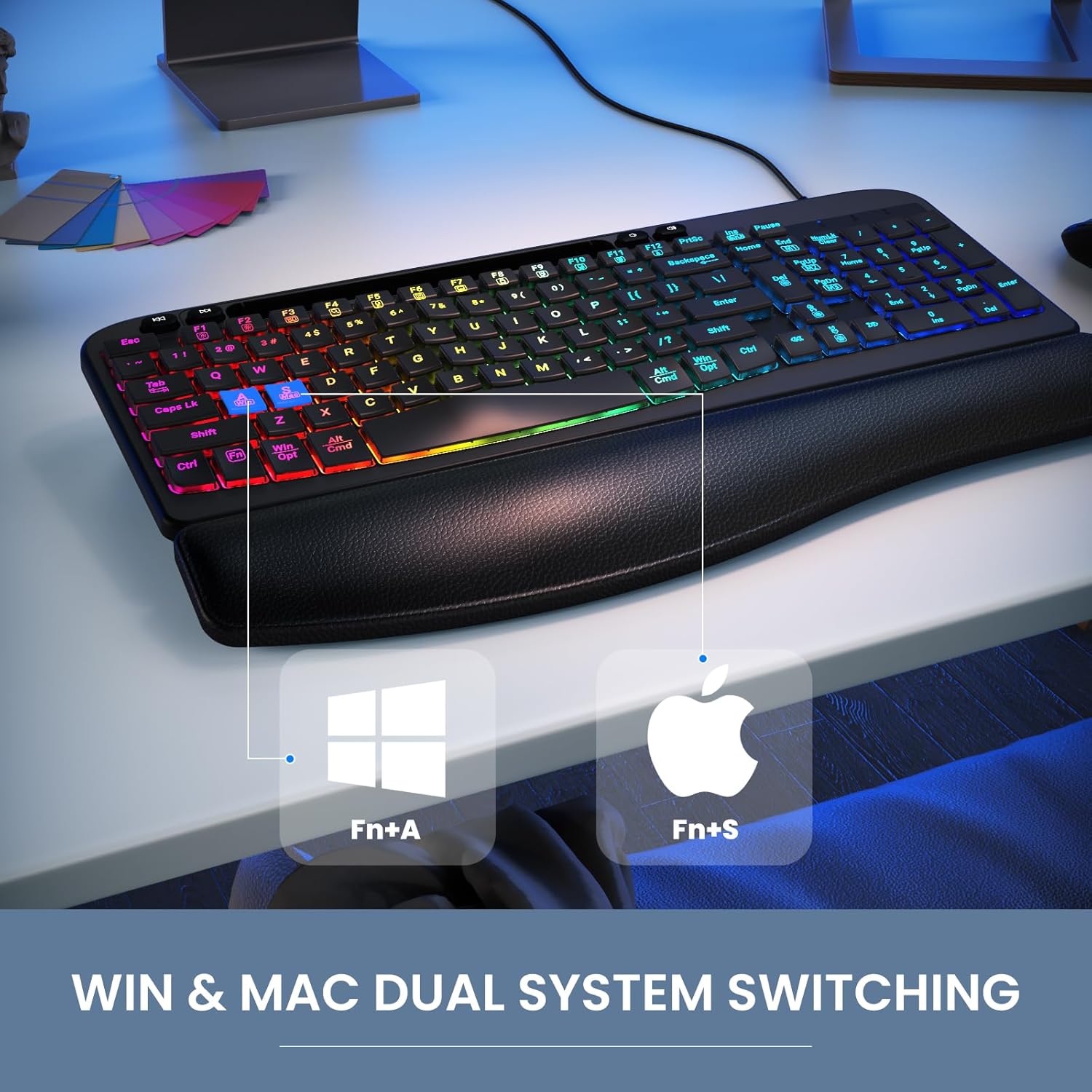
Figure 7: The keyboard's capability for dual system switching between Windows and Mac, activated by specific FN key combinations.
Multimedya ve Fonksiyon Tuşları
The keyboard includes 4 independent multimedia keys and 12 FN combination keys for enhanced functionality. Refer to the table below for common multimedia functions:
| İşlev | Windows Key Combination | Mac Key Combination |
|---|---|---|
| Ekran parlaklığı düşüşü | FN + F1 | FN + F1 |
| Ekran parlaklığı artışı | FN + F2 | FN + F2 |
| Pencereyi Dönüştür | FN + F3 | FN + F3 |
| Ara | FN + F4 | FN + F4 |
| Mikrofon | FN + F5 | FN + F5 (Exhale Siri) |
| Programı kapat | FN + F6 | FN + F6 (Exit program) |
| Bilgisayarım | FN + F7 | FN + F7 |
| Kilit ekranı | FN + F8 | FN + F8 (Lock screen) |
| Tümünü Seç | FN + F9 | FN + F9 (Select All) |
| Kopyala | FN + F10 | FN + F10 (Copy) |
| Yapıştır | FN + F11 | FN + F11 (Paste) |
| Paylaşmak | FN + F12 | FN + F12 (Share) |

Figure 8: A diagram highlighting the 4 independent multimedia keys, 12 FN combination keys, and 4 navigation keys for various functions.
Using the Device Holder
The keyboard features a built-in groove at the top to securely hold your smartphone or tablet, allowing for convenient viewve çoklu görev.

Şekil 9: Yakın çekim view of the integrated phone/tablet holder, indicating its dimensions (7.28 in x 0.59 in) and the presence of 2 foldable stands and 6 non-slip rubber pads for stability.
Bakım
To ensure the longevity and optimal performance of your VEILZOR keyboard, follow these maintenance guidelines:
- Düzenli Temizlik: Yumuşak, tiftiksiz bir bez kullanın ve hafifçe kurulayın.ampened with water or a mild cleaning solution to wipe down the keycaps and surfaces. Avoid harsh chemicals or abrasive materials.
- Toz Giderimi: Tuşların arasında biriken toz ve kalıntıları temizlemek için basınçlı hava kullanın.
- Bilek Desteği Bakımı: The leather wrist rest can be wiped clean with a damp Kumaş. Uzun süre doğrudan güneş ışığına veya aşırı sıcaklıklara maruz kalmaktan kaçının.
- Kablo yönetimi: USB kablosunun hasar görmesini önlemek için keskin bükümlerden veya aşırı çekmelerden kaçının.
- Depolamak: When not in use for extended periods, store the keyboard in a clean, dry environment away from direct sunlight.
Sorun giderme
If you encounter any issues with your keyboard, please refer to the common problems and solutions below:
- Arka Işık Çalışmıyor:
Please check whether the light switch is turned on. Press FN + Del keys to turn on the backlight switch. If the backlight is too dim, press FN + ↑/↓ keys to adjust the brightness of the light.
- Number Keys on Right Side Not Working:
Please try pressing the Sayısal Kilit key (alphabetic lock key) to activate the number pad.
- Keyboard Not Recognized by Computer:
Ensure the USB cable is securely plugged into both the keyboard and the computer. Try plugging the keyboard into a different USB port. Restart your computer.
- Keys Not Responding or Sticky:
Clean the keyboard thoroughly, especially around the affected keys, to remove any debris or spills. Avoid eating or drinking directly over the keyboard.
If you encounter other problems and cannot solve them, please contact our customer service. We will provide assistance and do our best to reply within 24 hours.
Özellikler
| Özellik | Detay |
|---|---|
| Marka | PERDE |
| Örnek | KG812D |
| Bağlantı Teknolojisi | USB-A Kablolu |
| Uyumlu Cihazlar | Laptop, PC (Windows & Mac) |
| Klavye Açıklaması | Çok İşlevli |
| Özel Özellikler | Backlit, Ergonomic, Hotkeys and Media Keys, Wave Keys Design, Wrist Rest |
| Renk | Siyah |
| Anahtar Sayısı | 107 |
| Klavye Arka Aydınlatma Renk Desteği | RGB (7 Colors) |
| Ürün Ağırlığı | 2.33 pound |
| Paket Boyutları | 17.28 x 10.87 x 1.61 inç |
Garanti ve Destek
VEILZOR offers a one-year unconditional return and exchange policy for this product. Additionally, you will receive ömür boyu satış sonrası hizmet.
For any inquiries, technical support, or warranty claims, please contact our customer service team:
- E-posta: veilzorcustomer@gmail.com
We are committed to providing prompt assistance and will do our best to reply within 24 hours.
İlgili belgelerKG812D


Ask a question about this manual
Ask about setup, troubleshooting, compatibility, parts, safety, or missing instructions. Manuals+ will review the question and use this page’s manual context to help answer it.