
1. Giriş
Thank you for choosing the HAPPRUN 4K UHD Smart Projector. This device is designed to provide an immersive home theater experience with its advanced features, including official Google TV integration, 4K UHD support, Dolby Sound, Wi-Fi 6, and Bluetooth 5.2 connectivity. This manual provides essential information for setting up, operating, and maintaining your projector.
2. Kutuda Neler Var?
- Google TV Projektörü
- HDMI Kablosu
- Güç Kablosu
- Temizlik Kiti
- Uzaktan kumanda
3. Ürün Bittiview
The HAPPRUN 4K UHD Smart Projector is a versatile entertainment device packed with cutting-edge technology. Its compact design allows for flexible placement, while its powerful features ensure a high-quality viewve ses deneyimi.
Temel Özellikler:
- Built-in Official Licensed Google TV: Direct access to streaming apps like Netflix, Prime Video, YouTube, Hulu, and other pre-installed applications.
- Google Sesli Asistanı: Control your projector and search for content using simple voice commands via the remote.
- Excellent 4K Picture Quality: Supports 4K resolution with 400 ANSI lumens for clear, detailed, and vivid visuals in various lighting conditions.
- Powerful Dolby Sound Effect: Integrated 5W high-fidelity speaker with Dolby sound for immersive and realistic audio.
- Geniş Uyumluluk: Connects to USB drives, smartphones, computers, tablets, and game consoles.
- Bluetooth 5.2 Teknolojisi: Wirelessly connect to external sound systems or Bluetooth headphones for private listening.
- Wi-Fi 6 Teknolojisi: Ensures faster speeds and stronger stability for smooth online content playback, minimizing buffering.
- Büyük Ekran Projeksiyon: Capable of projecting up to a 300-inch giant screen for an immersive viewDeneyim.
- Çoklu Kurulum Yöntemleri: Supports ceiling, desktop, and tripod installation.

Figure 1: HAPPRUN Smart Projector with Google TV interface.
4. Kurulum Kılavuzu
4.1 Fiziksel Yerleştirme
Choose a stable surface for your projector. The HAPPRUN projector supports three installation methods:
- Masaüstü: Place the projector on a flat surface in front of the projection area.
- Tavan: Mount the projector to the ceiling using a compatible mount (not included).
- Tripod: Attach the projector to a standard tripod using the screw hole on the bottom for flexible positioning.

Figure 2: Projector demonstrating various screen sizes up to 300 inches.
4.2 Güç Bağlantısı
Connect the provided power cord to the projector's power input and then to a power outlet. The power light will show red initially. Wait for 5 seconds, then press the power button on the projector. The power light will turn blue, indicating the projector is powered on.
4.3 Uzaktan Kumanda Eşleştirme
For first-time use, complete the remote control pairing process. Refer to the on-screen instructions or the quick start guide for detailed steps. After successful pairing, the remote can be used for full control.
4.4 Odak ve Trapez Düzeltme
Adjust the focus wheel located near the lens until the projected image is sharp and clear. Use the keystone correction feature (manual wheel or digital setting via menu) to square the image if the projector is not perfectly perpendicular to the screen. For optimal image quality, it is recommended to position the projector as directly as possible to the screen to minimize the need for keystone correction.

Figure 3: Projector top controls including focus and keystone adjustments.
5. Kullanım Talimatları
5.1 Google TV System
Your HAPPRUN projector comes with Official Licensed Google TV built-in, providing a seamless smart TV experience. Navigate the interface using the remote control to access various streaming applications and content.
- Yerleşik Uygulamalar: Directly launch Netflix, Prime Video, YouTube, Hulu, and other pre-installed applications.
- Google Sesli Asistanı: Press and hold the voice control button on your remote to issue commands like "Open Netflix," "Arama a movie," or "Adjust the volume."
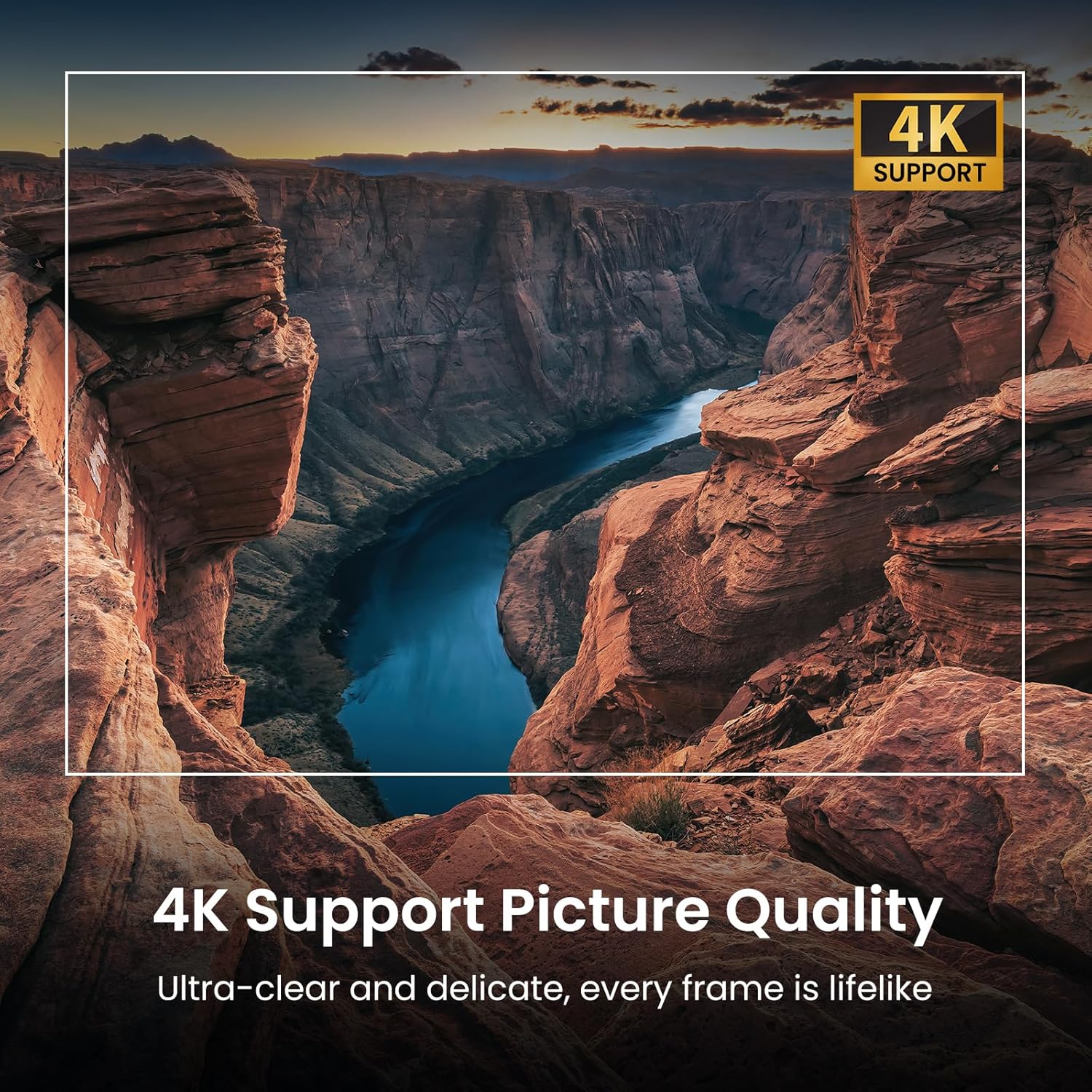
Figure 4: Remote control demonstrating Google Voice Assistant functionality.
5.2 Bağlantı
Projeksiyon cihazı birden fazla bağlantı seçeneği sunuyor:
- Kablosuz 6: Connect to your home network for high-speed internet access and smooth streaming.
- Bluetooth 5.2: Pair with Bluetooth speakers for enhanced audio or headphones for private listening.
- HDMI: Connect external devices such as game consoles, laptops, or TV sticks.
- USB BAĞLANTI: USB sürücülerden doğrudan medya oynatın.
- 3.5mm Jak: For audio output to wired headphones or speakers.

Figure 5: Connectivity options for the HAPPRUN projector.
5.3 Ses Ayarları
The projector features a built-in 5W high-fidelity speaker with Dolby sound. You can adjust sound modes (Standard, Movie, Music, Sport, Custom) through the settings menu to optimize your audio experience.
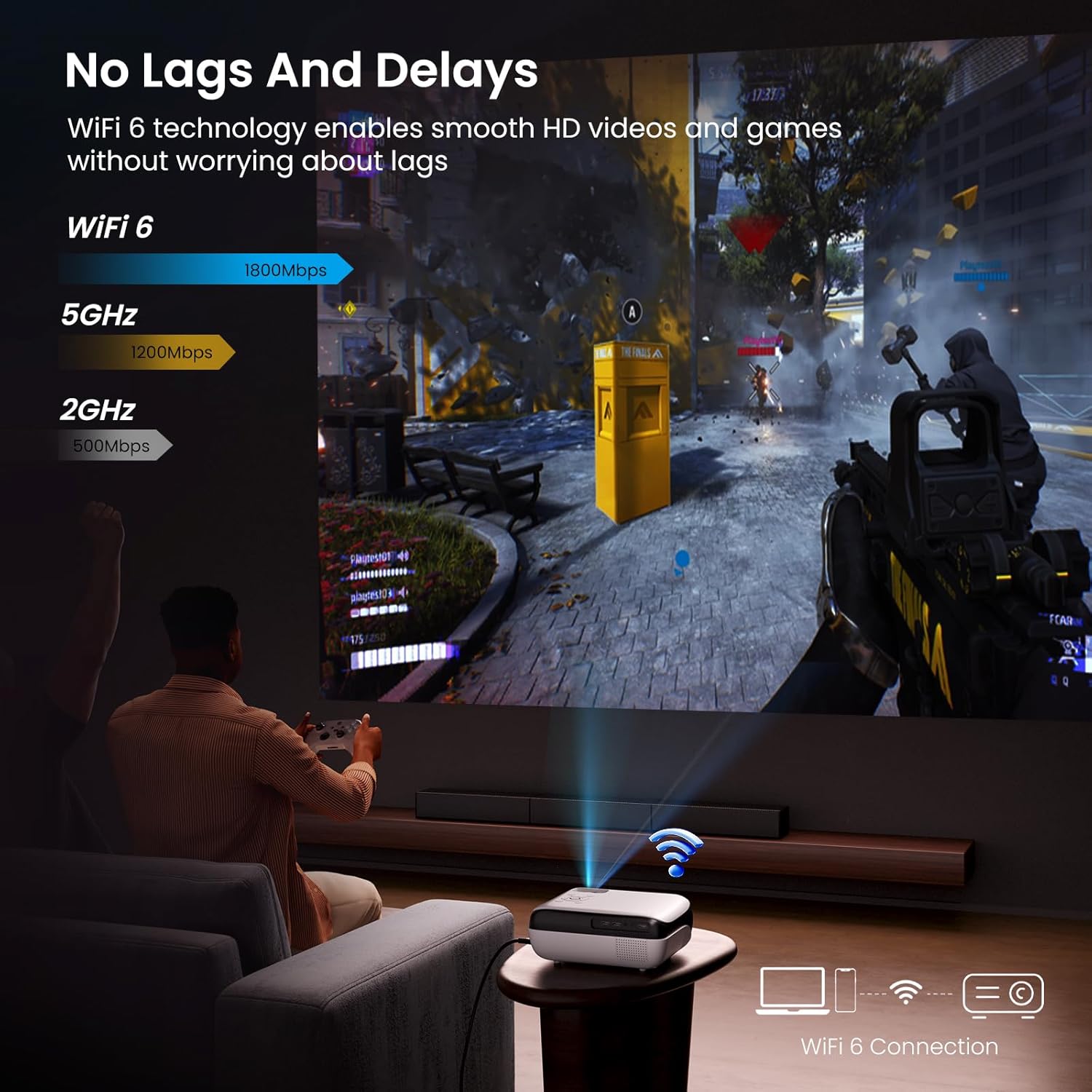
Figure 6: Projector highlighting Dolby Audio support.
6. Özellikler
| Özellik | Detay |
|---|---|
| Model Numarası | 510G |
| Ürün Boyutları | 9.5 x 8.3 x 3.8 inç |
| Ürün Ağırlığı | 4.4 pound |
| Ekran Çözünürlüğü | 1920 x 1080 (4K desteği) |
| Parlaklık | 400 ANSI Lümenleri |
| Bağlantı Teknolojisi | Bluetooth 5.2, Wi-Fi 6, USB, HDMI, 3.5mm Jack |
| Özel Özellikler | Official Licensed Google TV, Google Voice Assistant, 4K Support |
| Önerilen Kullanımlar | Eğitim, Ev Sineması, Oyun, İş |
7. Bakım
Düzenli bakım, projektörünüzün optimum performans göstermesini ve uzun ömürlü olmasını sağlar.
- Lens Temizliği: Use the provided cleaning kit or a soft, lint-free cloth to gently wipe the projector lens. Avoid abrasive materials that could scratch the lens.
- Toz Giderimi: Periodically clean the projector's vents to prevent dust buildup, which can affect performance and lead to overheating.
- Depolamak: When not in use, store the projector in a cool, dry place, ideally in its original packaging or a protective case, to prevent dust accumulation and physical damage.
8. Sorun Giderme
If you encounter issues with your HAPPRUN projector, refer to the following common solutions:
- Güç Yok: Ensure the power cord is securely connected to both the projector and the power outlet. Press the power button firmly.
- No Image/Fuzzy Image:
- Adjust the focus wheel until the image is clear.
- Check keystone correction settings to ensure the image is squared.
- Verify the input source (HDMI, USB) is correctly selected and the external device is powered on.
- Ses Yok:
- Check the volume level on the projector and any connected external devices.
- Harici hoparlörlerin veya kulaklıkların Bluetooth üzerinden doğru şekilde bağlandığından veya eşleştirildiğinden emin olun.
- Verify sound settings in the projector menu.
- Wi-Fi/Bluetooth Bağlantı Sorunları:
- Projektörün Wi-Fi yönlendiriciniz veya Bluetooth cihazınızın menzili içinde olduğundan emin olun.
- Projeksiyon cihazını ve ağ aygıtlarınızı yeniden başlatın.
- Re-pair Bluetooth devices if necessary.
- Ekrandaki Toz Lekeleri: If persistent spots appear, gently clean the lens as described in the Maintenance section.
9. Garanti ve Destek
HAPPRUN is committed to customer satisfaction and provides comprehensive support for your projector:
- 24/7 Müşteri Desteği: Assistance is available around the clock for any queries or issues.
- 30 Günlük Para İade Garantisi: If you are not satisfied with your purchase, you can return it within 30 days for a full refund.
- 2-Year Repair Warranty: Your projector is covered by a 2-year warranty for repairs.
- Ömür Boyu Teknik Destek: Enjoy lifetime technical assistance for your HAPPRUN projector.
For further assistance, please contact HAPPRUN customer support through the official channels provided with your product or visit the HAPPRUN webalan.