
1. Giriş
This manual provides detailed instructions for the installation, operation, and maintenance of your INQMEGA 2.4G WiFi 20X Optical Zoom 6MP Solar Security Camera. This outdoor camera features dual lenses, 20X optical zoom, 6MP resolution, color night vision, and is powered by a solar panel for continuous operation. Please read this manual thoroughly before use to ensure proper setup and functionality.

Resim 1.1: Üzeriview of the INQMEGA Solar Security Camera system.
2. Ürün Bileşenleri
Carefully unpack the box and verify that all the following components are included:
- 1 x INQMEGA Solar Security Camera
- 1 x Güneş Paneli
- 1 x Montaj Braketi
- 1 x Güç Kablosu (USB)
- 1 x Extension Cord
- 1 x Kullanım Kılavuzu (Basılı)
- Set of Mounting Screws and Wall Plugs

Resim 2.1: Paket içeriğindeki tüm bileşenler.
3. Kurulum
3.1 Bileşen Tanımlama
Familiarize yourself with the camera's parts before installation.
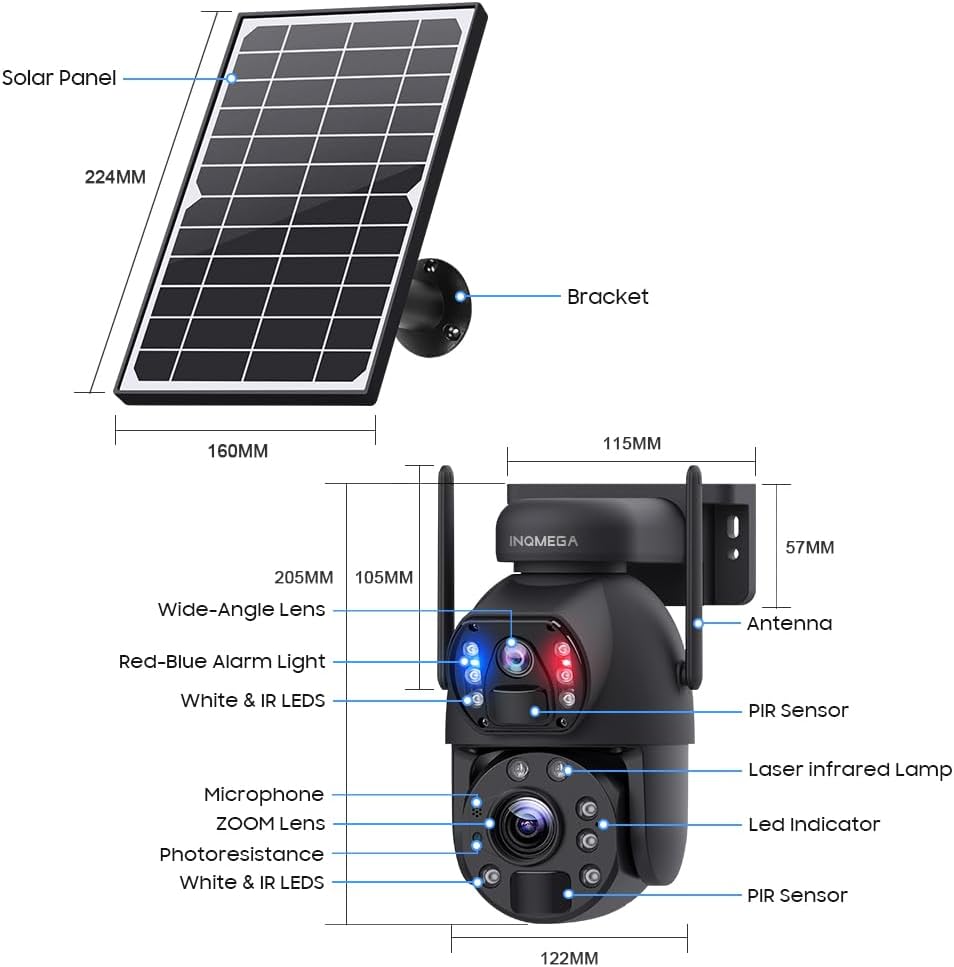
Image 3.1: Camera and Solar Panel Dimensions and Key Components.
3.2 İlk Şarj
Before first use, ensure the camera's internal battery is fully charged. Connect the solar panel to the camera and place the solar panel in direct sunlight for several hours. Alternatively, you can use the provided power cable to charge the camera via a USB power adapter (not included).
3.3 Uygulama İndirme ve Hesap Oluşturma
- İndir UBOX app from your smartphone's app store (iOS App Store or Google Play Store).
- Open the UBOX app and follow the on-screen instructions to create a new account or log in if you already have one.
3.4 Kamera Eşleştirme
- Akıllı telefonunuzun bir ağa bağlı olduğundan emin olun 2.4GHz Wi-Fi ağıBu kamera 5GHz Wi-Fi'yi desteklemiyor.
- Power on the camera. The camera will enter pairing mode, indicated by a specific LED status (refer to the app for exact indications).
- In the UBOX app, tap the "Add Device" or "+" icon.
- Follow the app's instructions to scan the QR code on the camera or manually select the device type.
- İstenildiğinde 2.4GHz Wi-Fi ağınızın adını (SSID) ve şifresini girin.
- The camera will attempt to connect to your Wi-Fi network. Once connected, the app will confirm successful pairing.
3.5 Kurulum Yöntemleri
The camera supports both wall mounting and ceiling hanging. Choose the method that best suits your installation environment.

Resim 3.2: Örn.amples of Ceiling Hanging and Wall Mounting installations.
- Bir konum seçin: Choose an outdoor location with good Wi-Fi signal strength and sufficient direct sunlight exposure for the solar panel.
- Braketin Montajı: Use the provided screws and wall plugs to securely attach the mounting bracket to the desired surface.
- Kamerayı takın: Kamerayı montaj braketine güvenli bir şekilde takın.
- Güneş Panelini Konumlandırın: Adjust the solar panel's angle to maximize sunlight exposure throughout the day. Ensure the cable connecting the solar panel to the camera is securely fastened and protected from the elements.
4. Kullanım Talimatları
4.1 Canlı View ve Çift Ekran
Open the UBOX app and select your camera to access the live view. The camera features a dual-lens system, allowing for a dual-screen display within the app to monitor different areas simultaneously.
4.2 Pan, Tilt ve Yakınlaştırma (PTZ) Kontrolü
The camera supports 355° horizontal pan and 90° vertical tilt. Use the controls within the UBOX app to adjust the camera's viewing angle. The camera also features a 20X optik yakınlaştırma, allowing you to magnify distant objects without significant loss of clarity.

Image 4.1: Demonstration of 20X Optical Zoom capability.
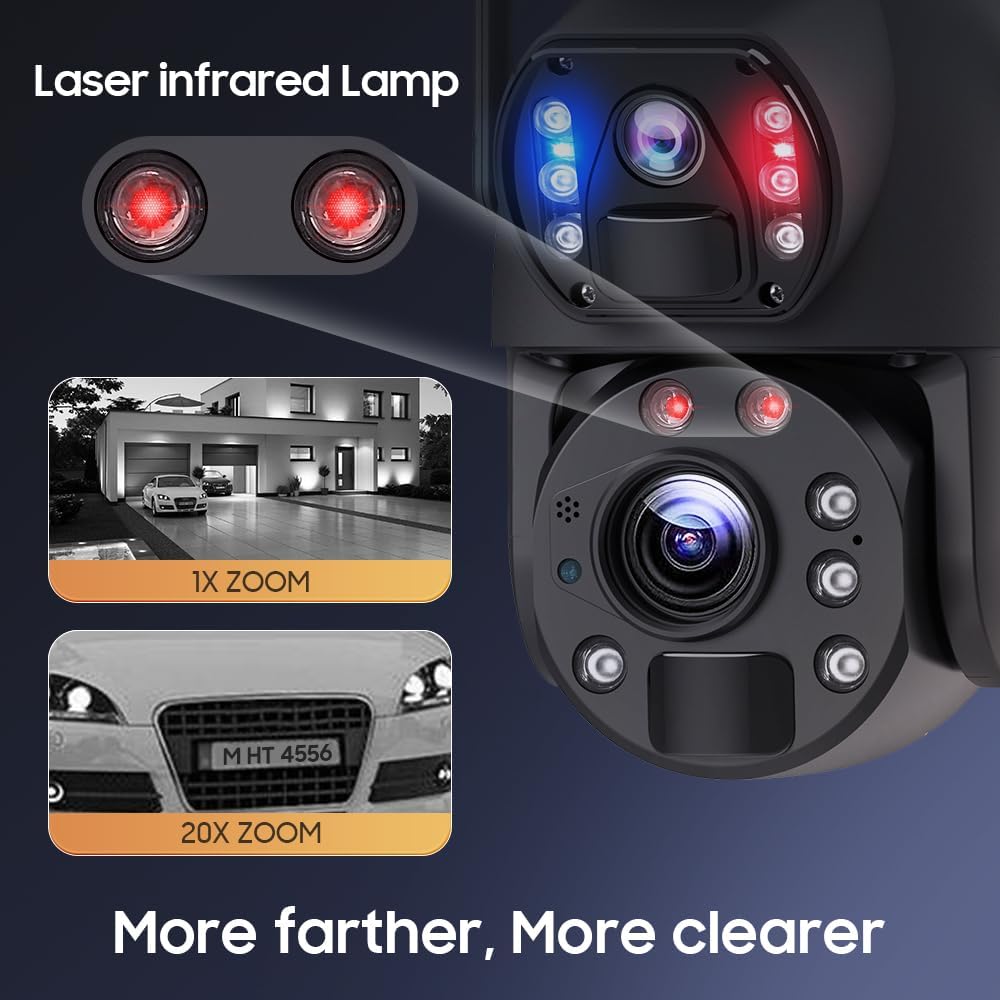
Image 4.2: Enhanced clarity with 20X zoom and laser infrared lamps.
4.3 Gece Görüş Modları
Kamera üç farklı gece görüş modu sunuyor:
- Kızılötesi Gece Görüşü: Düşük ışık koşullarında net siyah beyaz görüntüler sağlar.
- Tam Renkli Gece Görüşü: Utilizes built-in white lights to provide full-color video even in darkness.
- Akıllı Gece Görüşü: Algılanan harekete veya ışık koşullarına bağlı olarak kızılötesi ve tam renkli modlar arasında otomatik olarak geçiş yapar.
4.4 Hareket Algılama ve Uyarılar
The camera features PIR (Passive Infrared) human detection. When motion is detected, the camera will:
- Send an alert notification to your smartphone via the UBOX app.
- Begin recording a short video clip (continuous recording is not supported to conserve battery).
- Activate the siren alarm (if enabled in settings).
You can adjust the sensitivity of motion detection and customize alert settings within the app.
4.5 İki Yönlü Ses
Utilize the built-in microphone and speaker to communicate with visitors or deter intruders directly through the UBOX app.
4.6 Kayıt ve Depolama
Recorded video clips are stored on a local TF card (up to 128GB, not included) or in the Amazon Cloud (subscription may be required). The camera records only when motion is detected to optimize battery life.
4.7 Preset Points and Guards
You can set specific preset points within the app to quickly navigate the camera to important areas. The 'Guards' function allows the camera to patrol between these preset points.

Image 4.3: Setting preset points for monitoring specific areas.
5. Bakım
5.1 Temizlik
- Kamera Lensleri: Gently wipe the camera lenses with a soft, clean, lint-free cloth. Avoid abrasive materials or harsh chemicals.
- Güneş paneli: Periodically clean the surface of the solar panel to remove dust, dirt, or debris that may reduce charging efficiency. Use a soft cloth and water if necessary.
- Kamera Gövdesi: Kamera gövdesini reklamla silinamp cloth to remove any accumulated dirt.
5.2 Pil Bakımı
The camera is equipped with a built-in 12000mAh battery. To maximize battery life:
- Güneş panelinin günlük olarak yeterli doğrudan güneş ışığı aldığından emin olun.
- Minimize unnecessary live view access and frequent motion detections if not critical, as these consume battery power.
- In prolonged periods of low sunlight, consider manually charging the camera via USB if battery levels become critically low.
5.3 Firmware Güncellemesi
Check the UBOX app periodically for available firmware updates. Keeping your camera's firmware up-to-date ensures optimal performance, security, and access to new features.
6. Sorun Giderme
- Kamera Wi-Fi'ye bağlanmıyor:
- Ensure your Wi-Fi network is 2.4GHz. The camera does not support 5GHz Wi-Fi.
- Wi-Fi şifrenizin doğru olduğundan emin olun.
- Check the camera's proximity to the Wi-Fi router (within 15m range).
- Restart your router and the camera. - Görüntü kalitesi düşük:
- Kamera lenslerini temizleyin.
- Ensure there are no obstructions in the camera's field of view.
- Check your Wi-Fi signal strength; a weak signal can affect streaming quality. - Hareket algılama çalışmıyor veya çok hassas:
- Adjust PIR sensitivity settings in the UBOX app.
- Ensure the camera's PIR sensor is not obstructed.
- Avoid placing the camera in areas with constant movement (e.g., tree branches swaying in the wind) if false alarms are an issue. - Pil şarj olmuyor:
- Ensure the solar panel is clean and receiving direct sunlight.
- Check the connection cable between the solar panel and the camera.
- Verify the solar panel is not shaded by trees or buildings. - Siren alarm not activating:
- Check if the siren alarm feature is enabled in the UBOX app settings.
- Ensure the camera has sufficient battery power. - No continuous video recording:
- This camera is designed for event-based recording (motion detection) to conserve battery power. Continuous recording is not supported. - No automatic tracking:
- The camera supports motion detection alerts but does not feature automatic object tracking. Pan and tilt adjustments must be made manually via the app.
7. Özellikler
| Özellik | Şartname |
|---|---|
| Model Numarası | ST-598-6M-20X-WIFI-914 |
| İç/Dış Mekan Kullanımı | Dış mekan |
| Video Yakalama Çözünürlüğü | 6 MP |
| Optik Yakınlaştırma | 20x |
| Bağlantı Teknolojisi | Kablosuz (2.4G Wi-Fi) |
| Güç Kaynağı | Solar Powered (with 12000mAh Lithium Ion battery) |
| Denetleyici Türü | UBOX App |
| Montaj Tipi | Duvara Montaj |
| Pan / Eğim Açısı | 355° Yatay, 90° Dikey |
| Gece Görüşü | Infrared, Full Color, Intelligent Night Color |
| Hareket Algılama | PIR Human Detection (Max 12M) |
| Depolamak | TF Card (Max 128GB, not included), Amazon Cloud |
| Su Direnç Seviyesi | IP66 |
| Malzeme | Metal |
| Ürün Ağırlığı | 0.16 ons |
8. Garanti Bilgileri
Please refer to the warranty card included with your product or contact INQMEGA customer support for detailed warranty terms and conditions. Typically, products are covered against manufacturing defects for a specified period from the date of purchase.
9. Destek
If you encounter any issues or have questions not covered in this manual, please contact INQMEGA customer support through the following channels:
- E-posta: Refer to your product packaging or the INQMEGA official webdestek e-posta adresleri için site.
- Çevrimiçi Kaynaklar: Visit the INQMEGA official webSSS, sorun giderme kılavuzları ve yazılım indirmeleri için site.
- Uygulama İçi Destek: Some support options may be available directly within the UBOX application.