
1. Giriş
The TP-Link Deco BE65 Pro WiFi 7 Mesh System is designed to provide a seamless, high-speed wireless network throughout your home. This 3-pack system utilizes cutting-edge WiFi 7 technology, offering tri-band BE9300Mbps speeds, Multi-Link Operation (MLO), and advanced security features like WPA3. With multiple 5Gbps and 2.5Gbps ports, it ensures robust wired and wireless connectivity for all your devices. This manual will guide you through the setup, operation, maintenance, and troubleshooting of your Deco BE65 Pro system.

Figure 1: A single TP-Link Deco BE65 Pro unit in a home environment.
2. Kutuda Neler Var?
Your TP-Link Deco BE65 Pro (3-Pack) package should contain the following items:
- 3 x Deco BE65 Pro Units
- 3 x Güç Adaptörleri
- 1 x Ethernet Kablosu
- 1 x Hızlı Kurulum Kılavuzu

Figure 2: The product packaging, indicating the contents and model information.
3. Ürün Bittiview
The Deco BE65 Pro units are designed for optimal performance and ease of use. Each unit features multiple high-speed ports and advanced wireless capabilities to create a robust mesh network.
Temel Özellikler:
- WiFi 7 Standard: Experience the latest generation of Wi-Fi with enhanced speed, lower latency, and increased capacity.
- Tri-Band BE9300Mbps: Delivers combined speeds of up to 9300 Mbps across 6 GHz, 5 GHz, and 2.4 GHz bands.
- Çoklu Bağlantı İşlemi (MLO): Simultaneously send and receive data across different bands and channels to boost throughput, reduce latency, and improve reliability.
- High-Speed Ports: Each unit includes two 5Gbps ports and one 2.5Gbps port for ultra-fast wired connections.
- Sorunsuz Dolaşım: Move freely throughout your home with a single Wi-Fi name and uninterrupted connectivity.
- TP-Link HomeShield: Kapsamlı ağ koruması, güçlü ebeveyn denetimi ve gerçek zamanlı IoT güvenliği sağlar.
- WPA3 Güvenliği: Enhanced security protocol for a safer network.
- Geniş Uyumluluk: Backward compatible with all Wi-Fi generations and works with any Internet Service Provider (ISP) and modem.

Şekil 3: Üzeriview of the Deco BE65 Pro's key WiFi 7 features.
Bağlantı Noktaları ve Göstergeler:
Each Deco BE65 Pro unit is equipped with the following ports and indicators:
- LED Göstergesi: Located on the top of the unit, it displays the Deco's status (e.g., solid white for connected, pulsing blue for setup mode, solid red for no internet).
- WAN/LAN Bağlantı Noktaları: Two 5Gbps ports and one 2.5Gbps port. These ports automatically detect WAN or LAN connections.
- USB Bağlantı Noktası: Harici depolama aygıtlarını bağlamak için.
- Güç girişi: Güç adaptörünü bağlamak için.
- Sıfırlama Düğmesi: A small button usually located at the bottom or back, used to reset the unit to factory settings.
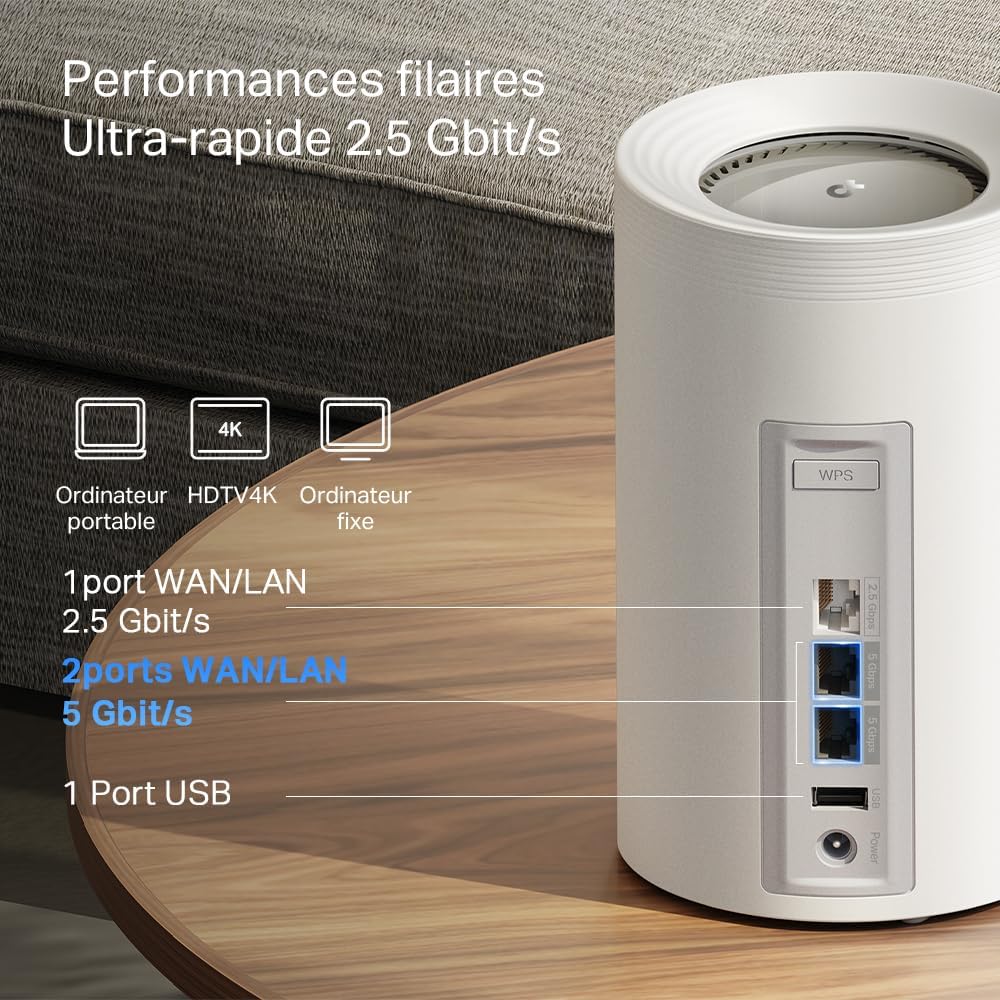
Şekil 4: Ayrıntılı view of the high-speed WAN/LAN and USB ports on a Deco BE65 Pro unit.
Backhaul Solution:
The Deco BE65 Pro system utilizes a robust backhaul solution, combining both wired Ethernet and multiple Wi-Fi bands (6 GHz, 5 GHz, 2.4 GHz) to ensure stable and high-speed communication between Deco units. This multi-gigabit mesh backhaul enhances overall network performance and reliability.

Figure 5: Illustration of the combined wired and wireless backhaul connections between Deco units.
4. Kurulum Talimatları
Setting up your TP-Link Deco BE65 Pro Mesh System is a straightforward process using the Deco app. Follow these general steps:
- Deco Uygulamasını İndirin: Arama "TP-Link Deco" in the App Store (iOS) or Google Play Store (Android) and install the app.
- Modeminizi hazırlayın: Modeminizi kapatın ve (varsa) pilini çıkarın.
- Ana Dekoratif Üniteyi Bağlayın:
- Connect one Deco unit to your modem using the provided Ethernet cable. Use any of the WAN/LAN ports on the Deco.
- Modeminizi açın.
- Plug in the main Deco unit and wait for its LED to pulse blue.
- Set Up via App: Open the Deco app, log in or sign up for a TP-Link ID, and follow the on-screen instructions to set up your main Deco unit.
- Ek Dekoratif Üniteler Ekleyin: Once the main Deco is set up, the app will guide you to add the remaining Deco units. Place them strategically to ensure optimal coverage. Plug in each additional Deco unit and wait for its LED to pulse blue, then follow the app's instructions to add it to your mesh network.
For detailed, step-by-step instructions, refer to the Quick Installation Guide included in your package or the in-app setup wizard.
5. Kullanım Talimatları
The TP-Link Deco app is your central hub for managing your mesh Wi-Fi network. After successful setup, you can use the app to control various aspects of your network.
Network Management via Deco App:
- Gösterge Paneli: View connected devices, network status, and real-time speed.
- Ebeveyn Kontrolleri: profesyonel kurfiles for family members, filter content, set time limits, and pause internet access.
- Hizmet Kalitesi (QoS): Prioritize devices or activities (e.g., gaming, streaming) to ensure optimal performance.
- Misafir ağı: Misafirleriniz için ayrı bir Wi-Fi ağı oluşturarak ana ağınızı güvenli tutun.
- Antivirus & IoT Security: Utilize TP-Link HomeShield features for network protection against malicious threats and to secure your smart home devices.
- Kablosuz bağlantı ayarları: Change your Wi-Fi name (SSID) and password, enable/disable specific bands, and configure advanced settings.
- Sorunsuz Dolaşım: The Deco system automatically connects your devices to the strongest Wi-Fi signal as you move around your home, ensuring a smooth and uninterrupted experience.
6. Bakım
Regular maintenance helps ensure the optimal performance and longevity of your Deco BE65 Pro system.
- Donanım Yazılımı Güncellemeleri: The Deco app will notify you of available firmware updates. It is highly recommended to keep your Deco units updated to benefit from the latest features, security enhancements, and performance improvements. Updates can typically be performed directly through the app.
- Temizlik: Gently wipe the exterior of the Deco units with a soft, dry cloth. Do not use liquid cleaners or abrasive materials. Ensure the units are unplugged before cleaning.
- Optimum Yerleştirme: For best performance, ensure your Deco units are placed in open areas, away from obstructions like large metal objects, thick walls, and other electronic devices that may cause interference. Maintain a clear line of sight between units where possible.
- Yeniden başlatılıyor: Occasionally, rebooting your Deco units and modem can resolve minor network issues and improve performance. This can be done via the Deco app or by unplugging and replugging the power adapters.
7. Sorun Giderme
If you encounter issues with your Deco BE65 Pro system, try the following troubleshooting steps:
- İnternet bağlantısı yok:
- Modeminizin düzgün çalışıp çalışmadığını kontrol edin.
- Ensure the Ethernet cable between the main Deco and the modem is securely connected.
- Reboot your modem and the main Deco unit.
- Check the Deco app for diagnostic tools or error messages.
- Yavaş Wi-Fi Hızı:
- Ensure your Deco units are optimally placed and not too far apart.
- Diğer elektronik cihazlardan kaynaklanan paraziti kontrol edin.
- İnternet planınızın hızını İSS'niz ile doğrulayın.
- Use the Deco app to run a network optimization or speed test.
- Deco Unit Not Connecting:
- Ensure the unit is powered on and its LED is pulsing blue for setup.
- Try moving the unit closer to an existing Deco unit.
- Perform a factory reset on the problematic Deco unit (refer to the Reset Button section in Product Overview) and try adding it again via the app.
- Uygulama Sorunları:
- Ensure your Deco app is updated to the latest version.
- Uygulamayı veya mobil cihazınızı yeniden başlatmayı deneyin.
If these steps do not resolve your issue, please contact TP-Link support for further assistance.
8. Özellikler
Below are the technical specifications for the TP-Link Deco BE65 Pro Mesh System:

Figure 6: Illustration of the ultra-fast tri-band Wi-Fi speeds.
| Özellik | Şartname |
|---|---|
| Marka | TP-Link |
| Model Adı | Deco BE65 Pro |
| Wi-Fi Üretimi | Wi-Fi 7 |
| Kablosuz İletişim Standardı | 802.11be |
| Frekans Bant Sınıfı | Üç Bant (6 GHz, 5 GHz, 2.4 GHz) |
| Veri Aktarım Hızı | Up to 9300 Mbps (BE9300) |
| LAN Bağlantı Noktası Bant Genişliği | 2 x 5000 Mbps, 1 x 2500 Mbps |
| Port Sayısı | 3 (WAN/LAN auto-sensing) |
| Güvenlik Protokolü | WPA3, WPA2-PSK, WPA-PSK |
| Kontrol Yöntemi | Application (TP-Link Deco App) |
| Uyumlu Cihazlar | Surveillance Camera, Personal Computer, Smartphone, Tablet |
| Önerilen Kullanımlar | Ev |
| Anten Tipi | Fixed (4 antennas per unit) |
| İşletim Sistemi | TP-Link Archer OS |
| Akıllı Ev Uyumluluğu | Akıllı ev cihazlarıyla uyumlu |
| Router Firewall Security Level | Yüksek |
| Modem Compatible | Evet |
| Kapsam | Large (with 3 units) |
| Ürün Ağırlığı | 3.51 Kilograms (total for 3 units) |
| Ürün Boyutları U x G x Y | 24.1U x 36G x 11.9Y santimetre |
| Security Updates Received | Evet |
9. Garanti ve Destek
Garanti Bilgileri:
The TP-Link Deco BE65 Pro Mesh System comes with a 2 yıllık garantiLütfen garanti talepleriniz için satın alma belgenizi saklayın.
Teknik Destek:
For technical support, product registration, and further information, please visit the official TP-Link website or contact their customer support. You can usually find support resources, FAQs, and contact details on the TP-Link support page for your region.
The TP-Link Deco app also provides in-app support options and access to helpful resources.