
1. Giriş
This manual provides detailed instructions for the installation, operation, and maintenance of the Novastar TU15PRO LED Vision Controller. Please read this manual thoroughly before using the device to ensure proper and safe operation. The TU15PRO is designed for controlling LED displays, offering robust performance and versatile connectivity.
2. Güvenlik Bilgileri
- Güç Kaynağı: Use only the specified power adapter (AC100-240V 50/60Hz). Ensure the power source is stable and matches the device's requirements.
- Çevre: Operate the device in a dry, well-ventilated area. Avoid exposure to extreme temperatures, humidity, dust, or direct sunlight.
- İşleme: Do not drop, disassemble, or modify the device. Refer all servicing to qualified personnel.
- Kablolar: Ensure all cables are securely connected. Avoid placing heavy objects on cables or bending them sharply.
- Temizlik: Temizlemeden önce elektriği kesin. Yumuşak, kuru bir bez kullanın. Sıvı veya aerosol temizleyiciler kullanmayın.
3. Paket İçeriği
Lütfen paketi açtıktan sonra içeriğini kontrol edin. Herhangi bir ürün eksik veya hasarlıysa, derhal satıcınızla iletişime geçin.
- Novastar TU15PRO LED Vision Controller
- Güç Adaptörü
- USB kablosu
- Kullanım Kılavuzu (bu belge)
4. Ürün Bittiview
The Novastar TU15PRO is a compact and powerful LED vision controller designed for various display applications. It features multiple input and output ports for flexible connectivity.
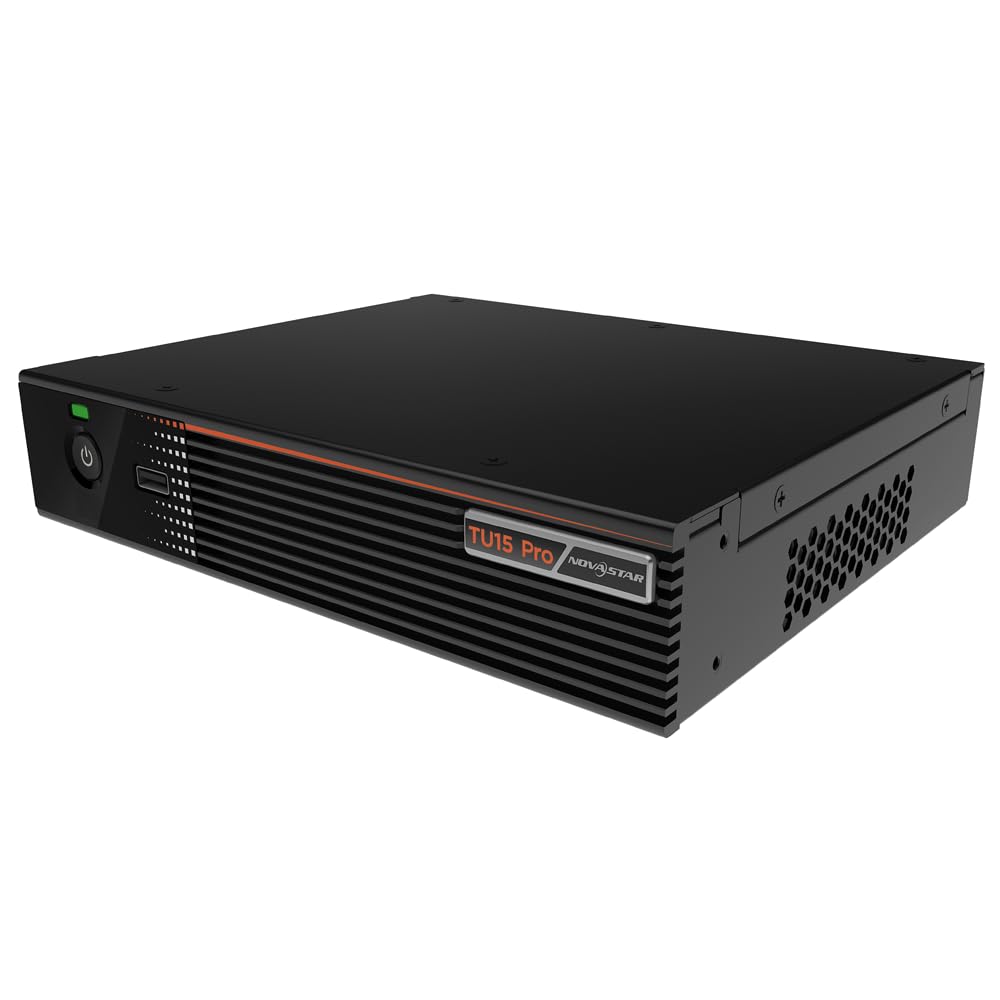
Şekil 4.1: Açısal view of the Novastar TU15PRO LED Vision Controller, highlighting the rear panel with various input and output ports.

Şekil 4.2: Yukarıdan aşağıya view of the Novastar TU15PRO, showing the front panel with power button and USB port, and a detailed view arka panel bağlantılarının.
4.1. Ön panel
- Güç Düğmesi: Cihazı açmak veya kapatmak için kullanılır.
- USB 2.0 Bağlantı Noktası: For connecting USB devices, such as a mouse or keyboard for control, or for firmware updates.
4.2. Arka Panel
- WIFI-AP (1, 2): Wi-Fi Access Point antennas for wireless control or network extension.
- WIFI-STA: Wi-Fi Station antenna for connecting the device to an existing Wi-Fi network.
- SENSÖR: Port for connecting an external sensor.
- IR / I/O G RELAY: Input/Output General Purpose Relay terminal block for external control signals.
- ETERNET: Ethernet port for network connection and control.
- USB 2.0 (x2): Additional USB ports for peripherals or data transfer.
- HDMI IN (x2): HDMI input ports for video sources.
- HDMI ÇIKIŞI: HDMI output port for monitoring or cascading.
- SPDIF: Dijital ses çıkışı.
- AUDIO 12V === 3A: Power input port (DC 12V, 3A).
5. Kurulum
- Paketi aç: Carefully remove the TU15PRO controller from its packaging.
- Antenleri Bağlayın: Attach the Wi-Fi antennas to the WIFI-AP and WIFI-STA ports on the rear panel.
- Video Kaynağını Bağlayın: Connect your video source (e.g., computer, media player) to one of the HDMI IN ports using an HDMI cable.
- Connect to LED Display: Connect the controller's Network Ports (1-4) to your LED display receiving cards using Ethernet cables.
- Gücü bağlayın: Verilen güç adaptörünü bağlayın. AUDIO 12V === 3A port and then plug it into a power outlet.
- Güç Açık: Cihazı açmak için ön paneldeki güç düğmesine basın.
- Network Configuration (Optional): For network control, connect an Ethernet cable to the ETHERNET port or configure Wi-Fi settings.
6. Kullanım Talimatları
Once the device is set up, you can begin operating it. Detailed operation typically involves using dedicated software on a connected computer or through a web arayüz.
- Yazılım Kurulumu: Install the Novastar control software on your computer. Refer to the software's documentation for installation and usage.
- Cihaz Tanıma: Ensure the software recognizes the TU15PRO controller. This may require network configuration or direct USB connection.
- Ekran Yapılandırması: Configure your LED screen parameters within the software, including resolution, cabinet layout, and connection method.
- Giriş Kaynağı Seçimi: Select the desired HDMI input source within the control software.
- İçeriği Görüntüle: Use the software to manage and display content on your LED screen.
7. Bakım
- Düzenli Temizlik: Keep the device free from dust. Use a soft, dry cloth to wipe the exterior. Do not use harsh chemicals or abrasive materials.
- Havalandırma: Aşırı ısınmayı önlemek için havalandırma açıklıklarının engellenmediğinden emin olun.
- Donanım Yazılımı Güncellemeleri: Periodically check the Novastar official website for firmware updates to ensure optimal performance and access to new features. Follow the update instructions carefully.
- Kablo yönetimi: Keep cables organized and free from kinks or damage to prevent signal loss or power issues.
8. Sorun Giderme
- Güç Yok:
- Güç adaptörünün hem cihaza hem de elektrik prizine güvenli bir şekilde bağlı olup olmadığını kontrol edin.
- Elektrik prizinin çalışır durumda olduğundan emin olun.
- Görüntü Çıkışı Yok:
- Ensure HDMI input source is active and correctly connected.
- Verify Ethernet cables to the LED display are properly connected.
- Check screen configuration in the control software.
- Device Not Recognized by Software:
- Confirm network settings (IP address, subnet mask) are correct if using Ethernet.
- Ensure USB cable is connected if using direct USB control.
- Temporarily disable firewall or antivirus software to check for interference.
- Kesintili Sinyal:
- Tüm kablo bağlantılarında gevşeklik veya hasar olup olmadığını kontrol edin.
- Ensure cables are of appropriate quality and length for the signal type.
9. Özellikler
| Özellik | Tanım |
|---|---|
| Marka | Yeni Yıldız |
| Örnek | TU15PRO |
| Giriş Gücü | AC100-240V 50 / 60Hz |
| Body Size (L×W×H) | 211.7mm × 185.0mm × 50.6mm |
| Control Dots | 2,600,000 |
| Output LAN | Network Port × 4 |
| Max Output Width | 4096 piksel |
| Maksimum Çıkış Yüksekliği | 1920 piksel |
| ASIN | B0D791C3C7 |
10. Garanti ve Destek
For warranty information and technical support, please refer to the official Novastar webYetkili satıcınızla iletişime geçin veya siteyi ziyaret edin. Garanti talepleriniz için satın alma belgenizi saklayın.
Çevrimiçi Kaynaklar: For the latest drivers, software, and additional documentation, please visit the official Novastar support page.