
giriiş
The Keychron M7 is a versatile wireless gaming optical mouse designed for optimal performance and comfort. It features tri-mode connectivity (2.4 GHz wireless, Bluetooth 5.1, and wired USB), a high-precision PixArt 3395 sensor, and a lightweight ergonomic design. This manual provides instructions for setting up, operating, maintaining, and troubleshooting your Keychron M7 mouse.

Figure 1: Keychron M7 Wireless Gaming Optical Mouse (White)
Paket İçeriği
Please ensure all the following items are included in your Keychron M7 package:
- Keychron M7 Kablosuz Fare
- Type-C 2.4 GHz Receiver
- Tip-A 2.4 GHz Alıcı
- Şarj Edilebilir Pil (önceden takılmış)
- USB-C - USB-A Kablosu (şarj ve kablolu bağlantı için)
Ürün Özellikleri
- Üç Modlu Bağlantı: Seamlessly switch between 2.4 GHz wireless, Bluetooth 5.1, and wired USB connections.
- Yüksek Hassasiyetli Sensör: Equipped with the PixArt 3395 sensor, offering up to 26,000 DPI and 650 IPS for accurate tracking.
- Hafif ve Ergonomik Tasarım: Weighing only 63 grams with an ergonomic curved design and grip patterns for comfortable extended use.
- Özelleştirilebilir Düğmeler: Programmable macro buttons and settings via the Keychron Engine software.
- Uzun Pil Ömrü: Up to 70 hours of continuous use on a single charge with an 800mAh battery.
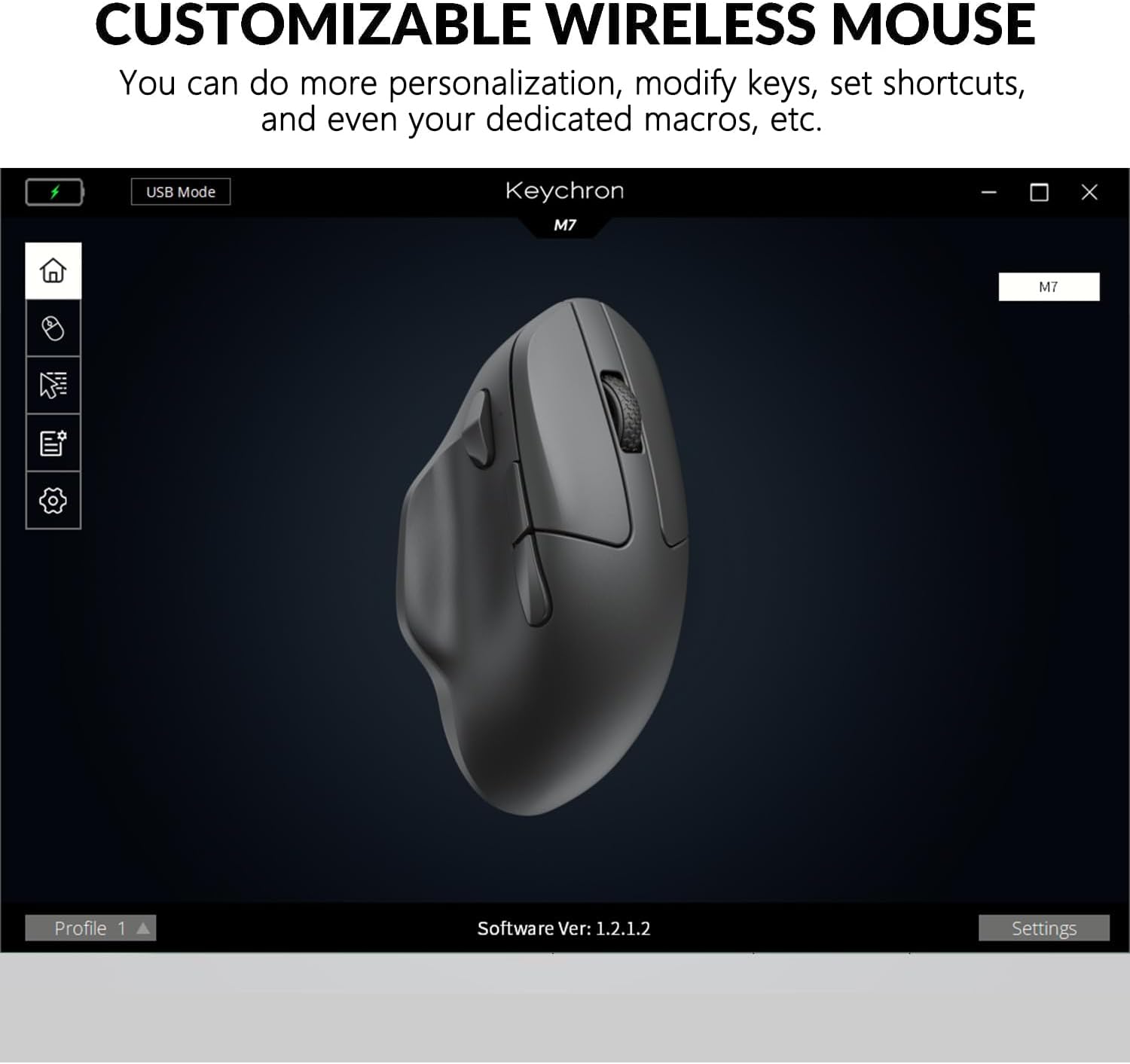
Figure 2: Keychron M7 features: 70-hour battery life and 26,000 DPI sensor.
Başlarken
1. Fareyi Şarj Etme
Before first use, it is recommended to fully charge the mouse. Connect the provided USB-C to USB-A cable to the mouse's USB-C port and the other end to a powered USB port on your computer or a USB charger. The LED indicator will show charging status.
2. Fareyi Bağlama
The Keychron M7 offers three connection modes:
- Kablolu Mod: Connect the mouse directly to your computer using the USB-C to USB-A cable. The mouse will function immediately and charge simultaneously.
- 2.4 GHz Kablosuz Modu:
- Locate the 2.4 GHz receiver (either Type-C or Type-A).
- Alıcıyı bilgisayarınızdaki kullanılabilir bir USB bağlantı noktasına takın.
- On the bottom of the mouse, slide the switch to the 'G' (2.4 GHz) position. The mouse will automatically connect.
- Bluetooth 5.1 Modu:
- Farenin alt kısmındaki düğmeyi 'B' (Bluetooth) konumuna getirin.
- Press and hold the Bluetooth pairing button (usually located near the mode switch) until the LED indicator starts blinking, indicating pairing mode.
- On your computer, open Bluetooth settings and search for new devices. Select "Keychron M7" from the list to pair.

Figure 3: Keychron M7 2.4 GHz receivers and polling rate indicator table.
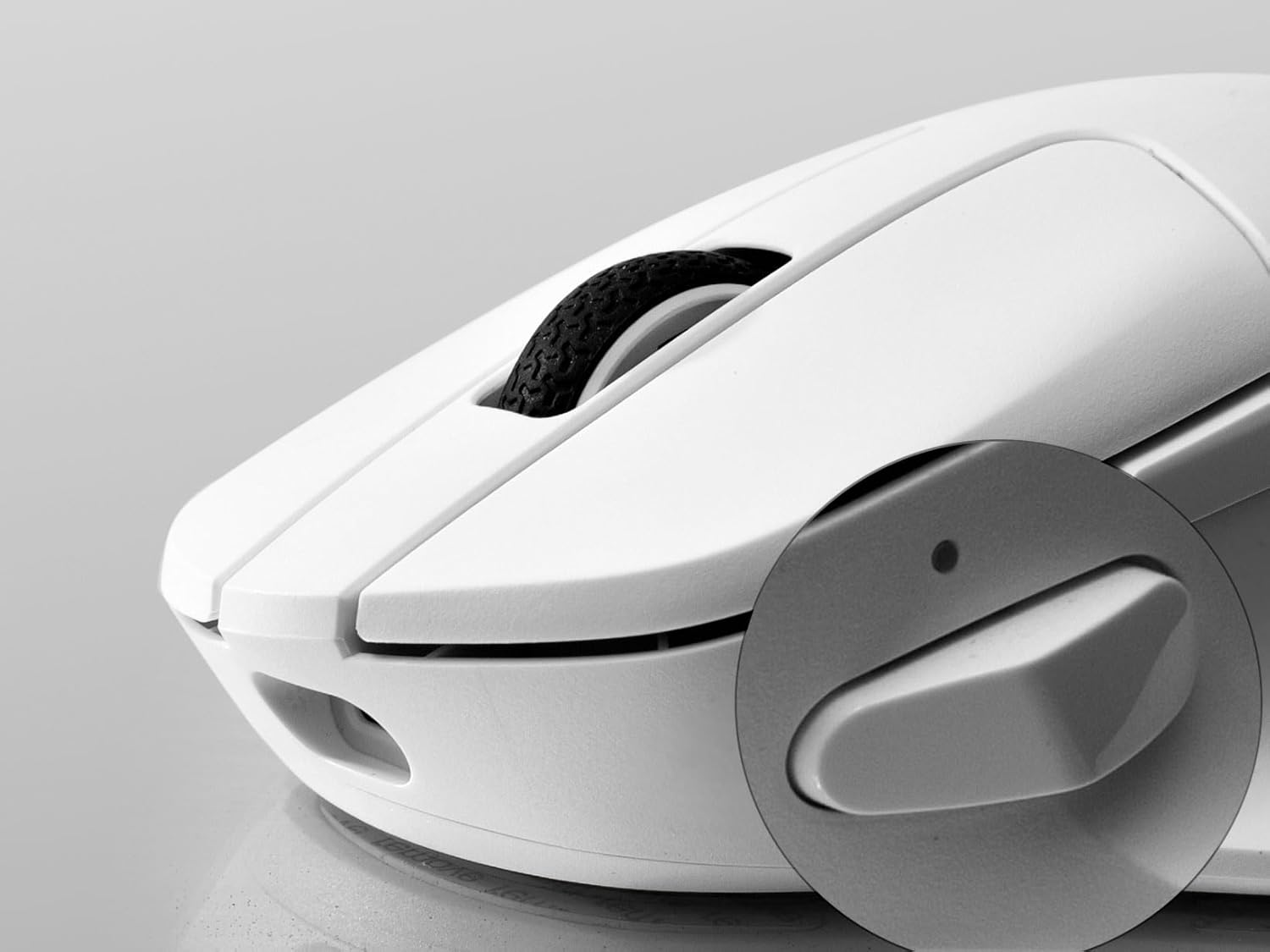
Figure 4: Mouse bottom with G/OFF/B mode switch and pairing button.
Fareyi Çalıştırma
DPI Ayarlaması
The Keychron M7 allows for on-the-fly DPI adjustment. Use the dedicated DPI button on the bottom of the mouse to cycle through preset DPI levels. The LED indicator will change color to indicate the current DPI setting.
Oylama Oranı Ayarlaması
In 2.4 GHz or Wired mode, you can adjust the polling rate using the 'RPT' button on the bottom of the mouse. Press this button to switch between 125 Hz (White LED), 500 Hz (Blue LED), and 1000 Hz (Red LED).
Programmable Buttons and Macros
The Keychron M7 features programmable buttons. To customize button functions, set shortcuts, or create dedicated macros, download and install the Keychron Engine software from the official Keychron website. The software also allows for professional settings like Lift-Off Distance (LOD) and further DPI customization.

Figure 5: DPI switch and macro button location.

Figure 6: Keychron Engine software interface for customization.
Bakım
Temizlik
To maintain optimal performance and appearance, regularly clean your Keychron M7 mouse. Use a soft, dry, lint-free cloth to wipe the surface. For stubborn dirt, slightly dampBezi su veya hafif bir elektronik temizleyici ile silin. Sert kimyasallar veya aşındırıcı malzemeler kullanmaktan kaçının.
Pil Bakımı
The Keychron M7 uses a rechargeable Lithium Polymer battery. To prolong battery life:
- Pilin sık sık tamamen boşaltılmasından kaçının.
- Uzun süre kullanılmayacaksa fareyi serin ve kuru bir yerde saklayın.
- Charge the mouse using the provided cable or a certified USB charger.
Sorun giderme
- Fare yanıt vermiyor: Ensure the mouse is charged. Check the mode switch on the bottom of the mouse is set correctly (G for 2.4 GHz, B for Bluetooth, or connected via cable). For wireless modes, ensure the receiver is properly plugged in or Bluetooth is paired.
- Kablosuz modda gecikme veya bağlantı kopmaları: Try moving the receiver closer to the mouse. Ensure there are no strong interfering signals (e.g., other 2.4 GHz devices, Wi-Fi routers) nearby. Switch to a different USB port for the receiver.
- DPI or button issues: Ensure the Keychron Engine software is installed and updated. Check your settings within the software. Reset the mouse to factory defaults if necessary (refer to software instructions).
- Fare imleci düzensiz hareket ediyor: Farenin altındaki optik sensörü temizleyin. Fareyi uygun bir yüzeyde kullandığınızdan emin olun (fare altlığı önerilir).
Teknik Özellikler
| Özellik | Şartname |
|---|---|
| Örnek | Keychron M7 Kablosuz Fare |
| Bağlantı | 2.4 GHz Kablosuz, Bluetooth 5.1, USB Kablolu |
| Sensör | PixArt 3395 Optik Sensör |
| DPI Aralığı | 26,000 DPI'a kadar |
| IPS | 650 IPS |
| Hızlanma | 50G |
| Anket Oranı | 125 Hz, 500 Hz, 1000 Hz (adjustable) |
| Ağırlık | 63 gram (yaklaşık 2.22 ons) |
| Boyutlar (U x G x Y) | 127.7 x 77.1 x 40.5 mm (4.8 x 2.95 x 1.97 inç) |
| Pil | 800mAh Lityum Polimer (şarj edilebilir) |
| Pil Ömrü | 70 saate kadar (tek şarj) |
| Uyumluluk | Windows PC, Mac |

Figure 7: Keychron M7 mouse dimensions.
Garanti ve Destek
Keychron products are covered by a limited warranty against manufacturing defects. For specific warranty terms and conditions, please refer to the warranty information provided with your purchase or visit the official Keychron website. For technical support, troubleshooting assistance, or to download the Keychron Engine software, please visit the Keychron support page: