
1. Giriş
This manual provides essential information for setting up, operating, and maintaining your HP Series 5 27-inch FHD Monitor. Please read these instructions carefully before using your monitor to ensure optimal performance and safety.
The HP Series 5 27-inch FHD Monitor is designed for comfortable viewing with features like Eye Safe certification, 99% sRGB color accuracy, IPS technology for wide viewing angles, a 100 Hz refresh rate, and an anti-glare screen. Its micro-edge design offers an immersive visual experience.
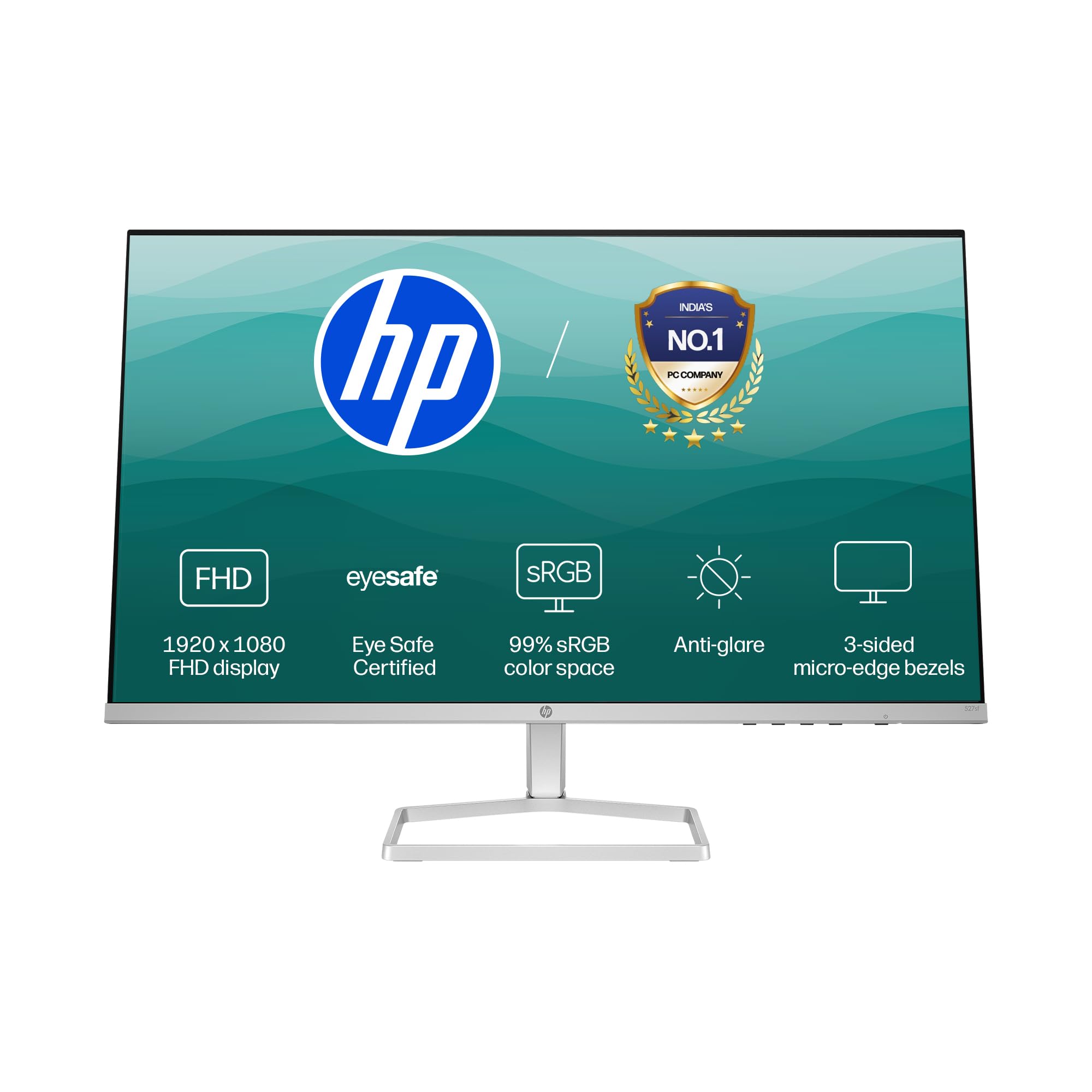
Image: HP Series 5 27-inch FHD Monitor, showcasing its sleek design on a desk.
2. Kutuda Neler Var?
Ambalajda tüm bileşenlerin mevcut olduğunu doğrulayın:
- HP Series 5 27-inch FHD Monitor
- Monitör Standı (Taban ve Boyun)
- HDMI Kablosu
- Güç Adaptörü
- AC Güç Kablosu
- Dokümantasyon (Hızlı Kurulum Kılavuzu, Garanti Kartı)

Image: Illustration of the monitor and its included accessories: monitor, HDMI cable, power adapter, and AC power cord.
3. Kurulum Talimatları
3.1 Monitör Standının Montajı
- Monitör ve stand bileşenlerini ambalajından dikkatlice çıkarın.
- Standın boyun kısmını monitör paneline takın. Yerine sağlam bir şekilde oturduğundan emin olun.
- Attach the stand base to the stand neck. Tighten any screws if provided, typically located on the underside of the base.
- Montajı tamamlanmış monitörü sağlam, düz bir yüzeye yerleştirin.
3.2 Monitörü Bağlama
The monitor supports both HDMI and VGA connections.
- Güç Bağlantısı: Connect the power adapter to the monitor's power input port, then plug the AC power cord into the adapter and a wall outlet.
- Video Bağlantısı:
- For HDMI: Connect one end of the HDMI cable to an HDMI port on your computer and the other end to one of the two HDMI 1.4 ports on the monitor.
- For VGA: Connect one end of the VGA cable to the VGA port on your computer and the other end to the VGA port on the monitor.
- Tüm kabloların güvenli bir şekilde bağlandığından emin olun.

Resim: Arka view of the HP Series 5 monitor, highlighting the VGA port and two HDMI 1.4 ports for device connectivity.
4. Monitörü Çalıştırma
4.1 Güç Açma/Kapatma
Press the power button, usually located on the bottom right bezel or rear of the monitor, to turn the monitor on or off. The power indicator light will illuminate when the monitor is on.
4.2 Ekran Üstü Görüntüleme (OSD) Menü Gezintisi
Use the physical buttons on the monitor (typically on the bottom right or rear) to access and navigate the On-Screen Display (OSD) menu. This menu allows you to adjust various display settings.
- Giriş Seçimi: Use the OSD or a dedicated input button to switch between connected devices (e.g., HDMI 1, HDMI 2, VGA). The monitor may also auto-detect active inputs.
- Parlaklık/Kontrast: Bu ayarları kendinize uygun şekilde düzenleyin. viewing environment. The monitor offers 300 nits brightness for clear visuals.
- Renk ayarları: Fine-tune color temperature, gamma, and other color parameters. The monitor provides 99% sRGB color accuracy for vivid and realistic colors.
- Resim Modları: Select from preset picture modes optimized for different content types (e.g., Standard, Gaming, Movie).

Image: The HP Series 5 monitor showcasing its bright display, emphasizing 300 nits brightness for clear visuals.

Image: The HP Series 5 monitor displaying rich and realistic colors, highlighting its 99% sRGB color accuracy.
4.3 Göz Konforu Özellikleri
The monitor is equipped with HP Eye Ease and Eyesafe certification, which limits blue light emissions to reduce eye strain without compromising color accuracy. This feature is always-on and does not require OSD adjustments.

Image: The HP Series 5 monitor displaying a dynamic scene, demonstrating its low blue light feature for comfortable extended viewIng.
4.4 IPS Technology and Refresh Rate
IPS (In-Plane Switching) technology ensures consistent image accuracy and vivid colors across wide 178-degree horizontal and vertical viewing angles. The 100 Hz refresh rate provides smooth scrolling and fluid motion, enhancing your viewDeneyim.

Image: The HP Series 5 monitor displaying a colorful jungle scene, highlighting the vivid colors and crystal-clear viewing from all angles due to IPS technology.
5. Bakım
5.1 Monitörün Temizlenmesi
- Temizlemeden önce daima monitörü kapatın ve güç kablosunu çıkarın.
- Hafifçe yumuşak, tüy bırakmayan bir bez kullanın.ampSu veya aşındırıcı olmayan bir ekran temizleyicisi ile temizleyin.
- Ekranı ve dış yüzeyleri nazikçe silin. Aşırı baskı uygulamaktan kaçının.
- Do not use alcohol, ammonia-based cleaners, or abrasive materials, as these can damage the anti-glare coating and plastic surfaces.
5.2 Genel Bakım
- Monitörün veya kablolarının üzerine ağır cisimler koymaktan kaçının.
- Monitörü doğrudan güneş ışığından, ısı kaynaklarından ve aşırı nemden uzak tutun.
- Aşırı ısınmayı önlemek için monitörün çevresinde uygun havalandırma olduğundan emin olun.
- Utilize the integrated cable containment features to manage wires and reduce clutter.

Resim: Arka view of the HP Series 5 monitor, illustrating its design for less clutter around the workspace with integrated cable management.
6. Sorun Giderme
Monitörünüzle ilgili sorunlarla karşılaşırsanız aşağıdaki yaygın çözümlere başvurun:
- Güç Yok: Ensure the power cord is securely connected to the monitor and a working power outlet. Check the power adapter connection.
- Görüntü/Sinyal Yok: Verify that the video cable (HDMI or VGA) is correctly connected to both the monitor and your computer. Ensure the correct input source is selected via the OSD menu. Try restarting your computer.
- Titreyen veya Bozuk Görüntü: Check the video cable for damage or loose connections. Ensure your computer's display resolution and refresh rate are compatible with the monitor's specifications.
- Display Anomalies (e.g., light bleeding): While minor variations can occur, if you notice significant or distracting light bleeding, especially from the edges, ensure the monitor is properly seated on its stand and that no external pressure is being applied to the screen. If the issue persists, contact HP support.
- Yanıt Vermeyen Düğmeler: Monitörün güç kablosunu çıkarın, 15 saniye bekleyin, ardından tekrar takın ve yeniden deneyin.
7. Özellikler
| Özellik | Şartname |
|---|---|
| Marka | HP |
| Model Numarası | 94F45AA |
| Ekran Boyutu | 27 İnç (68.6 cm) |
| Çözünürlük | FHD 1080p (1920 x 1080) |
| En Boy Oranı | 16:9 |
| Ekran Yüzeyi Açıklaması | Parlama Önleyici |
| Kontrast Oranı | 1500:1 |
| Yenileme Hızı | 100 Hz |
| Görüntü Türü | LCD (IPS Panel) |
| ViewAçı | 178 Derece (Yatay/Dikey) |
| Görüntü parlaklığı | 300 nit |
| Tepki Süresi | 5 Milisaniye |
| Bağlantı | 2 x HDMI 1.4, 1 x VGA |
| Uyarlanabilir Senkronizasyon | Serbest Senkronizasyon |
| Ürün Özellikleri | Flicker-Free, HP Eye Ease with Eyesafe certification |
| Ürün Boyutları (D x G x Y) | 18.8D x 60.8G x 43.7Y Santimetre |
| Ürün Ağırlığı | 3.2 Kilogram |
| UPC | 197498944876 |
8. Garanti Bilgileri
This HP Series 5 27-inch FHD Monitor comes with a 3 yıl yerinde garanti. Please retain your proof of purchase for warranty claims. For detailed terms and conditions, refer to the warranty card included in your product packaging or visit the official HP support webalan.
9. Destek
For further assistance, technical support, or service inquiries, please contact HP Customer Support. You can find contact information on the official HP webBu bilgiye siteden veya monitörünüzle birlikte verilen belgelerden ulaşabilirsiniz.
For ergonomic setup guidance, refer to the HP Display Center software, which can help you customize your comfort settings.
Üretici: HP, HP India Sales Pvt. Ltd.
İthalatçı İletişim Bilgileri: HP India Sales Private Limited, No. 24, Kothari Arena, Hosur Main Road, Adugodi, Bangalore, Karnataka, India, 560030
10. Çevresel Bilgiler
The HP Series 5 monitor is designed with sustainability in mind:
- Designed from recycled materials and ocean-bound plastics.
- EPEAT® registered.
- ENERGY STAR® sertifikalı.

Image: The HP Series 5 monitor displayed with environmental elements, emphasizing its construction from recycled materials and ocean-bound plastics, EPEAT registration, and ENERGY STAR certification.