
ezcap ezcap_usb2_video_capture_card
Ezcap USB 2.0 Video Capture Card User Manual
Model: ezcap_usb2_video_capture_card
1. Giriş
The Ezcap USB 2.0 Video Capture Card is designed to convert analog video sources, such as VHS tapes, VCRs, Hi8 camcorders, and other devices with CVBS (RCA) or S-Video outputs, into digital format. This device connects to your computer via USB 2.0 and supports video capture up to 480p resolution. It is compatible with Windows, Mac, and Linux operating systems, providing a versatile solution for preserving your old video memories.
Key features include driver-free operation, support for both PAL and NTSC TV standards, and bundled video editing software for Windows to facilitate editing and conversion to various digital formats.
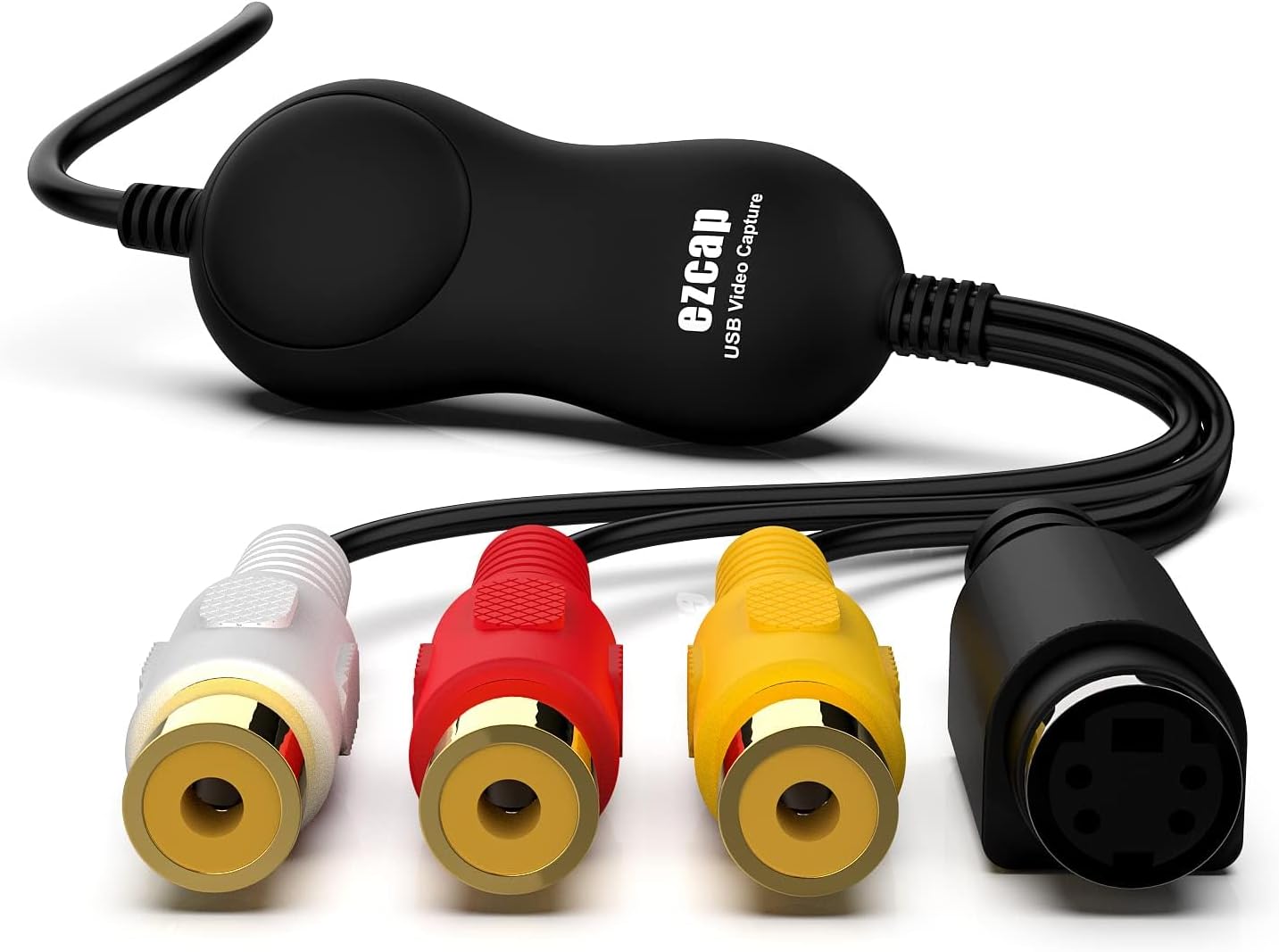
Figure 1: Ezcap USB 2.0 Video Capture Card with its composite video (yellow), stereo audio (red and white), and S-Video inputs.
2. Kurulum Kılavuzu
Follow these steps to set up your Ezcap USB 2.0 Video Capture Card:
- Bağlayıcıları Tanımlayın: The capture card features a USB 2.0 connector for your computer, and RCA (yellow for video, red for right audio, white for left audio) and S-Video inputs for your analog source device.
- Connect to Analog Source: Connect the RCA or S-Video cables from your analog source device (e.g., VCR, camcorder) to the corresponding inputs on the Ezcap capture card. Ensure video (yellow) and audio (red, white) cables are correctly matched.
- Bilgisayara Bağlan: Plug the USB 2.0 connector of the Ezcap capture card into an available USB port on your computer (laptop or desktop).
- Yazılım Kurulumu (Windows): For Windows users, the device typically comes bundled with video capture and editing software (e.g., Honestech VHS to DVD 3.0 SE). Install this software from the provided disc or download it from the official ezcap website as instructed in the included quick start guide. A software key may be required during installation.
- Driver-Free Operation (Mac/Linux): For Mac and Linux systems, the device is driver-free (UVC compliant). It should be recognized automatically by your operating system. You can use compatible third-party software like QuickTime (on Mac) or OBS Studio (on Linux/Mac/Windows) for video capture.

Figure 2: Labeled diagram of the USB, Audio (L/R), CVBS (Composite Video), and S-Video connectors on the capture card.

Figure 3: The Ezcap capture card connected to a laptop, illustrating its use with various analog video sources like VHS players, VCRs, and camcorders.
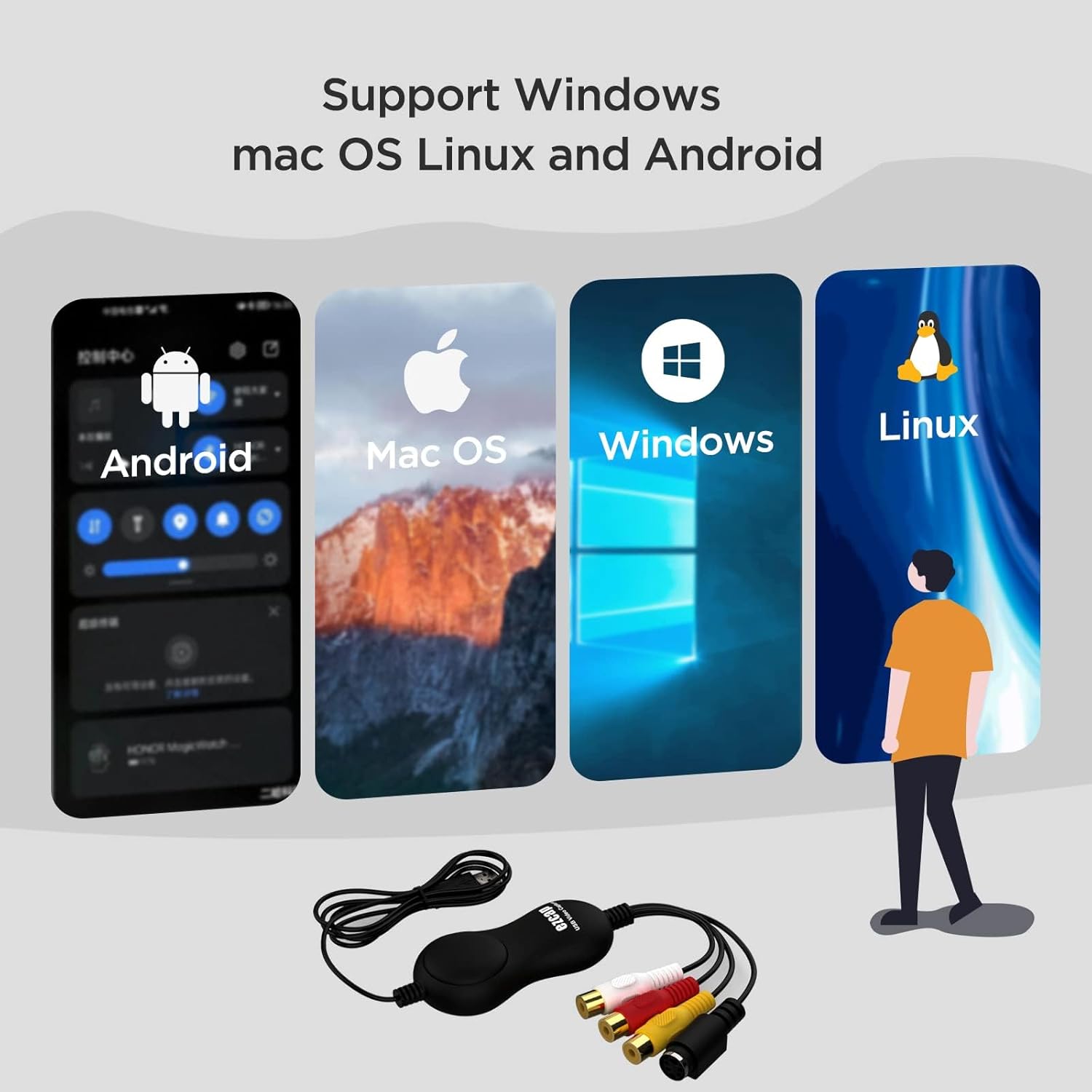
Figure 4: The Ezcap capture card supports various operating systems including Android, Mac OS, Windows, and Linux.
3. Kullanım Talimatları
Once the hardware is connected and software is ready, you can begin capturing video:
- Launch Capture Software: Bilgisayarınızda yüklü olan video yakalama yazılımını açın.
- Cihaz seç: In the software settings, select the Ezcap USB 2.0 Video Capture Card as your video and audio input device.
- Önview Video: Start playing the video on your analog source device. You should see the video preview in the capture software window.
- Kaydı Başlat: Click the "Record" button within the software to begin capturing the analog video. The capture process occurs in real-time, meaning a 2-hour tape will take 2 hours to digitize.
- Monitor and Stop: Monitor the recording progress. Once your video content has finished playing, click the "Stop" button in the software.
- Save and Edit: The captured video will be saved to your designated folder (e.g., "VHS to DVD" under your documents folder for Honestech software). You can then use the software's editing features to trim, enhance, or convert the video to various digital formats (e.g., MP4, AVI) or burn it to DVD.

Figure 5: The video capture software interface displayed on a laptop, showing options for capturing, editing, and burning video.

Figure 6: The Ezcap capture card actively converting video from a media player to a laptop, demonstrating the real-time recording process.
Video Tutorial: How to use ezcap158 UVC Video Capture
This video demonstrates the setup and basic operation of the ezcap158 UVC Video Capture device, showing how to connect it to a source and a computer, and how to initiate video capture. (Duration: 0:30)
4. Bakım
To ensure the longevity and optimal performance of your Ezcap USB 2.0 Video Capture Card, follow these maintenance guidelines:
- Temizlik: Use a soft, dry cloth to clean the device. Avoid using liquid cleaners or solvents, as they may damage the components.
- Depolamak: Cihazı serin, kuru ve doğrudan güneş ışığından ve aşırı sıcaklıklardan uzak bir yerde saklayın.
- İşleme: Handle the device and its connectors with care. Avoid bending or pulling the cables excessively, which can damage internal wiring.
- Bağlantı: Ensure USB ports and analog connectors are free from dust and debris before connecting the device.
5. Sorun Giderme
If you encounter issues while using your Ezcap USB 2.0 Video Capture Card, refer to the following common problems and solutions:
- Video Sinyali Yok:
- Ensure all RCA or S-Video cables are securely connected to both the analog source and the capture card.
- Verify that the analog source device (VCR, camcorder) is powered on and playing video.
- Check the input selection in your capture software to ensure the correct video input (CVBS or S-Video) is chosen.
- Ses Yok:
- Confirm that the red and white RCA audio cables are correctly connected.
- Check the audio input settings in your capture software.
- Ensure the volume on your computer and the analog source device is not muted or too low.
- Cihaz Bilgisayar Tarafından Tanınmadı:
- USB kablosunu bilgisayarınızdaki farklı bir USB bağlantı noktasına takmayı deneyin.
- Bilgisayarınızı yeniden başlatın.
- For Windows, ensure the necessary software is installed. For Mac/Linux, verify that your operating system is up-to-date and compatible.
- Poor Video Quality / Grainy Image:
- The quality of the digitized video will reflect the quality of the original analog source. Older VHS tapes may naturally appear grainy.
- If your source device supports S-Video, use an S-Video connection instead of CVBS (RCA yellow) for potentially better video quality, as S-Video separates luminance and chrominance signals.
- Ensure proper lighting if capturing from a camcorder.
6. Özellikler
| Özellik | Detay |
|---|---|
| Marka | ezap |
| Model Adı | ezcap158 |
| Ürün Model Numarası | ezcap_usb2_video_capture_card |
| Donanım Arayüzü | USB 2.0 |
| Video Yakalama Çözünürlüğü | 480p |
| giriş Arabirim | CVBS (RCA Composite Video), S-Video |
| Desteklenen İşletim Sistemleri | Windows 7, Windows 8, Windows 10, Linux, Mac OS |
| Ürün Ağırlığı | 4.6 ons |
| Paket Boyutları | 6.38 x 5.83 x 1.85 inç |
| Menşei ülke | Çin |

Figure 7: The retail box contents, including the Ezcap USB 2.0 Video Capture Card and the quick start guide.
7. Garanti ve Destek
For specific warranty information, please refer to the documentation included with your product at the time of purchase. General support for Ezcap products can be found on the official Ezcap website. For technical assistance or inquiries, please contact Ezcap customer support through their official channels.