
1. Giriş
This manual provides detailed instructions for the setup, operation, and maintenance of your dockteck USB 3.0 to SATA Dual Bay Hard Drive Docking Station. Please read this manual thoroughly before using the device to ensure proper functionality and to prevent data loss.

Image: The dockteck Dual Bay Hard Drive Docking Station, a device designed for external hard drive access and cloning.
2. Paket İçeriği
Paketin içinde tüm öğelerin mevcut olduğundan emin olun:
- 1 x dockteck HDD Docking Station
- 1 x 12V/3A Power Adapter (cable length: 4.9ft)
- 1 x USB 3.0 Data Cable (cable length: 3.3ft)
- 1 x Kullanım Kılavuzu (bu belge)
3. Özellikler
| Donanım Arayüzü | USB 3.0 |
| Marka | dockteck |
| Ürün Boyutları | 5.47"U x 4.33"G x 2.6"Y |
| Donanım Platformu | Windows 7, 8, 10, Mac OS X, Linux |
| Bellek Depolama Kapasitesi | 20 TB'a kadar |
| Uyumlu Cihazlar | Desktop, PC (2.5''/3.5'' SATA SSDs/HDDs) |
| Sabit Disk Form Faktörü | 2.5 inç, 3.5 inç |
| Desteklenen Cihaz Sayısı | 2 |
| Veri Aktarım Hızı | Saniyede 5 Gigabit (USB 3.0) |
| Muhafaza Malzemesi | Akrilonitril Bütadien Stiren (ABS) |
| Ürün Ağırlığı | 0.5 Pound |
| Model Numarası | DH0001 |

Image: The docking station showing its dimensions and compatibility with Windows, Mac OS, and Linux operating systems.
4. Kurulum
4.1 Sabit Sürücülerin Kurulumu
- Ensure the docking station is powered off and disconnected from your computer.
- Gently open the dustproof socket cover.
- Insert your 2.5-inch or 3.5-inch SATA HDD/SSD into the appropriate bay (Bay A for Source, Bay B for Target during cloning). Ensure the drive is firmly seated.

Image: Illustration of 2.5-inch and 3.5-inch SATA hard drives being inserted into the dual bays of the docking station, demonstrating versatile compatibility.
4.2 Connecting to Power and Computer
- Connect the 12V/3A power adapter to the DC 12V port on the docking station and then to a power outlet.
- Connect the USB 3.0 data cable to the USB 3.0 port on the docking station and the other end to an available USB port on your computer.
- Press the 'ON/OFF' button to power on the docking station. The blue LED indicators will light up.

Image: Step-by-step guide showing how to connect the power cable and USB 3.0 data cable to the docking station for read/write functionality.
5. Kullanım Talimatları
5.1 Read and Write Function
Once connected to your computer and powered on, the installed hard drives will be recognized as external storage devices. You can access, transfer, and manage files as you would with any other external drive.
- The blue LED indicators will flash when the hard disk is being read from or written to.
- For optimal performance, connect to a USB 3.0 port on your computer.

Image: Visual representation of data transfer speeds, highlighting 5Gbps with USB 3.0 compared to 480Mbps with USB 2.0.
5.2 Çevrimdışı Klonlama Fonksiyonu
The docking station supports offline cloning, allowing you to duplicate a source drive to a target drive without a computer connection. Önemli: The target drive's capacity must be equal to or larger than the source drive's capacity. All data on the target drive will be overwritten.
- Insert the source drive into Bay A and the target drive into Bay B.
- Ensure the docking station is powered on but Olumsuz connected to a computer via USB.
- Press and hold the 'Clone' button for 3 seconds until the 25% LED indicator starts flashing.
- Release the 'Clone' button, then quickly press it again to confirm and start the cloning process.
- The LED indicators (25%, 50%, 75%, 100%) will illuminate sequentially to show the cloning progress.
- Once all LEDs are solid blue, the cloning process is complete.
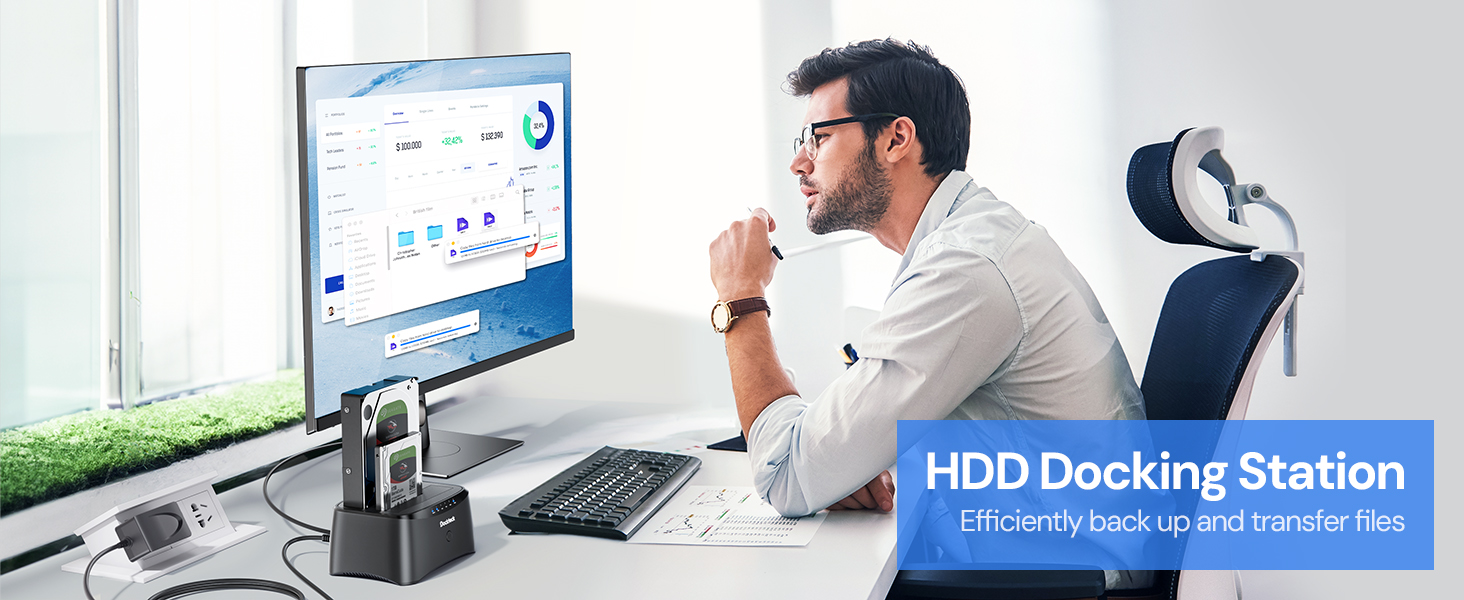
Image: Detailed steps for initiating and monitoring the offline cloning process, showing the source (A) and target (B) drives and the progress LEDs.
Warning: Back up all data on both source and target disks before cloning to prevent accidental data loss.
Video: An official product video demonstrating the setup and basic operation of the Hard Drive Docking Station.
6. Bakım
- Toz Geçirmez Kapak: The docking station features a unique dust-proof design cover plate. Keep the covers closed when not in use to protect the SATA connectors from dust and debris.
- Temizlik: Use a soft, dry cloth to clean the exterior of the docking station. Do not use liquid cleaners or solvents.
- Kaymaz Pedler: The silicone anti-skid pads on the bottom ensure stability during operation.
- Otomatik Uyku Modu: The device automatically enters sleep mode after 3 minutes of inactivity to conserve energy and extend drive lifespan.

Resim: Yakın çekim views of the docking station highlighting its dustproof socket cover, LED indicators, included power adapter, and anti-slip pads.
7. Sorun Giderme
- Issue: Hard drive not detected by computer.
- Ensure the docking station is powered on and the USB cable is securely connected to both the docking station and the computer.
- Bilgisayarınızdaki farklı bir USB bağlantı noktasına bağlanmayı deneyin.
- Verify the hard drive is properly seated in the bay.
- For new drives, they may need to be initialized and formatted in Disk Management (Windows) or Disk Utility (Mac OS) before they appear.
- Sorun: Çevrimdışı klonlama başarısız oluyor veya başlamıyor.
- Ensure the docking station is Olumsuz connected to a computer via USB during the cloning process.
- Confirm that the target drive (Bay B) has a capacity equal to or greater than the source drive (Bay A).
- Press and hold the 'Clone' button for 3 seconds until the 25% LED flashes, then release and press again quickly to confirm.
- If the process still doesn't start, try using different drives to rule out drive issues.
- Sorun: Yavaş aktarım hızları.
- Bilgisayarınızda bir USB 3.0 portuna bağlı olduğunuzdan emin olun. USB 2.0 portları önemli ölçüde daha yavaş hızlara neden olacaktır.
- The actual transfer speed can be affected by the performance of the hard drive itself.
8. Garanti Bilgileri
The dockteck USB 3.0 to SATA Dual Bay Hard Drive Docking Station comes with a 1 Yıllık Garanti Satın alma tarihinden itibaren geçerlidir. Bu garanti, üretim hatalarını ve normal kullanım koşullarındaki arızaları kapsar. Yanlış kullanım, kazalar, yetkisiz değişiklikler veya doğal afetlerden kaynaklanan hasarları kapsamaz.
9. Müşteri Desteği
If you encounter any issues or have questions regarding your dockteck product, please contact our customer support team. Refer to the contact information provided in your product packaging or visit the official dockteck webyardım için site.
For further information and support, you may visit the dockteck Store on Amazon.