
1. Giriş
This manual provides comprehensive instructions for the installation, operation, and maintenance of your TAFFIO 10.25-inch Touchscreen Android Navigation System. This system is designed to integrate seamlessly into Volvo S40, C30, C70, and V50 models from 2004-2013, offering advanced navigation, entertainment, and communication features.
Please read this manual thoroughly before installation and use to ensure proper function and to maximize your experience with the device. Keep this manual for future reference.
2. Güvenlik Bilgileri
- Always prioritize safe driving. Do not operate the system in a way that distracts you from the road.
- Ensure all connections are secure and correctly installed to prevent electrical hazards or damage to the vehicle's systems.
- Üniteyi sökmeye veya değiştirmeye çalışmayın. Bu, garantiyi geçersiz kılabilir ve hasara neden olabilir.
- Herhangi bir adımda emin değilseniz, kurulum için bir uzmana danışın.
- Net görüş sağlamak için ekranı temiz ve engelsiz tutun.
3. Kurulum
3.1 Paket İçeriği
Kuruluma başlamadan önce, pakette tüm bileşenlerin mevcut olduğundan emin olun:
- 1x Android multimedia system
- 1x Güç Kablosu
- 1 adet CAN-BUS Dekoderi
- 2x USB kablosu
- 1x RCA Plugs & Sim Card Slot cable
- 1x Rear camera input cable
- 1x GPS Anteni
- 1 adet 4G Anten

Figure 3.1: Included components of the TAFFIO Android multimedia system.
3.2 Kurulum
The TAFFIO Android multimedia system is designed for Plug & Play installation, minimizing the need for additional adapters or mounting frames. However, careful attention to connections is required.
- Hazırlık: Montaja başlamadan önce aracın kontak anahtarının kapalı ve akünün bağlantısının kesilmiş olduğundan emin olun.
- Orijinal Üniteyi Çıkarın: Carefully remove the existing car radio or display unit from your Volvo dashboard. Refer to your vehicle's service manual for specific instructions on removing dashboard components.
- Ana Üniteyi Bağlayın: Connect the main power cable (B) from the TAFFIO system to the original main unit's wiring harness.
- Connect to TAFFIO Radio: Connect the appropriate cable (A) to the TAFFIO Android multimedia system.
- LCD Plug Connection: Connect the original LCD plug (C) to the designated port on the TAFFIO system.
- SIM Kart Yuvası: Insert your 4G LTE SIM card into the provided slot (D) if you intend to use mobile internet without Wi-Fi.
- Ek Bağlantılar: Connect the GPS antenna, 4G antenna, USB cables, RCA plugs, and rear camera input cable to their respective ports on the TAFFIO system. Ensure the CAN-BUS decoder is correctly integrated into the wiring harness (E) to support steering wheel controls and vehicle settings.
- AUX Input Verification: It is crucial to determine if your original Volvo radio has an AUX (Auxiliary Audio Input). This information may be necessary for proper audio integration.
- Test İşlevselliği: Before fully reassembling the dashboard, reconnect the battery and test the system's basic functions, including power on/off, audio, touchscreen response, and steering wheel controls.
- Son Montaj: Once functionality is confirmed, carefully reassemble the dashboard components, ensuring no wires are pinched.
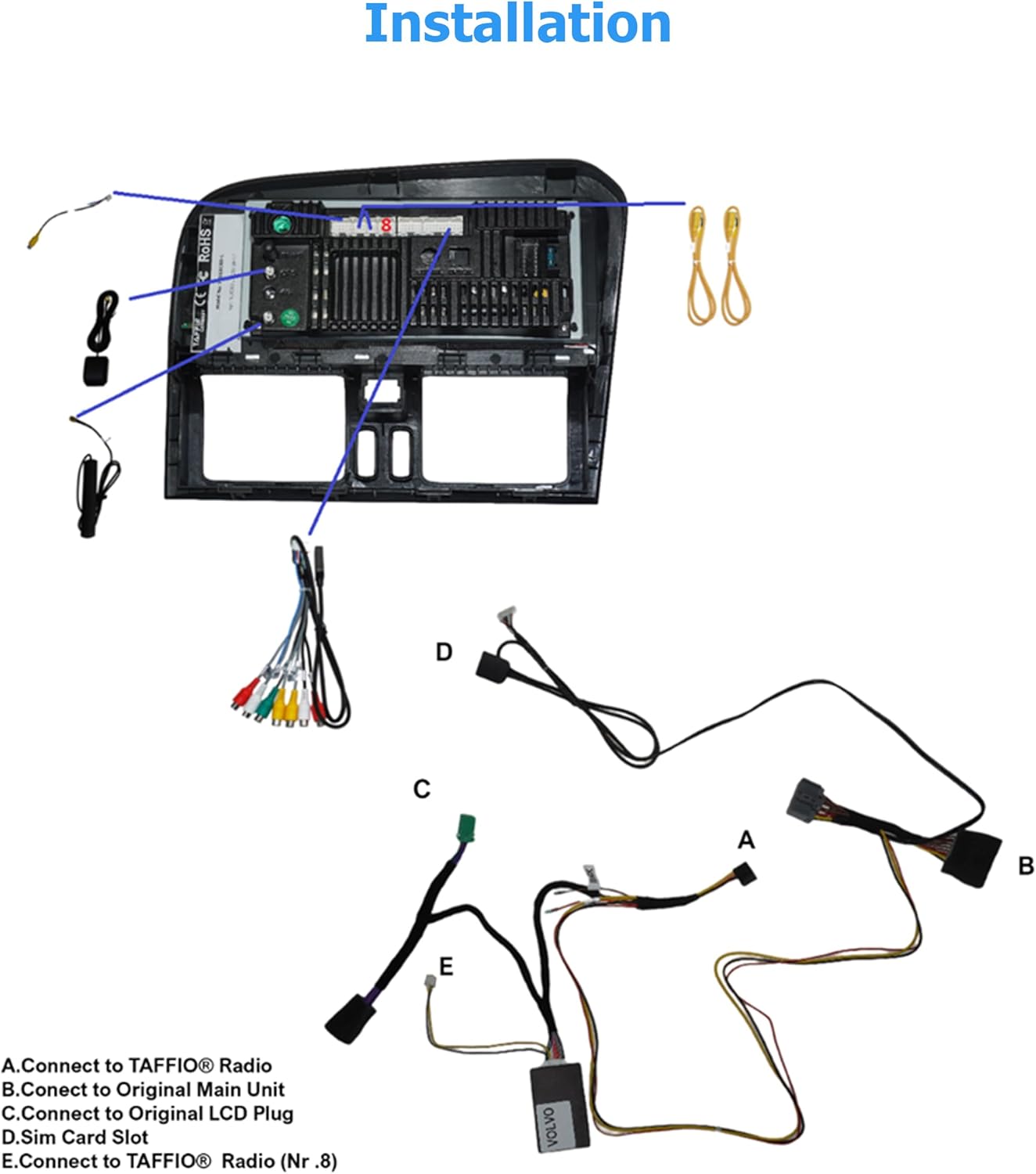
Figure 3.2: Installation diagram for the TAFFIO Android multimedia system.
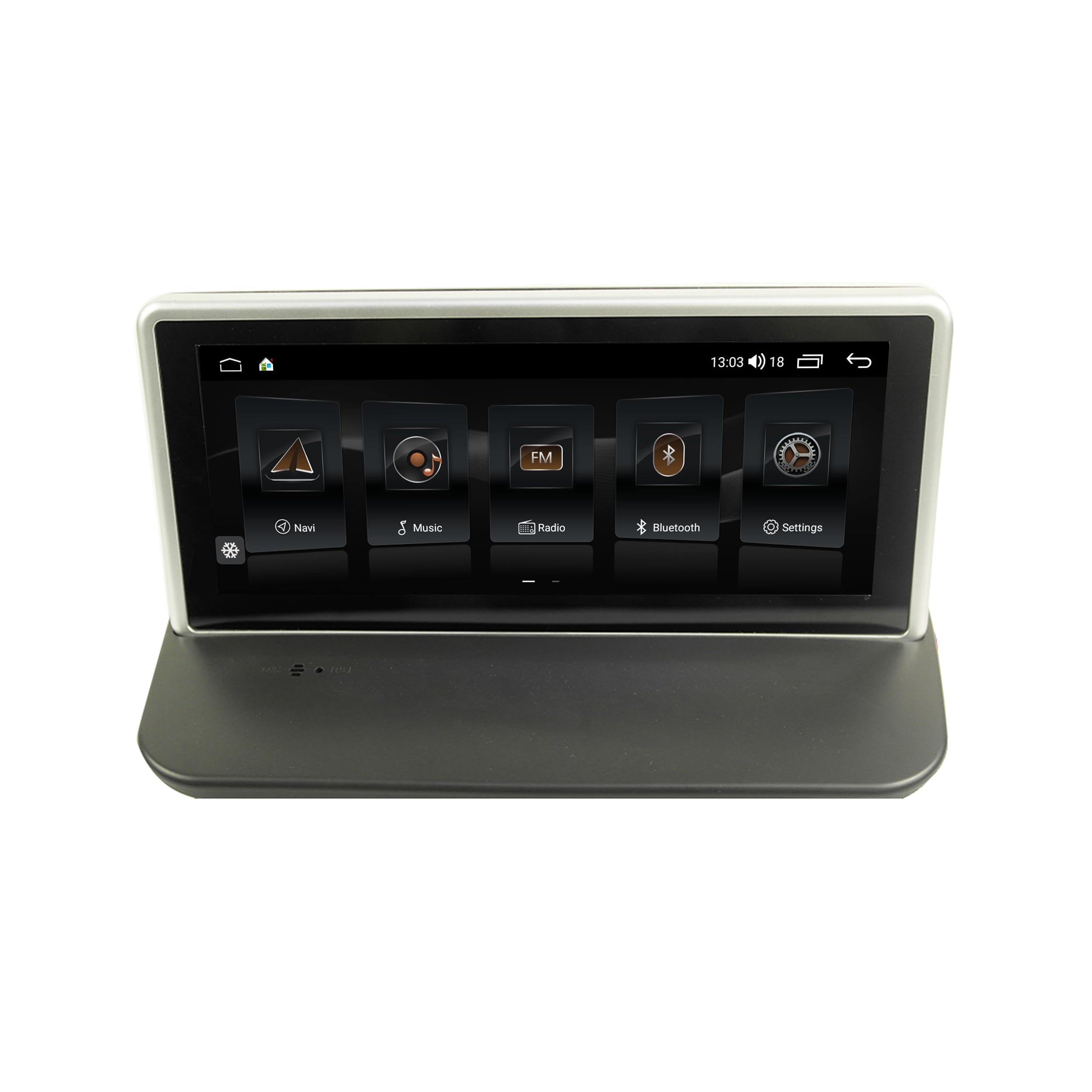
Figure 3.3: TAFFIO system installed in a Volvo dashboard, showing the main interface and rearview kamera view.
4. Kullanım Talimatları
4.1 Açma ve İlk Kurulum
After installation, turn on your vehicle's ignition. The system will boot up, displaying the TAFFIO logo. The initial boot may take slightly longer. Follow any on-screen prompts for language selection and basic Android setup.
4.2 Kullanıcı Arayüzü ve Gezinme
The system features an intuitive user interface with a 3D graphical display. Control is primarily via the capacitive multitouch screen. You can also use the vehicle's original steering wheel controls, which are supported by the system.

Figure 4.1: Main menu of the TAFFIO Android system.

Figure 4.2: Android applications screen.
4.3 Bağlantı
- Wifi: Connect to available WLAN hotspots or your smartphone's hotspot for internet access. Navigate to Settings > Network & Internet > Wi-Fi.
- 4G LTE: If a SIM card is installed, the system will automatically connect to the mobile network for internet access.
- Bluetooth: Pair your mobile phone for hands-free calling and A2DP music streaming. Go to Settings > Connected devices > Pair new device. The system supports synchronization of phone book contacts.
- USB BAĞLANTI: Use the provided USB cables to connect external storage devices for music, pictures, and videos.
4.4 Gezinme
The system comes with pre-installed GPS navigation map material and offers free lifetime updates. Access navigation through the dedicated 'Maps' or 'Navigation' app icon. The system supports 2-Zone function, allowing you to listen to radio or music while navigating.

Figure 4.3: Wireless Carplay navigation interface.
4.5 CarPlay ve Android Auto
The system features integrated CarPlay and Android Auto functionality without requiring an additional adapter. Connect your compatible smartphone via USB or wirelessly (if supported by your phone and the system) to access these features.

Şekil 4.4: Android Auto arayüzü.
4.6 Multimedya Özellikleri
- Radyo: FM/AM tuner with RDS (Radio Data System) for displaying station names.
- Medya Oynatma: Müzik, video oynatın ve view pictures from USB drives or internal storage.
- Ekolayzer: Customize audio settings with preset EQ modes (Pop, Classic, Rock, Jazz) or user-defined Bass/Treble/Balance controls.
- Back-Zone Function: Allows navigation on the front screen while passengers in the back can watch TV or video (requires additional rear displays).
4.7 Araç Entegrasyonu
The system supports various vehicle-specific functions:
- Direksiyon Kontrolleri: Retains original steering wheel control functionality.
- Araç Ayarları: Access and adjust certain vehicle settings through the system interface.
- Arkaview Kamera: Automatic switching to the rearview camera display when reversing.
- Day and Night Display: Automatic or manual adjustment of screen brightness for optimal visibility.

Figure 4.5: Vehicle personalization settings.
5. Bakım
- Ekran Temizleme: Use a soft, lint-free cloth to clean the touchscreen. For stubborn marks, lightly dampBezi su veya ekran temizleyicisiyle silin. Aşındırıcı malzemelerden veya sert kimyasallardan kaçının.
- Yazılım Güncellemeleri: Periodically check for software updates to ensure optimal performance and access to new features. Updates can typically be found through the system's settings or TAFFIO's official support channels.
- Genel Bakım: Üniteyi aşırı sıcaklıklara, uzun süre doğrudan güneş ışığına veya aşırı neme maruz bırakmaktan kaçının.
6. Sorun Giderme
This section addresses common issues you might encounter with your TAFFIO Android Navigation System.
| Sorun | Olası Neden | Çözüm |
|---|---|---|
| Güç yok / Sistem açılmıyor | Yanlış kablolama; Sigorta atmış; Araç aküsü sorunu | Check all power connections. Verify vehicle fuses. Ensure vehicle battery is charged. |
| Ses yok | Volume too low; Mute activated; Incorrect audio output settings; Wiring issue | Increase volume. Check if mute is active. Verify audio settings. Inspect speaker wiring. Ensure AUX input is correctly configured if applicable. |
| Dokunmatik ekran tepkisiz veya hatalı. | Software glitch; Screen dirty; Physical damage | Restart the system. Clean the screen. If issue persists, contact support. |
| GPS sinyali kayboldu veya yanlış | GPS antenna obstructed or disconnected; Environmental interference | GPS anteninin düzgün şekilde bağlandığından ve net bir görüşe sahip olduğundan emin olun view Gökyüzünün. Açık bir alana geçin. |
| Bluetooth bağlantı sorunları | Device not in pairing mode; Interference; Software issue | Ensure both devices are in pairing mode. Restart both devices. Clear Bluetooth cache on phone. |
| CarPlay/Android Auto bağlantısı kurulamıyor. | Incorrect USB cable; Phone software issue; System software issue | Use a high-quality USB data cable. Ensure phone's CarPlay/Android Auto settings are correct. Restart phone and system. |
| Direksiyon simidi kontrolleri çalışmıyor | CAN-BUS decoder not connected; Incorrect settings | Verify CAN-BUS decoder connection. Check system settings for steering wheel control configuration. |
If you encounter an issue not listed here or if the suggested solutions do not resolve the problem, please contact TAFFIO customer support for further assistance.
7. Özellikler
| Özellik | Detay |
|---|---|
| Model Adı | TJ-S40 |
| Ekran Boyutu | 10.25 inç |
| İşletim Sistemi | Android 10 |
| İşlemci | Sekiz Çekirdekli 1.8 GHz İşlemci |
| Veri deposu | 4 GB |
| Dahili Depolama | 64 GB Flaş |
| Bağlantı | Bluetooth, USB, Wi-Fi, 4G LTE (SIM card slot) |
| Özel Özellikler | Touchscreen, Integrated CarPlay & Android Auto, GPS Navigation, RDS Radio, Rear Camera Input |
| Harita türü | Worldwide (with free lifetime updates) |
| Ses Çıkışı Modu | Stereo |
| Montaj Tipi | Kontrol Paneli Montajı |
| Uyumlu Araçlar | Volvo S40, C30, C70, V50 (2004-2013) |
8. Garanti ve Destek
8.1 Garanti Bilgileri
Your TAFFIO 10.25-inch Touchscreen Android Navigation System comes with a 2 yıl üretici garantisiBu garanti, normal kullanım koşullarında malzeme ve işçilik kusurlarını kapsar. Garanti talepleri için lütfen satın alma faturanızı saklayınız.
The warranty does not cover damage caused by improper installation, misuse, accidents, unauthorized modifications, or normal wear and tear.
8.2 Müşteri Desteği
For technical assistance, warranty claims, or any questions regarding your TAFFIO product, please contact TAFFIO customer support through the retailer where you purchased the device or visit the official TAFFIO webiletişim bilgileri için site.