
1. Giriş
Satın aldığınız için teşekkür ederizasing the CAMMUS C5 Bundle Complete Set. This manual provides detailed instructions for the setup, operation, maintenance, and troubleshooting of your C5 Direct Drive Steering Wheel, CP5 Pedals, and Desk Clamp. This system is designed to deliver a responsive and dynamic racing experience exclusively on PC hardware. Please read this manual thoroughly before use to ensure proper installation and optimal performance.
Önemli Not: The CAMMUS C5 operates exclusively on PC hardware and is not compatible with Xbox or PlayStation systems. Ensure your operating system is Windows 7 or newer for optimal performance.
2. Güvenlik Bilgileri
- Always connect the power adapter to a suitable power outlet as specified.
- Elektrik çarpmasını önlemek için cihazı sudan veya diğer sıvılardan uzak tutun.
- Do not attempt to disassemble or modify the product. Unauthorized modifications can void the warranty and pose safety risks.
- Ensure proper ventilation around the wheelbase to prevent overheating. The C5 DD base includes an intelligent temperature control system with a turbo blower cooling fan for safe operation.
- Yalnızca sağlanan güç adaptörünü ve kabloları kullanın.
- Bu ürün 12 yaş ve üzeri bireylerin kullanımına yöneliktir.
3. Paket İçeriği
Aşağıda listelenen tüm öğelerin paketinizde mevcut olduğundan emin olun:
- CAMMUS C5 Doğrudan Tahrikli Direksiyon
- CAMMUS CP5 Pedals
- Masa Clamp
- Güç Adaptörü (19V / 7.35A)
- USB kablosu
- Kullanım Kılavuzu (bu belge)

4. Ürün Bittiview
4.1 CAMMUS C5 Direct Drive Steering Wheel
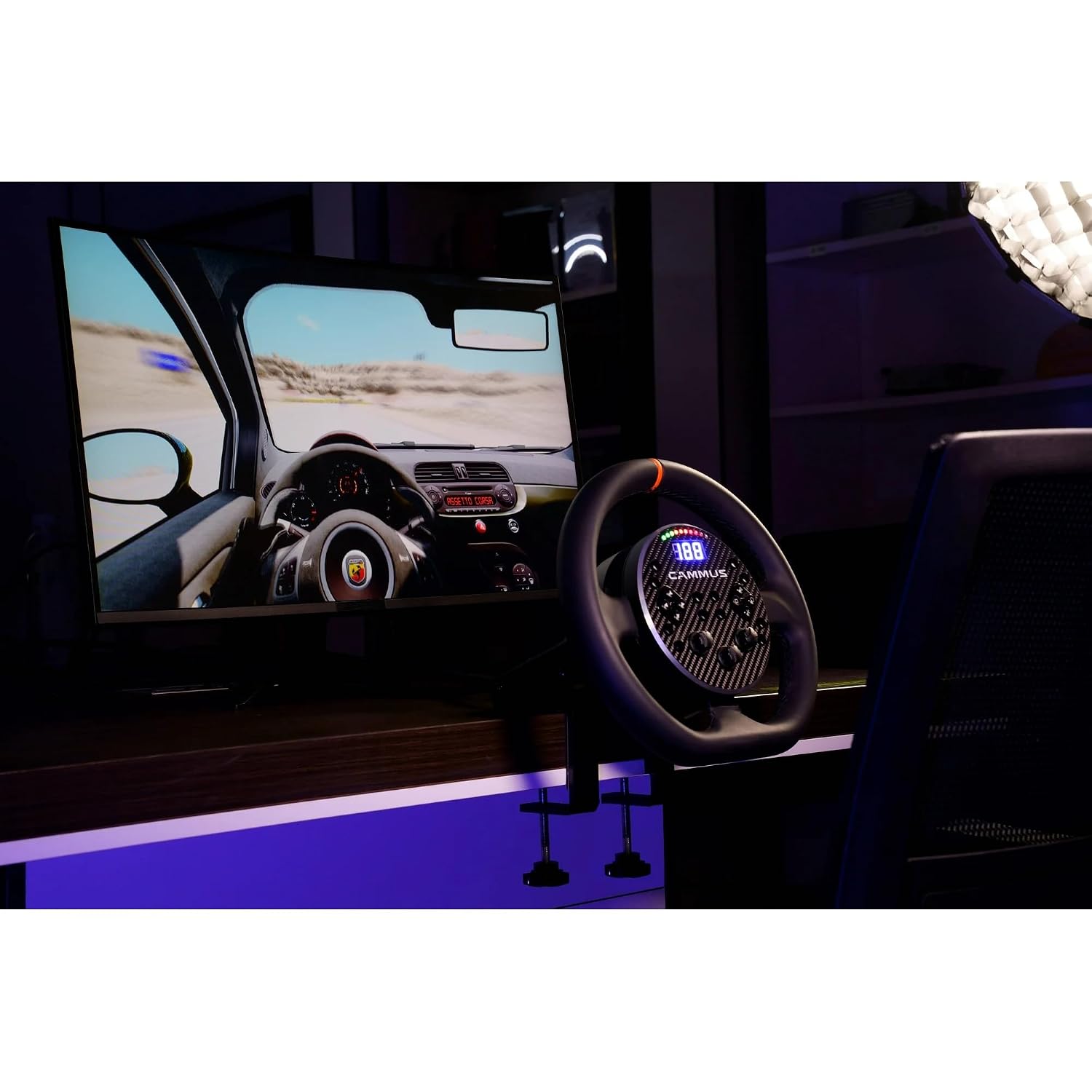
The C5 steering wheel features a 5Nm direct drive wheelbase for precise force feedback. It includes various controls for an immersive racing experience.

- Steering Wheel Return Reminder Strip: Visual indicator for wheel center.
- 10 LED: Customizable shift lights and indicators.
- Ekran Görüntüsü: Shows speed, gear, or other telemetry data.
- Shift Paddles (x2): For quick gear changes.
- Direction Key Area: D-pad for menu navigation.
- 12-band Knobs (x3): Rotary encoders for fine adjustments.
- Programmable Buttons (x12): Assignable functions for in-game controls.
- Kontrol Düğmesi Alanı: Additional buttons (A, B, C, D) for various functions.

4.2 CAMMUS CP5 Pedals
The CP5 Pedals provide realistic throttle and brake input for precise control during racing simulations.

4.3 Çalışma Masasıamp
Dahil edilen masa örtüsüamp allows for secure mounting of the C5 wheelbase to a desk or table.
5. Kurulum Talimatları
5.1 Mounting the Wheelbase
- Place the C5 wheelbase on a stable desk or table.
- masa cl'yi takınamp to the front underside of the wheelbase.
- Position the wheelbase and clamp on your desk. Tighten the clamp screws until the wheelbase is securely fastened and does not move during use.

5.2 Bileşenlerin Bağlanması

- Pedalları bağlayın: Connect the CP5 Pedals to the designated port on the C5 wheelbase (if applicable, typically via USB or a proprietary cable).
- Bilgisayara bağlanın: Connect the C5 wheelbase to your PC using the provided USB cable. Insert one end into the USB socket on the wheelbase and the other into an available USB port on your computer.
- Gücü bağlayın: Plug the power adapter into the "Power base" port on the C5 wheelbase. Then, plug the power adapter into a wall outlet.
- Güç Açık: The system should power on automatically or via a power button (refer to specific product for power button location if present).
Once connected, your PC should detect the CAMMUS C5 device. You may need to install drivers, which are typically available on the official CAMMUS webalan.
6. Kullanım Talimatları
6.1 İlk Kurulum ve Kalibrasyon
- After connecting the device to your PC, ensure all drivers are installed.
- Open the CAMMUS PC software (available for download from the official CAMMUS webalan).
- Follow the on-screen instructions within the software to calibrate the steering wheel and pedals. This typically involves turning the wheel to its full lock left and right, and pressing the pedals to their full extent.
- Adjust force feedback strength, damping, and other settings to your preference within the software.
6.2 Oyun İçi Kullanım
Once calibrated, launch your preferred PC racing simulator game.
- Navigate to the game's controller settings or options menu.
- Select the CAMMUS C5 as your primary controller.
- Map the steering, throttle, brake, and any desired buttons (shift paddles, programmable buttons) to their respective in-game functions.
- Adjust in-game force feedback settings to complement the CAMMUS C5's direct drive system.

7. Software and App Control
The CAMMUS C5 system offers advanced control through its dedicated PC software and mobile application.
- PC Yazılımı: Provides comprehensive control over force feedback settings, button mapping, LED customization, and firmware updates. It is essential for initial setup and advanced configuration.
- Mobil Uygulama: The CAMMUS mobile app allows you to check your device's status, create and save custom settings profiles, and launch games with one click. This offers convenient adjustments without interrupting your gameplay on the PC.
Download the latest PC software and mobile app from the official CAMMUS website or your mobile app store.

8. Bakım
- Temizlik: Use a soft, dry cloth to clean the steering wheel, pedals, and wheelbase. Avoid abrasive cleaners or solvents.
- Depolamak: When not in use, store the device in a clean, dry environment away from direct sunlight and extreme temperatures.
- Kablo yönetimi: Hasarı önlemek için tüm kabloların düzgün bir şekilde yönlendirildiğinden ve gergin olmadığından emin olun.
- Donanım Yazılımı Güncellemeleri: Regularly check the official CAMMUS webEn iyi performansı ve yeni özelliklere erişimi garantilemek için yazılım güncellemeleri için site.
9. Sorun Giderme
9.1 Device Not Detected by PC
- Ensure the USB cable is securely connected to both the wheelbase and the PC.
- Bilgisayarınızdaki farklı bir USB bağlantı noktasını deneyin.
- Güç adaptörünün doğru şekilde bağlı olduğundan ve cihazın açık olduğundan emin olun.
- Check Device Manager on Windows to see if the device is listed. If there's an error, reinstall the drivers from the CAMMUS webalan.
- Confirm your PC meets the minimum operating system requirement (Windows 7 or newer).
9.2 No Force Feedback or Weak Force Feedback
- Ensure the power adapter is connected and providing sufficient power. The C5 requires 19V / 7.35A.
- Check force feedback settings in both the CAMMUS PC software and your racing game. Increase the strength if necessary.
- Verify that the game's force feedback is enabled and configured correctly.
- Update the wheelbase firmware to the latest version.
9.3 Pedallar Tepki Vermiyor
- Ensure the pedal cable is securely connected to the wheelbase.
- Calibrate the pedals using the CAMMUS PC software.
- Check in-game settings to ensure pedals are correctly mapped.
9.4 Aşırı ısınma
- The C5 DD base has intelligent temperature control. If you experience overheating warnings, ensure the wheelbase has adequate airflow.
- Do not block the cooling fan vents.
- Allow the device to cool down before resuming use if it feels excessively hot.
10. Özellikler
| Özellik | Şartname |
|---|---|
| Marka | KAMUS |
| Model Adı | C5 Bundle Complete Set (Model 901) |
| Uyumlu Cihazlar | PC (Windows 7 or newer) |
| Denetleyici Türü | Doğrudan Tahrikli Direksiyon |
| Güç Geri Bildirimi | 5Nm Wheelbase |
| Güç Kaynağı | Corded Electric (19V / 7.35A) |
| Bağlantı Teknolojisi | USB |
| Düğme Miktarı | 23 (including programmable buttons, D-pad, knobs) |
| Ürün Ağırlığı | 24.3 Pounds (total bundle) |
| Item Dimensions (Wheel) | Yaklaşık 27.8 x 26.5 x 8.2 cm (10.9 x 10.4 x 3.2 inç) |
| İnşaat Malzemesi | Aviation-grade aluminum base |
| Soğutma Sistemi | Intelligent temperature control with turbo blower fan |
11. Garanti ve Destek
11.1 Garanti Bilgileri
The CAMMUS C5 Bundle Complete Set comes with a 1 yıllık üretici garantisi Satın alma tarihinden itibaren geçerlidir. Bu garanti, normal kullanım koşullarında malzeme ve işçilik kusurlarını kapsar. Yanlış kullanım, kazalar, yetkisiz değişiklikler veya hatalı montajdan kaynaklanan hasarları kapsamaz. Garanti talepleri için lütfen satın alma belgenizi saklayın.
11.2 Müşteri Desteği
For technical assistance, troubleshooting, or warranty inquiries, please contact CAMMUS customer support through their official website. You can typically find contact information, FAQs, and driver downloads on the support section of the CAMMUS webalan.
Official CAMMUS Webalan: www.cammus.com (Not: Bu bir yer tutucudur URL. Please refer to your product packaging or official documentation for the correct webalan.)