
1. Giriş
This manual provides comprehensive instructions for the TIMBOOTECH Wireless HDMI Transmitter and 2 Receivers. This device allows for wireless transmission of HDMI signals from a source device to multiple display units, supporting high-definition video and audio.
2. Paket İçeriği
Aşağıda listelenen tüm öğelerin paketinizde bulunduğunu doğrulayın:
- 1x Wireless HDMI Transmitter
- 2x Wireless HDMI Receivers
- 3x HDMI Kabloları
- 3x USB-C Şarj Kablosu
- 2x Mini/Micro HDMI Adapters
- 1x Kullanım Kılavuzu

Image: All components included in the TIMBOOTECH Wireless HDMI Transmitter and 2 Receivers package.
3. Ürün Bittiview
The TIMBOOTECH Wireless HDMI system consists of a transmitter (TX) and multiple receivers (RX). It operates on a 5.8G chip for stable, low-latency transmission.
3.1 Temel Özellikler
- Real-Time Sharing: Supports sharing to 2 TVs and up to 6 mobile devices simultaneously.
- Yüksek Çözünürlük: 4K input decoding and 1080P@60Hz output for clear visuals.
- Tak ve Çalıştır: Pre-paired units require no Wi-Fi or Bluetooth setup.
- Çoklu Alıcı Desteği: One transmitter can connect to up to 8 receivers or touchscreens.
- Uygulama İşlevselliği: Use a dedicated app to turn iOS/Android devices into wireless monitors.
- Genişletilmiş Menzil: Transmits up to 165ft (50m) with minimal delay.
- Geniş Uyumluluk: Works with various devices including laptops, PCs, cameras, and game consoles.

Image: The TIMBOOTECH Wireless HDMI Transmitter (TX) and Receivers (RX).
4. Kurulum Talimatları
The devices are pre-paired at the factory for a plug-and-play experience. Follow these steps for initial setup:
4.1 Temel Bağlantı
- Vericiyi Bağlayın (TX): Plug the HDMI end of the transmitter into the HDMI output port of your source device (e.g., laptop, PC, camera). Connect a USB-C charging cable to the transmitter and a power source (e.g., USB port on your device or a USB power adapter).
- Alıcıyı (RX) Bağlayın: For each receiver, plug its HDMI end into an HDMI input port on your display device (e.g., TV, monitor, projector). Connect a USB-C charging cable to the receiver and a power source.
- Güç Açık: Ensure both the transmitter and all receivers are powered on.
- Automatic Mirroring: Wait approximately 5 seconds for the screen to automatically mirror from the source device to the displays.

Image: Visual guide for connecting the transmitter and receivers to source and display devices.
4.2 Re-pairing or Adding Multiple Receivers
If the connection is abnormal or you wish to add more receivers (up to 8 total), follow these steps:
- Connect and Power TX: Connect the TX (Transmitter) to your HDMI output device and ensure it is powered.
- Connect and Power RX: Connect the RX (Receiver) to your HDMI input device and ensure it is powered.
- Eşleştirmeyi Başlat: Long press the RX button for 5 seconds, then press the TX button for 10 seconds. Wait for the devices to pair.
- Bağlantıyı Doğrulayın: After successful pairing, the screen should display the mirrored content.

Image: Visual steps for re-pairing or adding additional receivers.
5. Kullanım Talimatları
5.1 Multi-Screen Display
The system supports displaying content from one transmitter to multiple receivers simultaneously, allowing for multi-screen setups in various environments.
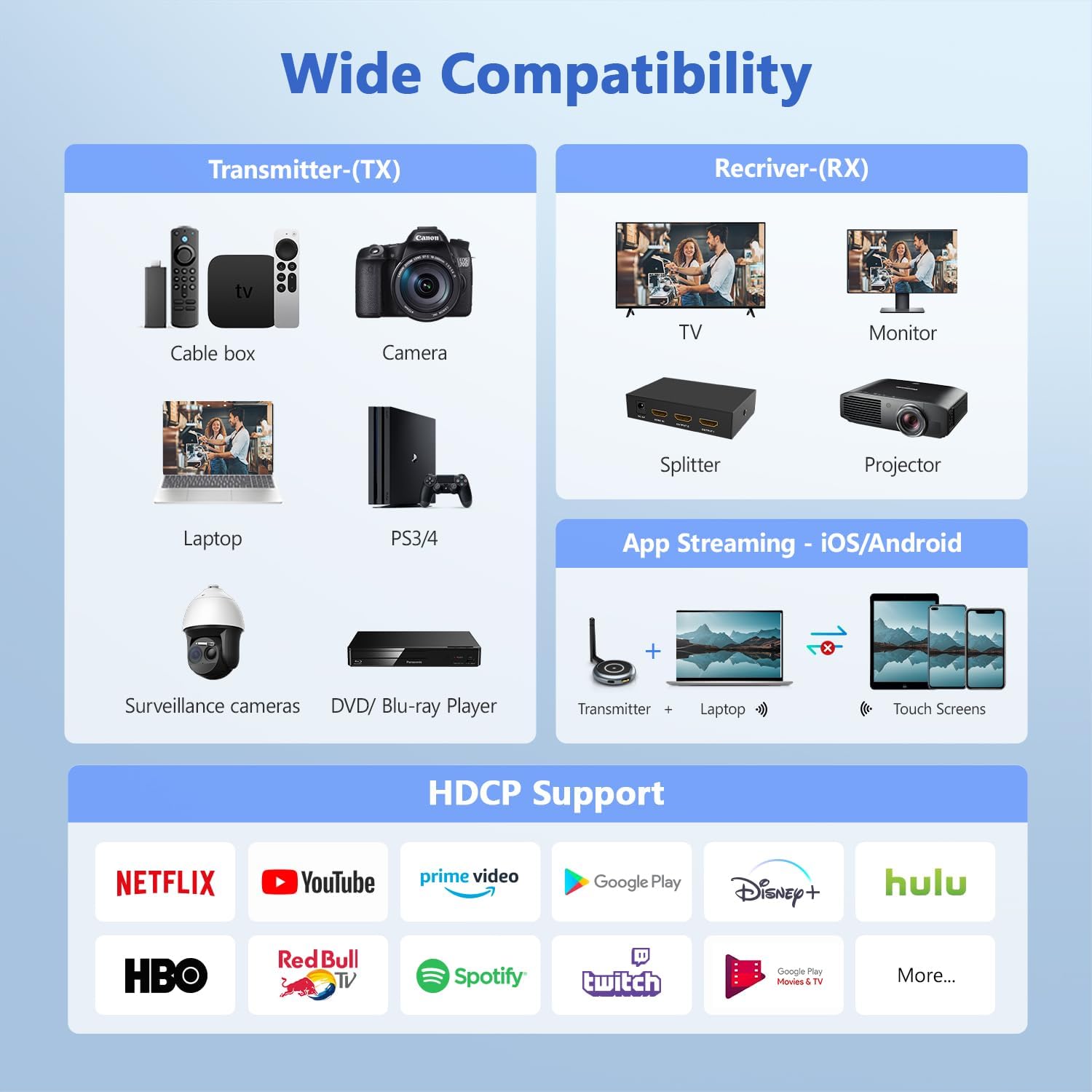
Image: A laptop transmitting to four separate display screens.
5.2 App Functionality (iOS/Android)
Utilize the dedicated app to extend your display to iOS or Android mobile devices. This feature is ideal for monitoring camera feeds or sharing content with nearby users.
- Connect TX: Connect the transmitter to your HDMI output device and power it.
- Uygulamayı yükle: Download and install the "TuTuLink" app on your iOS/Android device.
- Wi-Fi'ye bağlanın: Open the app, connect to the Wi-Fi hotspot broadcast by the transmitter (SSID and password usually provided on the screen or manual).
- Yayını Başlat: Open the app again, and it should automatically sync and display the content.

Image: Guide for using the TuTuLink app to mirror content to mobile devices.
5.3 Adjusting Wireless Channels
In environments with heavy Wi-Fi traffic, you can adjust the wireless channel via the app for optimal performance and signal stability.

Image: Adjusting wireless channels via the app for improved signal.
6. Uyumluluk
The TIMBOOTECH Wireless HDMI system offers broad compatibility with various devices and supports HDCP.
6.1 Uyumlu Kaynak Cihazlar (Verici - TX)
- Dizüstü bilgisayarlar
- Bilgisayarlar
- Cameras (DSLR, Surveillance)
- Blu-ray Oynatıcılar
- Set-top Boxes / Cable Boxes / Fire TV Stick
- Game Consoles (PS3/4, PS5)
6.2 Uyumlu Görüntüleme Cihazları (Alıcı - RX)
- televizyonlar
- Monitörler
- Projektörler
- HDMI Ayırıcılar
- iOS/Android Touch Screens (via App)
6.3 Model Compatibility Note
This system is compatible only with the latest TIMBOOTECH receiver models (ASIN: B0DNF72YK1 for blue interface version, B0CSFS69XF for black interface version).

Resim: Üzeriview of compatible devices for both transmitter and receiver, including app functionality.
7. Sorun Giderme
Sorunlarla karşılaşırsanız lütfen aşağıdaki yaygın çözümlere başvurun:
- Sinyal/Bağlantı Yok:
- Ensure both transmitter and receivers are properly powered via their USB-C cables.
- Verify HDMI cables are securely connected to both source and display devices.
- Perform the re-pairing process (Section 4.2) if devices are not connecting automatically.
- Check if the HDMI input on your display is set to the correct port.
- Kesintili Sinyal/Düşük Kalite:
- Ensure there are no major physical obstructions (walls, large furniture) between the transmitter and receivers.
- Adjust the wireless channel via the TuTuLink app to avoid interference from other Wi-Fi networks (Section 5.3).
- Ensure devices are within the recommended 165ft (50m) transmission range.
- Diğer elektronik cihazlardan kaynaklanan güçlü elektromanyetik girişim olup olmadığını kontrol edin.
- Ses/Görüntü Senkronizasyon Sorunları:
- Restart both the transmitter and receivers.
- Tüm kabloların güvenli bir şekilde bağlandığından emin olun.
- Uygulama Bağlantı Sorunları:
- Ensure your mobile device is connected to the correct Wi-Fi hotspot broadcast by the transmitter.
- Verify the Wi-Fi password (usually provided on the screen or manual).
- Restart the app and the transmitter.
Video: Official TIMBOOTECH video demonstrating smooth and stable wireless HDMI to multiple screens, highlighting the product's functionality.
8. Özellikler
| Özellik | Detay |
|---|---|
| Marka | TIMBOOTECH |
| Model Numarası | G70 |
| Bağlantı Teknolojisi | Kablosuz (5.8G) |
| Giriş Çözünürlüğü | 4K'ya kadar |
| Çıkış Çözünürlüğü | 1080P @ 60Hz |
| transmisyon Menzili | 165 ft'ye (50 m) kadar |
| Gecikme | Low (approx. 0.1s) |
| Çoklu Alıcı Desteği | Up to 8 receivers/touchscreens |
| HDCP Desteği | Evet |
| Ürün Ağırlığı | 7 ons |
| Ürün Boyutları | 1.97 x 1.57 x 1.18 inç |
9. Garanti ve Destek
TIMBOOTECH offers 24/7 support for a worry-free experience. Please contact customer service for any issues.
- Destek: 24/7 customer support is available.
- Para İade Garantisi: 30-day money-back return and refund guarantee.
- Garanti: 1 yıl ücretsiz değişim.
Video: Official TIMBOOTECH video demonstrating the RScreen App for touchscreen devices, showcasing additional features and support.