
1. Giriş
Thank you for choosing the ieGeek 5MP Outdoor Wi-Fi Security Camera. This manual provides essential information for the proper installation, operation, and maintenance of your camera. Please read these instructions carefully before use and retain them for future reference. This camera is designed to provide reliable outdoor surveillance with advanced features for enhanced security.
2. Ürün Bittiview
The ieGeek 5MP Outdoor Wi-Fi Security Camera offers high-definition monitoring with flexible connectivity and smart detection capabilities.
Temel Özellikler:
- 5MP HD Çözünürlük: Provides clear and vivid images and videos with 2880x1600 resolution and 4x digital zoom.
- Dual-Band Wi-Fi (2.4/5 GHz): Supports both 2.4 GHz and 5 GHz Wi-Fi for stable and faster network connection.
- 360° PTZ Monitoring: Pan (355° horizontal) and Tilt (120° vertical) functionality allows for comprehensive area coverage.
- Renkli Gece Görüşü: Three night vision modes (color, infrared, smart) with a range of up to 15 meters (50 feet).
- PIR İnsansı Varlık Tespiti: Advanced human detection reduces false alarms caused by non-human movements.
- Sesli ve Işıklı Alarm: Deters intruders with customizable sound and light alerts.
- 7/24 Kesintisiz Kayıt: Supports continuous recording and event-based recording.
- Yerel ve Bulut Depolama: Compatible with Micro SD cards (up to 128GB, not included) and cloud storage options.
- Çoklu Kullanıcı Paylaşımı: Share camera access with family members via the dedicated app.
- IP65 Hava Koşullarına Dayanıklılık: Dış mekan kullanımına uygun olarak tasarlanmış olup, toza ve suya dayanıklıdır.
Kamera Bileşenleri:
The camera unit typically includes the main camera body, dual Wi-Fi antennas, a power input port, and a Micro SD card slot.
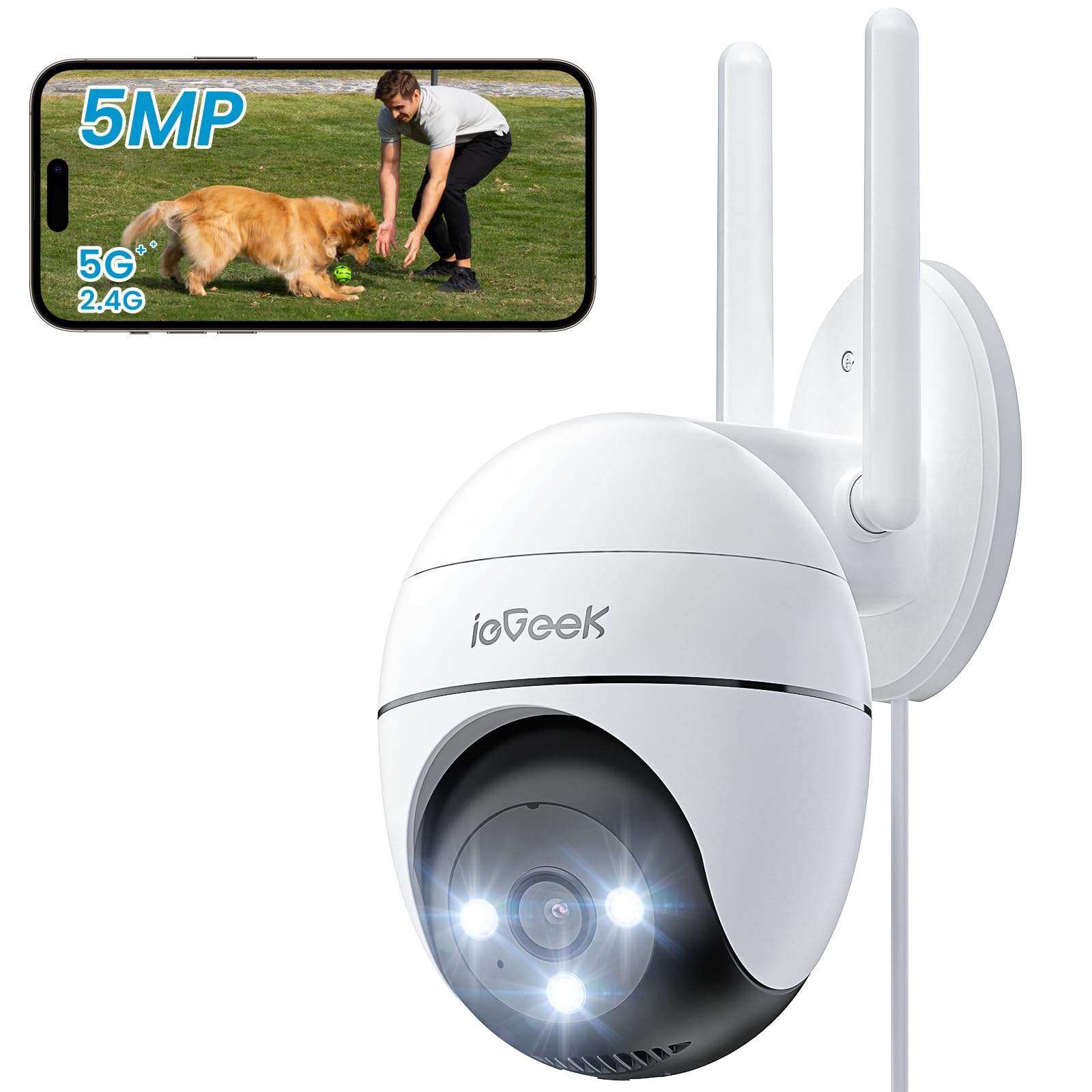
Figure 2.1: ieGeek 5MP Outdoor Wi-Fi Security Camera (Model ZS-GQ4)

Şekil 2.2: Üzeriview of ieGeek 5MP Camera Features including PTZ, 24/7 recording, 2-way audio, humanoid tracking, Alexa compatibility, local and cloud storage, multi-user sharing, customizable alert areas, AI detection, and acoustic/light alarms.

Figure 2.3: The camera features a 5dBi antenna for improved Wi-Fi signal strength and stability.
3. Kurulum Talimatları
3.1 Paket İçeriği
- ieGeek 5MP Outdoor Wi-Fi Security Camera
- Güç Adaptörü
- Montaj Vidaları ve Ankrajları
- Kullanıcı Kılavuzu
3.2 Uygulama İndirme ve Hesap Kaydı
- İndir ieGeek Kamerası or BulutEdge app from your smartphone's app store (iOS/Android).
- Register for an account using your email address and create a secure password.
3.3 Kamera Bağlantısı
- Power on the camera by connecting it to a power outlet using the provided adapter.
- Open the ieGeek Cam/CloudEdge app and tap the "+" icon to add a new device.
- Follow the on-screen instructions to connect the camera to your 2.4 GHz or 5 GHz Wi-Fi network. Ensure your phone is connected to the same Wi-Fi network during setup.
- Scan the QR code displayed on your phone with the camera lens when prompted.
- Bağlandıktan sonra kameranıza isim verebilir ve canlı yayına başlayabilirsiniz viewIng.

Figure 3.1: Connecting the power adapter to the camera.
3.4 Fiziksel Kurulum
- Açık bir havada uygun bir dış mekan konumu seçin view ve güçlü Wi-Fi sinyali.
- Verilen montaj şablonunu kullanarak delik yerlerini işaretleyin.
- Drill holes, insert anchors, and secure the camera base with screws.
- Kamera açısını gerektiği gibi ayarlayın.

Figure 3.2: Ensure optimal Wi-Fi signal strength at the chosen installation location for stable performance.
4. Kullanım Talimatları
4.1 Canlı View ve PTZ Kontrolü
- Open the ieGeek Cam/CloudEdge app and select your camera to view canlı yayın.
- Use the on-screen joystick or swipe gestures to control the camera's pan (horizontal 355°) and tilt (vertical 120°) movements.

Figure 4.1: Control the camera's 355° horizontal and 120° vertical rotation directly from your smartphone app.
4.2 Gece Görüş Modları
Kamera üç farklı gece görüş modu sunuyor:
- Renkli Gece Görüşü: Utilizes built-in spotlights to provide full-color images in low-light conditions.
- Kızılötesi Gece Görüşü: Tamamen karanlık ortamlarda siyah beyaz görüntüler elde etmek için kızılötesi LED'ler kullanır.
- Akıllı Gece Görüşü: Automatically switches between infrared and color night vision upon detection of motion.
4.3 Hareket Algılama ve Alarmlar
- PIR İnsansı Varlık Tespiti: Configure sensitivity levels in the app to minimize false alarms.
- Özelleştirilebilir Algılama Bölgeleri: Set specific areas for motion detection to focus on critical zones.
- Sesli ve Işıklı Alarm: When motion is detected, the camera can activate a siren and/or spotlights to deter intruders. You can choose between silent, spotlight only, siren only, or both siren and spotlight modes.

Figure 4.2: Select from silent, spotlight only, siren only, or both siren and spotlight alarm modes to suit your security needs.

Figure 4.3: The camera's humanoid motion tracking follows detected human figures, reducing false alarms from other movements.

Figure 4.4: AI smart monitoring can differentiate between various detection types such as people, animals, packages, and vehicles (some features may require a subscription).
4.4 Kayıt ve Depolama
- Sürekli Kayıt: The camera supports 24/7 continuous recording to a Micro SD card (not included).
- Etkinlik Kaydı: Hareket algılandığında video klipler kaydeder.
- Mikro SD kart: Yerel depolama için belirlenmiş yuvaya bir Micro SD kart (en fazla 128 GB) takın.
- Bulut Depolama: Optional cloud storage plans are available through the app for secure off-site backup.

Figure 4.5: The camera supports 24/7 continuous recording, ensuring constant surveillance.
5. Bakım
5.1 Kamerayı Temizleme
- Temizlemeden önce kameranın kapalı olduğundan emin olun.
- Yumuşak bir d kullanınamp cloth to wipe the camera body.
- For the lens, use a specialized lens cleaning cloth to avoid scratches. Do not use harsh chemicals or abrasive cleaners.
5.2 Çevresel Hususlar
- The camera has an IP65 weather resistance rating, making it suitable for outdoor use in various weather conditions.
- Çalışma sıcaklığı aralığı: -20°C ila 50°C (-4°F ila 122°F).

Figure 5.1: The camera is designed with IP65 weather resistance to withstand outdoor elements like rain.

Figure 5.2: The camera operates effectively within a wide temperature range of -20°C to 50°C.
6. Sorun Giderme
If you encounter issues with your ieGeek camera, please refer to the following common troubleshooting steps:
6.1 Bağlantı Sorunları
- Kamera Çevrimdışı: Ensure the camera is powered on and within range of your Wi-Fi router. Check your Wi-Fi signal strength in the app. Try restarting the camera and your router.
- Wi-Fi bağlantısı kurulamadı: Verify your Wi-Fi password is correct. Ensure you are connecting to a 2.4 GHz or 5 GHz network as supported. If using a dual-band router, ensure the camera is connecting to the correct band.
6.2 Hareket Algılama Sorunları
- Too Many False Alarms: Adjust the PIR detection sensitivity in the app. Define specific detection zones to exclude areas with frequent irrelevant movements (e.g., trees swaying).
- Hareket Algılama Yok: Ensure motion detection is enabled in the app settings. Check the camera's field of view for obstructions. Increase detection sensitivity if necessary.
6.3 Görüntü Kalitesi Sorunları
- Bulanık Görüntü: Clean the camera lens carefully. Ensure there is no condensation on the lens.
- Zayıf Gece Görüşü: Ensure the night vision mode is set correctly (color, infrared, or smart). Check for any obstructions blocking the infrared LEDs or spotlights.
6.4 Diğer Konular
- SD Kart Kayıt Yapmıyor: Ensure the Micro SD card is inserted correctly and is not full. Format the SD card via the app if it's a new card or if issues persist.
- Uygulama Yanıt Vermiyor: Close and restart the app. Ensure your smartphone's operating system is up to date.
If these steps do not resolve your issue, please contact ieGeek customer support for further assistance.
7. Özellikler
| Örnek | ZS-GQ4 |
| Çözünürlük | 5MP (2880 x 1600) |
| Mercek | 3.6 mm |
| Dijital Zoom | 4x |
| Gece Görüş Mesafesi | 15 metreye (50 feet) kadar |
| Wi-Fi Bağlantısı | 2.4 GHz / 5 GHz Çift Bant |
| Pan/Tilt Aralığı | Kaydırma 355°, Eğme 120° |
| Depolama Seçenekleri | Mikro SD Kart (en fazla 128 GB, dahil değildir), Bulut Depolama |
| Hava Direnci | IP65 |
| Çalışma Sıcaklığı | -20°C ila 50°C (-4°F ila 122°F) |
| Boyutlar | 17x9x10 cm |
| Kontrol Yöntemi | Mobile App (ieGeek Cam / CloudEdge) |
| Alarm Türü | PIR Humanoid Motion Detection, Sound & Light Alarm |
8. Garanti ve Destek
ieGeek, yüksek kaliteli ürünler ve mükemmel müşteri hizmeti sunmaya kendini adamıştır.
8.1 Garanti Bilgileri
- 2 Yıllık Garanti: Your ieGeek camera is covered by a 2-year warranty from the date of purchase, protecting against manufacturing defects.
- 30 Günlük Para İade Garantisi: If you are not satisfied with your purchase, you may return the product for a full refund within 30 days.

Figure 8.1: ieGeek offers a 2-year warranty and a 30-day money-back guarantee, along with lifetime support.
8.2 Müşteri Desteği
For any questions, technical assistance, or warranty claims, please contact ieGeek customer support. Refer to the contact information provided with your product packaging or visit the official ieGeek webDestek ayrıntıları için site.
- Çevrimiçi destek: Ziyaret etmek www.iegeek.com/support (eskiample link, please refer to actual webSite)
- E-posta Desteği: support@iegeek.com (eskiample email, please refer to actual contact)
- Ömür Boyu Teknik Destek: ieGeek provides lifetime technical support for its products.