
Pristar LPPR-P15-LM-GYF
Pristar P15 Mini Bluetooth Label Printer User Manual
Model: LPPR-P15-LM-GYF
Marka: Pristar
1. Giriş
The Pristar P15 Mini Bluetooth Label Printer is a compact, portable, and rechargeable thermal label maker designed to simplify your organization tasks. With its wireless Bluetooth connectivity, you can easily create and print custom labels directly from your iOS or Android smartphone using the intuitive 'Marklife' application. This manual provides detailed instructions on setting up, operating, maintaining, and troubleshooting your P15 label printer to ensure optimal performance and a seamless labeling experience.
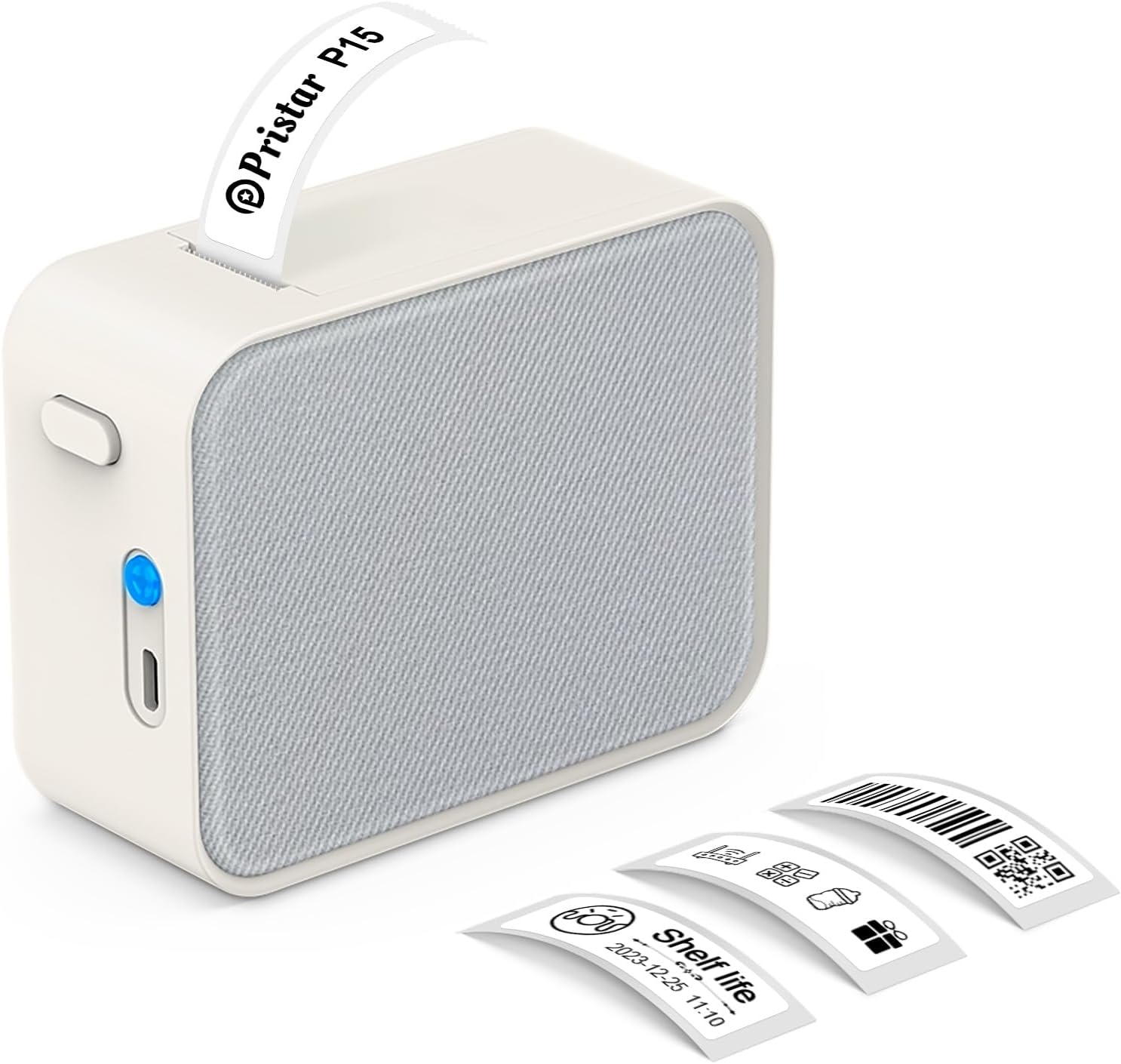
Figure 1.1: Pristar P15 Mini Bluetooth Label Printer
2. Güvenlik Bilgileri
Please read all safety instructions carefully before using the Pristar P15 label printer. Failure to follow these instructions may result in injury or damage to the device.
- Cihazı sökmeyin, tamir etmeyin veya değiştirmeyin.
- Cihazınızı sudan, nemden ve yüksek sıcaklıklardan uzak tutunuz.
- Use only the specified USB-C cable for charging.
- Avoid exposing the print head to direct sunlight or strong light.
- Çocukların erişemeyeceği yerde saklayınız.
3. Paket İçeriği
Paketin içinde tüm öğelerin mevcut olduğundan emin olun:
- 1 x Pristar P15 Label Printer (with built-in 1200mAh rechargeable lithium battery)
- 1 x Roll of Label Paper (12x40mm, White)
- 1 x USB-C Charging Cable (Power adapter not included)
- 1 x Kullanım Kılavuzu
4. Kurulum Kılavuzu
4.1 Yazıcıyı Şarj Etme
Before first use, fully charge the printer. Connect the provided USB-C cable to the charging port on the printer and plug the other end into a USB power source (e.g., computer, wall adapter). The indicator light will show charging status.
4.2 Etiket Kağıdının Yüklenmesi
Proper loading of the label paper is crucial for clear printing.
- Open the printer cover by sliding the release button.
- Insert the label roll with the label face down, ensuring the leading edge of the labels extends slightly out of the slot.
- Yazıcı kapağını yerine oturana kadar sıkıca kapatın.

Figure 4.1: Label Paper Installation and App Connection Steps
4.3 Uygulama Kurulumu
The Pristar P15 operates via the 'Marklife' application.
- Scan the QR code provided in the quick start guide or search for "Marklife" in your device's app store (App Store for iOS, Google Play Store for Android).
- Uygulamayı indirin ve yükleyin.
4.4 Bluetooth Bağlantısı
Connect your printer to the 'Marklife' app.
- Akıllı telefonunuzda Bluetooth'un etkinleştirildiğinden emin olun.
- Open the 'Marklife' app.
- Within the app, search for and connect to your P15 printer. Do not connect via your phone's general Bluetooth settings.
5. Kullanım Talimatları
The 'Marklife' app provides extensive features for creating and customizing labels.
5.1 Temel Etiket Oluşturma
- Open the 'Marklife' app and ensure your printer is connected.
- Select the desired label size (e.g., 12x40mm).
- Tap on the text box to enter your desired label content.
- Use the editing tools to customize fonts, sizes, and styles.
- Tap the 'Print' button to send the label to the printer.
5.2 Gelişmiş Uygulama Özellikleri
The 'Marklife' app offers a wide range of customization options:
- Fonts & Languages: Access over 60 fonts and 8 languages for diverse labeling needs.
- Simgeler ve Çerçeveler: Choose from 1000+ icons and various frames to enhance your labels.
- Barkodlar ve QR Kodları: Generate and print barcodes and QR codes directly from the app.
- Image & Text Import: Import pictures, or use features like Excel import, scanning, and voice input for text.
- Şablonlar: Utilize free templates for quick label creation. (Note: Some templates may require payment, and signing in allows saving customized templates.)

Figure 5.1: Smart App Control Interface
5.3 Thermal Printing Technology
The P15 uses thermal printing, eliminating the need for ink or toner, making it cost-effective and environmentally friendly. It supports 12-15mm label printing with a 203 DPI resolution for clear results.
5.4 Label Tape Features
Pristar label tapes are designed for durability and ease of use:
- Water & Oil-proof: Labels maintain integrity even when exposed to water or oil.
- Anti-scratch: Resistant to fading or damage from rubbing.
- Yırtılma Direnci: Durable and not easily torn by hand.
- No Sticky Residue: Designed for easy removal without leaving adhesive residue.

Figure 5.2: Features of P15 Thermal Label Paper
5.5 Geniş Uygulama Alanı
The P15 is versatile for various organizational tasks:
- Ev Depolama: Label food containers, pantry items, and storage bins.
- Office Classification: Organize fileBelgeler, evraklar ve ofis malzemeleri.
- Fiyat Tags: Create clear and professional price labels.
- School Information Management: Label school supplies, books, and projects.
- Kablo yönetimi: Identify cables and wires for electronics.

Figure 5.3: Home Organization Examples

Figure 5.4: Work Organization Examples
6. Bakım
To ensure the longevity and optimal performance of your Pristar P15 label printer, follow these maintenance guidelines:
- Yazdırma Kafasını Temizleme: If print quality degrades, gently wipe the thermal print head with a cotton swab lightly dampened with isopropyl alcohol. Ensure the printer is off and dry before use.
- Dış Cephe Temizliği: Use a soft, dry cloth to clean the exterior of the printer. Do not use abrasive cleaners or solvents.
- Depolamak: Yazıcıyı serin, kuru ve doğrudan güneş ışığından ve aşırı sıcaklıklardan uzak bir yerde saklayın. Uzun süre saklayacaksanız etiket rulosunu çıkarın.
7. Sorun Giderme
If you encounter issues with your Pristar P15 label printer, refer to the following common problems and solutions:
| Sorun | Olası Neden | Çözüm |
|---|---|---|
| Yazıcı açılmıyor | Pil seviyesi düşük; Güç düğmesine tam olarak basılmamış. | Yazıcıyı şarj edin; güç düğmesini birkaç saniye basılı tutun. |
| Bluetooth üzerinden bağlanılamıyor | Bluetooth off; Incorrect connection method; App issue | Ensure phone Bluetooth is on; Connect via 'Marklife' app, not phone settings; Restart app/phone. |
| Düşük baskı kalitesi | Dirty print head; Incorrect label loading; Low battery | Clean the print head; Re-load label paper correctly (face down); Charge the printer. |
| Labels not feeding | Label roll empty; Paper jammed; Cover not closed properly | Replace label roll; Clear any paper jams; Ensure printer cover is securely closed. |
| Uygulama çöküyor veya donuyor. | Software glitch; Outdated app version | Restart the app; Check for app updates in your app store. |
8. Özellikler
Key technical specifications for the Pristar P15 Mini Bluetooth Label Printer:
| Özellik | Şartname |
|---|---|
| Örnek | LPPR-P15-LM-GYF |
| Ürün Boyutları | 4D x 9.5G x 7.9Y Santimetre |
| Ürün Ağırlığı | 150 Gram |
| Bağlantı Teknolojisi | Bluetooth 4.0 (Effective distance up to 10m) |
| Baskı Teknolojisi | Termal |
| Baskı Çözünürlüğü | 203 DPI |
| Maksimum Medya Boyutu | 15mm |
| Desteklenen Etiket Genişliği | 12-15 mm |
| Pil | 1200mAh Şarj Edilebilir Lityum Pil |
| Uyumlu Cihazlar | Akıllı telefonlar (iOS, Android) |
| Dahil Bileşenler | USB-C Cable, Labels |
9. Garanti ve Destek
Pristar products are manufactured to high-quality standards. For warranty information and technical support, please refer to the contact details provided on the product packaging or the official Pristar website. Herhangi bir garanti talebi için satın alma belgeniz olarak satın alma makbuzunuzu saklayın.
For further assistance, you may contact Pristar customer service at pristar_service@outlook.com.
Ask a question about this manual
Ask about setup, troubleshooting, compatibility, parts, safety, or missing instructions. Manuals+ will review the question and use this page’s manual context to help answer it.