
giriiş
This manual provides detailed instructions for the setup, operation, and maintenance of your FIFINE AM8T+SC3 XLR/USB Microphone and Gaming Audio Mixer Kit. This kit is designed to enhance your gaming, streaming, podcasting, and recording experiences with high-quality audio and versatile controls.
Kurmak
1. Ambalajın Açılması ve Bileşen Kontrolü
Başlamadan önce pakette tüm bileşenlerin mevcut olduğundan emin olun:
- FIFINE AM8T Microphone
- FIFINE SC3 Oyun Ses Mikseri
- Bom Kolu
- USB kablosu
- Kullanıcı Kılavuzu
- Garanti Kartı
2. Boom Arm Assembly and Microphone Attachment
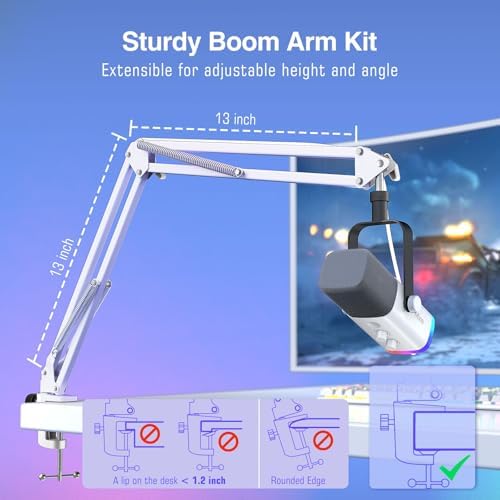
This image illustrates the assembly of the boom arm and how to attach the microphone. The boom arm is adjustable for height and angle, and it clamps to a desk with a thickness of less than 2 inches. Ensure the desk edge is not rounded for secure attachment.
- Bom kolunu takın clamp to a sturdy desk or table edge. Ensure the desk thickness is less than 2 inches (5 cm) and the edge is flat for secure mounting.
- Bom kolunu cl'ye yerleştirinamp ve sabitlemek için düğmeyi sıkın.
- Attach the microphone to the 5/8" screw thread on the boom arm. Adjust the microphone's angle and position as needed.
3. Connecting the Microphone and Mixer
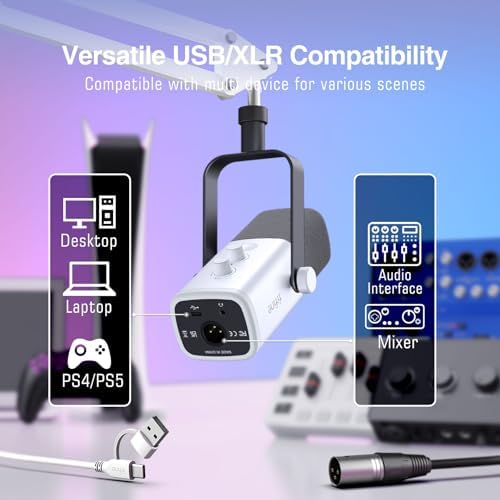
This image shows the versatile connectivity options of the microphone, including USB for direct PC connection and XLR for use with an audio interface or mixer. Compatible devices include Desktop PCs, Laptops, and PS4/PS5.

This image demonstrates connecting the microphone via XLR to the mixer. An XLR cable is required and sold separately. It also shows various FIFINE microphones compatible with XLR or 6.35mm connections.
The FIFINE AM8T microphone offers two primary connection methods:
- USB Bağlantısı: Connect the microphone directly to your PC via the provided USB cable. This allows for instant use with full access to the microphone's function keys.
- XLR Bağlantısı: For enhanced professional audio performance, connect the microphone to the included SC3 Gaming Audio Mixer using an XLR cable (not included).
Connect the SC3 Gaming Audio Mixer to your computer using the USB cable. The mixer is compatible with Personal Computers, Laptops, and gaming consoles like PS4/PS5.
Kullanım Talimatları
1. Microphone Usage (AM8T)

This image illustrates the cardioid pickup pattern of the microphone, showing that it primarily captures sound from the front (facing the mic top) while reducing off-axis noise like keyboard clicks.
- Konumlandırma: For optimal sound capture and to minimize background noise, ensure the top of the microphone is facing the sound source (e.g., your mouth). The cardioid pickup pattern focuses precisely on your voice.
- Sesi kapatmak için dokunun: The microphone features a tap-to-mute function for quick and convenient audio control during live sessions.
2. Gaming Audio Mixer (SC3) Controls

This image displays the FIFINE SC3 Gaming Audio Mixer, highlighting its controllable RGB lighting with five modes and over eight colors. The mixer features multiple faders and buttons for audio control.

This image details the individual faders on the SC3 mixer for controlling different audio channels, including microphone, line in, headphone, and line out. It emphasizes precise audio mixing capabilities.

This image focuses on the six effect buttons on the SC3 mixer, including a 'Change Voice' button for voice modulation and customizable 'Custom' buttons (B and D). An 'Electric' button for auto-tune is also visible.
The SC3 Gaming Audio Mixer provides comprehensive control over your audio:
- Individual Faders: Use the smooth pushing faders to adjust the volume levels for your microphone, line-in audio, headphone output, and line-out audio independently.
- Sesi Kapatma Düğmeleri: Dedicated mute buttons for each channel allow for quick audio cutoff.
- RGB Aydınlatma Kontrolü: Customize the mixer's visual appeal with controllable RGB lighting. Select from five modes and over eight colors to match your setup or mood.
- Efekt Düğmeleri: Utilize the six effect buttons for various audio enhancements:
- Change Voice: Instantly modify your voice with options like Male, Female, Robot, Monster, Baby, and Elder.
- Özel Düğmeler (A, B, C, D): Assign your own sound effects or functions to these customizable buttons to streamline your workflow.
- Electric (Auto-Tune): Apply auto-tune effects to your vocals.
3. Yazılım Entegrasyonu
The FIFINE AM8T+SC3 Kit is designed to integrate seamlessly with popular streaming and recording platforms, including OBS Studio, Twitch, Discord, and YouTube. Ensure your computer's audio settings recognize the microphone and mixer as input/output devices.
Bakım
Proper maintenance ensures the longevity and optimal performance of your FIFINE AM8T+SC3 Kit:
- Temizlik: Regularly wipe the microphone and mixer with a soft, dry cloth to remove dust and fingerprints. Avoid using harsh chemicals or abrasive materials.
- Depolamak: When not in use, store the kit in a dry, cool environment away from direct sunlight and extreme temperatures or humidity.
- İşleme: Handle the microphone, mixer, and boom arm with care to prevent physical damage. Avoid dropping or subjecting them to strong impacts.
- Kablo yönetimi: Kabloların kıvrılmamasına veya gerilmemesine dikkat edin; bu, zamanla hasara yol açabilir.
Sorun giderme
If you encounter issues with your FIFINE AM8T+SC3 Kit, refer to the following common troubleshooting steps:
Ses Çıkışı Yok
- Bağlantıları Kontrol Edin: Ensure all cables (USB, XLR, headphone) are securely connected to their respective ports on the microphone, mixer, and computer.
- Power and Mute Status: Verify that the microphone and mixer are powered on and not in a muted state. Check the tap-to-mute function on the microphone and mute buttons on the mixer.
- Yazılım Ayarları: Confirm that the FIFINE microphone and mixer are selected as the default input and output devices in your computer's sound settings and any recording/streaming software (e.g., OBS Studio, Discord).
- Ses Seviyeleri: Adjust the individual volume faders on the mixer and check your computer's master volume.
Kötü Ses Kalitesi
- Mikrofon Konumlandırması: Ensure the microphone is correctly positioned, with its top facing the sound source, to utilize its cardioid pickup pattern effectively.
- Arka Plan Gürültüsü: Minimize ambient background noise in your recording environment.
- Kazanç Ayarlaması: Adjust the microphone gain on the mixer or in your software settings to prevent clipping or low volume.
- Kablo Bütünlüğü: Test with different USB or XLR cables if you suspect a faulty cable.
- Sürücü Güncellemeleri: Bilgisayarınızın ses sürücülerinin güncel olduğundan emin olun.
RGB Aydınlatma Çalışmıyor
- Güç Kontrolü: Ensure the mixer is properly powered on.
- RGB Kontrolü: Verify the RGB control settings on the mixer are correctly configured.
Özellikler
Key specifications for the FIFINE AM8T+SC3 Kit:
| Özellik | Şartname |
|---|---|
| Marka | FİFİN |
| Model Adı | AM8TW+SC3W |
| Bağlantı Teknolojisi | USB |
| Bağlayıcı Türü | USB, XLR |
| Önerilen Kullanımlar | Gaming, Streaming, Voice Recording |
| Uyumlu Cihazlar | Kişisel Bilgisayar |
| Kutup Deseni | Tek Yönlü (Kardioid) |
| Mikrofon Form Faktörü | Mini |
| Güç Kaynağı | Kablolu Elektrik |
| Donanım Platformu | PC |
| Kanal Sayısı | 1 (Mikrofon) |
| Malzeme | Metal, Plastik |
Garanti ve Destek
Your FIFINE AM8T+SC3 Kit includes a warranty card. Please refer to the warranty card for specific terms and conditions regarding coverage and duration.
For technical support, troubleshooting assistance, or any product-related inquiries, please visit the official FIFINE website or contact their customer service department. Contact information can typically be found on the warranty card or the FIFINE official webalan.